The 9 Best USB-C Docks
USB-C docks vary wildly in display support, power delivery headroom, and port speed. Our research-backed picks cover every need, from compact travel hubs to full desktop workstation docks.
 By Emma Gonzales
Updated July 26, 2026
By Emma Gonzales
Updated July 26, 2026

A modern USB-C port is one of the most versatile connectors ever put on a laptop, yet a single port can only do so much at once.
Whether you’re working from a cramped desk and need dual monitors, constantly swapping between a SD card, an external drive, and a wired network connection, or simply tired of plugging in five cables every morning, a good USB-C dock turns that one port into a fully equipped workstation in seconds.
The market has grown quickly, and the range of options now spans compact five-in-one travel hubs all the way to thirteen-port desktop powerhouses with triple-display output.
At REMOVU, we cut through the noise by analyzing published specifications, synthesizing expert review consensus across the industry, and weighing verified buyer feedback to surface the docks that genuinely earn their keep.
Every pick on this list has been scored using the REMOVU Score methodology so you can compare them at a glance.
Whether you need a budget-friendly companion for an ultraportable 2-in-1 laptop or a full-featured station for a permanent home office setup, the picks below have you covered.
| Award | Product | REMOVU Score About REMOVU ScoreThe REMOVU Score is our own rating from 0 to 10, based on performance, design and build, ease of use, and value. It reflects independent research and is never influenced by manufacturers, retailers, or affiliate commissions. Learn more › | Price | |
|---|---|---|---|---|
| Best Overall |
 Anker Nano A83C3 13-in-1 Docking Station with Detachable Hub
|
8.6/10 | Buy | |
| Best Premium |
 Dell Pro Dock WD25 USB-C Docking Station
|
8.5/10 | Buy | |
| Best Budget |
 UGREEN Revodok Pro 6-in-1 USB-C Hub 10Gbps 4K
|
8.3/10 | Buy | |
 Anker 565 11-in-1 USB-C Hub with Dual 4K Display
|
7.8/10 | Buy | ||
| Best Value |
 Anker Nano A210B 8-in-1 USB-C Hub with Dual 4K HDMI
|
7.6/10 | Buy | |
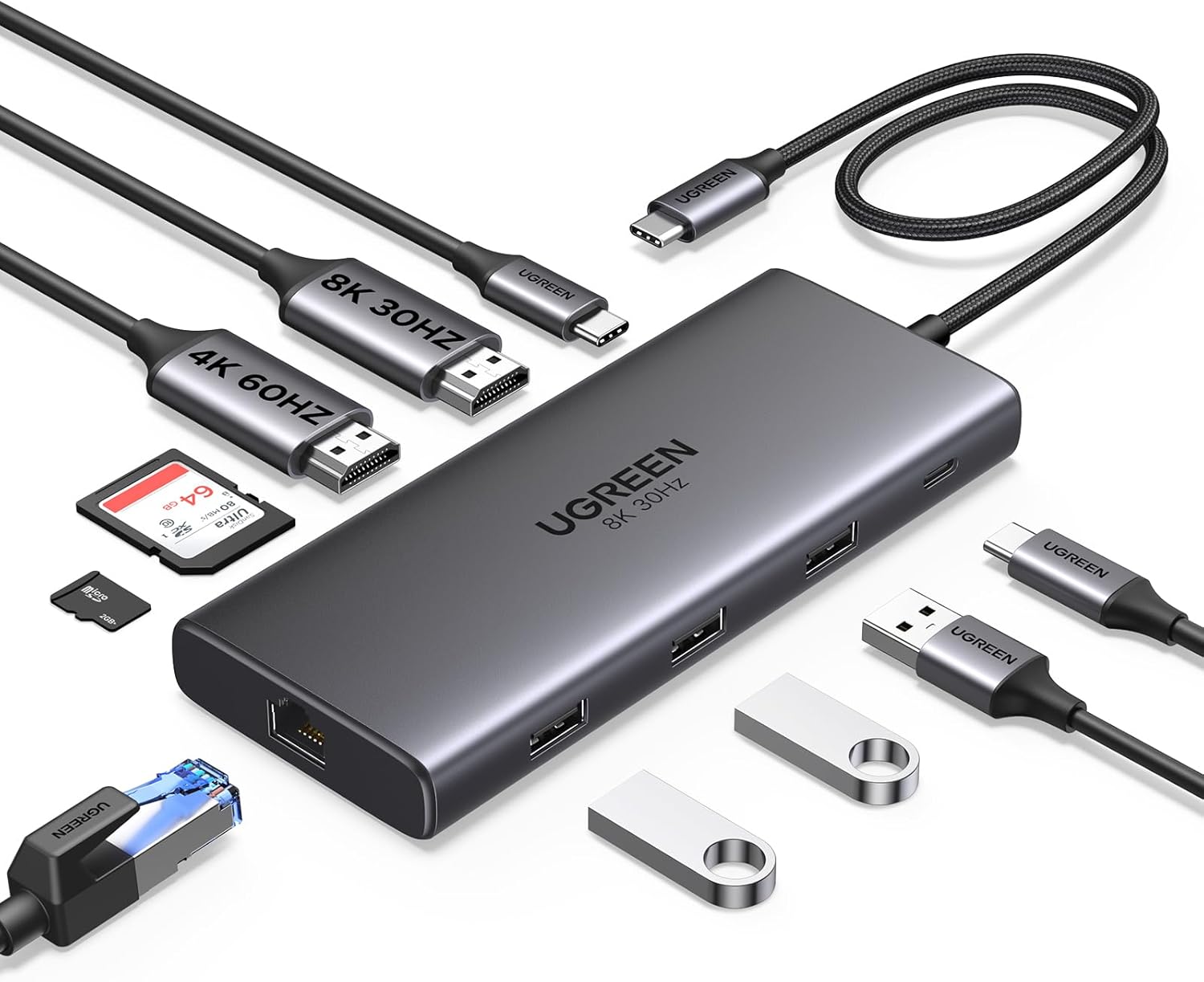 UGREEN Revodok Pro 10-in-1 USB-C Dock with Dual HDMI
|
7.5/10 | Buy | ||
 Anker PowerExpand 8-in-1 USB-C Hub with Dual HDMI
|
7.2/10 | Buy | ||
 UGREEN 7-in-1 USB-C Dock, Dual 4K HDMI
|
7.1/10 | Buy | ||
 Anker 332 USB-C Hub 5-in-1 with 4K HDMI
|
6.2/10 | Buy |
Anker Nano A83C3 13-in-1 Docking Station with Detachable Hub
A dual-form docking station that splits into a fixed 13-in-1 desktop dock and removable 6-in-1 portable hub, eliminating the need for separate travel gear. Supports triple displays up to 4K single or triple 1080p, delivers 100W laptop charging, and includes 10Gbps data transfer on one USB-C port. Best suited for remote workers and professionals who alternate between home office setups and mobile work.
Pros
- Detachable design covers both stationary and mobile use cases without buying two separate docks
- Triple display support with flexible resolution options (up to 4K single, dual 2K, or triple 1080p)
- 100W Power Delivery charges most USB-C laptops while running all peripherals simultaneously
- Comprehensive port selection including 10Gbps USB-C data, Gigabit Ethernet, SD/TF card readers, and 3.5mm audio
- Plug-and-play setup with no driver installation required on Windows and macOS
Cons
- Hub may block adjacent USB-C ports on some laptop models, requiring dimension verification before purchase
- Dock requires active laptop connection to function; ports and status light only activate when connected
- Ethernet functionality on Windows requires manual Realtek driver installation for full compatibility
- macOS limited to mirrored display mode only on multiple external monitors
Dell Pro Dock WD25 USB-C Docking Station
A versatile docking station built for modern workplaces, the WD25 delivers up to 100W power delivery and supports four displays simultaneously. Its 6 USB ports, Ethernet connectivity, and cloud-based management make it ideal for professionals seeking a centralized workspace solution, though it's positioned as a premium option for Dell and compatible systems.
Pros
- Supports up to four high-resolution displays with dual DisplayPort 1.4 and HDMI 2.1
- Delivers 100W power delivery suitable for latest AI laptops and mainstream PCs
- Comprehensive port selection with 6 USB ports, 2.5 Gigabit Ethernet, and dual DisplayPort outputs
- Built with 65% post-consumer recycled materials and achieves 72% power reduction in standby mode
- Ambidextrous USB-C cable (0.80m) allows flexible left or right routing for workspace customization
Cons
- Firmware updates and Device Management Console features require Dell Display and Peripheral Manager software, adding setup complexity
- Power Button Sync only works with non-Dell notebooks that support PD3.1 specification, limiting cross-brand functionality
- No user reviews available yet, making real-world reliability and long-term durability difficult to assess
UGREEN Revodok Pro 6-in-1 USB-C Hub 10Gbps 4K
A versatile USB-C hub delivering 10Gbps data speeds, 4K 60Hz video output, and 100W charging across six ports. Best suited for MacBook and iPad Pro users needing simultaneous connectivity without breaking the bank.
Pros
- Fast 10Gbps data transfer on both USB-C and USB-A ports
- 100W PD charging handles MacBook and high-power devices
- Supports 4K 60Hz video without dedicated GPU requirement
- Aluminum build feels premium and portable at 180 grams
- Works across Mac, Windows 7+, and Chrome OS without drivers
Cons
- Supports only one external monitor via single HDMI output
- No SD/TF card reader or Gigabit Ethernet, unlike some competitors
- Slow charging may occur if using non-certified chargers or DC-powered laptops
Anker 565 11-in-1 USB-C Hub with Dual 4K Display
This 11-port docking station expands USB-C laptops with dual monitor support, 10 Gbps data transfer, and 85W pass-through charging in a compact aluminum design. Best suited for professionals needing multi-monitor setups without the enterprise price tag.
Pros
- Extensive port variety eliminates need for multiple adapters; supports dual external displays simultaneously
- Fast data transfer with 10 Gbps USB-C and USB-A ports plus SD card slots reaching 104 MB/s
- Solid build quality and responsive customer support, with users praising reliability for desktop setups
- Competitive pricing compared to brand-name enterprise docking stations
Cons
- Requires separate USB-C power adapter (not included); insufficient power delivery causes stuttering and performance issues for some users
- Display output mode support differs by OS: Windows allows independent content on dual monitors, while macOS mirrors both external displays
- Some reported connectivity issues including HDMI port failures and Ethernet dropout, particularly under high-bandwidth usage
Anker Nano A210B 8-in-1 USB-C Hub with Dual 4K HDMI
This 8-in-1 docking station delivers dual 4K@60Hz video output and 85W laptop charging through a single USB-C connection, making it practical for Windows users managing multiple displays. The aluminum design and 9.84-inch cable reduce desk clutter while supporting 10 Gbps data transfer across USB ports. Best suited for productivity workflows on Windows 10/11 and ChromeOS devices with DP Alt Mode support.
Pros
- Dual 4K@60Hz HDMI output enables genuine extended display on Windows (not mirrored)
- Fast 10 Gbps data transfer on all three data ports (two USB-A, one USB-C)
- 85W pass-through charging supports most modern laptops with compatible 100W PD charger
- Premium aluminum build with effective heat dissipation and organized 9.84-inch cable
- SD/TF card reader built-in for immediate media import at up to 104 MB/s
Cons
- Requires external 100W PD charger and cable (not included) to achieve full 85W charging capacity
- macOS users get mirrored displays only; dual independent displays not supported on Apple devices
- Not compatible with Linux systems or recommended for MacBook dual-monitor setups
- No Ethernet port despite 8-in-1 branding; 15W of the 100W input is reserved for hub operation
UGREEN Revodok Pro 10-in-1 USB-C Dock with Dual HDMI
This 10-port docking station connects dual 4K monitors at 60Hz or a single 8K display via dual HDMI outputs, with 100W USB-C charging and 1Gbps ethernet for complete workstation expansion. Best suited for Windows laptop users needing multi-monitor setup, though Mac users face display mirroring limitations.
Pros
- Excellent dual-monitor support for Windows users with MST mode allowing extended displays
- Substantial 100W charging capability supports most USB-C laptops without external adapters
- Well-built aluminum construction with thermal management, runs warm but not hot per verified reviews
- Longer cable provides meaningful desk flexibility compared to standard docking stations
- Strong customer satisfaction at 4.4/5 stars across 3,553 verified purchases
Cons
- Mac users experience display mirroring on both monitors due to macOS SST limitations, not extended mode
- HDMI 2 requires DP 1.4 with DSC compression to reach 8K@30Hz single display; without DSC maxes at 4K@60Hz
- Requires external power supply connection for USB peripherals to function reliably; high-power devices may cause disconnections
Anker PowerExpand 8-in-1 USB-C Hub with Dual HDMI
This USB-C hub expands a single port into eight connections, including dual HDMI outputs, dual USB-A ports, Ethernet, and SD card reader. It supports up to 85W pass-through charging and handles 4K displays on compatible devices, making it practical for laptop users who need multiple peripherals without juggling adapters.
Pros
- Dual HDMI ports enable multi-monitor setups with 4K@60Hz single display or 4K@30Hz dual display support
- 85W pass-through charging allows simultaneous power delivery while using other hub functions
- Universal SD/microSD card compatibility for seamless media file access
- 5 Gbps data transfer speed via dual USB-A ports for quick file syncing
- Strong user rating of 4.3 stars across 6,588 reviews reflects reliable real-world performance
Cons
- Mac users face display mirroring limitation on HDMI connections due to lack of Multi-Stream Transport support
- 4K@60Hz dual display requires DisplayPort 1.4 compatibility, limiting functionality on older laptops and certain models like Surface Pro 7
- Requires separate 100W PD wall charger and USB-C cable for full charging capability, not included in box
UGREEN 7-in-1 USB-C Dock, Dual 4K HDMI
A straightforward docking solution for laptop users needing dual monitor setup and fast data transfer. Delivers dual 4K@60Hz HDMI output with 100W charging support and 10Gbps USB ports, making it practical for professionals working with multiple displays. Best suited for Windows users seeking an affordable, compact dock.
Pros
- Dual 4K@60Hz HDMI ports enable true dual-monitor extended display on Windows systems
- Fast 10Gbps USB-A and USB-C data ports for quick file transfers and peripheral connectivity
- 100W USB-C Power Delivery supports charging most laptops simultaneously with dock use
- Compact aluminum design fits well in mobile workspaces and desk setups
- Solid 4.3-star rating from nearly 3,000 verified buyers indicates reliable real-world performance
Cons
- macOS users face mirror-mode limitation only; extended dual displays show identical content, making it unsuitable for Mac workflows requiring separate monitor displays
- Charging port does not support data or video transfer, requiring a separate 100W+ power adapter not included in box
- 10Gbps speeds require both dock and compatible cables to support the standard, limiting plug-and-play convenience
Anker 332 USB-C Hub 5-in-1 with 4K HDMI
A compact five-port hub that turns a single USB-C connection into multiple data and display options. It handles 4K video output via HDMI, supports up to 85W pass-through charging for laptops, and delivers 5 Gbps file transfer speeds, making it practical for MacBook and Windows laptop users who need quick expansion without bulk.
Pros
- Ultra-thin design fits easily into bags and laptop sleeves
- Supports 85W pass-through charging so you can power your laptop while using the hub
- Reliable 4K@30Hz HDMI output for external monitor connectivity
- 5 Gbps data transfer on USB-C and USB-A ports handles photo and video files efficiently
- Strong user rating of 4.4/5 from over 18,000 reviews indicates consistent real-world performance
Cons
- HDMI maxes out at 4K@30Hz, not 4K@60Hz like pricier Anker models
- Requires DP Alt Mode and Power Delivery support on your USB-C port; not all devices compatible
- USB-C charging port does not support data transfer, limiting flexibility in port use
USB-C Docks Buying Guide
Choosing the right USB-C dock is not simply about counting ports.
Thermal management, chipset quality, power delivery headroom, and display bandwidth all determine whether a dock quietly does its job for years or becomes a bottleneck the moment you demand more from it.
The sections below walk through every criterion worth understanding before you buy.
Number of Displays and Video Output Standards

Display output is often the single most important decision point. If you only need one external screen, almost any dock with an HDMI port will do.
Dual-monitor setups require a dock with two independent video outputs, but not all dual-output docks are created equal.
Docks that rely on DisplayLink compression chips can drive two screens even from laptops with limited Thunderbolt or USB-C bandwidth, while docks that depend entirely on native Alt Mode can be constrained by how many display lanes your laptop’s chip allocates.
Resolution matters too. A dock advertising 4K output may cap at 30 Hz on one port when both outputs are active simultaneously, which makes motion look sluggish on a productivity monitor.
Look for docks that explicitly specify dual 4K at 60 Hz across both ports under load. If you run a creative workflow alongside a high-refresh-rate panel, confirm the dock can sustain those specs concurrently rather than only in single-display mode.
Pairing a capable dock with quality desktop monitors makes the investment worthwhile.
For power users who need three or more displays, only select docks with dedicated DisplayLink or MST hub chips support triple-display output reliably. macOS additionally restricts the number of external displays on Apple Silicon machines regardless of the dock, so macOS users should verify display-count compatibility with their specific MacBook generation before purchasing.
Power Delivery and Charging Headroom

Power Delivery (PD) is the spec that tells you how many watts the dock passes back to your laptop while everything else is running.
A dock rated at 100W PD sounds generous, but once the dock’s own circuitry draws its share, the effective charge rate delivered to the laptop is usually 15 to 20W lower than the headline figure.
In practice, 85W to 100W rated docks are the safe zone for 14-inch and 16-inch laptops that ship with 65W to 96W chargers, while smaller ultrabooks manage fine with 60W or 65W pass-through.
Pay attention to whether the dock requires you to supply your own power adapter (common in bus-powered designs) or ships with a dedicated power brick.
Bus-powered hubs pull everything from the laptop’s own USB-C port, which limits how much simultaneous bandwidth and charging they can deliver.
Docks with their own power bricks offload that burden entirely and tend to be more stable under sustained load, particularly when multiple storage devices and peripherals are active at once.
USB Data Ports: Speed, Count, and Mix
USB port count is only half the story. Speed tiers matter enormously for real-world use. USB 2.0 ports top out around 60 MB/s and are fine for keyboards, mice, and webcams, but they will severely bottleneck an external SSD.
USB-A 3.2 Gen 1 delivers up to 5 Gbps, Gen 2 hits 10 Gbps, and USB-C ports on higher-end docks can reach 10 or even 20 Gbps.
If you regularly offload large video files or run backup drives through the dock, confirming that the ports you intend to use for storage are at least 10 Gbps is critical.
A balanced dock for a home office typically offers a mix: two to four USB-A ports for everyday peripherals like a wireless mouse receiver or a flash drive, one or two USB-C data ports for high-speed storage or daisy-chaining, and ideally a dedicated USB-C port that doubles as a second PD charging output for a phone or tablet.
Watch out for docks where all ports share a single bandwidth pool; connecting multiple high-speed devices simultaneously can cause all of them to throttle below their rated speeds.
Ethernet and Network Reliability

Wi-Fi is convenient, but a wired Gigabit Ethernet connection through a dock is measurably more stable for video calls, large file transfers, and latency-sensitive work.
Most mid-range and premium docks include a RJ-45 Ethernet port, though the chipset used internally varies.
Realtek-based Ethernet adapters are the most common and broadly compatible, while Aquantia-based chips are found on higher-end docks that support 2.5 Gbps Ethernet for networks fast enough to take advantage of it.
If you use a desktop computer as your primary machine and only need a dock for a secondary laptop, confirm the Ethernet port behaves well when hot-plugging.
Some cheaper docks require a driver restart or cause brief network drops when reconnected.
Verified buyer feedback for the docks we recommend shows that models from Anker and UGREEN are generally reliable in this regard, but it is worth reading recent reviews for the specific firmware version shipping today.
Build Quality, Thermals, and Form Factor

Aluminum-chassis docks dissipate heat far more effectively than plastic enclosures, which matters because power delivery, display output, and high-speed data transfer all generate significant heat simultaneously.
Sustained thermal throttling in cheaper plastic docks is a documented failure mode: the dock artificially slows data transfer or drops display output to protect itself from overheating.
An aluminum shell acts as a passive heatsink and also signals more durable overall construction.
Form factor is a practical consideration that is easy to overlook. Desktop docks often sit horizontally beside the laptop or stand vertically to save footprint. Travel-oriented hubs are small enough to drop in a bag alongside a compact laptop.
If desk space is tight, a shorter cable tether between the hub and the laptop also helps reduce clutter.
For users who pair the dock with a standing desk or monitor arm, check that the dock’s cable reaches your laptop comfortably in both sitting and standing positions.
Compatibility: macOS, Windows, and ChromeOS

Most USB-C docks work across operating systems at a base level, but full feature compatibility is a different matter. DisplayLink-based docks require a software driver on macOS and Windows; without it, the additional display outputs simply will not activate.
On macOS Sonoma and later, DisplayLink drivers need explicit Screen Recording permission to function, which surprises first-time users.
Alt Mode display output, by contrast, requires no driver but depends entirely on the host laptop’s USB-C controller supporting Display Alt Mode, which is not universal across every USB-C port even on the same laptop.
Chromebook users should specifically look for docks that advertise ChromeOS compatibility, as some display and audio features are restricted by ChromeOS’s driver model.
For iPad Pro users who want to drive an external display through a dock, USB4 or Thunderbolt-rated docks offer the broadest compatibility.
If you also use a Chromebook alongside a Windows machine and want one dock to serve both, verify the specific model supports both platforms in the product documentation rather than relying on generic “broad compatibility” claims.
Why You Should Trust Us
REMOVU is an independent review platform.
Every product on this list was evaluated using the REMOVU Score system, a consistent 0 to 10 scale applied across a standardized set of criteria: display output capability, power delivery headroom, port selection and speed, build quality, thermal management, cross-platform compatibility, and value relative to the competition in its price tier.
We do not conduct our own product trials; our evaluations are grounded in research, published data, expert review consensus, and verified buyer feedback.
Our scoring draws on manufacturer-published specifications, aggregated expert assessments from across the technology media, and patterns in verified purchaser feedback that reveal real-world reliability trends over time.
When a dock consistently draws complaints about a specific port or thermal behavior across hundreds of verified purchases, that evidence is factored into the score regardless of how impressive the spec sheet looks.
When expert reviewers consistently praise a product’s build consistency and driver stability, that consensus carries weight too.
REMOVU may earn an affiliate commission if you purchase through a link on this page. That commercial relationship has no influence on which products appear, how they are ranked, or what REMOVU Score they receive.
Our recommendations are determined by the evaluation criteria above, not by margin or commission rate. We do not sell products, handle orders, or manage returns; for any purchase-related support, contact the retailer or manufacturer directly.
Final Thoughts
After evaluating every option on this list against consistent criteria, a few standout picks suit clearly defined needs. Here is how we would summarize the field for buyers making a final decision.
- Best Overall: Anker Nano Laptop Docking Station 13-in-1 earns the top REMOVU Score on this list thanks to its triple-display output, robust 100W PD pass-through, 10 Gbps USB-C data port, and modular design that separates the desktop dock body from a detachable travel hub, giving it genuine versatility that no other pick here matches.
- Best for Enterprise and Office Environments: Dell Pro Laptop Docking Station WD25 is purpose-built for professional deployments, offering plug-and-play quad-display support, 100W PD, and a universal compatibility promise that makes it ideal for IT teams standardizing a single dock across a mixed fleet of laptops.
- Best Compact Hub for Everyday Use: UGREEN Revodok Pro 6-in-1 USB-C Hub earns the highest REMOVU Score among the compact hubs on this list, delivering 10 Gbps data throughput, 100W PD, and 4K 60Hz HDMI output in a form factor small enough to leave attached to a laptop bag permanently, at an accessible budget-tier price.
- Best Mid-Range Dock for Dual-Monitor Setups: Anker USB-C Hub 11-in-1 with 4K HDMI and DisplayPort is the pick for users who need simultaneous HDMI and DisplayPort output, 10 Gbps data, and a full eleven ports in a mid-range package that handles both productivity and light creative workloads without compromise.
- Best Budget Dual-Monitor Dock: UGREEN Revodok Pro 10-in-1 Docking Station punches above its price tier with dual HDMI outputs, 100W PD, Gigabit Ethernet, and an aluminum build, making it the most capable dual-display option at a value-oriented price on this list.
Whichever dock you choose, pairing it with a capable laptop makes the biggest difference.
Users who work across multiple machines or need peripherals like a mechanical keyboard and a quality webcam will find a well-chosen dock pays dividends every single workday.
For buyers also looking to build out a complete desk setup, browsing monitors and peripherals is a natural next step after picking the right dock.
Frequently Asked Questions
What Is the Difference Between a USB-C Hub and a USB-C Docking Station?
The terms are often used interchangeably, but there is a practical distinction. A hub is typically a compact, bus-powered accessory that draws all of its power from the laptop’s USB-C port and prioritizes portability over port count.
A docking station usually ships with or requires an external power adapter, offers more ports, higher power delivery wattage, and is designed for a permanent or semi-permanent desk setup.
If you travel frequently and need something lightweight, a hub is the better fit. If you want a single cable to transform your laptop into a fully equipped workstation every morning, a docking station is the right category.
Will a USB-C Dock Work With My MacBook?
Most USB-C docks work with MacBooks, but with important caveats. Apple Silicon MacBooks (M1 and later) natively support only one external display through a standard USB-C or Thunderbolt port.
To drive two or more external displays, you need a dock that uses a DisplayLink chip and its associated driver software, which requires macOS Screen Recording permission to function.
Docks that rely solely on Display Alt Mode will only activate one screen on Apple Silicon machines. Always check whether the dock explicitly lists Apple Silicon compatibility in its documentation if dual-monitor support on a MacBook is your goal.
How Many Watts of Power Delivery Do I Actually Need?
A general rule: match or slightly exceed the wattage of your laptop’s original charger. Most 13-inch and 14-inch laptops charge comfortably at 45W to 65W, so a dock with 85W PD provides enough headroom even under load.
Larger 15-inch and 16-inch laptops with dedicated GPUs often demand 90W to 140W chargers; in those cases, a dock rated at 100W PD is the minimum you should consider, accepting that charging may be slower under peak workloads than with the original adapter. Compact desktop PCs used alongside a dock obviously do not require PD at all, so you can focus the budget on ports and display output instead.
Can I Use a USB-C Dock With a Gaming Laptop or a High-Performance Workstation Laptop?
Yes, with some nuance. Gaming and workstation laptops typically have USB-C ports that support full Thunderbolt 4 or USB4 bandwidth, making them ideal dock hosts.
However, high-performance laptops running under sustained GPU load draw significantly more power than their charger can supply through the dock’s PD port alone; the laptop’s battery will drain during intensive gaming sessions regardless of PD wattage.
For gaming and creative work at a desk, the dock is best used for peripherals, displays, and storage rather than as the sole power source.
A dedicated gaming setup might benefit from a gaming monitor connected directly via discrete GPU output rather than through the dock for the lowest possible latency.
Do USB-C Docks Require Drivers or Software Installation?
It depends on the dock’s display technology. Docks that use native Display Alt Mode for video output require no drivers at all; plug in and the displays activate automatically.
Docks that use DisplayLink, Silicon Motion, or similar compression chips require a driver package for display output to function. Ethernet, USB data, and SD card ports on virtually all docks are driver-free across Windows, macOS, and ChromeOS.
For plug-and-play simplicity with no software overhead, prioritize Alt Mode-based docks.
For the ability to run multiple displays beyond what the laptop’s native chipset supports, DisplayLink docks are worth the extra setup step, especially if you work on all-in-one computers or multi-machine setups that demand flexible display configurations.
What Should I Look for in a USB-C Dock for Video Editing or Photography Work?
Creative professionals should prioritize three things above all else: fast SD card reader speeds (UHS-II support rather than UHS-I for full camera card throughput), at least one 10 Gbps USB-C data port for an external SSD, and dual 4K 60Hz display output if a color-accurate reference monitor is part of the workflow.
Thermal stability is equally important because video exports and RAW processing push the dock hard for extended periods.
Aluminum-body docks from Anker and UGREEN in this guide are consistently praised in verified buyer feedback for sustained reliability during heavy creative workloads.
Photographers who also use mirrorless cameras will especially appreciate a dock with a UHS-II card slot that reads at full rated speed rather than throttling to USB 2.0 rates.
About the author
Emma is REMOVU's workout headphone writer, comparing secure fit, sweat resistance, and durable builds. She helps readers find earbuds and headphones that stay put through any session.