The 10 Best Docking Stations for Work From Home
A single cable should be all it takes to turn your laptop into a full workstation. We researched the top docking stations for home offices, covering USB-C hubs, Thunderbolt 4 docks, dual-monitor setups, and budget-friendly picks.
 By Myrtle Baker
Updated July 26, 2026
By Myrtle Baker
Updated July 26, 2026

Working from home has permanently changed how we think about desk setups.
A laptop alone rarely cuts it anymore: you need multiple monitors, reliable wired ethernet, fast data transfer for external drives, and enough USB ports to power a full peripherals ecosystem without a tangle of adapters.
A quality docking station solves all of that with a single cable connection, turning a cramped laptop into a proper workstation in seconds.
The right dock can meaningfully increase productivity, reduce cable clutter, and future-proof your home office as your gear evolves.
Choosing among the dozens of options on the market is not straightforward. Thunderbolt 4 docks, USB-C hubs, tri-display adapters, and budget multi-port dongles all occupy the same shelf space but serve very different needs.
REMOVU researched the current landscape by analyzing published specifications, synthesizing expert review consensus across the industry, and weighing verified buyer feedback to surface the options that genuinely deliver for home office workers.
Whether you need a no-nonsense budget dock for video calls and document work or a high-bandwidth Thunderbolt 4 powerhouse for creative workflows, the picks below cover the full spectrum. Read on for our top recommendations.
| Award | Product | REMOVU Score About REMOVU ScoreThe REMOVU Score is our own rating from 0 to 10, based on performance, design and build, ease of use, and value. It reflects independent research and is never influenced by manufacturers, retailers, or affiliate commissions. Learn more › | Price | |
|---|---|---|---|---|
| Best Overall |
 Belkin Thunderbolt 4 14-Port Dock with Triple 4K Display Support
|
8.9/10 | Buy | |
| Best Premium |
 UGREEN 13-in-1 Thunderbolt 4 Docking Station
|
8.6/10 | Buy | |
 Anker Prime 14-in-1 Docking Station, 160W Dual 4K
|
8.1/10 | Buy | ||
| Best Value |
 Anker Nano A83C3 13-in-1 Docking Station with Detachable Hub
|
8.6/10 | Buy | |
 Dell Pro Dock WD25 USB-C Docking Station
|
8.5/10 | Buy | ||
 Baseus Spacemate RD1 Pro 15-in-1 Docking Station
|
7.5/10 | Buy | ||
| Best Budget |
 Anker Nano A210B 8-in-1 USB-C Hub with Dual 4K HDMI
|
7.6/10 | Buy | |
 VVB 14-in-1 USB-C Docking Station with Dual 4K HDMI
|
6.9/10 | Buy | ||
 LIONWEI 13-in-1 USB-C Docking Station with Dual HDMI
|
6.8/10 | Buy | ||
 HODO 8-in-1 USB-C Dock with 4K Multi-Display Support
|
6.2/10 | Buy |
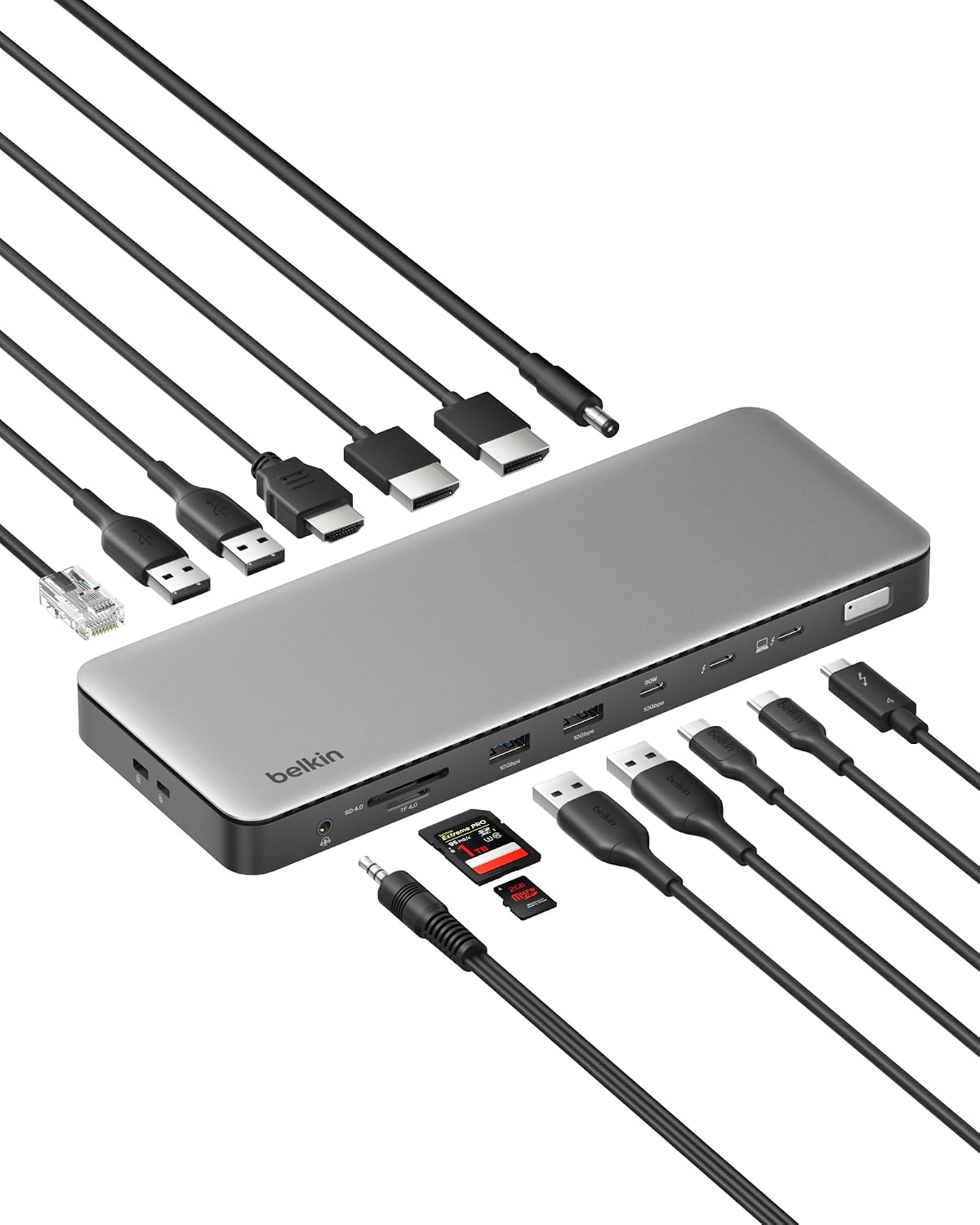
Belkin Thunderbolt 4 14-Port Dock with Triple 4K Display Support
A comprehensive docking station that consolidates 14 ports into one compact hub, delivering 40Gbps data speeds and supporting up to three 4K monitors on Windows PCs. Best suited for professionals needing serious multi-display setups and fast file transfer, though Mac users get dual displays only.
Pros
- Massive port selection eliminates need for multiple adapters on a single dock
- Fast 40Gbps data transfer handles video editing and large file workflows efficiently
- 96W power delivery supports demanding laptops without separate chargers
- 2.5Gb Ethernet outperforms standard gigabit for stable, fast networking
- Wide device compatibility across MacBook Pro/Air, Dell, HP, Lenovo, and Surface lineups
Cons
- Triple 4K display support limited to Windows PCs; macOS maxes out at two extended displays
- No reviews yet on this page, limiting real-world performance feedback from verified buyers
- Premium price point may be steep for users needing only basic expansion
UGREEN 13-in-1 Thunderbolt 4 Docking Station
A compact all-in-one dock for Mac and Windows laptops combining 3x Thunderbolt 4 ports, dual 4K@60Hz display support, and 96W charging in one fanless unit. Best suited for professionals needing multi-monitor setups and ethernet connectivity without adding desk clutter.
Pros
- Solid build quality and compact footprint with vertical or horizontal placement options
- Dual display capability via Thunderbolt 4 and DisplayPort works flawlessly for productivity setups
- Fast card reader at 200MB/s useful for photographers and content creators
- Reliable stability with zero reported disconnects during heavy multitasking
- Reasonable value relative to other Thunderbolt 4 docks on the market
Cons
- No native HDMI port; requires active DP-to-HDMI adapter for HDMI monitors
- Only 1 Gigabit Ethernet rather than 2.5 Gigabit found on pricier competitors
- Limited USB-C and USB-A port count compared to separate hub-plus-breakout setups
Anker Prime 14-in-1 Docking Station, 160W Dual 4K
A space-saving 14-port docking station built for Windows laptops that need serious connectivity and power. It delivers 160W across multiple devices simultaneously, supports dual 4K displays, and offers 10Gbps data transfer, making it ideal for professionals juggling multiple monitors and peripherals. Setup requires checking your laptop's DisplayPort version for optimal dual-monitor performance.
Pros
- Extensive port selection with 4 USB-C and 5 USB-A ports plus dual HDMI, audio, and Ethernet in one compact vertical design
- 160W total power output supports charging up to four devices at once, with individual USB-C ports delivering up to 100W each
- 10Gbps data transfer speeds on supported ports for faster file syncing and external storage access
- Advanced thermal management with temperature controls and heat dissipation to maintain safe operation during heavy use
- Customizable power distribution through Dock Manager app for tailored charging profiles
Cons
- Dual display resolution limited to 2K at 60Hz on DP 1.4 laptops or 1080p on DP 1.2, not true 4K for both monitors simultaneously
- Not compatible with Lenovo Legion series laptops and macOS users see identical displays on both external monitors, limiting flexibility
- Requires checking your specific laptop's DisplayPort version and CPU generation to confirm dual-monitor support, adding setup complexity
Anker Nano A83C3 13-in-1 Docking Station with Detachable Hub
A dual-form docking station that splits into a fixed 13-in-1 desktop dock and removable 6-in-1 portable hub, eliminating the need for separate travel gear. Supports triple displays up to 4K single or triple 1080p, delivers 100W laptop charging, and includes 10Gbps data transfer on one USB-C port. Best suited for remote workers and professionals who alternate between home office setups and mobile work.
Pros
- Detachable design covers both stationary and mobile use cases without buying two separate docks
- Triple display support with flexible resolution options (up to 4K single, dual 2K, or triple 1080p)
- 100W Power Delivery charges most USB-C laptops while running all peripherals simultaneously
- Comprehensive port selection including 10Gbps USB-C data, Gigabit Ethernet, SD/TF card readers, and 3.5mm audio
- Plug-and-play setup with no driver installation required on Windows and macOS
Cons
- Hub may block adjacent USB-C ports on some laptop models, requiring dimension verification before purchase
- Dock requires active laptop connection to function; ports and status light only activate when connected
- Ethernet functionality on Windows requires manual Realtek driver installation for full compatibility
- macOS limited to mirrored display mode only on multiple external monitors
Dell Pro Dock WD25 USB-C Docking Station
A versatile docking station built for modern workplaces, the WD25 delivers up to 100W power delivery and supports four displays simultaneously. Its 6 USB ports, Ethernet connectivity, and cloud-based management make it ideal for professionals seeking a centralized workspace solution, though it's positioned as a premium option for Dell and compatible systems.
Pros
- Supports up to four high-resolution displays with dual DisplayPort 1.4 and HDMI 2.1
- Delivers 100W power delivery suitable for latest AI laptops and mainstream PCs
- Comprehensive port selection with 6 USB ports, 2.5 Gigabit Ethernet, and dual DisplayPort outputs
- Built with 65% post-consumer recycled materials and achieves 72% power reduction in standby mode
- Ambidextrous USB-C cable (0.80m) allows flexible left or right routing for workspace customization
Cons
- Firmware updates and Device Management Console features require Dell Display and Peripheral Manager software, adding setup complexity
- Power Button Sync only works with non-Dell notebooks that support PD3.1 specification, limiting cross-brand functionality
- No user reviews available yet, making real-world reliability and long-term durability difficult to assess
Baseus Spacemate RD1 Pro 15-in-1 Docking Station
A feature-packed USB-C dock that consolidates dual 4K displays, 160W multi-device charging, and 15 ports into a compact desk setup. The built-in smart display and Qi2.2 wireless charging add polish, though the premium price and placement constraints of the wireless pad limit its appeal to committed power users.
Pros
- 15 ports including dual HDMI, dual USB-C 10Gbps, SD/TF slots, and Ethernet reduce cable clutter to a single USB-C connection
- 4K dual display support at 60Hz or single display at 120Hz with HDMI 2 handles multitasking and creative workflows smoothly
- 160W total power output with intelligent allocation charges laptop, phone, and accessories simultaneously without performance throttling
- Smart LED display shows real-time port status, charging power, and safety alerts for quick troubleshooting
- Compact footprint with premium build quality and modern aesthetic doesn't dominate desk space despite extensive connectivity
- Broad Windows and macOS compatibility, including M-series Macs and enterprise laptop lines (Dell XPS, ThinkPad, HP EliteBook)
- 24-month warranty plus lifetime support and 45-day money-back guarantee
Cons
- Premium pricing around $299 is steep; some users found it difficult to justify without pre-purchase discounts
- Qi2.2 wireless charging (25W max) shares power with laptop charging and can deprioritize phone charging when dock powers connected laptop, slowing charge speed
- Magnetic phone holder lacks sufficient strength to hold larger phones reliably on the wireless pad; dock positioning must remain upright for practical wireless charging use
- Limited documentation at launch created confusion about host connection capabilities; marketed as universal but is 10Gbps USB-C only, not Thunderbolt or USB4
- Only four charging ports (two USB-C, two USB-A) on front feels limited at this price point; no rear charging ports restricts cable management flexibility for dongle-style chargers
Anker Nano A210B 8-in-1 USB-C Hub with Dual 4K HDMI
This 8-in-1 docking station delivers dual 4K@60Hz video output and 85W laptop charging through a single USB-C connection, making it practical for Windows users managing multiple displays. The aluminum design and 9.84-inch cable reduce desk clutter while supporting 10 Gbps data transfer across USB ports. Best suited for productivity workflows on Windows 10/11 and ChromeOS devices with DP Alt Mode support.
Pros
- Dual 4K@60Hz HDMI output enables genuine extended display on Windows (not mirrored)
- Fast 10 Gbps data transfer on all three data ports (two USB-A, one USB-C)
- 85W pass-through charging supports most modern laptops with compatible 100W PD charger
- Premium aluminum build with effective heat dissipation and organized 9.84-inch cable
- SD/TF card reader built-in for immediate media import at up to 104 MB/s
Cons
- Requires external 100W PD charger and cable (not included) to achieve full 85W charging capacity
- macOS users get mirrored displays only; dual independent displays not supported on Apple devices
- Not compatible with Linux systems or recommended for MacBook dual-monitor setups
- No Ethernet port despite 8-in-1 branding; 15W of the 100W input is reserved for hub operation
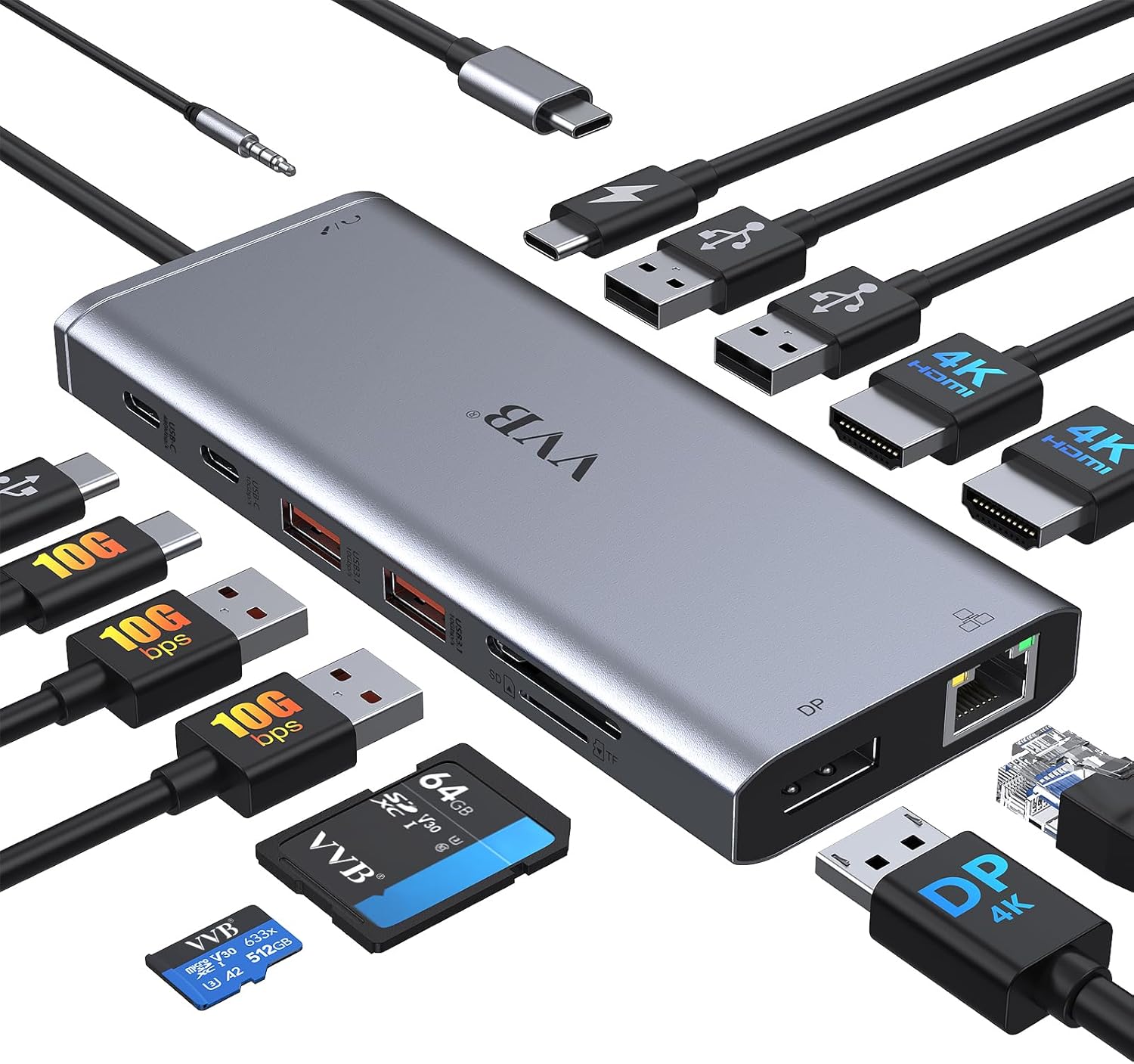
VVB 14-in-1 USB-C Docking Station with Dual 4K HDMI
This 14-port USB-C hub consolidates your laptop's connectivity with dual 4K HDMI outputs, DisplayPort, Ethernet, and 100W power delivery. It's built for professionals juggling multiple monitors and high-speed file transfers, though compatibility varies by device and MacBooks face display limitations.
Pros
- Extensive port selection (14 total) covers monitors, storage, networking, and charging in one dock
- High-speed data transfer via USB 3.1 ports at 10Gbps for quick file operations
- Flexible multi-monitor support up to triple displays on Windows with 4K capability on primary output
- 100W USB-C Power Delivery handles charging most laptops while docked
- Gigabit Ethernet for stable wired network connections
Cons
- Not all USB-C devices are compatible; some cannot access HDMI or DisplayPort functions even when plugged in
- MacBooks only support mirrored display output, not extended multi-monitor setups like Windows
- Actual charging output capped at 87W despite 100W input, and requires compatible Power Delivery protocol on your laptop's USB-C port
- Charging cable and power adapter sold separately
LIONWEI 13-in-1 USB-C Docking Station with Dual HDMI
This 13-port docking station consolidates multiple connections into one USB-C hub, supporting dual 4K displays, 100W power delivery, and gigabit ethernet. It's built for remote workers and creators who need a clean desk setup without juggling adapters.
Pros
- Dual 4K HDMI outputs plus DisplayPort enable triple-display setups on Windows (single extended monitor on macOS)
- 10Gbps USB-C and USB 3.1 data transfer keeps file operations fast alongside simultaneous charging
- 100W power delivery charges most laptops while the dock operates, plus gigabit ethernet and 3.5mm audio jack consolidate connectivity
- Plug-and-play design with no driver installation required across major operating systems
- 18-month warranty provides reasonable protection at the budget price point
Cons
- macOS users limited to one extended 4K monitor despite triple-display hardware capability
- 100W charging power is reduced to 87W after the dock's own power consumption, potentially slower charging on high-power laptops
- Limited independent evaluation data in product description; relies on large review count (13,349) rather than detailed specs breakdown
HODO 8-in-1 USB-C Dock with 4K Multi-Display Support
This USB-C docking station combines four video outputs (dual HDMI, DisplayPort, VGA) with 100W charging and three USB 2.0 ports, making it suitable for professionals needing multi-monitor setups. Broad compatibility spans Dell, HP, Lenovo, and select Apple devices, though success depends on your specific laptop model having full-featured USB-C with DisplayPort Alt Mode.
Pros
- Supports up to four displays simultaneously on Windows (dual/triple at 4K, quad at 1080p)
- 100W USB-C Power Delivery charges most laptops while docked
- Extensive device compatibility with detailed model-specific lists for Dell, HP, Lenovo, Apple, ASUS, and others
- Multiple video output standards (HDMI, DisplayPort, VGA) accommodate various monitor types
- Solid 4.3-star rating from over 4,300 verified reviews
Cons
- Requires compatible USB-C port with DisplayPort Alt Mode and Power Delivery; many budget and gaming laptops lack this capability
- Mac devices only support mirror mode across displays, not extended mode with different content per screen
- Charger and cables not included; requires 65W+ power adapter for optimal performance, and dock consumes 7-8W itself during operation
- VGA connection limits all display resolutions to 1080p; cables cannot exceed 3 meters
- Some users may experience compatibility issues requiring verification with brand support before purchase
Docking Stations for Work from Home Buying Guide
Not all docking stations are created equal, and picking the wrong one for your setup is a common and expensive mistake.
The sections below walk through the criteria that matter most for a home office environment, so you can match specs to your actual workflow rather than paying for features you will never use.
If you are also building out the rest of your desk, our monitors and peripherals hub is a good starting point for complementary gear.
Connection Standard: USB-C Hub vs. Thunderbolt 4

The single biggest decision you will make is whether to buy a USB-C dock or a Thunderbolt 4 dock. USB-C docks use the DisplayPort Alt Mode and USB 3.x protocols built into most modern laptops.
They are broadly compatible, often available at more accessible price points, and perfectly capable of driving dual 4K displays and transferring files at up to 10 Gbps.
For the majority of home office workers handling documents, video calls, and light creative work, a USB-C dock is all they need.
Thunderbolt 4 docks use Intel’s proprietary protocol to deliver up to 40 Gbps of bandwidth across a single cable, support daisy-chaining up to six devices, and can sustain multiple 4K 60 Hz displays or even a single 8K output without bandwidth constraints.
They also offer PCIe tunneling, which is relevant for external GPU enclosures. The catch is that your laptop must have a Thunderbolt 4 (or Thunderbolt 3) port to take advantage of any of this.
If your machine only has USB-C, a Thunderbolt dock will work but will revert to USB speeds, making the premium mostly wasted. Confirm your laptop’s port specification before buying.
Pairing a Thunderbolt dock with a capable laptop is especially worthwhile if your workflow involves video editing or other bandwidth-intensive tasks.
A practical rule: if your laptop shipped with a Thunderbolt 4 badge and your workflow demands maximum throughput, invest in a Thunderbolt 4 dock. Otherwise, a well-specified USB-C dock almost always delivers the right balance of performance and value.
Display Output: Number of Monitors, Resolution, and Refresh Rate

Most remote workers benefit enormously from at least one external monitor, and many productivity-focused setups run two or three screens. Before buying, map out exactly how many displays you want and at what resolution.
A dock advertising “triple display” support does not automatically mean three independent 4K streams; many budget docks achieve a third output by mirroring or by downgrading one output to 1080p. Read the fine print on simultaneous resolution caps.
For standard office work, dual 4K 60 Hz is the sweet spot. Creative professionals who color-grade or edit video should prioritize docks that maintain 4K 60 Hz on all active outputs simultaneously, which typically requires Thunderbolt 4 bandwidth.
Gamers working from home who also want high refresh rates on their monitors should note that most docking stations cap display outputs at 60 Hz; for high-refresh gaming you will still want a direct GPU connection rather than routing through a dock.
Our roundup of monitors worth buying can help you pair the right display to your dock.
Check which video output connectors the dock provides. HDMI 2.1, DisplayPort 1.4, and USB-C (DP Alt Mode) all support 4K 60 Hz, but older HDMI 2.0 ports top out at 4K 30 Hz for 4:4:4 color.
VGA ports are legacy and best avoided for a new home office setup unless you have an older secondary monitor you want to reuse.
Power Delivery: Charging Your Laptop Through the Dock
One of the most convenient features of a modern docking station is Power Delivery (PD): the dock charges your laptop through the same cable that carries data and display signals. This eliminates a separate charger cable from the equation.
However, PD wattage varies enormously across products, from as low as 30W to as high as 160W or more on premium models, and the right number depends entirely on your laptop.
Thin-and-light laptops like the Dell XPS 13 or MacBook Air typically need 45W to 65W to charge at full speed.
Performance laptops with discrete GPUs, such as those in our 2-in-1 laptop category, often require 90W to 140W to keep up with the CPU and GPU under load.
If the dock’s PD output is below your laptop’s requirement, it will still charge, but slowly or not at all under heavy use. Match PD wattage to your machine’s adapter spec before purchasing.
Some high-end docks also advertise a total power budget that covers both host charging and downstream device charging simultaneously. A 160W total output dock, for instance, may allocate 100W to the laptop and 60W to other connected devices.
This matters if you plan to charge tablets, phones, or accessories from the dock as well.
USB Ports: Types, Speeds, and Quantity
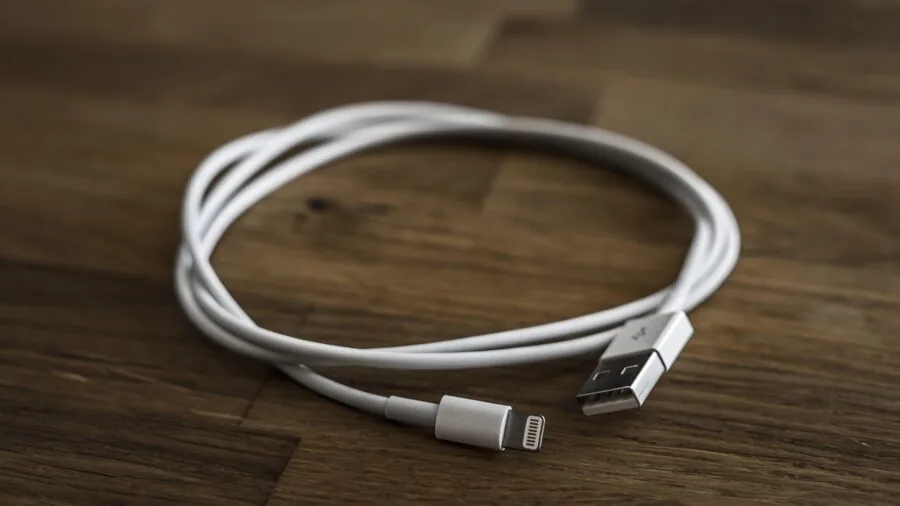
The number and type of USB ports on a dock determines how many peripherals you can connect without adding a separate hub.
For most home offices, you will want a mix of USB-A ports for legacy devices (keyboards, mice, webcams, USB drives) and at least one USB-C data port for newer peripherals and fast storage.
Pay attention to the speed ratings: USB 3.2 Gen 2 delivers up to 10 Gbps, while USB 3.2 Gen 1 caps at 5 Gbps. Budget docks sometimes include USB 2.0 ports at 480 Mbps, which are fine for input devices but painfully slow for external drives.
If you use a mechanical keyboard, a quality wireless mouse, a USB microphone, a webcam, and an external drive simultaneously, you will want at least four to six USB-A ports and one or two USB-C data ports.
Count your current devices and add a buffer for future additions. Docks that provide ten or more total ports give you the most headroom without chaining hubs.
A dedicated webcam in particular benefits from being connected to a USB 3.0 or higher port for the best video quality.
Network Connectivity: Ethernet and Reliability

Wi-Fi is convenient, but for video conferencing, VPN connections, and large file transfers, a wired ethernet connection is consistently faster and more reliable.
Most docking stations include a Gigabit Ethernet port (1 Gbps), which is sufficient for nearly all home broadband connections and remote work scenarios.
Some premium docks, particularly Thunderbolt 4 models, now offer 2.5 Gigabit Ethernet, which becomes relevant if you have a 2.5G router or NAS and regularly move large files across your local network.
If your home office also functions as a media hub or you watch content from a local server on a large display, the ethernet spec matters more.
For reference, a standard 1080p or 4K streaming session uses well under 100 Mbps, so Gigabit ethernet is more than enough for streaming.
Where 2.5G pays off is internal network transfers: copying a 50 GB project file from a NAS to your laptop is noticeably faster at 2.5 Gbps than at 1 Gbps.
Build Quality, Compatibility, and Thermal Management

A docking station sits on your desk and runs continuously throughout the workday, so build quality and thermal management are more important than they might seem.
Budget docks made of thin plastic can run uncomfortably hot under sustained load, which can trigger throttling on high-bandwidth transfers. Look for docks with aluminum or reinforced housings that dissipate heat passively.
Some higher-end models incorporate active cooling with a small fan, though this adds noise.
Compatibility is another genuine concern, particularly for Mac users. MacOS places different constraints on multi-display support than Windows does.
Apple Silicon Macs (M1, M2, M3 series) natively support only one external display through most USB-C or Thunderbolt docks without third-party driver workarounds; models like the M2 Pro and M3 Pro support two or more natively.
Confirm that the dock you are considering is explicitly validated for your laptop model.
Manufacturers like Anker, Belkin, UGREEN, and Dell publish compatibility lists on their product pages, and verified buyer feedback from owners of the same laptop is one of the most reliable indicators of real-world compatibility.
If you also use a desktop all-in-one as a secondary machine, check whether the dock can switch host connections.
Finally, consider cable management. Some docks position their host cable at the back, which keeps the desk tidier. Others route it from the front or side.
Docks with a fixed built-in cable leave no room for connector wear replacement, while detachable cable designs let you swap a damaged cable without replacing the whole unit. The Anker Nano’s modular design, for instance, addresses exactly this concern.
Why You Should Trust Us
REMOVU is an independent review publication with no brand partnerships, sponsored placements, or manufacturer relationships that influence rankings.
Every product in this guide was evaluated using the REMOVU Score, a consistent 0 to 10 rating system applied across the same set of criteria: connectivity breadth, display output capability, power delivery performance, build quality and thermal management, host compatibility, and verified reliability over time.
We do not conduct our own product trials; our evaluations are grounded in research, published data, expert review consensus, and verified buyer feedback.
Our research process pulls from published hardware specifications, teardown and benchmark data from the broader technology press, and aggregated feedback from verified purchasers who have used these docks in real home office environments.
Where expert reviewers and buyer communities converge on the same strengths or weaknesses, we weight that consensus heavily. Products that score well on paper but accumulate consistent complaints about driver issues, overheating, or display instability are penalized accordingly.
REMOVU may earn a commission if you purchase through links on this page. That affiliate relationship has no bearing on which products are included, how they are ranked, or what scores they receive.
Our editorial process and REMOVU Scores are determined independently of any commercial consideration. You can browse our broader monitors and peripherals coverage for additional context on how we approach this category.
Final Thoughts
The home office docking station market has matured significantly, and the options in this guide cover every realistic use case from lean budget setups to professional Thunderbolt 4 workstations.
Here is how we would summarize the standout picks by use case, each earning its designation through its REMOVU Score and the specific strengths that score reflects.
- Best Overall: Belkin Connect Thunderbolt 4 Dock earns the top spot with the highest REMOVU Score in this group. Its 40 Gbps Thunderbolt 4 bandwidth, triple 4K 60 Hz display support, 2.5 Gigabit Ethernet, and robust 14-in-1 port selection make it the most complete single-cable solution for a demanding home office, especially for MacBook and high-end Windows laptop users who need maximum throughput and long-term reliability.
- Best for Power Users on a Budget: Anker Nano Laptop Docking Station (13-in-1) delivers a near-flagship REMOVU Score by combining a modular design, three-display output, 10 Gbps USB-C data, and 100W max Power Delivery in a compact form factor. Its detachable 6-in-1 USB-C hub adds flexibility that fixed-cable competitors cannot match at a comparable price tier.
- Best Thunderbolt 4 Mid-Range Pick: UGREEN Revodok Max 13-in-1 Thunderbolt 4 Dock ties for the highest REMOVU Score and caters to users who want the full 40 Gbps Thunderbolt 4 ecosystem with three TBT4 downstream ports, dual 4K 60 Hz outputs, 96W host charging, and a 2.5G ethernet option, all at a price well below flagship Belkin or CalDigit alternatives.
- Best for Dell and Business Laptop Users: Dell Pro Laptop Docking Station WD25 is the safest choice if your primary machine is a Dell business laptop. Its plug-and-play compatibility, quad-display capability, and 100W Power Delivery are validated directly by the manufacturer, reducing the guesswork around driver support and display configuration that can trip up third-party docks.
- Best Budget Dual-Monitor Dock: Anker Nano Laptop Docking Station (8-in-1) is the pick for home office workers who want dual 4K 60 Hz outputs, 10 Gbps data, and 85W Power Delivery without spending at the mid-range tier. Its REMOVU Score reflects consistently positive buyer feedback and reliable Anker build quality for the price.
Whatever your setup looks like, pairing the right dock with a quality display makes the biggest difference to daily productivity. Our guide to desktop monitors is the natural next step once you have your dock sorted.
If you are building a full home office around a mini PC rather than a laptop, compact mini PCs are worth a look as an alternative host device.
And if audio quality matters during long video calls, pairing your dock setup with wired over-ear headphones or a dedicated USB microphone rounds out the home office experience.
Frequently Asked Questions
Do I need a Thunderbolt 4 dock, or will a USB-C dock work for my laptop?
It depends entirely on your laptop’s port specification. If your laptop has a Thunderbolt 4 port (look for the lightning bolt icon or check the manufacturer spec sheet), a Thunderbolt 4 dock will unlock the full 40 Gbps bandwidth and all associated features.
If your laptop only has a USB-C port without Thunderbolt support, a USB-C dock is the correct and cost-effective choice; a Thunderbolt dock will still work but will operate at USB speeds, making the price premium unjustified.
For most home office workflows involving documents, video calls, and standard media playback, a well-specified USB-C dock performs excellently.
Thunderbolt 4 becomes genuinely valuable when you need to drive three independent 4K displays, connect an external GPU enclosure, or sustain very high-speed NVMe storage transfers.
Can a docking station charge my laptop while I work?
Yes, provided the dock includes Power Delivery (PD) and the wattage is sufficient for your laptop model. Most modern docking stations with a USB-C host connection support PD charging.
The key is matching the dock’s PD output to your laptop’s requirements. A thin-and-light typically needs 45W to 65W; a performance laptop with a discrete GPU may need 90W or more to sustain a full charge under load.
Check your laptop’s original charger wattage and choose a dock that meets or exceeds it. Many of the picks in this guide offer 85W to 100W PD, which covers the vast majority of home office laptops.
How many monitors can a docking station support?
Most USB-C docks support two external displays simultaneously, which is the standard for home office use. Some docks advertise triple or quad display support, but the practical capability depends on both the dock’s hardware and your laptop’s GPU.
Many tri-display docks achieve the third output by using DisplayLink technology, which requires a driver installation and offloads display rendering to the CPU rather than the GPU.
Thunderbolt 4 docks can support up to two 4K 60 Hz displays natively through the protocol itself, and some support three with the right monitor configuration.
Before purchasing a multi-display dock, verify that your laptop’s GPU and the specific USB-C or Thunderbolt port can simultaneously drive the number of screens you intend to use.
Pairing your dock with the right portable monitors can also extend your workspace when traveling.
Are docking stations compatible with MacBooks?
Thunderbolt 4 docks from reputable manufacturers are generally well-supported on MacBooks with Apple Silicon or Intel processors. However, MacOS imposes display output restrictions that differ from Windows.
MacBook Air models with M1 and M2 chips natively support only one external display through the Thunderbolt or USB-C port, regardless of the dock used.
MacBook Pro and higher-end MacBook Air configurations with M2 Pro, M3 Pro, or M4 chips support two or more external displays natively.
If you need to exceed these limits on a base MacBook Air, you will need a dock that includes a DisplayLink controller and the associated macOS driver.
Always check the manufacturer’s MacBook compatibility notes before purchasing, and cross-reference with verified buyer feedback from other MacBook owners of the same generation.
What is the difference between a docking station and a USB-C hub?
The terms are often used interchangeably in marketing, but there are practical distinctions.
A USB-C hub is typically a compact, bus-powered device that draws its operating power from the host laptop and offers a modest expansion of ports, usually four to eight.
It is portable and lightweight but limited in how many high-bandwidth tasks it can sustain simultaneously.
A docking station is typically a larger, externally powered unit with its own power adapter, which allows it to deliver meaningful Power Delivery to the host laptop, support more simultaneous high-resolution displays, and provide more total bandwidth without throttling.
For a permanent home office desk, a powered docking station is almost always preferable. For a travel bag, a compact hub makes more sense.
Several products in this guide sit in a middle ground, combining hub-level portability with docking-station-level power delivery.
Will a docking station work with my gaming laptop?
Most gaming laptops include at least one USB-C or Thunderbolt port, and a docking station will work for office peripherals, external storage, and ethernet.
The important caveat is that gaming laptops typically route display output through the dedicated GPU rather than the integrated GPU that handles USB-C display output, so connecting an external monitor through a dock may not deliver the same gaming performance as a direct HDMI or DisplayPort cable from the dedicated GPU output.
For productivity tasks, video calls, and casual content creation, a dock connected to a gaming laptop works well. For gaming itself on an external display, use the dedicated video output port on the laptop directly.
If you are shopping for a new gaming system, our coverage of gaming laptops and gaming monitors covers the displays and machines that pair best together.
About the author
Myrtle covers open-ear and bone-conduction headphones for REMOVU, weighing comfort, stability, and situational awareness. She helps runners and cyclists hear their music and their surroundings at once.