The 8 Best Thunderbolt Docks
Thunderbolt docks let you connect monitors, storage, and peripherals through a single cable. Here are the strongest options across TB4 and TB5 for Mac and Windows.
 By Donald Fields
Updated July 26, 2026
By Donald Fields
Updated July 26, 2026

A great Thunderbolt dock can transform a single laptop port into a full workstation, connecting dual 4K monitors, high-speed storage, wired Ethernet, and a full suite of peripherals through one cable.
Whether you are a creative professional working with large video files, a developer who switches between Mac and Windows, or simply someone tired of plugging in five cables every time you sit down, the right Thunderbolt dock eliminates that friction entirely.
The market has expanded rapidly, with options now spanning Thunderbolt 4 and the newer Thunderbolt 5 standard, and the differences between them matter far more than most buyers realize.
To help cut through the noise, REMOVU researched and evaluated every model in this roundup using a synthesis of manufacturer specifications, expert review consensus across the industry, and verified buyer feedback from confirmed purchasers.
We assessed each dock against a consistent set of criteria, including bandwidth, display support, charging output, port selection, and build quality, then assigned a REMOVU Score on a 0 to 10 scale.
The picks below represent the strongest options across budget levels and use cases available right now in 2026.
| Award | Product | REMOVU Score About REMOVU ScoreThe REMOVU Score is our own rating from 0 to 10, based on performance, design and build, ease of use, and value. It reflects independent research and is never influenced by manufacturers, retailers, or affiliate commissions. Learn more › | Price | |
|---|---|---|---|---|
| Best Overall |
 UGREEN Thunderbolt 5 Docking Station with Triple 4K Display Support
|
8.9/10 | Buy | |
| Best Value |
 WAVLINK Thunderbolt 5 Docking Station (12-in-1, 120Gbps)
|
8.5/10 | Buy | |
| Best Premium |
 Dell SD25TB4 Pro Thunderbolt 4 Docking Station
|
8.4/10 | Buy | |
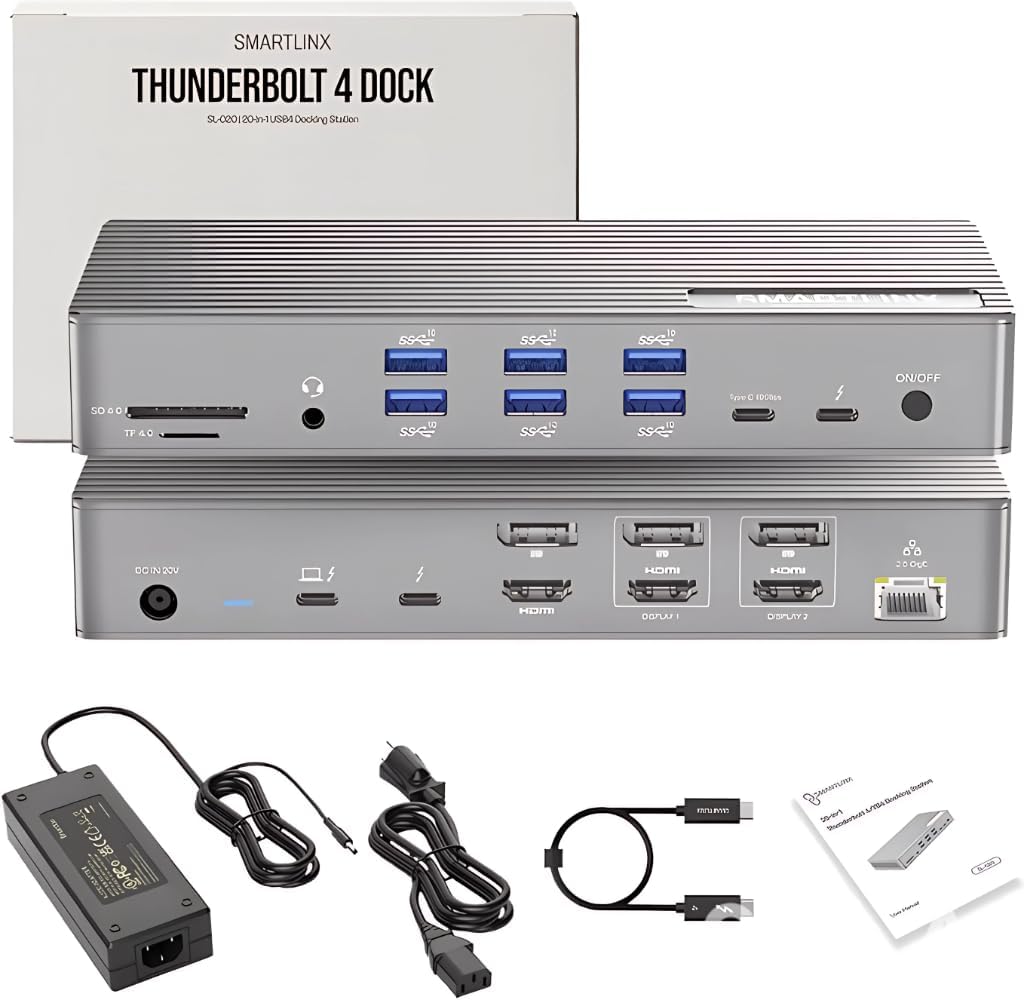 Smartlinx Thunderbolt 4 21-Port Docking Station with 8K Display Support
|
8.3/10 | Buy | ||
 Microsoft Surface Thunderbolt 4 Dock
|
8.2/10 | Buy | ||
| Best Budget |
 UGREEN 8-in-1 Thunderbolt 4 Dock with Dual 4K Display Support
|
7.8/10 | Buy | |
 WAVLINK 13-in-1 USB-C Dock, Dual 5K/4K Display
|
7.1/10 | Buy | ||
 Baseus Spacemate 11-in-1 USB-C Docking Station
|
6.5/10 | Buy |
UGREEN Thunderbolt 5 Docking Station with Triple 4K Display Support
A premium 13-port dock built for power users who need to connect multiple displays, fast storage, and peripherals through a single Thunderbolt 5 cable. Delivers 120Gbps speeds, 140W charging, and 2.5GbE networking, though it requires USB-C compatible monitors and carries a steep price tag.
Pros
- Single-cable workstation setup eliminates desktop clutter and simplifies device switching
- Exceptional build quality with solid aluminum frame, passive heatsinks, and stable rubber feet
- Handles demanding workflows like 4K video editing and large file transfers without lag
- 140W charging supports even power-hungry laptops while simultaneously powering multiple displays and drives
- Works reliably across Windows, macOS, and Linux with straightforward plug-and-play setup
Cons
- No built-in HDMI or DisplayPort outputs, requiring monitors with native Thunderbolt or USB-C connectivity
- Not compatible with Thunderbolt 3 devices, limiting backward compatibility
- Premium pricing ($299.99) puts it out of reach for users who only need basic connectivity
WAVLINK Thunderbolt 5 Docking Station (12-in-1, 120Gbps)
A premium Thunderbolt 5 dock delivering 120Gbps max transfer speeds and 140W charging for high-end laptops. Built for professionals running multiple displays and high-bandwidth peripherals, with solid construction and reliable performance across macOS and Windows systems.
Pros
- Genuine Thunderbolt 5 performance without connectivity drops or bottlenecks, confirmed by verified buyers using heavy workstation setups
- Comprehensive port ecosystem in compact form factor handles multiple external drives, displays, and peripherals simultaneously
- No display sleep disconnection issues reported, unlike some competing docks
- Effective thermal management keeps operation quiet and stable during sustained use
- Responsive 24/7 technical support and reliable customer service post-purchase
Cons
- Power button placement makes it easy to accidentally press when moving or picking up the dock
- Premium pricing reflects high-end positioning, though reviews confirm value for true Thunderbolt 5 speeds
- Some port placement preferences noted (host port and downstream ports could benefit from repositioning)
Dell SD25TB4 Pro Thunderbolt 4 Docking Station
A feature-rich Thunderbolt 4 dock with 11 total ports, 180W power delivery, and support for 8K displays, designed for professionals running multi-display setups. Verified buyers consistently report solid build quality, stable multi-monitor performance, and seamless device compatibility across Windows, Mac, and ChromeOS.
Pros
- Extensive port selection: 2 Thunderbolt 4, 2 DisplayPort 1.4, 1 HDMI 2.0, 5 USB ports, and Gigabit Ethernet in a single dock
- Handles multi-display setups without flicker or lag, including 8K monitor support
- Strong 180W power delivery keeps connected devices charged even under full load
- One-cable connection simplifies desk setup and reduces cable clutter
- 3-year warranty and solid build quality suggest long-term durability
- Cross-platform compatibility: works with Windows 10/11, macOS, and ChromeOS
Cons
- Bulky form factor and 1.84 kg weight may limit portability for mobile workers
- Premium price positioning makes it overkill for users needing only basic charging and single-monitor support
- No mention of thermal management or cooling fan noise in available data
Smartlinx Thunderbolt 4 21-Port Docking Station with 8K Display Support
A feature-rich docking station with 21 ports supporting up to 8K video output and 90W laptop charging, designed for professionals managing multiple monitors and peripherals. Best suited for power users on Windows or Intel-based Macs who need comprehensive connectivity and don't mind active cooling noise.
Pros
- Extensive port selection: 21 total ports including 6 USB-A, 3 USB-C, 3 HDMI, 3 DisplayPort, Ethernet, SD/microSD readers, and audio jack
- Strong video capabilities: Supports single 8K@60Hz or dual 4K@60Hz on compatible devices, with 40Gbps Thunderbolt 4 bandwidth
- Robust charging: Delivers up to 90W to laptops and 20W to phones/tablets from 150W external power supply
- Solid build quality: Metal construction feels durable, though heavy at 12.8 ounces
- Multi-OS compatibility: Works with Mac OS, Windows, and Chrome OS on 8th Gen Intel or newer processors
Cons
- Loud internal fan runs constantly during use, with some users noting it's noticeable during quiet moments
- Limited macOS display support: Dual 4K restricted on most Macs, excludes M1 Macs from full 8K capability, and DisplayPort compatibility issues reported with some monitor models
- Devices requiring over 90W may charge unstably, and older than 7th Gen Intel processors experience limited functionality
Microsoft Surface Thunderbolt 4 Dock
A premium docking station built for Surface laptops with Thunderbolt 4 connectivity, 6 USB ports, dual 4K monitor support, and 2.5G Ethernet. Delivers reliable performance and elegant design, though it requires adapters for older monitors and lacks some features found in competing docks.
Pros
- Exceptional build quality and premium design that stands out from competitors
- Seamless compatibility with Microsoft Surface devices and any USB-C laptop
- Stable multi-monitor performance when using proper adapters
- Single-cable connection simplifies desk setup and portability
- Fast, reliable data transfer via Thunderbolt 4
Cons
- Requires USB-C to HDMI or DisplayPort adapters for monitor connections, adding extra cost
- Maxes out at 96W charging, down from older Surface Dock 2's 120W capability
- Occasional display reconnection issues reported by some users requiring dock restart
- Limited feature set compared to competing Thunderbolt docks at similar price points
UGREEN 8-in-1 Thunderbolt 4 Dock with Dual 4K Display Support
This Thunderbolt 4 docking station packs 3 TB4 ports, 3 USB-A 10Gbps ports, gigabit ethernet, and 85W charging into a compact footprint, making it a solid option for expanding laptop connectivity. However, Mac users should verify display support carefully, as M-series machines have different capabilities than advertised.
Pros
- Excellent port variety and data speeds for professionals needing multi-device connections
- Solid build quality and reliable performance once properly initialized, per verified user feedback
- All-in-one charging solution eliminates need for separate power adapters
- Works with most Thunderbolt 4, Thunderbolt 3, USB4, and USB-C devices across Mac and Windows
Cons
- Display support varies by Mac model: M1/M2/M3 base models support only single external display despite marketing suggesting broader Mac Pro/Max compatibility
- Initial connection can be unreliable on some MacBooks, requiring monitor re-initialization or OS restart before achieving stable operation
- Must remain connected to 140W charger to function, limiting portability as a true portable dock
WAVLINK 13-in-1 USB-C Dock, Dual 5K/4K Display
This DisplayLink-powered docking station lets you run two external monitors simultaneously on M-series Macs and Windows laptops, a feature most single-port devices can't match. The 13-in-1 design consolidates displays, ethernet, multiple USB ports, and audio into one hub, with enough power delivery to keep demanding laptops fully charged during heavy workloads. Best for professionals who need serious multitasking real estate without daisy-chaining accessories.
Pros
- Dual monitor support at 5K@60Hz or 4K@60Hz, even on laptops with limited native ports
- 100W Power Delivery keeps high-performance laptops fully powered during intensive tasks
- 13 integrated ports including Gigabit ethernet, 5 USB ports, and dual video outputs minimize cable clutter
- Works across Windows, macOS M1/M2/M3/M4, Chrome OS, and Android with DisplayLink driver
- High user rating of 4.8 stars based on verified buyer feedback
Cons
- Requires DisplayLink driver installation for video output; macOS users need to manually enable Screen Recording permissions in Privacy settings
- Some HP EliteBook and ZBook models may experience boot issues with ethernet connected at startup, requiring BIOS workaround
- Occasional operational beeping reported by users, though firmware updates may resolve this
Baseus Spacemate 11-in-1 USB-C Docking Station
An 11-port docking station designed for Windows laptops that supports triple 4K displays via HDMI and DisplayPort, with 10Gbps USB data transfer and 100W PD charging included. Best suited for professionals who need multiple monitors and peripherals without buying a separate power adapter.
Pros
- Triple display capability at 4K resolution makes it excellent for multitasking workflows
- Included 100W power adapter eliminates need for separate purchase
- Compact footprint with vertical stand design saves desk space
- Fast 10Gbps USB data transfer speed for file-heavy work
- Stable connections and clean port layout per verified buyers
Cons
- Display passthrough can be spotty with multiple monitors and high refresh rates, per some users
- Actual PD output reported lower than advertised 100W by at least one verified buyer
- No USB-C display output despite being common on modern monitors
Thunderbolt Docks Buying Guide
Choosing a Thunderbolt dock involves more nuance than picking the one with the most ports.
The generation of Thunderbolt it supports, how much power it delivers to your laptop, and whether its display outputs match your monitor setup all affect whether a dock actually works the way you expect.
Below are the six factors that matter most when narrowing down your options.
Thunderbolt Generation: TB4 vs. TB5

Thunderbolt 4 and Thunderbolt 5 share the same USB-C connector, but they are not equal. Thunderbolt 4 guarantees 40 Gbps of bandwidth in both directions, which is enough for dual 4K displays at 60 Hz and fast NVMe storage simultaneously.
Thunderbolt 5 doubles or even triples available bandwidth depending on the workload, reaching up to 120 Gbps, which opens the door to single 8K displays, triple 4K setups, and eGPU use cases that would bottleneck earlier generations.
If your laptop ships with a Thunderbolt 5 port, pairing it with a TB5 dock is the only way to unlock that full bandwidth.
However, if you are on a Thunderbolt 4 machine, a TB5 dock is fully backward compatible and still a valid upgrade-proof purchase.
Keep in mind that TB5 docks command a notable price premium, so buyers who do not yet own a TB5 laptop may find a premium Thunderbolt 4 dock to be the more practical choice today.
If you are pairing your setup with a powerful laptop for programming, verifying the host port generation before buying a dock is essential.
Always confirm that your laptop’s Thunderbolt port supports the full spec. Many budget laptops include a USB-C port that superficially resembles Thunderbolt but lacks the certification, meaning a Thunderbolt dock will fall back to USB-C speeds, dramatically reducing display and transfer performance.
Display Support and Monitor Compatibility

The number of external monitors a dock can drive, and at what resolution and refresh rate, is often the deciding factor for creative professionals and multi-monitor productivity users.
A certified Thunderbolt 4 dock can reliably drive two 4K displays at 60 Hz without any additional chips. Single 8K output is also possible on select TB4 docks when bandwidth is routed efficiently.
Some docks in this roundup use DisplayLink technology alongside Thunderbolt. DisplayLink is a compression-based approach that relies on a software driver and your laptop’s GPU to encode the image before sending it over USB.
It effectively unlocks multi-monitor support on systems that would otherwise be limited, including M-series MacBooks that natively support only one external display without a dock that uses DisplayLink or Apple Silicon-native workarounds.
The tradeoff is that DisplayLink requires driver installation, introduces slight input latency in some scenarios, and may cause color accuracy concerns for color-critical work.
Before buying, match the dock’s display output types (HDMI, DisplayPort, Thunderbolt passthrough) to your monitors’ inputs. HDMI 2.1 and DisplayPort 1.4 are needed for 4K at 144 Hz or 8K at 60 Hz.
If your monitors only have HDMI inputs, a dock with HDMI 2.0 will cap you at 4K 60 Hz. Consider also whether you want your monitors to work on a portable display as a travel extension of the same dock setup.
Charging Power Delivery
A good dock should charge your laptop passthrough while simultaneously running all connected peripherals. The amount of power it delivers to the host laptop, expressed in watts, varies dramatically across products.
Entry-level docks may provide only 60 W to 85 W, which can struggle to keep up with power-hungry laptops under load, particularly 16-inch MacBook Pros, gaming laptops, or Windows workstations with discrete GPUs.
Most mainstream use cases are well served by a dock that delivers 85 W to 100 W of Power Delivery. Professional and heavy-use laptops benefit from 130 W to 180 W.
Some of the docks in this roundup offer up to 180 W of total system power, making them suitable even for power-hungry creative workstations.
Keep in mind that the advertised power figure is the dock’s total output; the amount that actually reaches the laptop may be lower if peripherals are drawing from the same power budget.
Port Selection and Bandwidth Allocation
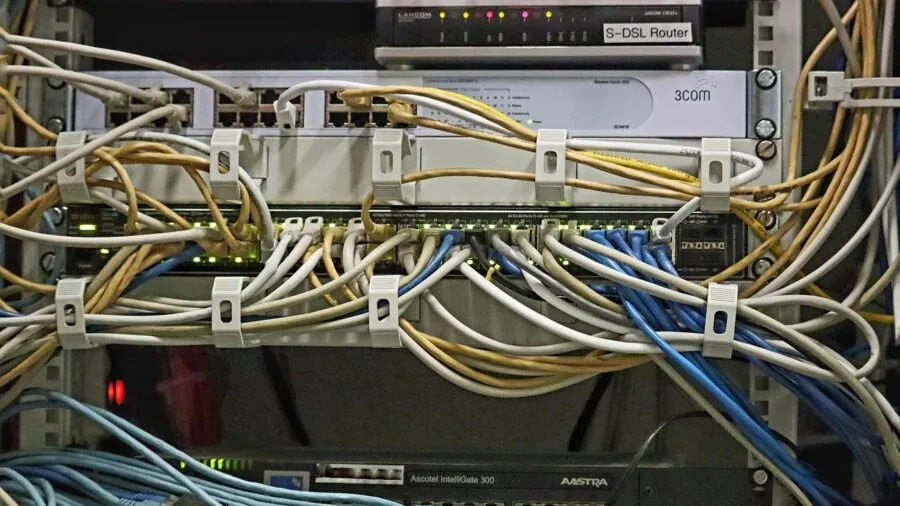
Port count alone is a misleading spec. What matters is which ports share bandwidth, which are dedicated, and what speed tier each USB-A or USB-C port operates at.
A dock advertising fifteen ports but routing all USB-A ports through a single shared 5 Gbps hub will bottleneck fast SSDs, high-resolution webcams, and USB audio interfaces simultaneously.
Look for docks that clearly specify USB 3.2 Gen 2 (10 Gbps) for at least two or three of the USB-A ports, plus at least one USB-C port running at 10 Gbps or faster.
SD card readers are a useful bonus for photographers and videographers; the best implementations use a UHS-II slot running at 300 MB/s or faster rather than a slower shared USB bus.
Gigabit Ethernet is standard on most docks in this category, but 2.5 Gigabit Ethernet is increasingly available and worth prioritizing if your router and network switch support it, especially for a full desk peripheral setup that depends on fast local network transfers.
Downstream Thunderbolt ports on the dock are a premium feature that allows daisy-chaining additional Thunderbolt devices, such as high-speed RAID arrays, eGPUs, or additional Thunderbolt hubs, without consuming the single host connection.
Mac and Windows Compatibility

Most Thunderbolt docks are cross-platform by specification, but real-world compatibility involves more than just plugging in. Apple Silicon Macs (M1 through M4 generations) have native display output limitations that affect how many external monitors work without DisplayLink drivers.
If you run a MacBook and want more than one external display, verify whether the dock uses DisplayLink and whether the drivers are up to date for your macOS version.
On the Windows side, driver support is generally simpler, but some enterprise docks include management features such as firmware updates and port locking that require Windows-specific software.
The Microsoft Surface Thunderbolt 4 Dock in this roundup is a notable example, as it is tuned for the Surface ecosystem while remaining broadly compatible.
If you also rely on a lightweight travel laptop alongside your primary machine, confirm the dock works with both before committing.
Build Quality and Form Factor

A Thunderbolt dock lives on your desk permanently in most cases, so its physical footprint, cable management design, and thermal behavior matter.
Docks with integrated power bricks have a tidier profile but add a box to manage; models with external power adapters keep the dock itself slim but add one more item under the desk.
High-powered docks generating significant heat will benefit from active cooling, and some of the TB5 docks in this roundup include small internal fans that activate under load.
Front-panel ports, particularly a front USB-A, front USB-C, and front SD card slot, are a quality-of-life feature that most users overlook until they need to quickly connect a flash drive or camera.
If your desk setup is permanent and cable-managed, a rear-port-only dock works fine. If you regularly hot-plug peripherals, front-panel access becomes a meaningful convenience.
Pairing a well-designed dock with quality mechanical keyboards and wireless mice through its USB ports gives a truly streamlined desk.
Why You Should Trust Us
REMOVU is an independent review platform. We do not manufacture, sell, or have commercial relationships with the brands whose products appear in our roundups.
Every product in this guide was evaluated against a consistent, documented set of criteria specific to the Thunderbolt docking station category, and each received a REMOVU Score on a 0 to 10 scale reflecting its overall merit relative to others in the segment.
Our evaluation methodology relies on a synthesis of manufacturer-published specifications, expert review consensus drawn from across the industry, verified buyer feedback from confirmed purchasers, and published benchmark data where available.
We do not conduct our own product trials; our evaluations are grounded in research, published data, expert review consensus, and verified buyer feedback.
This approach allows us to cover a broader range of products with greater consistency than any single reviewer could achieve through individual evaluation alone.
REMOVU may earn a commission if you purchase through links in this article. That affiliate relationship has no influence whatsoever on rankings, scores, or product selection. Products are ranked solely on the merit of our research-based evaluation.
We include this disclosure because transparency is foundational to the trust our readers place in us.
Final Thoughts
The Thunderbolt docking station market in 2026 offers genuinely excellent options at multiple price tiers, and the gap between a midrange and premium dock is narrowing.
Our top picks span from capable Thunderbolt 4 solutions for everyday productivity to cutting-edge Thunderbolt 5 hubs built for bandwidth-hungry professionals. Here is how our highest-rated picks break down by use case.
- Best Overall: UGREEN Maxidok Thunderbolt 5 Docking Station earned the highest REMOVU Score in this roundup by combining Thunderbolt 5’s full bandwidth headroom with triple 4K display support, 2.5 GbE networking, fast SD card transfer, and a comprehensive port layout that covers virtually every connectivity need.
- Best Thunderbolt 5 Runner-Up: WAVLINK Intel EVO Certified Thunderbolt 5 Docking Station is the pick for buyers who want Thunderbolt 5 performance with active thermal management and broad backward compatibility with TB4 laptops.
- Best for Dell and Enterprise Users: Dell SD25TB4 Pro Thunderbolt 4 Smart Dock stands out for its enterprise-grade build, included accessories, three-year warranty coverage, and high-wattage power delivery suited to demanding workstations.
- Best for MacBook Multi-Monitor Setups: Smartlinx 21-in-1 Thunderbolt 4 MacBook Docking Station is the most versatile option for Mac users who need dual 4K output with DisplayLink support and broad cross-platform reach at a competitive price for the feature set.
- Best for Surface Ecosystem: Microsoft Surface Thunderbolt 4 Docking Station is the logical choice for Surface users who want deep firmware integration, a clean industrial design, and reliable compatibility without third-party software concerns.
Whichever dock you choose, pairing it with a capable host laptop ensures you get the full benefit of its bandwidth and charging output.
Docking stations are a long-term investment: a well-chosen one will serve multiple laptop upgrade cycles, making it worth spending a little more upfront for a dock that does not bottleneck your current or next machine.
Frequently Asked Questions
What is the difference between a Thunderbolt dock and a regular USB-C hub?
A Thunderbolt dock uses Intel’s certified Thunderbolt protocol, which guarantees a minimum of 40 Gbps of bidirectional bandwidth and enforces strict compatibility standards.
A standard USB-C hub uses the USB protocol, which typically tops out at 5 Gbps to 20 Gbps depending on the generation, lacks guaranteed display bandwidth allocation, and does not support Thunderbolt-specific features like daisy-chaining certified devices.
If your laptop has a Thunderbolt port, a certified Thunderbolt dock will always outperform a USB-C hub for multi-monitor and high-speed storage use cases.
Will a Thunderbolt 5 dock work with my Thunderbolt 4 laptop?
Yes, Thunderbolt 5 docks are fully backward compatible with Thunderbolt 4 and Thunderbolt 3 host ports. The connection will operate at the speed of the slower device, meaning you will get Thunderbolt 4 performance (40 Gbps) rather than Thunderbolt 5’s higher bandwidth.
All peripherals, displays, and charging functions will still work normally. Buying a TB5 dock on a TB4 machine is a reasonable future-proofing move if you plan to upgrade your laptop in the next year or two.
Do Thunderbolt docks work with M-series MacBooks?
Most certified Thunderbolt 4 and TB5 docks work with Apple Silicon MacBooks, but there is an important caveat around external display limits. MacBook Air models with M1 and M2 chips natively support only one external display.
MacBook Pro models support two or more. Docks that use DisplayLink technology can bypass this limitation and enable dual monitor support on MacBook Air, but they require a driver installation and rely on software rendering, which may affect color-critical workflows.
Always check the specific macOS compatibility notes for a dock before purchasing if you are on a MacBook Air.
How much Power Delivery do I actually need from a Thunderbolt dock?
For most 13-inch and 14-inch laptops, 85 W to 100 W of Power Delivery is sufficient to charge at full speed while running a full peripheral load.
Larger laptops with dedicated GPUs, such as 16-inch MacBook Pros or gaming-class Windows notebooks, often benefit from 130 W or more.
If your dock does not supply enough power, the laptop may charge slowly or even slowly discharge the battery under heavy load. Check your laptop’s original charger wattage as a baseline; your dock should ideally match or exceed it.
Can I use a Thunderbolt dock with a monitor and a webcam at the same time?
Yes, and this is one of the primary use cases for a Thunderbolt dock. Connecting a 4K display through the dock’s DisplayPort or HDMI output and a USB webcam through one of its USB-A ports works without any special configuration.
As long as the dock allocates sufficient bandwidth to each port independently (which certified Thunderbolt 4 and TB5 docks are designed to do), there is no conflict.
Where issues can arise is when multiple high-bandwidth USB devices share a single internal hub, so checking the dock’s internal architecture in the product specifications is worthwhile if you plan a demanding peripheral setup.
Are Thunderbolt docks compatible with Windows and Mac simultaneously?
The physical connection and most port functions work on both platforms without issue. However, some docks include management software or firmware update utilities that are Windows-only.
DisplayLink drivers, if required by your dock for extended display support, are available for both macOS and Windows, but each platform requires a separate driver installation.
If you regularly switch between a Mac and a Windows machine at the same desk, look for a dock with confirmed cross-platform support documented in the manufacturer’s specifications, and avoid docks that rely heavily on proprietary software for core display functionality.
This versatility also makes a quality dock a great companion to 2-in-1 laptops used for drawing, which often shift between creative and productivity modes.
About the author
Donald is REMOVU's Bluetooth speaker writer, judging sound that punches above its size, battery life, and how well each speaker survives a splash or a drop. He compares pocket models and backyard boomboxes to find honest value.