The 10 Best Docking Stations
Connecting a single cable to your laptop should do the heavy lifting for your entire desk setup. These docking stations cover every need, from dual 4K home offices to triple-monitor creative workstations.
 By Danielle Matthews
Updated July 26, 2026
By Danielle Matthews
Updated July 26, 2026

A good docking station is one of the most practical upgrades you can make to a laptop-based workspace.
Instead of plugging in a tangle of cables every morning, a single dock gives you instant access to multiple monitors, wired Ethernet, full-size USB ports, and a charging connection, turning a lightweight laptop into a capable desktop replacement.
Whether you work from home, split time between an office and a remote setup, or simply want a cleaner desk, the right dock can save time and frustration every single day.
Options range from compact bus-powered hubs to high-powered DisplayLink stations that can drive three or four 4K displays simultaneously, and the price spread is just as wide, from budget-friendly to premium multi-monitor powerhouses from brands like Anker, Plugable, Dell, and TobenONE.
To build this list, REMOVU researched each model by analyzing published specifications, synthesizing expert review consensus from across the industry, and weighing verified buyer feedback to understand real-world reliability and usability.
Every product below has been scored using our 0-to-10 REMOVU Score, which reflects a consistent set of criteria including connectivity breadth, display output quality, power delivery, build quality, and compatibility.
If you are pairing your new dock with a capable lightweight laptop, the picks below cover every major use case and budget. Read on for our top picks, followed by a detailed buying guide.
| Award | Product | REMOVU Score About REMOVU ScoreThe REMOVU Score is our own rating from 0 to 10, based on performance, design and build, ease of use, and value. It reflects independent research and is never influenced by manufacturers, retailers, or affiliate commissions. Learn more › | Price | |
|---|---|---|---|---|
| Best Premium |
 Plugable UD-ULTCDL 13-in-1 USB-C Dock with Triple HDMI
|
8.3/10 | Buy | |
 Anker Prime 14-in-1 Docking Station, 160W Dual 4K
|
8.1/10 | Buy | ||
 TobenONE DisplayLink 18-Port Docking Station for Triple 4K Displays
|
6.2/10 | Buy | ||
| Best Value |
 Dell Pro Dock WD25 USB-C Docking Station
|
8.5/10 | Buy | |
| Best Overall |
 Anker Nano A83C3 13-in-1 Docking Station with Detachable Hub
|
8.6/10 | Buy | |
 Plugable UD-3900Z Dual HDMI Docking Station
|
6.2/10 | Buy | ||
 Plugable UD-3900 Dual HDMI Docking Station
|
7.2/10 | Buy | ||
 Anker PowerExpand 8-in-1 USB-C Hub with Dual HDMI
|
7.2/10 | Buy | ||
| Best Budget |
 Anker Nano A210B 8-in-1 USB-C Hub with Dual 4K HDMI
|
7.6/10 | Buy | |
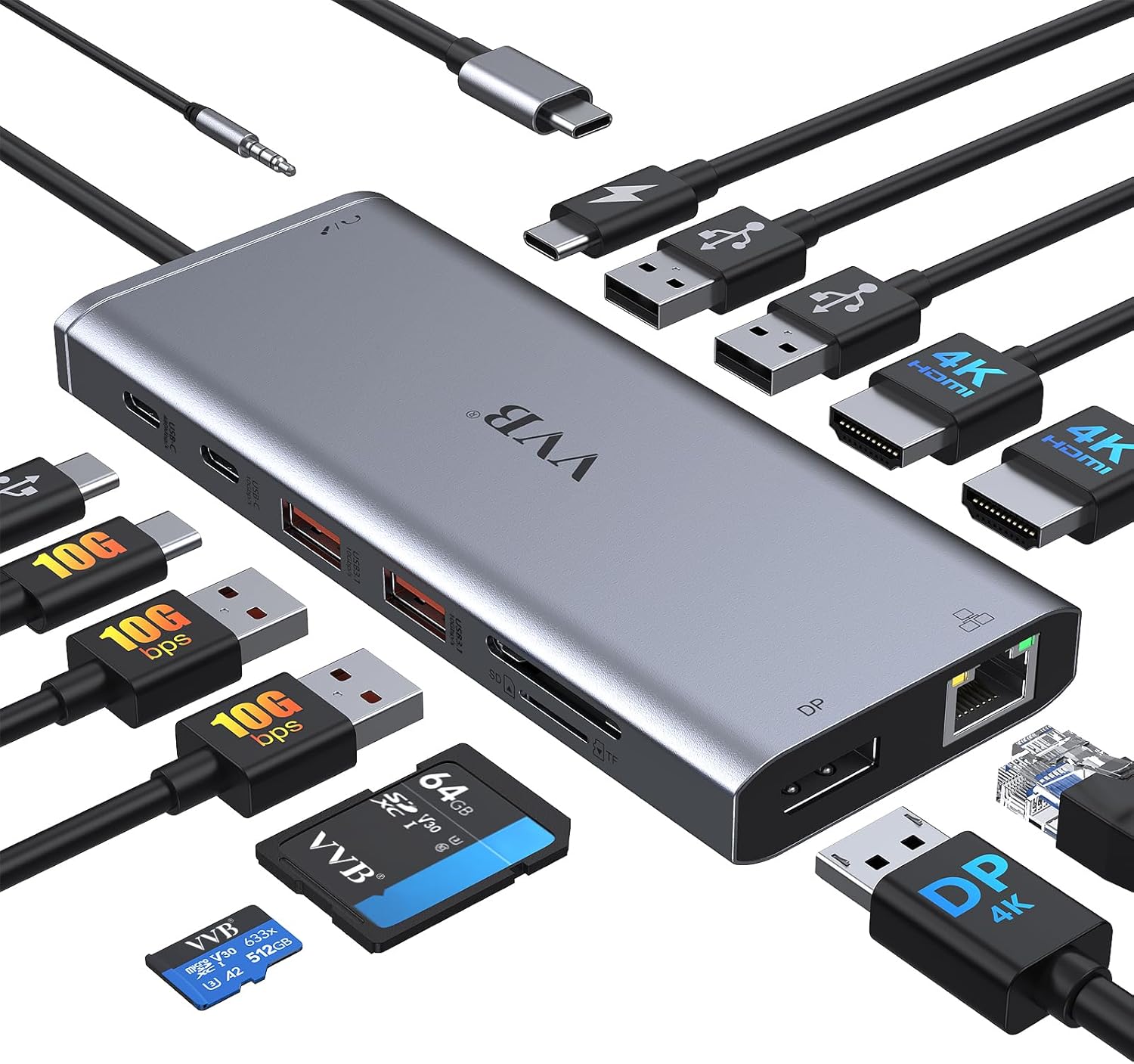 VVB 14-in-1 USB-C Docking Station with Dual 4K HDMI
|
6.9/10 | Buy |
Plugable UD-ULTCDL 13-in-1 USB-C Dock with Triple HDMI
A versatile docking station designed for multi-monitor setups on USB-C laptops, including M-series Macs. It combines 100W laptop charging, three HDMI outputs, and 13 total ports, making it suitable for productivity-focused workspaces. Requires DisplayLink driver installation on Mac, which adds a setup step but unlocks triple-display capability even on single-output MacBooks.
Pros
- Enables three external displays on laptops normally limited to one (via DisplayLink technology)
- Robust 100W rear USB-C charging plus 20W front USB-C for accessories
- 13 ports total including Gigabit Ethernet, SD card reader, and 4 USB-A ports for comprehensive connectivity
- Compatible across Windows, macOS, and ChromeOS platforms
- TAA/NDAA compliant for enterprise and government deployments
Cons
- DisplayLink driver installation required on macOS (automatic on Windows, none needed on ChromeOS)
- Does not support HDCP-protected content, limiting use for streaming services like Netflix or Hulu
- Maximum resolution capped at 4K 30Hz on primary display and 1920x1200 60Hz on secondary displays
Anker Prime 14-in-1 Docking Station, 160W Dual 4K
A space-saving 14-port docking station built for Windows laptops that need serious connectivity and power. It delivers 160W across multiple devices simultaneously, supports dual 4K displays, and offers 10Gbps data transfer, making it ideal for professionals juggling multiple monitors and peripherals. Setup requires checking your laptop's DisplayPort version for optimal dual-monitor performance.
Pros
- Extensive port selection with 4 USB-C and 5 USB-A ports plus dual HDMI, audio, and Ethernet in one compact vertical design
- 160W total power output supports charging up to four devices at once, with individual USB-C ports delivering up to 100W each
- 10Gbps data transfer speeds on supported ports for faster file syncing and external storage access
- Advanced thermal management with temperature controls and heat dissipation to maintain safe operation during heavy use
- Customizable power distribution through Dock Manager app for tailored charging profiles
Cons
- Dual display resolution limited to 2K at 60Hz on DP 1.4 laptops or 1080p on DP 1.2, not true 4K for both monitors simultaneously
- Not compatible with Lenovo Legion series laptops and macOS users see identical displays on both external monitors, limiting flexibility
- Requires checking your specific laptop's DisplayPort version and CPU generation to confirm dual-monitor support, adding setup complexity
TobenONE DisplayLink 18-Port Docking Station for Triple 4K Displays
This USB-C docking station consolidates 18 ports into one connection, enabling up to three 4K@60Hz monitors on Mac or four on Windows while delivering 100W laptop charging. Built for professionals juggling multiple displays and peripherals, it excels at stock trading, content creation, and remote workstations, though macOS users should know streaming services won't play through extended displays due to DisplayLink's screen recording requirement.
Pros
- Supports triple 4K@60Hz display extension (quad on Windows) with flexible HDMI and DisplayPort combinations
- Robust 120W power adapter charges laptop at up to 100W, eliminating need for separate charger
- 18 total ports including 4x USB 3.2 10Gbps and 2x USB-C for fast data transfer and peripheral connectivity
- Wide compatibility across Thunderbolt 3/4/5, USB4, macOS 11+, Windows 10+, and Chrome OS
- Lifetime expert support with direct engineer access for troubleshooting
Cons
- macOS users cannot stream Netflix, Prime Video, or other HDCP-protected content on extended displays due to DisplayLink's screen recording functionality
- Requires driver downloads for Displays 1 and 2 on Mac/Windows; connection stability depends on proper cable seating and adequate laptop power
- Does not support Linux/Unix systems
Dell Pro Dock WD25 USB-C Docking Station
A versatile docking station built for modern workplaces, the WD25 delivers up to 100W power delivery and supports four displays simultaneously. Its 6 USB ports, Ethernet connectivity, and cloud-based management make it ideal for professionals seeking a centralized workspace solution, though it's positioned as a premium option for Dell and compatible systems.
Pros
- Supports up to four high-resolution displays with dual DisplayPort 1.4 and HDMI 2.1
- Delivers 100W power delivery suitable for latest AI laptops and mainstream PCs
- Comprehensive port selection with 6 USB ports, 2.5 Gigabit Ethernet, and dual DisplayPort outputs
- Built with 65% post-consumer recycled materials and achieves 72% power reduction in standby mode
- Ambidextrous USB-C cable (0.80m) allows flexible left or right routing for workspace customization
Cons
- Firmware updates and Device Management Console features require Dell Display and Peripheral Manager software, adding setup complexity
- Power Button Sync only works with non-Dell notebooks that support PD3.1 specification, limiting cross-brand functionality
- No user reviews available yet, making real-world reliability and long-term durability difficult to assess
Anker Nano A83C3 13-in-1 Docking Station with Detachable Hub
A dual-form docking station that splits into a fixed 13-in-1 desktop dock and removable 6-in-1 portable hub, eliminating the need for separate travel gear. Supports triple displays up to 4K single or triple 1080p, delivers 100W laptop charging, and includes 10Gbps data transfer on one USB-C port. Best suited for remote workers and professionals who alternate between home office setups and mobile work.
Pros
- Detachable design covers both stationary and mobile use cases without buying two separate docks
- Triple display support with flexible resolution options (up to 4K single, dual 2K, or triple 1080p)
- 100W Power Delivery charges most USB-C laptops while running all peripherals simultaneously
- Comprehensive port selection including 10Gbps USB-C data, Gigabit Ethernet, SD/TF card readers, and 3.5mm audio
- Plug-and-play setup with no driver installation required on Windows and macOS
Cons
- Hub may block adjacent USB-C ports on some laptop models, requiring dimension verification before purchase
- Dock requires active laptop connection to function; ports and status light only activate when connected
- Ethernet functionality on Windows requires manual Realtek driver installation for full compatibility
- macOS limited to mirrored display mode only on multiple external monitors
Plugable UD-3900Z Dual HDMI Docking Station
A no-nonsense docking station built for office environments and IT deployments. Delivers dual 1080p displays via USB-C or USB-A, supports Windows, macOS, and ChromeOS, and packs 10 ports including Gigabit Ethernet. Best for productivity workflows, not media streaming or gaming.
Pros
- Dual HDMI outputs up to 1920x1200 from single USB connection, expanding display options on M1-M3 MacBooks normally limited to one external monitor
- 10-port design includes two 5Gbps USB ports, four USB 2.0 ports, Gigabit Ethernet, and audio jack for comprehensive peripheral connectivity
- Includes both USB-C and USB-A host cables for backward and forward compatibility across laptop generations
- Plug-and-play on Windows and ChromeOS; automatic driver installation on Windows via Update
- Compact vertical footprint reduces desk clutter; backed by North American lifetime support and compatibility guarantee
Cons
- Does not charge laptops, requiring separate power solution for the host device
- macOS requires manual DisplayLink software installation for external displays to function
- No HDCP support means streaming services like Netflix and Hulu will not play on connected displays
- DisplayPort monitors not supported; limited to HDMI-only displays
Plugable UD-3900 Dual HDMI Docking Station
A straightforward USB docking station that connects two HDMI monitors up to 1920x1200 resolution, plus Ethernet and six USB ports. Best suited for productivity work on Windows, Mac, and Chromebooks, though it requires driver installation on macOS and doesn't charge your laptop.
Pros
- Supports dual HDMI displays simultaneously, ideal for multitasking and productivity workflows
- Works across Windows, macOS (M1-M5 compatible), and Chromebooks with broad device support
- Includes Gigabit Ethernet, audio jacks, and six USB ports for peripheral expansion
- 2-year warranty and lifetime support from North American-based team
- Single USB 3.0 or USB-C connection simplifies setup
Cons
- No laptop charging capability, requiring a separate power adapter during use
- Requires manual DisplayLink driver installation on macOS (automatic on Windows)
- Limited to 1920x1200 at 60Hz per display; no 4K or DisplayPort support
- Cannot stream HDCP-protected content (Netflix, similar services)
- Not compatible with Linux/Unix systems
Anker PowerExpand 8-in-1 USB-C Hub with Dual HDMI
This USB-C hub expands a single port into eight connections, including dual HDMI outputs, dual USB-A ports, Ethernet, and SD card reader. It supports up to 85W pass-through charging and handles 4K displays on compatible devices, making it practical for laptop users who need multiple peripherals without juggling adapters.
Pros
- Dual HDMI ports enable multi-monitor setups with 4K@60Hz single display or 4K@30Hz dual display support
- 85W pass-through charging allows simultaneous power delivery while using other hub functions
- Universal SD/microSD card compatibility for seamless media file access
- 5 Gbps data transfer speed via dual USB-A ports for quick file syncing
- Strong user rating of 4.3 stars across 6,588 reviews reflects reliable real-world performance
Cons
- Mac users face display mirroring limitation on HDMI connections due to lack of Multi-Stream Transport support
- 4K@60Hz dual display requires DisplayPort 1.4 compatibility, limiting functionality on older laptops and certain models like Surface Pro 7
- Requires separate 100W PD wall charger and USB-C cable for full charging capability, not included in box
Anker Nano A210B 8-in-1 USB-C Hub with Dual 4K HDMI
This 8-in-1 docking station delivers dual 4K@60Hz video output and 85W laptop charging through a single USB-C connection, making it practical for Windows users managing multiple displays. The aluminum design and 9.84-inch cable reduce desk clutter while supporting 10 Gbps data transfer across USB ports. Best suited for productivity workflows on Windows 10/11 and ChromeOS devices with DP Alt Mode support.
Pros
- Dual 4K@60Hz HDMI output enables genuine extended display on Windows (not mirrored)
- Fast 10 Gbps data transfer on all three data ports (two USB-A, one USB-C)
- 85W pass-through charging supports most modern laptops with compatible 100W PD charger
- Premium aluminum build with effective heat dissipation and organized 9.84-inch cable
- SD/TF card reader built-in for immediate media import at up to 104 MB/s
Cons
- Requires external 100W PD charger and cable (not included) to achieve full 85W charging capacity
- macOS users get mirrored displays only; dual independent displays not supported on Apple devices
- Not compatible with Linux systems or recommended for MacBook dual-monitor setups
- No Ethernet port despite 8-in-1 branding; 15W of the 100W input is reserved for hub operation
VVB 14-in-1 USB-C Docking Station with Dual 4K HDMI
This 14-port USB-C hub consolidates your laptop's connectivity with dual 4K HDMI outputs, DisplayPort, Ethernet, and 100W power delivery. It's built for professionals juggling multiple monitors and high-speed file transfers, though compatibility varies by device and MacBooks face display limitations.
Pros
- Extensive port selection (14 total) covers monitors, storage, networking, and charging in one dock
- High-speed data transfer via USB 3.1 ports at 10Gbps for quick file operations
- Flexible multi-monitor support up to triple displays on Windows with 4K capability on primary output
- 100W USB-C Power Delivery handles charging most laptops while docked
- Gigabit Ethernet for stable wired network connections
Cons
- Not all USB-C devices are compatible; some cannot access HDMI or DisplayPort functions even when plugged in
- MacBooks only support mirrored display output, not extended multi-monitor setups like Windows
- Actual charging output capped at 87W despite 100W input, and requires compatible Power Delivery protocol on your laptop's USB-C port
- Charging cable and power adapter sold separately
Docking Stations Buying Guide
Buying a docking station involves more trade-offs than most peripheral purchases.
The right dock for a freelance designer driving three 4K panels looks very different from the right dock for a student who just wants to charge a laptop and plug in an external monitor.
The sections below walk through the criteria that matter most, so you can match a dock to your actual workload rather than overpaying for features you will never use.
Connection Technology: USB-C Alt Mode vs. DisplayLink vs. Thunderbolt

The single biggest factor in how many displays a dock can drive, and how well, is the underlying technology it uses to communicate with your laptop.
USB-C Alt Mode docks use the native video output built into your laptop’s USB-C or Thunderbolt port. They are simple, driver-free, and reliable, but most laptops limit Alt Mode to one or two external displays.
If you want to push three or more monitors from a single USB-C port, you almost certainly need a DisplayLink dock, which uses a dedicated chip and a software driver to compress and transmit video data.
DisplayLink is powerful and broadly compatible, but the driver requirement adds a setup step that some macOS users find restrictive due to Apple’s security permissions.
Thunderbolt 3 and Thunderbolt 4 docks sit at the premium end of the spectrum. They offer the highest bandwidth and the cleanest multi-monitor experience, but they only work at full capability with a Thunderbolt-equipped host machine.
Many USB-C docks will physically connect to a Thunderbolt port and work fine, but not every Thunderbolt dock works at full speed on a plain USB-C port. Always check your laptop’s specification sheet before buying.
If your machine has only USB-A ports, you will need a dock that ships with a USB-A to USB-C adapter or has a USB-A connection mode, as some Plugable models do.
For users shopping alongside a gaming laptop, it is also worth noting that most gaming laptops route USB-C through a USB controller rather than the GPU, which can limit the number of external displays available over a dock regardless of technology.
Check your laptop’s documentation to confirm which video outputs are active over USB-C before committing to a multi-monitor setup.
Number of Displays and Output Resolution

Most mid-range docks support dual-monitor setups at 4K 60Hz, which is the sweet spot for professional and creative work.
Budget docks often cap at dual 1080p or a single 4K output, which is adequate for everyday productivity but limiting for video editors, designers, or anyone who works with color-critical content.
Triple and quad display docks exist and are genuinely useful for finance, trading, or heavy multitaskers, but they almost all rely on DisplayLink, and the driver overhead can introduce slight input lag on video-heavy content, a trade-off worth understanding before buying.
Pay attention to whether the dock’s HDMI ports are 2.0 or 2.1. HDMI 2.0 handles 4K at 60Hz on a single display but tops out there.
HDMI 2.1 supports higher refresh rates and higher resolutions, which matters if you are connecting a high-refresh-rate external monitor or a future-proofed 8K panel.
DisplayPort outputs are also preferable to HDMI for daisy-chaining monitors, though most consumer docking stations use HDMI exclusively for simplicity.
Power Delivery and Charging
One of the most advertised features of USB-C docks is Power Delivery (PD), the ability to charge your laptop through the same USB-C cable that connects the dock. The spec that matters here is wattage.
A 45W PD dock will keep a thin-and-light MacBook Air or a compact Windows ultrabook alive, but it will not charge a 16-inch MacBook Pro or a high-performance Windows workstation under load.
Those machines typically need 90W to 100W or more to actually charge while running demanding tasks, not just sustain the battery level.
Look for docks that specify 90W, 100W, or 140W PD if you have a power-hungry machine. Some docks in this list deliver up to 160W total output across all ports, which is enough for almost any laptop on the market.
Also check whether the dock ships with its own power adapter or requires you to supply one: bus-powered hubs that draw from the laptop itself are convenient but typically cannot charge the host machine at the same time as running multiple displays and peripherals.
USB Port Selection and Data Transfer Speed

A dock with a generous port layout eliminates the need for additional hubs on your desk.
For most users, a solid dock should include at least two to four USB-A ports, one or two USB-C data ports, an SD card slot, and ideally a microSD slot.
For those transferring large files from cameras, drones, or external drives, the speed of those USB ports matters significantly.
USB 3.2 Gen 2 ports at 10Gbps are noticeably faster than the 5Gbps of Gen 1, and the difference is tangible when moving a 100GB video project.
Photographers and video creators will appreciate docks that include both full-size SD and microSD slots at full UHS-II speeds.
Photographers and video creators who are also building out a dedicated editing workstation may want to pair a high-bandwidth dock with a fast M.2 SSD for scratch storage, since a 10Gbps USB-C port on a dock can comfortably saturate most external SSDs.
Ethernet and Network Reliability

Every dock in this roundup includes Gigabit Ethernet, which is the standard for stable wired networking.
For most office work, video calls, and cloud-based workflows, Gigabit Ethernet is more than sufficient and will outperform a strong Wi-Fi connection in terms of latency and consistency.
If your work involves large file transfers to a NAS or local server, some higher-end docks now offer 2.5Gbps Ethernet, which can substantially cut the time it takes to move large media archives.
However, 2.5Gbps is still relatively rare in this price range, so verify the spec carefully if it matters to your workflow.
Wired Ethernet through a dock is also a meaningful upgrade for users who conduct frequent video conferences on platforms that are sensitive to packet loss.
If your meetings involve screen sharing large presentations or streaming high-resolution video feeds to remote participants, a wired connection via a quality dock will deliver a more consistent experience than even a well-placed Wi-Fi router.
Build Quality, Design, and Compatibility

Docking stations live on desks full-time, so build quality and thermal management matter more than they might for a device you pack away.
Aluminum shells dissipate heat more efficiently than plastic ones, which becomes relevant when a dock is running two 4K displays, charging a laptop, and transferring files simultaneously over several hours.
Some compact hubs run warm under sustained load, which can throttle performance or shorten the lifespan of the internal components over time.
Verified buyer reviews frequently flag thermal issues in less expensive models, which is one reason our research weighs real-world reliability alongside spec-sheet performance.
Compatibility across operating systems is another key variable. Most docks work seamlessly with Windows out of the box. macOS support is increasingly common but sometimes requires a driver download, particularly for DisplayLink-based models.
ChromeOS support has improved considerably, with several Plugable docks explicitly supporting plug-and-play operation on Chromebooks. If you split time between operating systems or share a dock between machines, verify OS compatibility carefully before purchasing.
Linux support is inconsistent across brands and is worth checking independently if it applies to your setup.
Why You Should Trust Us
REMOVU is an independent review publication. We do not manufacture, retail, or distribute any of the products we cover, and we have no commercial relationship with the brands featured in this article.
Every product in this roundup was evaluated using a consistent, structured research process: we analyzed published technical specifications, synthesized expert review consensus from across the industry, and incorporated verified buyer feedback to understand how each dock performs over real-world daily use.
We do not conduct our own product trials; our evaluations are grounded in research, published data, expert review consensus, and verified buyer feedback.
Each product is assigned a REMOVU Score on a scale of 0 to 10. The score reflects a weighted assessment across criteria including display output capability, Power Delivery wattage, port selection, data transfer speed, build quality, OS compatibility, and overall value.
Products are ranked by REMOVU Score, not by price or brand prominence. REMOVU may earn a commission if you purchase through a link on this page. That affiliate relationship has no bearing on scores, rankings, or editorial selection.
Our recommendations are editorially independent.
Final Thoughts
The docking station market has matured considerably, and there are strong options at every price tier. Here is how the top picks in this roundup break down by purpose and audience:
- Best Overall: Anker Nano Laptop Docking Station 13-in-1 earns the top spot with the highest REMOVU Score in this roundup. Its modular design, three-display output, 10Gbps data ports, and up to 100W Power Delivery make it an exceptionally versatile choice for home office users who want a premium, well-engineered dock that adapts to multiple setups.
- Best for Dell and Enterprise Users: Dell Pro Docking Station WD25 is the go-to option for Dell laptop owners and IT-managed environments. Its plug-and-play quad-display support and 100W charging are backed by Dell’s enterprise-grade reliability, earning it a near-top REMOVU Score and making it ideal for professionals who need guaranteed compatibility.
- Best Triple Monitor Value: Plugable USB-C Triple Monitor Docking Station UD-ULTCDL delivers a 13-in-1 feature set with three HDMI outputs and broad OS compatibility, all at a mid-range price. It scores highly among creative professionals who need more screen real estate without committing to a top-tier budget.
- Best Budget Pick: Anker Nano Laptop Docking Station Dual Monitor 8-in-1 offers dual 4K 60Hz output and solid data speeds at an accessible price point, earning a respectable REMOVU Score for budget-tier options. It is the right choice for users who need dual-monitor capability without spending on features they will not use.
- Best for Power Users Needing High Wattage: Anker Prime Docking Station stands out for its 160W maximum total output and 10Gbps data transfer, making it a strong pick for users who run demanding machines and want a dock that can keep up. Its Smart Interface and broad compatibility across Dell, HP, and Lenovo systems add meaningful versatility.
Whichever dock you choose, pairing it with a quality monitor or peripheral setup will help you get the most from your investment.
A dock is only as useful as the workflow it enables, so consider your display, storage, and peripheral needs holistically before committing to a specific model.
Frequently Asked Questions
Do I need a DisplayLink driver to use a docking station?
It depends on the dock. USB-C Alt Mode docks work without any driver installation on most operating systems, including Windows, macOS, and ChromeOS.
DisplayLink-based docks, which are necessary for driving three or more displays from a single USB-C port, require a software driver. On Windows, this is usually a quick download.
On macOS, the installation requires granting a screen recording permission due to Apple’s privacy framework, which can feel unintuitive but is a one-time setup.
For users who prioritize simplicity, a driver-free Alt Mode dock is the easier experience, though it comes with display count limitations.
Can I use a docking station with a MacBook?
Yes, but with caveats. Apple Silicon MacBooks (M1, M2, M3, and M4 series) have a hardware limitation that restricts them to a single external display over USB-C without DisplayLink software.
If you want to run two or more external monitors from a MacBook Air or a base-model MacBook Pro, you will need a DisplayLink dock and the associated driver.
MacBook Pro models with M3 Pro, M3 Max, M4 Pro, and M4 Max chips support multiple displays natively through Thunderbolt. Always check Apple’s current display support specifications for your specific chip before purchasing a multi-monitor dock.
Several docks in this list, including those from Plugable and TobenONE, explicitly list macOS DisplayLink support in their documentation.
If you are also shopping for portable monitors to pair with your MacBook on the road, check connectivity requirements carefully to ensure compatibility.
What wattage of Power Delivery do I need?
For ultrabooks and thin-and-light laptops, including most MacBook Air models and 13-inch Windows ultrabooks, a dock with 45W to 65W Power Delivery is sufficient to maintain or slowly charge the battery during typical use.
For 15-inch and 16-inch laptops, workstation-class machines, and any laptop with a discrete GPU, aim for a dock that delivers at least 90W to 100W of Power Delivery.
The Anker Prime, for example, supports up to 160W total system output, which covers even demanding gaming or creative workstations.
A dock with insufficient PD wattage will not damage your laptop, but your battery may drain slowly under heavy load despite the charging cable being connected.
Will a docking station work with my gaming laptop or desktop PC?
Most docks will work with gaming laptops that have a USB-C or Thunderbolt port, but the external display behavior depends heavily on how the laptop routes video signals.
Many gaming laptops only expose their integrated GPU over USB-C, not the discrete NVIDIA or AMD GPU.
This means external monitors connected through a dock may not benefit from the full graphical performance of the dedicated GPU, which matters for gaming but less so for productivity tasks on an external screen.
For a desktop PC, a docking station is rarely the right tool since desktops already have full port arrays. A gaming monitor connected directly to the GPU is almost always the better path for desktop gaming setups.
If you are building or upgrading a gaming rig, pairing a capable GPU with high-refresh-rate displays will serve you better than a dock.
How many monitors can a docking station support?
The answer depends on both the dock and the host laptop. Standard Alt Mode docks typically support one to two external displays.
DisplayLink docks can push three, four, or even more monitors, and several docks in this roundup, including the TobenONE model and the Plugable UD-ULTCDL, support triple or quad display configurations.
However, the laptop itself must be capable: some ultrabooks limit total external display count regardless of the dock used.
Verify your laptop’s maximum external display support in its official specifications before assuming a dock’s advertised display count will be achievable on your particular machine.
For those managing a complex multi-screen setup at a home office, pairing a high-output dock with a quality student-grade or productivity laptop is also a cost-effective way to build a capable workspace without a full desktop PC investment.
Is a more expensive docking station always better?
Not necessarily. The right dock is the one that matches your specific needs without paying for capabilities you will never use.
A user who connects a single external monitor and wants to charge their laptop needs a fundamentally simpler product than a video editor running three 4K displays with simultaneous file transfers from an SD card.
Budget docks in this roundup, like the Anker 8-in-1 dual monitor model, score well for their intended audience because they deliver exactly what single-screen productivity users need at an accessible price.
Premium docks justify their cost with higher wattage PD, faster USB ports, more reliable thermal management, and broader compatibility. Match the dock to your workload and you will rarely feel the need to upgrade again soon.
About the author
Danielle writes about mesh Wi-Fi systems for REMOVU, weighing speed, whole-home coverage, and easy setup. She helps readers blanket large homes in reliable Wi-Fi without dead zones.