The 8 Best Drawing Tablets Under $200
Pen display or screenless tablet, beginner or pro, there is a capable drawing tablet under $200 for every creative workflow. Here are the top picks, ranked by research.
 By Veronica Sanchez
Updated July 26, 2026
By Veronica Sanchez
Updated July 26, 2026

Finding a drawing tablet that genuinely fits your workflow without draining your wallet is harder than it looks.
The market is packed with options that vary wildly in active area size, pen pressure sensitivity, display quality, and software compatibility, and making the wrong call often means returning a product that felt great in a spec sheet but fell flat in practice.
Whether you’re a digital art student looking for your first serious tool, a freelance illustrator on a budget, or a professional who needs a portable backup tablet, the good news is that drawing tablets under $200 have never been more capable than they are right now.
This guide covers eight carefully selected models, from compact pen tablets ideal for beginners to a full pen display with a built-in screen for more advanced creators, sourced from brands including XPPen, Wacom, Huion, and GAOMON.
Every pick was evaluated through REMOVU’s research-based process, drawing on manufacturer specifications, expert review consensus from the wider creative tech community, and verified buyer feedback across thousands of real-world purchases.
Scroll down to see our ranked picks, then use the buying guide below to zero in on the right choice for your setup.
| Award | Product | REMOVU Score About REMOVU ScoreThe REMOVU Score is our own rating from 0 to 10, based on performance, design and build, ease of use, and value. It reflects independent research and is never influenced by manufacturers, retailers, or affiliate commissions. Learn more › | Price | |
|---|---|---|---|---|
| Best Overall |
 XP-Pen Artist12 11.6" FHD Pen Display
|
8.9/10 | Buy | |
| Best Premium |
 XPPen Deco 01 V3 10x6 Drawing Tablet
|
8.1/10 | Buy | |
| Best Budget |
 Wacom Intuos Small Pen Tablet
|
7.8/10 | Buy | |
 Huion Inspiroy 2 L 10.5x6.56in Drawing Tablet
|
7.6/10 | Buy | ||
| Best Value |
 Huion Inspiroy H1060P 8192 Pressure Graphics Tablet
|
7.2/10 | Buy | |
 GAOMON M10K 10x6 Graphics Tablet
|
6.8/10 | Buy | ||
 Huion Inspiroy H640P 6x4 Drawing Tablet, 8192 Pressure
|
6.2/10 | Buy | ||
 TQU 8.5 Inch LCD Writing Tablet 4-Pack
|
6.2/10 | Buy |
XP-Pen Artist12 11.6" FHD Pen Display
A compact pen display designed for digital artists and educators who need a portable drawing screen with direct-on-display input. Features a 1920x1080 IPS panel, 8192 pressure levels, and battery-free stylus, but requires a computer connection and offers mid-range color accuracy.
Pros
- Genuinely portable compared to larger 15.6-inch models, ideal for students and remote work
- Full lamination and anti-reflective screen protector reduce parallax and glare
- Battery-free pen design means no charging anxiety during long sessions
- Solid build quality with responsive IPS display and 178-degree viewing angles
- Includes all necessary accessories out of the box plus 8 spare pen nibs
Cons
- 72% NTSC color gamut is entry-level, limiting accuracy for professional color-critical work compared to larger XP-Pen models
- Requires computer connection via HDMI and USB-A ports; adapters may be needed for newer laptops
- 11.6-inch screen feels cramped for detailed illustration work, especially with smaller hand sizes
XPPen Deco 01 V3 10x6 Drawing Tablet
A beginner-friendly drawing tablet with 16,384 pressure levels and a battery-free stylus that works across Windows, Mac, Android, and Chrome OS. Its slim 8mm profile and 10x6.25-inch workspace make it portable without sacrificing creative space, backed by strong compatibility with design software like Photoshop and Clip Studio.
Pros
- 16,384 pressure levels with battery-free stylus eliminates charging friction for new artists
- Lightweight and portable at 8mm thin, fits easily in bags for on-the-go drawing
- Broad OS compatibility including Android 10+, Chrome OS, and Linux with included USB-C adapters
- 8 customizable hotkeys designed for both right and left-handed users
- Generous 10x6.25-inch active area balances portability with practical drawing space
Cons
- Limited pressure sensitivity compared to professional-grade tablets in the same price range
- No built-in display, requiring users to look at a separate screen while drawing
- Android compatibility requires XPPen Tools app download and may need manual screen mapping adjustment
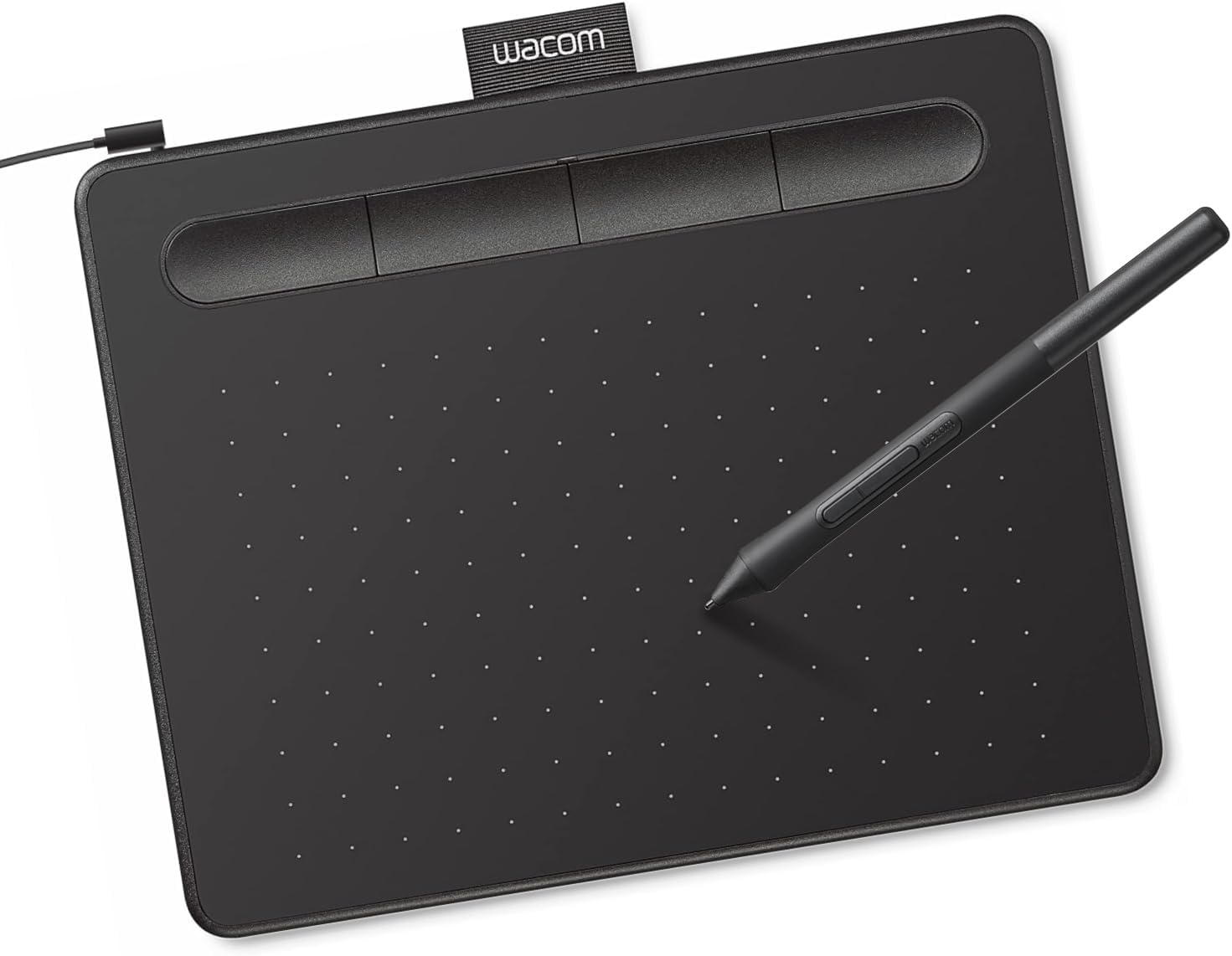
Wacom Intuos Small Pen Tablet
Wacom's entry-level drawing tablet delivers industry-standard pen-on-paper feel with 4096 pressure levels and plug-and-play USB connectivity across Windows, Mac, and Chromebook. Best suited for students, hobbyists, and professionals seeking reliable tablet performance without premium pricing.
Pros
- Genuine pen-on-paper feel from Wacom's established EMR technology, preferred by professional graphic designers
- Universal software compatibility makes it practical for any creative workflow without learning curve
- Included software bundle and training resources add value beyond hardware
- Small form factor with plug-and-play setup reduces friction for new users
- Strong buyer confidence reflected in high review count and consistent 4.6-star rating
Cons
- Wired USB-A connection limits portability and workspace flexibility compared to wireless models
- 4096 pressure levels trail higher-end tablets offering 8192+ levels for subtle pressure gradation
- Small active area may feel cramped for detailed illustration work or larger creative projects
Huion Inspiroy 2 L 10.5x6.56in Drawing Tablet
A portable graphics tablet with customizable shortcut keys and an upgraded PenTech 3.0 stylus, designed for digital artists, designers, and students who need multi-OS compatibility. Works across Windows, Mac, Linux, and Android devices without requiring internal power.
Pros
- Scroll wheel and three groups of customizable keys speed up workflow in creative software
- Improved ergonomic pen grip with anti-slip coating reduces hand fatigue
- Strong multi-OS support makes it flexible for different devices and workflows
- Compact 7.5mm profile and 600g weight make it genuinely portable
- Includes pen holder and replacement nibs, ready to use out of box
Cons
- Requires constant connection to a computer, phone, or tablet via USB-C cable, not standalone
- Android compatibility limited to devices with OTG function and version 6.0 or later
- No built-in display means you work by looking at a separate screen rather than directly on the tablet surface
Huion Inspiroy H1060P 8192 Pressure Graphics Tablet
A compact 10x6.25-inch drawing tablet with 8192 pressure levels and battery-free stylus, designed for digital artists, photo editors, and remote workers. Offers broad OS compatibility across Windows, Mac, Android, and Linux, plus 12 customizable hot keys for streamlined workflows.
Pros
- Slim, portable form factor (0.77 kg) ideal for travel and workspace flexibility
- No battery required on stylus means uninterrupted drawing sessions
- Extensive customization with 28 total programmable keys for faster creative work
- Multi-platform support including Android devices via OTG connection
- Includes complete accessory kit: 8 pen nibs, pen holder, USB-C adapter
Cons
- Lower pressure sensitivity (8192 levels) compared to higher-end Huion models (16384 levels)
- Android compatibility limited to devices with OTG function; iPhone and iPad not supported
- No display on tablet itself, requires connection to external monitor or device
- Linux support requires Xorg display server; Wayland not compatible
GAOMON M10K 10x6 Graphics Tablet
A mid-range drawing tablet designed for beginners and hobbyists seeking a larger work surface. The M10K delivers solid pressure sensitivity with its battery-free stylus, customizable controls, and broad software compatibility across Windows, Mac, and Android. Best suited for digital artists transitioning from mouse-based work or casual illustrators who value affordability and ease of setup.
Pros
- Large 10x6.25 inch work area with papery texture surface mimics traditional drawing experience
- 8192 pressure levels with battery-free stylus provides natural pen control for digital art
- 10 customizable hot keys plus touch ring streamline workflow for design and editing tasks
- Wide compatibility across Windows, Mac, Android, and major creative software like Photoshop and Krita
- Beginner-friendly with simple USB connectivity and included accessories (pen case, replacement nibs)
Cons
- Requires driver installation and uninstalling conflicting drivers before first use, which may frustrate less technical users
- Touch ring functionality requires programming and may have a learning curve for customization
- Limited to USB connectivity with no wireless option for portability
Huion Inspiroy H640P 6x4 Drawing Tablet, 8192 Pressure
A compact, budget-friendly pen tablet designed for digital art beginners and students. The H640P delivers solid hardware with 8192 pressure levels and customizable shortcut keys, though its small active area and lack of iOS support limit its appeal for some users.
Pros
- Excellent entry-level value at budget price point with responsive pen performance
- Lightweight and slim design (0.3 inch thickness) fits easily in laptop bags for mobile work
- Easy setup process with straightforward driver installation and intuitive customization
- Natural drawing experience with smooth pen feel and minimal lag reported by users
- Versatile compatibility across creative software, note-taking apps, and remote work platforms
Cons
- Does not support iOS, limiting connectivity to Apple tablets and phones
- Small 6x4 inch active area may feel cramped for experienced users accustomed to larger work surfaces
- Micro USB connection lacks reversibility compared to USB-C alternatives
TQU 8.5 Inch LCD Writing Tablet 4-Pack
A budget-friendly bundle of colorful doodle boards designed for kids ages 3-8, offering mess-free drawing with pressure-sensitive stylus and one-button erase. Each tablet locks to save work and runs on a single CR2 battery, making them portable for travel or quiet play.
Pros
- Four tablets in one purchase provide value and sharing options for siblings
- Colorful screen engages creativity better than monochrome alternatives
- Pressure-sensitive technology allows varied line thickness for artistic control
- Lock switch prevents accidental erasure of work in progress
- Lightweight design (0.05 kg each) fits easily in bags or car seats
Cons
- No verified buyer reviews available to assess real-world durability or battery life claims
- Single CR2 battery replacement costs may add up across four tablets over time
- 8.5-inch screen size is smaller than some competing tablets, potentially limiting drawing space
Drawing Tablets Under $200 Buying Guide
Not every drawing tablet is built for the same person or the same task.
A professional illustrator who works primarily in Photoshop has very different needs from a student learning Procreate-style workflows on a Chromebook or a teacher annotating slides remotely.
The criteria below represent the factors that most consistently separate a satisfying purchase from a frustrating one in this price range.
Pen Display vs. Pen Tablet: Which Type Do You Actually Need?
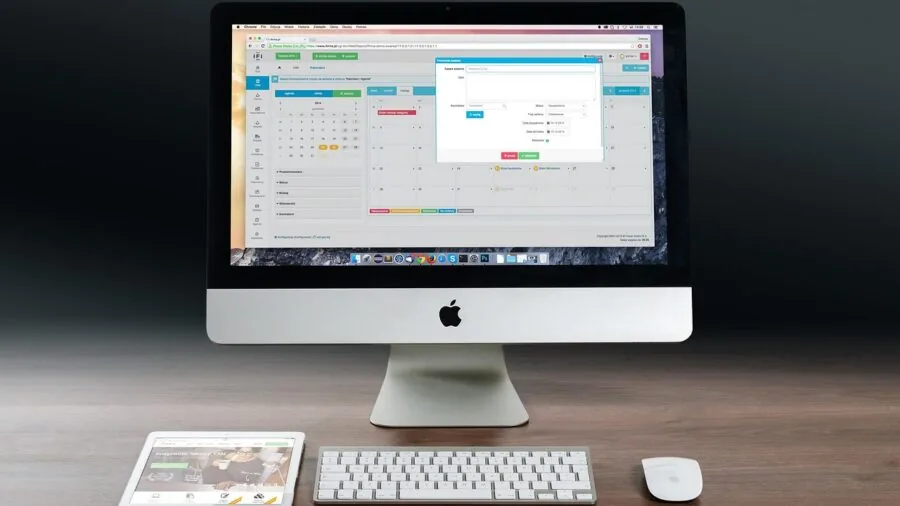
The single most important decision in this category is whether you want a pen display (a tablet with a built-in screen you draw directly on) or a pen tablet (a screenless surface that mirrors your cursor on your monitor).
Pen displays feel far more natural because your hand and eye are in the same place, making them the preferred choice for illustrators, character artists, and anyone doing detailed linework. The trade-off is cost and desk space.
In the sub-$200 bracket, only a handful of pen displays exist, and the XPPen Artist12 stands out as the clear option at that price point.
Pen tablets, on the other hand, are more affordable, more portable, and often preferred by retouchers, photo editors, and designers who spend more time navigating software than drawing.
They also tend to have longer driver support cycles, which matters if you’re pairing one with a Chromebook or a budget laptop.
The learning curve for hand-eye coordination on a pen tablet is real, but most users adapt within a few sessions.
If you’re genuinely unsure, starting with a well-reviewed pen tablet at a lower price point is a low-risk way to discover whether you enjoy digital drawing before committing to a display.
Active Area Size and Aspect Ratio
The active area is the portion of the tablet surface that actually registers pen input, and getting this wrong is one of the most common buyer mistakes.
A larger active area gives you more room for broad strokes and detailed work without lifting the pen, but it also requires larger arm movements, which can cause fatigue during long sessions.
A smaller area demands less physical effort but can feel cramped when working on intricate illustrations or when using a large monitor.
For most users working on a standard 1080p or 1440p display, a 10 x 6-inch active area hits the practical sweet spot. It maps well to a widescreen monitor’s aspect ratio, reducing the feeling of distortion when drawing diagonal lines.
Compact tablets like the Wacom Intuos Small or the Huion H640P suit users who travel frequently or have limited desk space, and they work well as companion devices alongside a 2-in-1 laptop.
If you’re a beginner unsure how often you’ll use the tablet, starting smaller keeps the investment modest.
Pen Pressure Sensitivity and Tilt Support
Pen pressure sensitivity determines how many distinct levels of pressure the stylus can detect between a feather-light touch and full pressure.
For practical purposes, the jump from 2,048 to 8,192 levels is noticeable in brushwork that relies on natural stroke variation, such as inking, calligraphy-style lettering, or painterly techniques.
The further jump from 8,192 to 16,384 levels, which the XPPen Deco 01 V3 offers, is more incremental but does benefit artists who demand extremely fine pressure control for professional illustration work.
Tilt support is a separate feature that detects the angle at which you hold the stylus, simulating the side-of-a-pencil shading effect in supported applications.
It’s genuinely useful for concept artists and illustrators who work with brush tools that respond to tilt, and it’s increasingly common even in mid-range tablets in this price range.
Battery-free stylus technology, which is now standard across all credible options in this category, eliminates the inconvenience of charging or replacing batteries in the pen itself, a welcome improvement over older designs.
Pairing a capable tablet with a strong graphics card in your PC setup can also improve rendering performance in demanding creative applications.
ExpressKeys, Touch Rings, and Physical Controls

Customizable shortcut keys, often called ExpressKeys or hot keys, allow you to map frequently used actions like undo, brush size adjustment, zoom, or layer switching directly to the tablet surface.
This keeps your non-dominant hand active and reduces the need to reach for the keyboard mid-stroke, which meaningfully improves creative flow.
The number and layout of these keys varies across the tablets in this guide, from the four ExpressKeys on the Wacom Intuos Small to the three-group eight-key layout on the Huion Inspiroy 2 Large, and from GAOMON’s touch ring for intuitive scrolling and zooming to XPPen’s rocker ring on the Deco 01 V3.
Consider how many shortcuts your current workflow actually requires before treating key count as a primary deciding factor. Many beginners use only two or three shortcuts consistently.
A cleaner layout is often more practical than a dense bank of keys that require memorization. The more important consideration is whether the tablet’s bundled software allows remapping, since default assignments rarely match individual workflows out of the box.
Software Compatibility and Driver Stability
A drawing tablet is only as useful as its driver software. Poor driver support leads to lag, cursor drift, and pressure curve issues that no amount of hardware quality can compensate for.
Wacom has historically led the industry in driver stability and long-term support, which explains why the Wacom Intuos commands loyalty far beyond what its hardware specs alone would justify.
Huion and XPPen have both improved their driver ecosystems substantially in recent years, with more frequent updates and broader compatibility across macOS, Windows, and Android.
Android compatibility is worth flagging specifically for users who want to draw on a phone or tablet without a laptop.
Several models in this guide, including the Huion H1060P, Huion H640P, and GAOMON M10K, officially support Android via OTG connection. If you’re building a portable creative rig, this opens up workflow possibilities that wouldn’t otherwise exist.
Users pairing a tablet with a streaming or recording setup may also find value in checking our ring lights guide for lighting a home studio, or exploring USB microphones if voiceover or tutorial recording is part of the plan.
Connection Type and Portability

Most drawing tablets in this price range connect via USB-A or USB-C, and a handful offer wireless Bluetooth modes on higher-tier models.
Wired connections remain the most reliable for professional work because they eliminate latency concerns entirely, though the cable management trade-off is real on a busy desk.
USB-C connections are increasingly preferred because they work natively with modern laptops and monitors without an adapter.
If portability is a priority, consider the physical dimensions and weight of the tablet alongside its active area. A lightweight pen tablet with a USB-C cable is easy to slip into a bag alongside a laptop.
A pen display like the XPPen Artist12 requires more care during transport and typically needs a carry case to protect the screen surface.
For students who move between a dorm room, a library, and a studio, the portability profile of a pen tablet often wins out over the drawing experience advantage of a pen display.
Creative professionals who pair their setup with a travel camera or work remotely will appreciate a setup that travels light.
Why You Should Trust Us
REMOVU is an independent review publication. We have no affiliation with any manufacturer or retailer featured in this guide, and our editorial team operates separately from any commercial relationships the site may hold.
Every product in this guide was evaluated using the REMOVU Score, a consistent 0-to-10 rating framework applied across the graphics tablets category.
Scores are determined through a research synthesis process that draws on manufacturer-published specifications, expert review consensus from the broader creative technology community, and verified buyer feedback from confirmed purchasers across major retail platforms.
We do not conduct our own product trials; our evaluations are grounded in research, published data, expert review consensus, and verified buyer feedback.
REMOVU may earn a commission if you purchase through a link in this guide. That affiliate relationship does not influence which products are included, how they are ranked, or what scores they receive.
Products are ranked solely on the merit of their REMOVU Score and how well they serve the stated needs of the buyer at this price point.
We will update this guide as new models are released and as buyer feedback shifts our assessments.
Final Thoughts
The drawing tablets under $200 covered in this guide span a wide range of use cases, from children’s doodle boards to professional-grade pen displays.
Here is how our top picks break down by standout use case, with each danh hiệu reflecting the REMOVU Score earned and the specific strengths that put it there.
- Best Overall: XP-PEN Artist12 Pen Display earned the highest REMOVU Score in this roundup and stands apart from every other pick here by virtue of its built-in FHD display, making it the closest experience to drawing on paper available at this price. Artists who want direct pen-to-screen control and are ready to move beyond a traditional pen tablet will find this the most transformative upgrade in the sub-$200 bracket.
- Best Screenless Tablet: XPPen Deco 01 V3 leads the pen tablet category with the highest pressure level specification in this guide and a generous 10 x 6-inch working surface. Illustrators and digital artists who already own a quality monitor and want the most capable screenless tablet available at a budget-friendly price will be well served here.
- Best for Beginners and Students: Wacom Intuos Small is the default recommendation for anyone who has never owned a drawing tablet before. Wacom’s industry-leading driver stability and the included software bundle reduce the technical friction that often discourages new users, and the compact form factor keeps the commitment modest while still delivering a genuinely capable experience.
- Best for Advanced Pen Tablet Users: Huion Inspiroy 2 Large offers a thoughtfully designed control layout with a three-group customizable ExpressKey system and a scroll wheel, giving experienced artists the kind of hardware shortcut flexibility that can meaningfully accelerate a professional workflow without stepping up to a pen display.
- Best for Kids and Casual Use: TQU LCD Writing Tablet 4-Pack is a completely different product category from the rest of this list, sitting firmly in the doodle board space rather than digital art. For parents looking for a screen-free drawing toy that sparks creativity without the complexity of digital software, this set delivers approachable value. Parents exploring other learning-focused screen options may also want to look at kids tablets for a more interactive alternative.
Across the full range, the drawing tablets in this guide represent genuinely competitive options relative to what was available even a few years ago.
Whether you’re building a first digital art setup, looking for a reliable tool to support remote teaching, or upgrading from a worn-out entry-level tablet, there is a strong pick here for every realistic need at this price point.
Creators who are also building out a full home studio setup may find our coverage of all-in-one computers for home office useful alongside this guide.
Frequently Asked Questions
Do I Need a Drawing Tablet with a Screen, or Will a Pen Tablet Work?
It depends entirely on how you work. A pen display lets you draw directly on the surface you’re looking at, which feels immediately natural and reduces the hand-eye coordination adjustment period.
A screenless pen tablet requires learning to keep your eyes on your monitor while your hand moves on the tablet, which takes adjustment but becomes second nature for most users within a week or two.
Pen tablets are lighter, cheaper at equivalent quality levels, and preferred by retouchers and photo editors. If direct drawing feel is your top priority and your budget extends to it, a pen display wins.
If portability, cost efficiency, and a minimal desk footprint matter more, a pen tablet is the smarter long-term choice for many users.
Are Drawing Tablets Compatible with Chromebooks and Android Devices?
Compatibility varies by model and operating system version, so always check the manufacturer’s current compatibility list before purchasing. The Wacom Intuos explicitly supports Chromebook, which is a meaningful differentiator for students using school-issued devices.
Several Huion and GAOMON models in this guide support Android via OTG USB connection, enabling use with Android phones and tablets for portable drawing sessions. macOS and Windows compatibility is near-universal across all serious pen tablets in this category.
If you’re a Chromebook user, confirming Chromebook-specific compatibility before purchasing is essential, as not every tablet in this guide officially supports that platform.
What Pen Pressure Level Do I Actually Need?
For most digital art workflows, 8,192 levels of pressure sensitivity is more than sufficient.
The perceptible difference between 8,192 and 16,384 levels is subtle and most noticeable only in brush techniques that demand extremely fine gradations of stroke weight, such as professional inking or high-detail portraiture.
Beginners should prioritize other factors such as active area size, driver stability, and build quality over chasing the highest pressure number.
The 8,192-level tablets in this guide from Wacom, Huion, and GAOMON will satisfy the vast majority of digital artists at any skill level.
Can I Use a Drawing Tablet for Tasks Other Than Drawing?
Yes, and many professionals do. Photo retouching and color grading in Lightroom or Capture One benefits significantly from the precision of a stylus compared to a mouse, particularly for local adjustment brushes and healing tools.
Graphic designers use tablets for layout work and vector illustration. Remote teachers use them for annotating slides and writing on whiteboards during video calls. Some users even prefer a tablet for general navigation once they adapt to it.
If you’re building a creative workstation that also involves screen presentation or streaming, a drawing tablet pairs naturally with student desktop computers or a capable laptop as part of a broader creative toolkit.
How Long Do Drawing Tablets Typically Last?
A well-maintained drawing tablet from a reputable brand can last five years or more under regular use.
The most common failure points are the stylus nib, which wears down over time and needs occasional replacement with spare nibs, and the USB cable, which is an easy and inexpensive fix.
The tablet surface itself can develop visible wear patterns over years of heavy use, but this rarely affects performance.
Driver software longevity varies by brand: Wacom typically maintains driver support for older hardware longer than most competitors, which is a real long-term value consideration.
Storing the tablet in a protective sleeve and avoiding excessive nib pressure on hard surfaces extends both the surface texture and the stylus life considerably.
About the author
Veronica is REMOVU's action camera writer, comparing stabilization, low-light footage, and rugged, waterproof builds across the latest releases. She focuses on which cameras truly hold up on the trail, underwater, and mounted to a helmet.