The 11 Best Drawing Tablets for Animation
Pen pressure, display quality, and driver stability all shape how well a drawing tablet handles animation work. This guide covers the top picks from Wacom, Huion, XPPen, and more across every budget.
 By Veronica Sanchez
Updated July 26, 2026
By Veronica Sanchez
Updated July 26, 2026
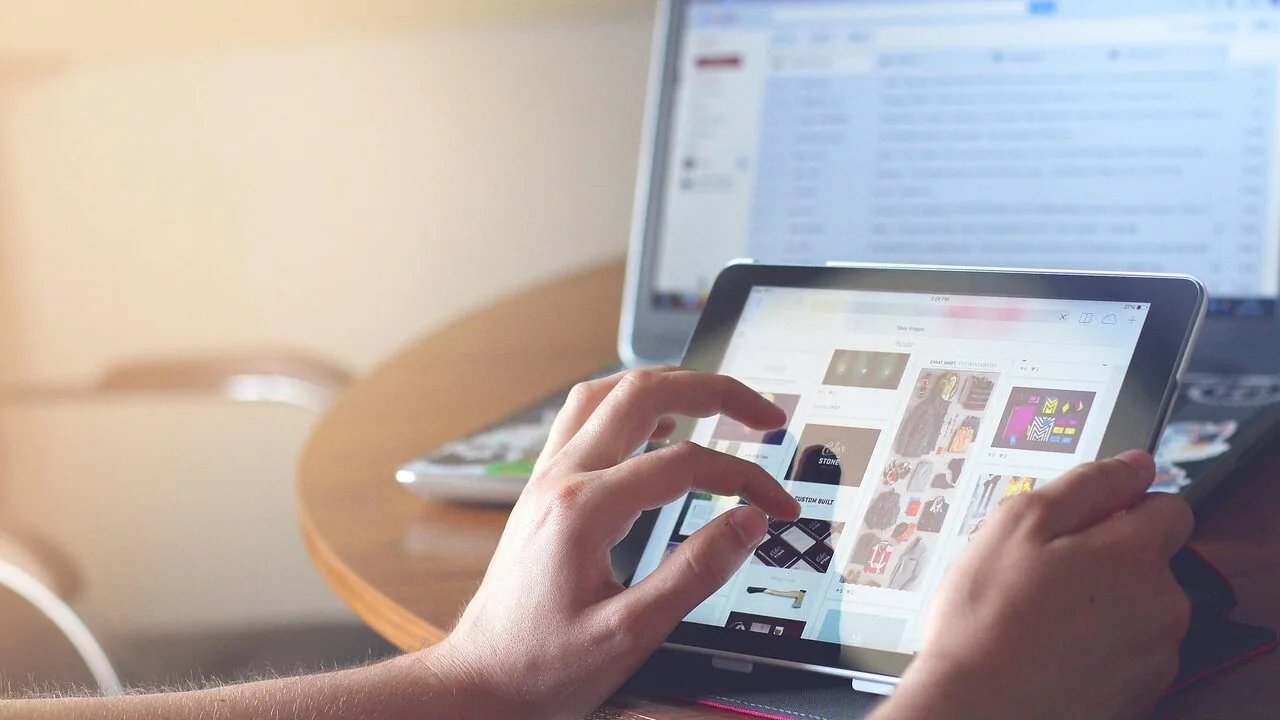
Choosing the right drawing tablet for animation is one of the most consequential decisions a digital artist can make.
Whether you are a student tackling your first frame-by-frame sequence, a professional animator working on a commercial production, or a hobbyist building a home studio, the tablet you pick directly shapes how fluid your lines feel, how long your sessions stay comfortable, and how well your workflow holds together across the software you rely on.
The market spans everything from affordable pen tablets that pair with your existing monitor to high-end pen displays with built-in screens, and the gap in day-to-day experience between a well-matched pick and the wrong one is enormous.
At REMOVU, we cut through the noise by researching each model against consistent criteria, drawing on published specifications, expert review consensus across the animation and digital art community, and verified buyer feedback from working artists.
No single spec number tells the whole story, so our analysis weighs pen performance, screen quality (where applicable), driver stability, software compatibility, and long-term value together.
Every product in this roundup carries a REMOVU Score on a 0 to 10 scale so you can compare at a glance. If you want a quick answer, scroll straight to our ranked top picks below.

Wacom Cintiq 22 Pen Display 1920x1080
A mid-range pen display that brings drawing directly to screen with natural feel and solid build quality. The 22-inch Full HD display, responsive Pro Pen 2 with 8,192 pressure levels, and adjustable stand make it practical for hobbyists, students, and semi-professional artists working on tighter budgets than the Pro line.
Pros
- Excellent pressure sensitivity (8,192 levels) with minimal lag, feels natural compared to paper drawing
- Sturdy, adjustable stand included; lighter and more compact than previous generation models
- Full HD clarity with anti-glare coating; good screen uniformity and 72% NTSC color coverage
- Pro Pen 2 never needs charging (powered by tablet via EMR technology); includes 3 replacement nibs
- Works seamlessly with Windows and macOS; easy setup and driver installation
Cons
- 1920x1080 resolution is lower than Pro models (2.5K-4K); not ideal if you need maximum pixel density or print work color accuracy
- Only 72% Adobe RGB color range; color matching issues noted by some reviewers (slight yellow tinge reported)
- All three cables (USB, HDMI, power) connect to top of tablet, creating awkward cable management; less flexible stand rotation compared to older models

XPPen Artist 15.6 Pro Pen Display
A 15.6-inch pen display with full lamination, 8192 pressure levels, and customizable express keys designed for digital artists, photo editors, and remote workers. Delivers solid color accuracy at 120% sRGB and works across Windows, Mac, Chrome OS, and Linux, though it requires a computer connection to operate.
Pros
- Full-laminated screen creates distraction-free drawing surface with minimal parallax
- 8 fully customizable express keys plus red dial wheel streamline creative workflow
- Excellent color gamut at 120% sRGB with 88% NTSC delivers rich, accurate visuals
- Lightweight design and slim 11mm profile make it portable and comfortable for extended sessions
- Broad OS compatibility and works with major software like Photoshop, Clip Studio, Krita
- Strong verified buyer consensus praising value compared to higher-end Wacom displays
Cons
- Requires wired connection to computer via USB and HDMI; not a standalone tablet
- Driver setup can be finicky, particularly on Mac systems, sometimes requiring multiple installation attempts
- Single fixed-angle stand offers limited positioning flexibility for different drawing preferences
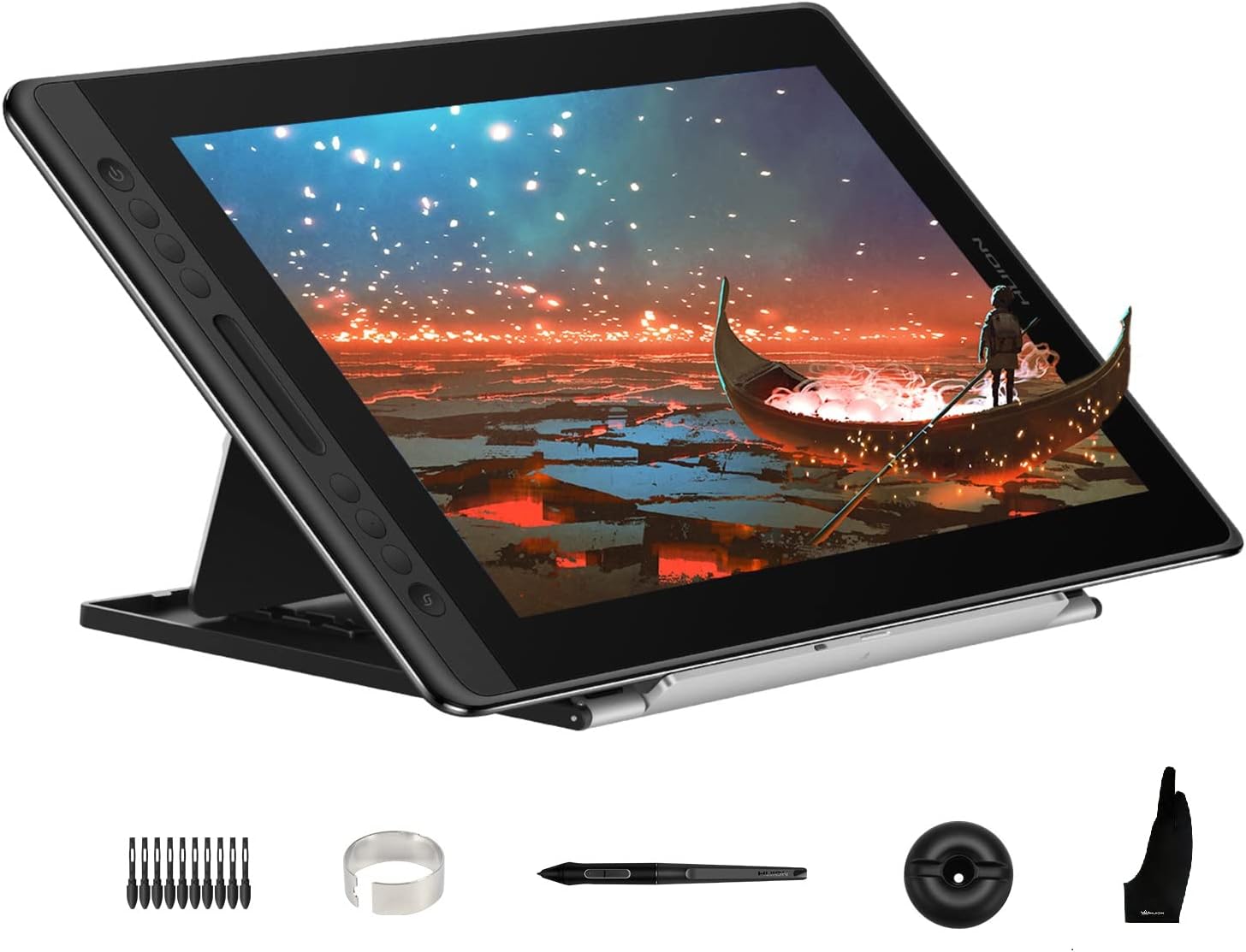
Huion Kamvas Pro 16 15.6in Pen Display
A mid-range pen display with a fully laminated anti-glare screen, 120% sRGB color accuracy, and battery-free stylus. Works only connected to Windows, Mac, or Linux computers and requires driver setup, but delivers solid color performance and ergonomic design at a competitive price against premium alternatives like Wacom.
Pros
- Fully laminated anti-glare glass screen eliminates air gap and minimizes parallax for accurate pen placement
- 120% sRGB gamut with 16.7 million colors and 1000:1 contrast ratio for vibrant, true-to-life color reproduction
- 6 customizable express keys and touch bar enable faster workflow shortcuts in creative software
- Battery-free PW507 pen with 8192 pressure levels, 60-degree tilt support, and programmable side buttons
- Adjustable stand with 20-60 degree range reduces neck and shoulder strain during long work sessions
- Affordable alternative to Wacom with comparable features at lower price point
Cons
- Not a standalone device; requires computer connection via HDMI and USB, with both ports needing to be available or adapters required
- Driver installation can be finicky and requires admin privileges; macOS users must whitelist driver first, and existing conflicts from other brands' drivers can cause issues
- Short cable length and connector placement on top left can be inconvenient depending on desk setup; some users report noticeable pen tip-to-screen offset

Wacom Intuos Pro Medium Pen Tablet with Pro Pen 3
A professional-grade drawing tablet built for motion graphics, 3D sculpting, and photo editing workflows. The Pro Pen 3 delivers industry-leading precision with 8192 pressure levels and customizable grip options, while dual mechanical dials and 10 ExpressKeys keep shortcuts within arm's reach. Designed for artists who need seamless integration with Adobe Creative Suite, ZBrush, and Maya without interrupting their creative flow.
Pros
- Pro Pen 3 offers exceptional pressure sensitivity and lag-free tracking with zero battery dependency
- Dual mechanical dials and 10 customizable ExpressKeys streamline complex workflows in 3D and video editing
- Lightweight magnesium alloy construction at 4mm thin makes it portable between studio and remote work
- Wireless Bluetooth connectivity to multiple devices with easy toggle between USB and paired computers
- Proven 40-year track record with broad software compatibility across professional creative applications
Cons
- No user reviews available yet to validate real-world performance and durability claims
- Premium positioning means it carries a higher price point compared to entry-level alternatives
- Requires software driver installation and learning curve for dial and ExpressKey customization to maximize productivity

XPPen Deco 01 V3 10x6 Drawing Tablet
A beginner-friendly drawing tablet with 16,384 pressure levels and a battery-free stylus that works across Windows, Mac, Android, and Chrome OS. Its slim 8mm profile and 10x6.25-inch workspace make it portable without sacrificing creative space, backed by strong compatibility with design software like Photoshop and Clip Studio.
Pros
- 16,384 pressure levels with battery-free stylus eliminates charging friction for new artists
- Lightweight and portable at 8mm thin, fits easily in bags for on-the-go drawing
- Broad OS compatibility including Android 10+, Chrome OS, and Linux with included USB-C adapters
- 8 customizable hotkeys designed for both right and left-handed users
- Generous 10x6.25-inch active area balances portability with practical drawing space
Cons
- Limited pressure sensitivity compared to professional-grade tablets in the same price range
- No built-in display, requiring users to look at a separate screen while drawing
- Android compatibility requires XPPen Tools app download and may need manual screen mapping adjustment
Wacom Intuos Pro Medium Pen Tablet with Pro Pen 3
A professional-grade drawing tablet built for motion graphics, 3D sculpting, and photo editing workflows. The Pro Pen 3 delivers industry-leading precision with 8192 pressure levels and customizable grip options, while dual mechanical dials and 10 ExpressKeys keep shortcuts within arm's reach. Designed for artists who need seamless integration with Adobe Creative Suite, ZBrush, and Maya without interrupting their creative flow.
Pros
- Pro Pen 3 offers exceptional pressure sensitivity and lag-free tracking with zero battery dependency
- Dual mechanical dials and 10 customizable ExpressKeys streamline complex workflows in 3D and video editing
- Lightweight magnesium alloy construction at 4mm thin makes it portable between studio and remote work
- Wireless Bluetooth connectivity to multiple devices with easy toggle between USB and paired computers
- Proven 40-year track record with broad software compatibility across professional creative applications
Cons
- No user reviews available yet to validate real-world performance and durability claims
- Premium positioning means it carries a higher price point compared to entry-level alternatives
- Requires software driver installation and learning curve for dial and ExpressKey customization to maximize productivity

Huion Kamvas 13 Gen 3 13.3-Inch Pen Display
A mid-range pen display built for digital artists and designers who need accurate color work on a compact screen. The fully laminated Canvas Glass 2.0 surface reduces glare while maintaining drawing precision, and dual dials plus six shortcut keys streamline creative workflows. Works with Windows, Mac, and Android devices via USB-C.
Pros
- Canvas Glass 2.0 surface with full lamination delivers reduced glare and improved drawing feel
- 16384 pressure levels with PenTech 4.0 ensures responsive, natural pen input
- 99% sRGB coverage with factory calibration report provides reliable color accuracy for professional work
- Dual dial buttons and programmable shortcut keys enable efficient creative workflows
- Adjustable stand included for comfortable working angles
- Cross-platform compatibility: Windows, macOS, Android, and Linux
Cons
- Requires connection to a computer or external device to function, not standalone
- No pen nibs included in the box unlike some competing models
- 13.3-inch screen may feel cramped for users accustomed to larger displays

Frunsi RubensTab T11 Pro 10.1-inch Standalone Tablet
A fully independent drawing tablet that requires no computer connection, featuring a 10.1-inch FHD display and pressure-sensitive pen. Pre-loaded with professional drawing apps, it suits artists, students, and professionals who need portable creative tools. The 5-hour battery and compact design make it practical for both studio work and travel.
Pros
- Completely standalone operation with no computer or external device required
- 10.1-inch Full HD IPS display delivers sharp visuals and wide viewing angles for detailed artwork
- Pressure-sensitive pen requires no battery and offers natural, responsive strokes
- Pre-installed drawing apps and tutorials lower the barrier for beginners
- 5800mAh battery supports up to 5 hours of continuous use with USB-C charging
- Certified to international safety standards (GMS, FCC, CE) with 12-month warranty
Cons
- 5-hour battery life may be limiting for extended creative sessions without access to charging
- No detailed specifications provided for processor performance, RAM, or storage capacity, making it difficult to assess overall speed and capability
- Zero verified customer reviews available, so real-world reliability and user experience remain unconfirmed

Frunsi RubensTab T12 12-inch Standalone Drawing Tablet
A standalone Android drawing tablet with 12-inch Full HD display, pre-installed creative apps, and a complete accessory bundle for beginners and intermediate artists. Delivers smooth pen responsiveness and long battery life without needing a computer, though limited compared to professional-grade alternatives.
Pros
- No computer dependency makes it truly portable for travel and field work
- Premium drawing apps come pre-installed, reducing setup friction for beginners
- Pen delivers fluid, lag-free strokes with natural pressure response across 4096 levels
- Complete bundle with protective case, glove, and adapter adds real value out of box
- 8000 mAh battery provides extended creative sessions without frequent charging
Cons
- High touch sensitivity requires extra precautions like wearing gloves to avoid accidental input
- Limited to Android app ecosystem rather than full desktop design suites like Photoshop or Procreate
- Not designed to compete with professional pen displays, so intermediate artists may eventually outgrow it

Huion Inspiroy H1060P 8192 Pressure Graphics Tablet
A compact 10x6.25-inch drawing tablet with 8192 pressure levels and battery-free stylus, designed for digital artists, photo editors, and remote workers. Offers broad OS compatibility across Windows, Mac, Android, and Linux, plus 12 customizable hot keys for streamlined workflows.
Pros
- Slim, portable form factor (0.77 kg) ideal for travel and workspace flexibility
- No battery required on stylus means uninterrupted drawing sessions
- Extensive customization with 28 total programmable keys for faster creative work
- Multi-platform support including Android devices via OTG connection
- Includes complete accessory kit: 8 pen nibs, pen holder, USB-C adapter
Cons
- Lower pressure sensitivity (8192 levels) compared to higher-end Huion models (16384 levels)
- Android compatibility limited to devices with OTG function; iPhone and iPad not supported
- No display on tablet itself, requires connection to external monitor or device
- Linux support requires Xorg display server; Wayland not compatible

GAOMON M10K 10x6 Graphics Tablet
A mid-range drawing tablet designed for beginners and hobbyists seeking a larger work surface. The M10K delivers solid pressure sensitivity with its battery-free stylus, customizable controls, and broad software compatibility across Windows, Mac, and Android. Best suited for digital artists transitioning from mouse-based work or casual illustrators who value affordability and ease of setup.
Pros
- Large 10x6.25 inch work area with papery texture surface mimics traditional drawing experience
- 8192 pressure levels with battery-free stylus provides natural pen control for digital art
- 10 customizable hot keys plus touch ring streamline workflow for design and editing tasks
- Wide compatibility across Windows, Mac, Android, and major creative software like Photoshop and Krita
- Beginner-friendly with simple USB connectivity and included accessories (pen case, replacement nibs)
Cons
- Requires driver installation and uninstalling conflicting drivers before first use, which may frustrate less technical users
- Touch ring functionality requires programming and may have a learning curve for customization
- Limited to USB connectivity with no wireless option for portability

Huion HS610 10x6.25 Drawing Tablet with Battery-Free Pen
A portable pen tablet designed for digital artists, animators, and designers who need cross-platform compatibility without breaking the bank. The HS610 offers solid pressure sensitivity, Android support via OTG adapter, and a compact form factor suitable for both desktop and mobile workflows.
Pros
- Battery-free stylus eliminates charging hassle and provides consistent responsiveness
- Mobile-ready design with OTG support makes it genuinely portable for phone and tablet drawing
- 12 programmable keys and touch ring offer good workflow customization options
- Compact 10x6.25 inch active area balances usable workspace with portability
- Broad OS compatibility covers Windows, Mac, Linux, and Android devices
Cons
- Micro USB connection is outdated compared to USB-C found on competing models at similar price points
- No Bluetooth connectivity limits wireless flexibility on mobile devices
- Zero verified buyer reviews currently available to validate real-world reliability claims
Drawing Tablets for Animation Buying Guide
Animation places demands on a drawing tablet that casual illustration does not.
You need consistent pen tracking across thousands of strokes per session, pressure curves that translate subtle speed changes into natural line weight variation, and a surface that does not fatigue your wrist over long inbetweening marathons.
Use the criteria below to match the right hardware to your actual workflow rather than chasing the highest spec sheet.
Pen Technology and Pressure Sensitivity

Pressure sensitivity is measured in levels, and the jump from 8,192 to 16,384 levels is now a genuine differentiator for animation work.
Higher pressure resolution means the tablet can detect finer gradations between a hair-light touch and a full press, which directly influences how natural your line tapering and brush opacity behave.
Most professional animators find 8,192 levels sufficient for character work, but if you draw with a very light hand or rely heavily on pressure-mapped opacity in tools like Clip Studio Paint, the extra resolution of 16,384-level pens is noticeable in practice.
Battery-free styluses are essentially the standard at every price point now, which removes the interruption of charging mid-session and keeps the pen lighter in hand.
Tilt recognition matters more for animation than many buyers realise.
When you rotate your stylus to use the side of a brush tip for shading or broad strokes, tilt support lets the software respond to the angle rather than treating every stroke identically.
Look for at least plus or minus 60 degrees of tilt range.
Initial activation force, the minimum pressure required to register a mark, should be low enough that you can start a thin stroke from a dead stop without pressing hard, since animation often involves hundreds of short tapered lines per scene.
Pen Display vs. Pen Tablet: Which Format Suits Your Work
A pen tablet (no built-in screen) pairs with your existing monitor and transmits input wirelessly or via USB. These are lighter, more affordable, and often more reliable over extended driver sessions because there is no display panel to manage.
They suit animators who already own a quality monitor, work at a desk rather than on the go, and do not mind the hand-eye coordination adjustment of drawing on a surface while watching a separate screen.
For many experienced animators this disconnect becomes second nature within days, and the ergonomic advantage of positioning the tablet at a comfortable wrist angle independent of your eye line is real.
A pen display integrates screen and drawing surface into one unit.
The on-screen drawing experience feels more immediate and is particularly valuable for tight registration work like lip sync and overlapping action where you need to trace directly over a previous frame.
The trade-off is higher cost, heat from the panel, and a fixed screen position that can cause neck strain if you do not use an adjustable stand.
Fully laminated displays, where the glass and panel are bonded with no air gap, eliminate the parallax offset between pen tip and cursor that makes precise linework frustrating.
For animation at a professional level, full lamination should be considered a minimum requirement on any pen display.
Active Drawing Area and Aspect Ratio
Active area size determines how much physical movement maps to your screen. An area that is too small forces cramped, wrist-heavy strokes that tire quickly; too large and you are moving your whole arm for short lines.
A 10 x 6 inch active area is a well-established sweet spot for desktop animation work, matching the proportions of a standard widescreen canvas while keeping arm movement manageable.
Larger formats suit storyboard artists or those who regularly work on complex multi-character compositions, but they also increase desk footprint and the unit price considerably.
Aspect ratio alignment matters. Most digital canvases in animation software default to 16:9 proportions.
A tablet whose active area does not match that ratio means part of the mapped area goes unused, or input is letterboxed in a way that distorts stroke scaling.
Confirm that the tablet you choose maps cleanly to your primary canvas resolution without requiring manual remapping in the driver, which adds complexity to multi-monitor setups common in professional animation pipelines.
Display Quality for Pen Displays

Color accuracy is the display specification that matters most for animators who need consistency between what they draw on screen and what renders in their delivery format.
A panel covering 99 to 120 percent of the sRGB color space is the relevant benchmark for web and broadcast animation.
Wide-gamut P3 coverage is useful for film output but can mislead artists working in sRGB pipelines if the display is not properly profiled.
Resolution on a 15 to 16 inch pen display should be at least Full HD; anything lower makes fine linework appear aliased on the panel itself, which makes it harder to judge stroke quality while animating.
Anti-glare coatings matter in practice because animation sessions are long. A matte etched glass surface reduces reflections in lit studios but can add a slight graininess to the image.
Fully laminated glass with an anti-glare treatment balances glare reduction against image crispness better than a simple matte overlay.
If your studio has controlled lighting, you may prefer a glossier surface for better clarity; if you work in a variety of environments, anti-glare is the safer choice.
Software Compatibility and Driver Stability
Animation software compatibility is not something to assume.
The major animation and drawing apps, including Clip Studio Paint, Toon Boom Harmony, Adobe Animate, and Procreate on iPad, have their own pen input stacks, and driver quality determines how reliably pressure and tilt data reaches the application.
Verified buyer feedback from working animators consistently highlights driver reliability, not hardware specs, as the leading differentiator between brands.
A tablet with slightly lower pressure resolution but rock-solid drivers that never drop pen input mid-session is worth more in production than a higher-spec unit that requires frequent driver reinstalls.
Wacom’s driver ecosystem remains the most mature and broadly compatible across professional animation software, which partly justifies the premium on models like the Cintiq 22.
Huion and XPPen have closed the compatibility gap significantly in recent product generations, and both now offer stable driver support for Windows, macOS, and Android.
GAOMON’s driver history is more mixed according to verified buyer feedback, which is worth weighing against its attractive price point.
Always confirm compatibility with your specific software version and operating system before purchasing, especially if you work in a studio environment where IT controls system updates.
Standalone Tablets vs. Computer-Dependent Tablets

A newer category worth understanding is the standalone drawing tablet, a device with its own processor and pre-installed drawing apps that does not require a connected computer.
Products like the RubensTab T11 Pro and the RubensTab T12 fall into this group. For students, beginner animators, or artists who want a portable all-in-one setup, standalone tablets reduce the cost and complexity of building a full desktop rig.
The trade-off is that onboard processing power limits the complexity of scenes you can animate smoothly, and app selection is narrower than the full desktop software ecosystem.
If you already own a capable PC or Mac, a standalone tablet is unlikely to replace your existing setup; if you are starting from scratch on a budget, it is a genuine option worth evaluating.
If you are also considering a compact PC to pair with a traditional pen tablet, compact mini PCs under $500 can be a cost-effective foundation for a dedicated animation workstation.
Why You Should Trust Us
REMOVU is an independent review publication. We do not manufacture, sell, or receive product samples from any brand featured in our roundups.
Every product in this guide was evaluated through our structured research process: we analyze published technical specifications, synthesize expert review consensus from the digital art and animation community, and weight verified buyer feedback from artists who have used these tablets in real production workflows.
We do not conduct our own product trials; our evaluations are grounded in research, published data, expert review consensus, and verified buyer feedback.
Each product receives a REMOVU Score on a scale of 0 to 10, assigned by applying a consistent set of criteria across the entire category.
For drawing tablets used in animation, those criteria include pen performance and pressure fidelity, active area suitability, display quality (for pen displays), driver and software compatibility, build quality relative to price, and the overall value the product delivers for animation specifically rather than general illustration.
Scores are reviewed and updated when new product generations, driver updates, or significant shifts in verified buyer sentiment change the competitive picture.
REMOVU may earn a commission if you purchase through links in this article. That affiliate relationship has no bearing on scores, rankings, or product selection. Products are ranked by REMOVU Score, not by commission rate or brand relationship.
Our editorial independence is the foundation of the trust readers place in us, and we take it seriously.
Final Thoughts
After researching the full field of drawing tablets for animation across pen tablets, pen displays, and standalone devices, a clear picture emerges: the right pick depends almost entirely on where you are in your animation journey, what software you use, and whether you already own a quality monitor.
Here are our standout picks by use case, each linked to its full product card where you can review detailed specifications and the complete REMOVU Score breakdown.
- Best Overall: Wacom Cintiq 22 earns the top REMOVU Score in this roundup on the strength of Wacom’s unmatched Pro Pen 2 accuracy, the widest software compatibility in the industry, and a large full HD workspace that professional animators consistently rate as transformative for production-level work.
- Best Pen Display Under a Professional Budget: XPPen Artist 15.6 Pro delivers a fully laminated wide-gamut display with tilt-capable pen input at a mid-range price, making it a compelling pen display option for animators who want an on-screen drawing experience without the Cintiq price tag.
- Best Pen Tablet for Serious Animators: Wacom Intuos Pro Medium pairs the new ProPen 3 with Bluetooth flexibility and a refined ExpressKey layout, offering professional-grade input for animators who prefer working with a separate high-quality monitor.
- Best Value Pen Display: Huion Kamvas Pro 16 matches the XPPen Artist 15.6 Pro on REMOVU Score with its fully laminated anti-glare panel and wide color gamut, giving cost-conscious animators a competitive on-screen drawing experience at a similar price tier.
- Best Budget Pen Tablet: XPPen Deco 01 V3 stands out among entry-level pen tablets with 16,384 pressure levels and a generous 10 x 6 inch active area, earning the highest REMOVU Score in the budget pen tablet segment and representing outstanding value for students and hobbyist animators.
Whatever your budget, pairing your drawing tablet with a capable workstation matters.
If you are building or upgrading a dedicated animation PC, resources on high-performance desktop builds and portable workstations for creative work can help you find hardware that keeps up with demanding animation software without bottlenecking your pen input.
Frequently Asked Questions
Do I Need a Pen Display, or Will a Pen Tablet Work for Animation?
Both formats are used by professional animators every day. Pen displays offer a more immediate drawing experience because you are drawing directly on the image, which many artists find helpful for registration-heavy work like lip sync and tight overlapping action.
Pen tablets require learning to coordinate hand movement on the tablet surface with eye focus on a separate monitor, but many working animators prefer this once the muscle memory is established because it allows ergonomic separation of input device and display.
Your choice should depend on your budget, your existing monitor situation, and whether the on-screen drawing experience genuinely benefits your specific animation style.
Is 8,192 Pressure Levels Enough for Professional Animation, or Should I Prioritize 16,384?
For most animation work, 8,192 pressure levels is sufficient. The difference between 8,192 and 16,384 levels is most perceptible when drawing very slowly with subtle pressure variation, such as achieving a hair-thin to thick stroke in a single continuous motion.
Artists who work primarily at standard animation speeds and rely on speed-mapped line variation rather than purely pressure-mapped variation are unlikely to notice the gap in day-to-day use.
If you draw with a particularly light hand or work extensively in painting-style techniques alongside animation, the higher resolution may be worth seeking out.
Which Drawing Tablet Brands Have the Best Software Compatibility for Animation?
Wacom has the broadest and most historically stable driver compatibility across professional animation software, including Toon Boom Harmony and Adobe Animate, which is a significant reason its products command a premium.
Huion and XPPen have both invested heavily in driver development over recent years and now offer reliable compatibility with the major animation and drawing applications on Windows, macOS, and Android.
Verified buyer feedback from production animators consistently rates Wacom highest for driver stability in complex multi-application pipelines, with Huion and XPPen close behind for single-application workflows.
GAOMON is a viable budget option but has a more variable driver track record according to verified buyer reports, so it is worth checking current compatibility for your specific software before purchasing.
Can I Use a Drawing Tablet for Animation Without a Computer?
Standalone drawing tablets like the RubensTab T11 Pro and RubensTab T12 run their own operating system and come with pre-installed drawing applications, so they can be used independently without a connected computer.
This makes them appealing for students, beginners, or animators who need a portable setup.
The practical limitation is processing power: standalone devices handle simple animations and shorter scenes well, but complex multi-layer compositions with many frames can push the onboard hardware.
If you plan to work in professional animation software at full capability, pairing a traditional pen tablet or pen display with a dedicated computer remains the more flexible and powerful approach.
What Size Drawing Tablet Is Best for Frame-by-Frame Animation?
A medium active area in the range of 10 x 6 inches is the most commonly recommended size for frame-by-frame animation on a desktop.
It provides enough room for fluid arm-driven strokes while keeping the physical movement proportionate to a standard widescreen canvas. Very large active areas can slow down animation workflows because the additional arm travel accumulates across thousands of strokes per session.
For storyboarding or layout work where you are composing wide scenes, a larger area is more useful. For tight character animation and inbetweening, medium is the practical standard among working animators.
Are Gaming Laptops or PCs a Good Choice to Pair with a Drawing Tablet for Animation?
Animation software is GPU-accelerated in most modern versions, so a machine with a capable discrete graphics card benefits rendering and playback performance noticeably.
Gaming laptops in the mid-range bracket often offer strong GPU performance at a reasonable price, making them a practical choice for animators who need portability.
For a stationary studio setup, a desktop build with a dedicated GPU provides more consistent thermal performance during long rendering sessions.
If you are pairing a pen display with a computer, also ensure the host machine has a USB-C or HDMI output that matches the display’s input requirements, since connection compatibility is a common source of setup friction.
About the author
Veronica is REMOVU's action camera writer, comparing stabilization, low-light footage, and rugged, waterproof builds across the latest releases. She focuses on which cameras truly hold up on the trail, underwater, and mounted to a helmet.