7 Tips to Keep Your Zigbee Devices Online and Interference Free
Discover why your smart home drops offline at lunch and how to fix it permanently with channel strategy.
 By Armando Washington
Updated October 18, 2026
By Armando Washington
Updated October 18, 2026
Smart home setups often rely on Zigbee devices for seamless automation, but interference can silently sabotage your entire network. If your sensors drop offline at predictable times or your smart devices stop responding, you’re likely dealing with signal congestion on the 2.4GHz frequency band. Understanding how to diagnose and prevent these issues will help you maintain a reliable smart home.
1. Recognize When Interference Is the Real Problem
Zigbee devices operate on the 2.4GHz frequency, the same band used by Wi-Fi routers, microwaves, and countless other appliances. When your motion sensors, door sensors, or smart plugs go offline at the same time each day, interference is often the culprit rather than a faulty device. Pay attention to patterns: if dropouts happen during meal times or when specific appliances run, your Zigbee network is likely competing for bandwidth with a stronger signal source.
2. Test Your Network During Suspected Interference Windows
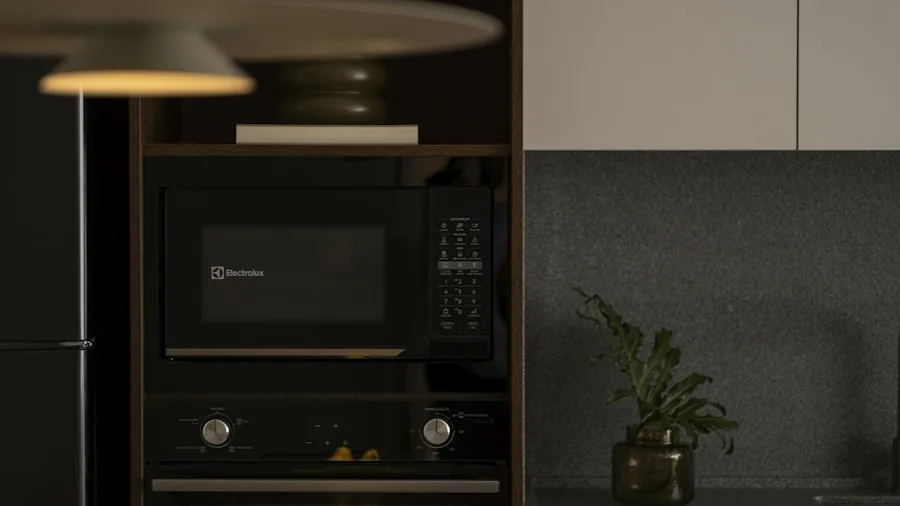
Identify exactly when your devices fail to respond. Check your smart home hub’s logs for timestamp gaps that coincide with regular activities. For example, if your kitchen motion light ignores motion between 12:40 and 1:15 p.m. on weekdays, microwave usage during lunch could be the reason. Once you spot the pattern, you can pinpoint the interference source and address it directly.
3. Understand Why Microwaves Cause Zigbee Problems
Microwave ovens operate at precisely 2,450MHz, which is the exact center frequency of Zigbee channel 20. The FCC allows microwave leakage up to 5 milliwatts per square centimeter at a distance of two inches from the surface, and a properly functioning oven well within these limits can still emit enough stray energy to overwhelm a Zigbee coordinator transmitting at just 6 milliwatts. This power differential makes it mathematically impossible for your network to compete, which explains why signals vanish the moment the microwave starts heating.
4. Avoid Automatic Channel Selection for Zigbee Networks
Many Zigbee hubs offer a ‘Smart’ channel selection feature that performs a one-time scan to find the quietest frequency. The problem is that this scan captures only a snapshot in time. A channel that shows zero interference on a quiet Sunday evening may become congested once you start using the microwave or other appliances during your regular weekday routine. Always choose your Zigbee channel manually based on your actual usage patterns, not on an automatic scan that ignores real-world interference.
5. Choose Zigbee Channel 15 for Microwave Prone Kitchens
If your Zigbee hub can see your kitchen, channel 15 offers the best balance. This frequency sits at 2,425MHz, placing it 25MHz away from the microwave’s peak operating frequency and creating a buffer zone that reduces interference significantly. Channel 15 also sits between Wi-Fi channels 1 and 6, and when paired with a router on Wi-Fi channel 11, it keeps your mesh network and wireless internet far enough apart to coexist peacefully. The channel change process typically takes about 25 minutes for devices to reconnect, though some sensors may need a quick battery reset.
6. Position Your Zigbee Coordinator Away From Wi-Fi Routers
Physical placement matters as much as channel selection. Your Zigbee coordinator and Wi-Fi router emit signals that can interfere with each other even on different channels. Keep them at least 3 feet apart if possible, and avoid placing them directly next to each other. If your coordinator sits right beside your microwave, move it before changing channels, since proximity amplifies the power difference between your network and appliance interference. The best smart locks and other Zigbee devices perform better when your hub is positioned in a central location away from major interference sources.
7. Know the Limitations of Each Zigbee Channel
Channel 15 works well in many scenarios, but its effectiveness depends entirely on your Wi-Fi configuration. If your router operates on channel 1 or 6 instead of channel 11, pairing it with Zigbee 15 will swap microwave interference for router interference, since the channel edges sit within 3MHz of each other. Before changing channels, verify your Wi-Fi configuration first. Quality smart locks for front doors and other Zigbee devices depend on stable connectivity, which requires coordinated channel planning across all 2.4GHz devices in your home.
Verify Your Fix and Maintain Stability
After moving your Zigbee network to a new channel, use the microwave for a few minutes while triggering your sensors manually. Check your smart home hub’s logs to confirm that no dropouts occur during appliance operation. If devices still fail to respond, you may need to re-pair one or two stubbornly connected sensors or adjust your Wi-Fi channel further. Smart locks under $200 and other mesh devices should reconnect automatically, though older sensors sometimes require manual intervention.
Once you achieve stability, document your channel configuration for future reference. Keep your Zigbee hub away from the microwave and your Wi-Fi router positioned strategically to minimize interference. With these steps in place, your smart home will stay responsive throughout the day, and the only thing going offline at lunchtime will be you.
About the author
Armando covers Wi-Fi routers for REMOVU, balancing speed, range, and features for homes of every size. He helps readers match a router to their space and their devices.