The 8 Best Monitors Under $500
Refresh rate, panel type, and ergonomics matter more than price alone. Here are the monitors worth buying right now, ranked by REMOVU research across specs, expert consensus, and verified buyer feedback.
 By Hannah Mitchell
Updated July 26, 2026
By Hannah Mitchell
Updated July 26, 2026

A good monitor is the single most visible part of any desk setup, yet it’s easy to overspend on specs you’ll never notice or underspend and end up squinting at a washed-out panel for years.
The encouraging news is that the sub-$500 range is genuinely excellent right now: IPS panels with accurate colors, 100Hz to 144Hz refresh rates, and ergonomic stands that used to be reserved for premium tiers are now standard features at budget-friendly prices.
Whether you’re equipping a home office, a light gaming rig, or a creative workstation, there is a strong monitor here for your needs.
REMOVU researched and scored each model in this list by analyzing published specifications, synthesizing expert review consensus from across the industry, and weighing verified buyer feedback.
That process surfaces the displays that consistently over-deliver for their price, and filters out the ones that look good on paper but disappoint in practice.
Read through the buying guide below to match the right panel to your setup, or scroll straight down to our ranked picks.
| Award | Product | REMOVU Score About REMOVU ScoreThe REMOVU Score is our own rating from 0 to 10, based on performance, design and build, ease of use, and value. It reflects independent research and is never influenced by manufacturers, retailers, or affiliate commissions. Learn more › | Price | |
|---|---|---|---|---|
| Best Overall |
 Dell S2725HSM 27-inch 144Hz FHD Monitor
|
8.3/10 | Buy | |
| Best Value |
 Dell SE2426H 24-inch 144Hz IPS Monitor
|
6.7/10 | Buy | |
 Acer KB242Y 23.8-inch 120Hz IPS Monitor
|
6.2/10 | Buy | ||
| Best Premium |
 LG 32MR50C-B 32-Inch Curved Monitor, 100Hz
|
7.5/10 | Buy | |
 Samsung 27" S36GD Curved Monitor 100Hz
|
6.4/10 | Buy | ||
 Samsung LF24T350 24-inch IPS Monitor
|
7.2/10 | Buy | ||
 Philips 241V8LB 24-inch FHD VA Monitor 100Hz
|
6.2/10 | Buy | ||
| Best Budget |
 Philips 221V8LB 22-inch FHD VA Monitor
|
6.2/10 | Buy |
Dell S2725HSM 27-inch 144Hz FHD Monitor
This 27-inch Dell display targets competitive gamers and content creators seeking smooth motion without breaking the bank. The 144Hz refresh rate paired with 1ms response time delivers fluid visuals, while dual 3W speakers and extensive ergonomic adjustments (height, tilt, pivot, swivel) make it versatile for both gaming marathons and daily productivity work. TÜV 4-star eye comfort certification and blue light reduction add practical value for extended viewing sessions.
Pros
- 144Hz refresh rate with 1ms MPRT response time ensures smooth, tear-free gameplay and fast-motion content
- Comprehensive ergonomic adjustment options: height, tilt, pivot, and swivel for personalized comfort throughout the day
- Built-in dual 3W speakers with five customizable sound profiles eliminate the need for external audio
- TÜV 4-star eye comfort certification with blue light reduction maintains visual quality while reducing strain
- AMD FreeSync support minimizes screen tearing for AMD graphics card users
- ENERGY STAR certified with 100% renewable packaging materials
Cons
- FHD resolution (1920x1080) on a 27-inch panel results in lower pixel density compared to 1440p alternatives at this size
- Limited to HDMI 1.4 connectivity, which may restrict future scalability with newer display standards
- 3W speakers deliver adequate range but lack the depth and power of dedicated external audio systems
Dell SE2426H 24-inch 144Hz IPS Monitor
This Dell 24-inch display pairs a 144Hz refresh rate with IPS color accuracy, making it a solid choice for both gaming and creative work. The 1ms response time and AMD FreeSync support deliver smooth motion, while TÜV Rheinland 3-star certification prioritizes eye comfort without sacrificing color quality.
Pros
- 144Hz refresh rate with 1ms MPRT response time for fluid, tear-free motion
- IPS panel ensures excellent color accuracy and 178-degree viewing angles
- TÜV Rheinland 3-star eye comfort certification reduces blue light exposure
- Ultra-thin bezels maximize screen real estate
- AMD FreeSync support eliminates screen tearing for AMD GPU users
Cons
- Limited to 1920x1080 resolution on a 24-inch screen, resulting in moderate pixel density
- No USB-C or DisplayPort connectivity mentioned, only HDMI inputs
- 144Hz performance optimized for gaming, less relevant for static work or office use
Acer KB242Y 23.8-inch 120Hz IPS Monitor
A budget-friendly 1080p IPS monitor with adaptive sync support and a sleek frameless design. The 120Hz refresh rate and 1ms response time make it versatile for both content creation and casual gaming, while the zero-frame bezel maximizes screen real estate. Best suited for users seeking a well-rounded display without breaking the bank.
Pros
- Zero-frame design maximizes visible screen area with minimal bezels
- IPS panel delivers accurate colors and wide viewing angles across the screen
- 120Hz refresh rate with 1ms response time handles both productivity and light gaming smoothly
- FreeSync adaptive sync eliminates screen tearing without requiring premium hardware
- High contrast ratio (100,000,000:1) and sRGB 99% accuracy for color-critical work
- Eye protect technology reduces strain during extended viewing sessions
Cons
- 1920x1080 resolution on a 23.8-inch panel may feel low-density for detailed design or spreadsheet work
- 250 nits brightness is moderate and may struggle in very bright rooms or with HDR content
- Limited connectivity with only HDMI and VGA ports, no USB-C or DisplayPort options
LG 32MR50C-B 32-Inch Curved Monitor, 100Hz
This 32-inch curved display brings immersive workspace real estate to home offices and casual gamers alike. The combination of a 100Hz refresh rate, AMD FreeSync support, and VA panel vibrancy delivers smooth visuals for streaming and light gaming without breaking the bank. The curved design and borderless edges create an engaging viewing experience, though Full HD resolution on a 32-inch panel means pixel density trades off for screen size.
Pros
- Large 32-inch curved display with 3-side borderless design creates an immersive workspace
- 100Hz refresh rate and AMD FreeSync reduce stuttering and motion blur during streaming and casual gameplay
- VA panel delivers vibrant colors and strong contrast, even at wide viewing angles
- Reader Mode and Flicker Safe features reduce eye strain during extended work sessions
- OnScreen Control allows easy display customization and window splitting without external software
Cons
- 1920x1080 resolution on a 32-inch screen results in lower pixel density compared to smaller high-res monitors
- Black Stabilizer feature may not provide significant competitive advantage in fast-paced competitive gaming
- Limited information on color accuracy specs, which matters for content creation work
Samsung 27" S36GD Curved Monitor 100Hz
This 27-inch curved display brings immersive gaming and everyday computing to a budget-friendly package. The 1800R curve and 100Hz refresh rate work together to reduce motion blur and enhance depth perception, while TÜV-certified eye comfort features help minimize strain during extended sessions. Best suited for casual gamers and office workers who value screen real estate without breaking the bank.
Pros
- 1800R curved panel enhances immersion and reduces peripheral distractions
- 100Hz refresh rate delivers smoother motion for gaming and video playback
- Advanced eye comfort technology with blue light reduction and flicker control certified by TÜV
- Game Mode optimizes color and contrast for better visibility in dark scenes
- Dual connectivity with HDMI and D-Sub for flexible device compatibility
Cons
- FHD resolution on a 27-inch screen results in lower pixel density compared to 1440p alternatives
- Default refresh rate set to 60Hz, requires manual adjustment in settings to unlock 100Hz capability
- VA panel technology may have narrower viewing angles than IPS alternatives in the comparison lineup
Samsung LF24T350 24-inch IPS Monitor
Samsung's T350 delivers a solid 24-inch IPS display with FreeSync support and 4ms response time, making it a practical choice for everyday computing and light gaming. The 1080p resolution keeps costs reasonable while the IPS panel ensures consistent color accuracy from wider viewing angles.
Pros
- IPS panel with wide viewing angles and stable color reproduction
- FreeSync compatibility smooths gameplay on compatible AMD graphics cards
- 4ms response time suitable for general use and casual gaming
- Compact 24-inch size fits most desk setups without overwhelming space
Cons
- 1080p resolution on 24 inches results in moderate pixel density compared to 1440p alternatives
- No height adjustment or tilt range mentioned, limiting ergonomic customization
- Limited connectivity details provided in available specifications
Philips 241V8LB 24-inch FHD VA Monitor 100Hz
A solid 24-inch office and light gaming monitor that balances work and entertainment. The VA panel delivers strong contrast and wide viewing angles, while 100Hz refresh rate with Adaptive Sync handles everyday tasks and casual gaming without breaking the bank. Eye-care features like flicker-free technology and low blue light make it suitable for extended screen time.
Pros
- VA panel with 178-degree viewing angles ensures consistent colors from any seat
- 100Hz refresh rate with Adaptive Sync for smooth motion in work and gaming scenarios
- Flicker-free technology and low blue light mode reduce eye strain during long sessions
- Nearly bezel-free three-side design enables seamless multi-monitor setups
- 4ms response time and 16.7 million colors provide crisp visuals for professional work
Cons
- 100Hz refresh rate is modest compared to modern gaming monitors, limiting competitive advantage
- Limited connectivity with only HDMI 1.4, lacking modern DisplayPort or USB-C options
- VA panel may show slower pixel transitions in fast-paced content despite 4ms rating
Philips 221V8LB 22-inch FHD VA Monitor
A budget-friendly 22-inch display built for everyday work and casual gaming. The VA panel delivers strong contrast and wide viewing angles, while the 100Hz refresh rate and Adaptive-Sync technology handle video smoothly without breaking the bank. Eye-care features like flicker-free tech and low blue light make it practical for extended screen time.
Pros
- Excellent contrast and color depth from VA panel with 16.7 million colors
- Wide 178-degree viewing angles prevent color shift when viewed off-axis
- 100Hz refresh rate with Adaptive-Sync for smooth motion in video and light gaming
- Flicker-free display with low blue light mode reduces eye strain during long work sessions
- 4-year advance replacement warranty provides solid long-term protection
Cons
- 22-inch screen is relatively small for detailed CAD or spreadsheet work despite the marketing claims
- 4ms response time is adequate but not competitive for fast-paced gaming compared to modern IPS or TN panels
- Limited to HDMI 1.4 connectivity without modern alternatives like DisplayPort
Monitors Under $500 Buying Guide
Not every monitor buyer needs the same things. A remote worker cares most about accurate color and a comfortable ergonomic stand for eight-hour days, while a casual gamer prioritizes refresh rate and adaptive sync.
The sections below walk through every major decision point so you can focus on what actually matters for your situation rather than chasing specs the marketing department invented.
Panel Type: IPS, VA, or TN

Panel technology shapes everything from color accuracy to viewing angles and response time, so it is the right place to start.
IPS (In-Plane Switching) panels offer the widest color gamut coverage, the most consistent brightness across viewing angles, and the most natural image for photo work and general productivity.
If you split screen time between creative tasks and everyday browsing, IPS is almost always the safest choice, and several options in this list deliver sRGB coverage above 99 percent.
VA (Vertical Alignment) panels trade some color accuracy for significantly deeper blacks and higher native contrast ratios, which makes them well-suited to darker rooms where watching movies or gaming in the evenings is a priority.
They can exhibit some corner glow and slower pixel transitions than IPS at equivalent prices, but modern VA displays have narrowed that gap considerably.
TN panels are now largely a legacy choice: faster pixel response times come at the cost of poor vertical viewing angles and muted colors, and you can find IPS displays with comparable response times at similar prices in 2026, so TN is rarely the recommended path.
The gaming monitors category often blends these technologies with high refresh rates, so if your use case skews heavily toward gaming it is worth reading our dedicated gaming panel guidance before deciding.
For most people buying from this list, IPS or VA will be the right call depending on whether you value color accuracy or contrast.
Refresh Rate and Adaptive Sync

Refresh rate is the number of times per second your monitor redraws the image, measured in hertz.
For office work, email, and browsing, 60Hz is serviceable but 100Hz or higher makes scrolling and cursor movement feel noticeably smoother even without any gaming involved.
Every monitor in this list runs at 100Hz or above, which puts the whole lineup ahead of the older 60Hz standard.
The two Dell options at 144Hz are the standouts for anyone who games at all, since higher frame rates translate directly to cleaner motion and faster reaction feedback.
Adaptive sync technology, either AMD FreeSync or NVIDIA G-Sync Compatible, eliminates screen tearing by synchronizing the monitor’s refresh rate with your graphics card’s output.
All eight picks here carry FreeSync or Adaptive-Sync support, which means pairing them with a capable gaming desktop or a dedicated GPU will deliver a tear-free experience without any extra cost.
For pure productivity use this feature goes unnoticed, but it costs nothing to have it and it preserves the monitor’s long-term versatility if your needs change.
Resolution and Screen Size
Every monitor in this roundup runs 1920×1080 (Full HD).
At screen sizes from 22 to 27 inches, FHD remains sharp enough for everyday productivity, and it places minimal load on your GPU, which is why 144Hz frame rates are achievable even on mid-range graphics hardware.
The practical advantage of staying at FHD in this price band is that you get more of your budget allocated to panel quality, ergonomics, and refresh rate rather than pixels alone.
Screen size is partly a desk space question and partly a pixel density question.
A 22-inch FHD display is noticeably sharper per inch than a 32-inch FHD display, so if text clarity is your top priority, the smaller panel sizes in this list have an edge.
Conversely, the 32-inch curved options benefit gaming and media consumption by filling more of your field of view.
Think about how far you sit from your desk: roughly arm’s length (24 to 27 inches from face to screen) is the comfort zone where a 24 to 27 inch panel looks best without requiring you to move your head to take in the full image.
If your work leans heavily into image editing or digital illustration, pairing your display with one of the laptops for photo editing that offer built-in color calibration can be a worthwhile complement, especially when color consistency between devices matters.
Ergonomics and Stand Adjustability

A monitor stand that only tilts is a compromised stand. If you sit at a desk for long periods, height adjustment is the single ergonomic feature that makes the biggest difference to neck and shoulder comfort.
The Dell 27 Plus (S2725HSM) in this list is a standout in this regard: it offers height, tilt, pivot, and swivel adjustment, which is rare at its price tier and puts it in a different league from the tilt-only options.
If your budget allows it, prioritizing a monitor with full ergonomic adjustability is one of the highest-value upgrades you can make to a daily workspace.
VESA compatibility matters if you plan to use a third-party monitor arm, which can free up significant desk space and enable even more precise positioning.
Several picks in this list are VESA-compatible, so if you intend to pair your new display with a monitor arm, check that the model you choose confirms VESA mounting.
Mounting arms also reduce fatigue by letting you move the screen closer for detailed work and farther away for video calls, without being stuck at one height.
Note that building out a well-organized workstation often goes hand in hand with investing in mechanical keyboards and wireless mice that complete the ergonomic setup.
Connectivity and Port Selection
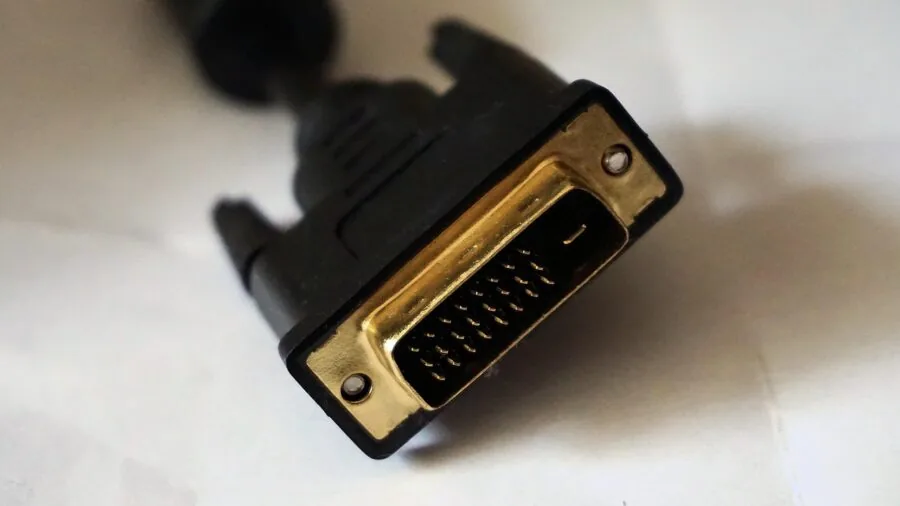
HDMI is the universal minimum for displays in this category, and every pick here includes at least one HDMI port.
The more relevant question is whether the monitor covers your specific connectivity needs: if you use a laptop that outputs via USB-C or DisplayPort, confirm those ports exist before buying.
VGA remains present on several budget options for backward compatibility with older desktops, but it is an analog signal and should not be your primary connection if a digital alternative is available.
The Dell SE2426H includes two HDMI ports, which is convenient if you regularly switch between a desktop and a laptop or a game console without wanting to swap cables.
Built-in speakers are a legitimate convenience feature if desk space is limited, though in most cases dedicated audio hardware will outperform a thin-bezel speaker by a meaningful margin.
The Dell S2725HSM includes 2x3W speakers, which covers casual video call and media use. For a more complete audio upgrade consider adding a compact soundbar or quality PC speakers alongside your monitor.
If you are also thinking about how your workstation sounds, our overview of monitors and peripherals covers the broader desktop ecosystem, and there are options worth exploring for speakers at an accessible budget.
Eye Comfort Features

Flicker-free backlighting and low blue light modes have moved from premium-only features to broadly available ones, and most monitors in this list include both.
Flicker-free technology eliminates the pulse-width-modulation dimming that causes eye strain during extended screen sessions, while low blue light modes reduce the wavelengths most disruptive to sleep cycles.
The Philips 241V8LB and 221V8LB both explicitly advertise flicker-free operation alongside their TÜV-certified low blue light modes, making them well-suited to workplaces where monitors run for eight or more hours daily.
Eye comfort also ties back to ambient lighting and glare management. An anti-glare matte coating, which is standard across this list, reduces reflections from overhead lighting or windows significantly.
If you work in a very bright room or adjacent to a window, you may also want to look at ambient light bias lighting behind the monitor, which reduces the perceived contrast between the bright panel and the darker surrounding wall and makes long sessions more comfortable.
For people who spend hours on video calls or code reviews, these small ergonomic investments compound quickly over a working year.
Those doing intensive written work may also find that pairing a quality display with a programming-focused laptop or a compact mini PC rounds out a capable and quiet desk setup.
Why You Should Trust Us
REMOVU is an independent review publication with no manufacturer relationships that influence our recommendations.
Every monitor in this guide was scored using the REMOVU Score system, a consistent 0-to-10 rating applied across a structured set of criteria that include panel quality, ergonomics, port selection, value for price, and verified ownership satisfaction.
We do not conduct our own product trials; our evaluations are grounded in research, published data, expert review consensus, and verified buyer feedback.
Our research process draws on published display specifications, industry-wide expert review consensus, and the aggregated feedback of verified buyers who have owned and used these monitors day to day.
This approach lets us identify patterns that single-source reviews can miss: a monitor that scores well in controlled expert assessments but consistently draws complaints about backlight bleed or stand wobble from real owners, for instance, will see that reflected in its REMOVU Score.
We believe this cross-referenced methodology produces more reliable guidance than any single review perspective alone.
REMOVU may earn a commission if you purchase through a link in this article. That affiliate relationship has no bearing on our rankings, scores, or product selection.
Monitors earn their placement here on the strength of the evaluation criteria, not commercial arrangements. We do not accept free products, sponsored placements, or editorial direction from brands.
If a product is not a strong recommendation for its category, it does not appear in this list, regardless of any other considerations.
Final Thoughts
The monitors in this roundup cover a wide range of use cases and budgets, from compact everyday displays to curved widescreen panels designed for immersive gaming. Here is how we categorize the standout picks based on our research and scoring.
- Best Overall: Dell 27 Plus Monitor S2725HSM earns the top REMOVU Score in this group by combining 144Hz refresh rate, a 1ms response time, full ergonomic adjustability (height, tilt, pivot, swivel), built-in speakers, and a well-regarded IPS panel into one package that punches above its price tier for both productivity and light gaming.
- Best Budget Pick: Dell 24 Monitor SE2426H delivers a genuine IPS panel with 144Hz and AMD FreeSync at a budget-friendly price, backed by TÜV certification and dual HDMI ports, making it an easy recommendation for first-time buyers or secondary workstation displays.
- Best for Immersive Gaming: LG 32MR50C-B Curved Monitor stands out among the curved options with its 32-inch 1800R curved FHD panel, OnScreen Control software, and Black Stabilizer feature, earning the second-highest REMOVU Score in the list and offering a genuinely engaging gaming experience at a mid-range price.
- Best for All-Day Office Use: Samsung 24-in T350 is a compact, low-footprint IPS monitor with a clean design that suits shared office spaces and tight desks, offering reliable everyday performance at an accessible price point.
- Best Ultra-Budget Pick: Philips 22 Inch 221V8LB is the most affordable entry in the group, and it still delivers 100Hz, flicker-free VA performance, Adaptive Sync, and a four-year advance replacement warranty that adds genuine long-term peace of mind for cost-conscious buyers.
Whichever model fits your budget and use case, the entire lineup here sits comfortably within the range where diminishing returns start to appear on higher-end panels.
Spending more beyond this tier buys increasingly marginal improvements in pixel density or color volume, whereas spending here gets you a capable, feature-rich display that most people will be genuinely happy with for years.
If your setup extends to a full workstation build, take a look at our roundup of motherboards for every build and budget or our guide to portable monitors if you need a second screen for travel.
Frequently Asked Questions
Do I Need More Than 1080p for a Monitor Under $500?
Not necessarily. At 24 to 27 inches, Full HD delivers a sharp image that suits productivity, gaming, and casual media use without taxing your GPU.
QHD (1440p) monitors start appearing in this price range, but they require more graphics power to hit smooth frame rates in games.
If raw pixel density matters to you for photo editing or fine text rendering, QHD is worth the premium. For most buyers, FHD at 100Hz or higher offers a better real-world experience than QHD at a lower refresh rate.
Is a Curved Monitor Worth It for Everyday Use?
Curved monitors are genuinely beneficial at larger screen sizes (32 inches and up) because the curvature keeps the edges of the panel at a more consistent viewing distance from your eyes, reducing the slight fisheye effect that flat widescreen panels can produce.
At 27 inches and below, the ergonomic benefit is less pronounced, though some users find the wrap-around feel more immersive for gaming.
For pure office work, a flat IPS panel is often preferable because straight lines in spreadsheets and documents look geometrically accurate without any barrel distortion at the edges.
What Refresh Rate Do I Need if I’m Not a Gamer?
Even if you never launch a game, a 100Hz monitor makes everyday computing noticeably smoother. Scrolling through documents, moving windows, and dragging files all feel more fluid compared to 60Hz.
Every monitor in this list runs at 100Hz or above, so you benefit from that upgrade regardless of how you use the display.
If you do game occasionally, prioritizing 144Hz will future-proof the purchase more effectively and the price difference within this list is not large.
Can I Use One of These Monitors With a Laptop?
Yes, and it is one of the most practical upgrades you can make to a laptop-based workflow. All monitors in this list include HDMI ports compatible with modern laptops; some also include VGA for older machines.
If your laptop outputs via USB-C or DisplayPort, confirm those ports are available on the monitor before purchasing.
Pairing an external monitor with a capable work laptop or even a docking station greatly expands your usable screen real estate and makes multitasking significantly more comfortable.
How Do I Know if a Monitor Has Good Color Accuracy?
The most common reference is sRGB coverage percentage. A monitor that covers 99 percent of sRGB reproduces the full range of colors used in web content, streaming video, and most productivity software accurately.
For professional photo or video editing work, you may want to look at DCI-P3 coverage as well, though monitors at this price tier are primarily sRGB-rated.
Beyond the spec sheet, expert review consensus and verified buyer feedback on color consistency and panel uniformity are the most reliable signals, which is exactly how REMOVU weighs these factors in our scoring.
If you are also evaluating a laptop for photo editing to pair with an external display, color gamut consistency between the two screens becomes an important calibration consideration.
What Is the Difference Between FreeSync and G-Sync?
Both technologies synchronize the monitor’s refresh rate with the GPU’s output to eliminate screen tearing and reduce stuttering. FreeSync is AMD’s royalty-free standard and is supported by every monitor in this list.
G-Sync is NVIDIA’s proprietary implementation and typically requires a dedicated hardware module, which adds cost and is uncommon at this price tier.
The good news is that most modern NVIDIA graphics cards also support FreeSync-compatible monitors through their own Adaptive Sync implementation, so buying a FreeSync display does not lock you into an AMD GPU.
For a deeper look at graphics hardware, our guide to gaming PCs under $1500 covers how GPU and monitor pairing affects the overall experience.
About the author
Hannah writes about video doorbells for REMOVU, comparing video quality, smart alerts, and subscription value. She helps readers keep an eye on the porch without overpaying for storage.