The 9 Best Monitors for Photo Editing
Color accuracy, gamut coverage, and calibration support separate a true photo editing monitor from a general display. These picks span every budget, from verified sRGB panels to wide-gamut Adobe RGB screens.
 By Kylie Fields
Updated July 26, 2026
By Kylie Fields
Updated July 26, 2026
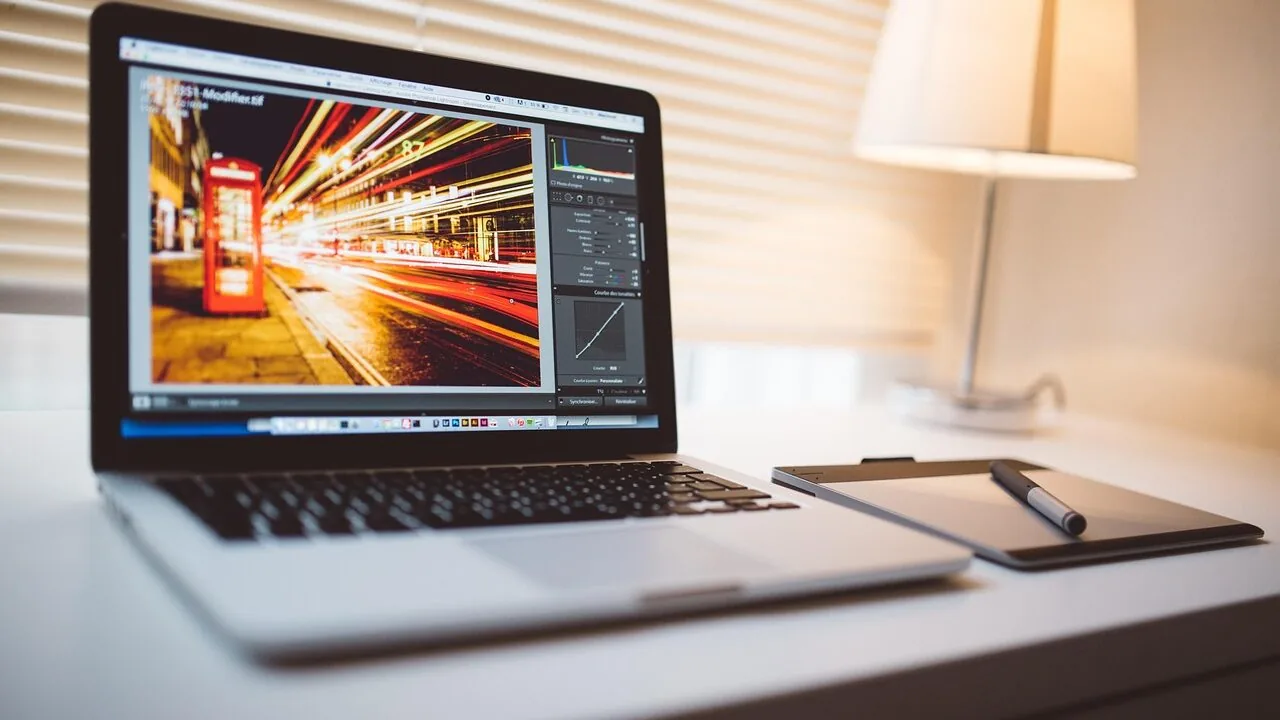
A monitor is arguably the single most important tool in a photo editor’s workflow.
Unlike general-purpose displays, a dedicated photo editing monitor needs to reproduce color with enough accuracy that what you see on screen genuinely matches what comes out of your printer or ends up on a client’s display.
Photographers and retouchers working in sRGB, Adobe RGB, or DCI-P3 color spaces need a panel that covers those gamuts reliably, holds calibration over time, and renders fine tonal gradations without banding or crushing.
Whether you shoot portraits, landscapes, or commercial work, the wrong monitor can cost you hours of rework and erode client trust far faster than any gear upgrade can recover.
To help you find the right screen without wading through pages of conflicting spec sheets, REMOVU’s research team analyzed the monitors for photo editing available right now by cross-referencing manufacturer specifications, expert review consensus from the imaging and display community, and verified buyer feedback from confirmed purchasers.
The picks below range from budget-conscious IPS panels with Calman-verified accuracy to wide-gamut professional displays built specifically for demanding color work.
Read on for our top-ranked recommendations, then dive into the buying guide to understand exactly what separates a good photo editing monitor from a great one.
| Award | Product | REMOVU Score About REMOVU ScoreThe REMOVU Score is our own rating from 0 to 10, based on performance, design and build, ease of use, and value. It reflects independent research and is never influenced by manufacturers, retailers, or affiliate commissions. Learn more › | Price | |
|---|---|---|---|---|
| Best Overall |
 BenQ SW272Q 27-inch 2K Professional Monitor
|
8.9/10 | Buy | |
| Best Premium |
 ViewSonic VP2756A-2K 27-Inch QHD ColorPro Monitor
|
8.3/10 | Buy | |
 ASUS ProArt PA278QV 27-inch 1440p Professional Monitor
|
7.5/10 | Buy | ||
| Best Value |
 ASUS ProArt PA248QFV 24-inch Professional Monitor
|
7.5/10 | Buy | |
 ASUS ProArt PA248QV 24-Inch Professional Monitor
|
6.8/10 | Buy | ||
 ASUS ProArt PA247CV 24-inch IPS Monitor
|
6.8/10 | Buy | ||
| Best Budget |
 Dell S2725DSM 27-inch QHD 144Hz Monitor
|
8.4/10 | Buy | |
 SANSUI 34-Inch Curved UWQHD 200Hz Gaming Monitor
|
6.2/10 | Buy | ||
 Kado 24" Curved Dual Monitor 2-Pack 1920x1080 75Hz
|
7.5/10 | Buy |
BenQ SW272Q 27-inch 2K Professional Monitor
A color-accurate display built for photographers and designers who demand precision. The nano matte panel simulates paper texture to help predict print output, while 99% Adobe RGB and 98% DCI-P3 coverage ensure faithful color reproduction. Hardware calibration via Palette Master Ultimate software makes fine-tuning straightforward, though the 2K resolution may feel limiting for detailed retouching work at this screen size.
Pros
- Excellent color gamut coverage (99% Adobe RGB, 98% DCI-P3) with 1.07 billion colors for professional editing
- Nano matte panel with TUV anti-reflection certification reduces glare and simulates print appearance
- Paper Color Sync technology lets you preview how images will look on different paper types and printer models
- 16-bit 3D LUT and hardware calibration support for precise color management
- High rating (4.9/5) from verified buyers indicates strong real-world reliability
Cons
- 2K QHD resolution (2560x1440) on a 27-inch screen may lack the pixel density preferred for detailed photo retouching compared to 4K alternatives
- Positioned as premium product, likely higher cost than general-purpose monitors
- Nano matte finish, while useful for print simulation, may not suit users who prefer glossy displays for maximum contrast and vibrancy
ViewSonic VP2756A-2K 27-Inch QHD ColorPro Monitor
A factory-calibrated display built for color-critical work, featuring 100% sRGB coverage, Delta E<2 accuracy, and Pantone validation. The 2560x1440 IPS panel pairs with USB-C single-cable connectivity (90W power delivery) and a fully adjustable ergonomic stand, making it a solid choice for photographers, designers, and video editors who prioritize precision over gaming performance.
Pros
- Factory pre-calibrated with Delta E<2 and 100% sRGB for reliable color accuracy across professional workflows
- USB-C single-cable solution delivers video, audio, and 90W charging plus integrated USB hub with 15W quick-charge port
- Comprehensive ergonomic adjustments (height, tilt, pivot, swivel) reduce fatigue during extended work sessions
- 3-sided frameless design enables seamless multi-monitor setups for efficient multitasking
- Pantone Validated certification ensures consistent color reproduction for Pantone Matching System workflows
Cons
- 120Hz refresh rate and QHD resolution prioritize productivity over gaming, limiting appeal for motion-heavy use cases
- Premium positioning on color accuracy may exceed budget constraints for casual users or hobbyists
- No mention of HDR support or extended color gamuts beyond sRGB, which some advanced post-production workflows require
ASUS ProArt PA278QV 27-inch 1440p Professional Monitor
A factory-calibrated IPS display built for creative professionals who demand color accuracy. With Calman Verified Delta E <2 precision, 100% sRGB and Rec.709 coverage, and a fully adjustable ergonomic stand, it handles photo editing, video grading, and graphic design without compromise. The integrated USB hub and ProArt Palette software sweeten the workflow, though the premium positioning puts it beyond casual users.
Pros
- Factory-calibrated with Calman Verified Delta E <2 accuracy, ready to use out of the box without additional calibration
- 100% sRGB and 100% Rec.709 color gamut ensures industry-standard color reproduction for photo and video work
- Fully adjustable ergonomic stand with tilt, swivel, pivot, height adjustment, and 90-degree portrait rotation for flexible workspaces
- ASUS Eye Care technology with flicker-free backlighting and multi-level blue light filter reduces fatigue during extended sessions
- Extensive connectivity including DisplayPort, HDMI, DVI-D, Mini DP, and integrated USB hub for streamlined desk setup
Cons
- Premium pricing positions it as an investment rather than an entry-level option for aspiring creatives
- 1440p resolution, while excellent for 27 inches, offers less screen real estate than 4K alternatives for detail-heavy work
- Requires online registration to unlock the 2-year warranty extension, adding an extra step for full coverage
ASUS ProArt PA248QFV 24-inch Professional Monitor
A 24-inch IPS monitor built for creative professionals, the PA248QFV delivers factory-calibrated color accuracy (Delta E < 2) with 100% sRGB coverage and Calman verification. The 16:10 aspect ratio, 100Hz VRR, and M Model color temperature for MacBook alignment make it well-suited for video editors, colorists, and designers who demand precision. Includes USB-C hub, DisplayPort, and HDMI connectivity plus three years of warranty coverage.
Pros
- Exceptional color accuracy out of the box with Calman Verified calibration and Delta E < 2 performance
- 100% sRGB and Rec. 709 coverage ensures reliable color reproduction for professional workflows
- 16:10 aspect ratio and 1920 x 1200 resolution provide extra vertical workspace compared to standard 16:9 displays
- 100Hz VRR and ASUS Light Sync with ambient light sensor improve viewing comfort during long editing sessions
- Built-in USB3.2 hub and multiple connectivity options (DisplayPort, HDMI, USB-C) reduce cable clutter
Cons
- 1920 x 1200 resolution may feel limiting for 4K content work or very detailed design tasks on a 24-inch panel
- Premium pricing typical of professional-grade monitors, making it less accessible for hobbyists or casual users
- Requires ASUS DisplayWidget Center software for full control of advanced features like color temperature adjustments
ASUS ProArt PA248QV 24-Inch Professional Monitor
A 24-inch IPS display built for color-critical work, delivering 100% sRGB coverage with Delta E under 2 and Calman verification for precise color accuracy. The WUXGA resolution (1920 x 1200) and fully adjustable stand suit designers, photographers, and video editors who demand reliable color fidelity without compromise. Includes 3 months of Adobe Creative Cloud and a solid 5-year warranty.
Pros
- Exceptional color accuracy verified by Calman with Delta E < 2, ideal for professional color-dependent workflows
- 100% sRGB and Rec.709 color space coverage ensures consistent, true-to-life color reproduction
- Fully ergonomic stand with tilt, pivot, swivel, and height adjustment for extended comfortable use
- Anti-glare coating reduces eye strain during long work sessions
- Multiple connectivity options (DisplayPort, HDMI, D-Sub) and includes 3-month Adobe Creative Cloud subscription
Cons
- WUXGA resolution (1920 x 1200) is modest by current standards, limiting screen real estate for multitasking
- 24-inch size may feel compact for some professional workflows requiring larger viewing area
- Limited information on brightness levels and contrast ratio in provided specifications
ASUS ProArt PA247CV 24-inch IPS Monitor
A color-accurate display built for creative professionals who demand precision out of the box. The 24-inch IPS panel delivers factory-calibrated accuracy (Delta E < 2) with 100% sRGB and Rec. 709 coverage, while USB-C connectivity with 65W power delivery simplifies multi-display setups. Includes 3 months of Adobe Creative Cloud, making it a solid value for design, photo editing, and video work.
Pros
- Factory calibrated with Calman verification and Delta E < 2 color accuracy, eliminating need for manual calibration
- 100% sRGB and 100% Rec. 709 color gamut meets professional color standards
- USB-C with 65W power delivery and DisplayPort daisy-chain support reduces cable clutter in multi-monitor setups
- Extensive connectivity including DisplayPort, HDMI, and USB 3.1 hub for flexible device integration
- 5-year warranty (3 years standard plus 2-year extension with registration) and included Adobe Creative Cloud subscription
Cons
- 1920 x 1080 resolution on a 24-inch panel may feel limiting for detailed design work compared to higher-res alternatives
- Entry-level brightness and contrast specs compared to higher-end professional monitors
- Limited to 60Hz refresh rate, unsuitable for gaming or fast-motion video workflows
Dell S2725DSM 27-inch QHD 144Hz Monitor
This 27-inch Dell monitor delivers sharp QHD visuals paired with a 144Hz refresh rate and 1ms response time, making it suitable for both content consumption and gaming. Built-in dual speakers and extensive ergonomic adjustments add practical value, while TÜV 4-star certification addresses eye strain concerns for extended viewing sessions.
Pros
- 144Hz refresh rate with 1ms MPRT response time for smooth motion and reduced ghosting
- QHD resolution (2560x1440) with 1500:1 contrast ratio provides crisp details and vivid colors
- Comprehensive ergonomic adjustments: tilt, swivel, pivot, and 110mm height adjustment for personalized comfort
- Integrated dual 3W speakers with five preset sound profiles eliminate need for external audio
- TÜV 4-star certification with blue light reduction technology supports eye comfort during extended use
- AMD FreeSync support minimizes screen tearing for AMD graphics card users
- ENERGY STAR certified with sustainable materials (up to 95% recycled plastic in chassis)
Cons
- Dual 3W speakers are modest in power and not ideal for serious audio work or large rooms
- 1500:1 contrast ratio is standard for IPS panels, not exceptional compared to VA alternatives
- No USB-C or Thunderbolt connectivity, limiting modern docking capabilities
SANSUI 34-Inch Curved UWQHD 200Hz Gaming Monitor
This ultrawide curved monitor delivers immersive gaming with a 3440 x 1440 resolution and 200Hz refresh rate, paired with 1ms response time for competitive play. Built-in AI features like crosshair overlay and blue light reduction add convenience, though the lack of onboard speakers means you'll need external audio.
Pros
- 34-inch ultrawide 1500R curve with 3440 x 1440 resolution provides expansive field of view for gaming and productivity
- 200Hz refresh rate with 1ms response time and FastVA panel suits fast-paced gaming
- Dual HDMI 2.1 and DisplayPort 1.4 connectivity with VRR support
- AI-powered features including crosshair overlay, blue light reduction, and picture quality enhancement
- PIP/PBP functionality and 178-degree viewing angles for flexible multitasking
- 4.4-star rating from 4,494 reviews indicates strong user satisfaction
Cons
- No built-in speakers, requiring separate audio solution
- Limited stand adjustment range (-5 to +15 degrees tilt) may not suit all desk setups
- Ultrawide resolution demands higher GPU power to achieve 200Hz in demanding titles
Kado 24" Curved Dual Monitor 2-Pack 1920x1080 75Hz
This dual-monitor bundle pairs curved 24-inch displays with a 1500R bend designed to reduce eye strain during extended work or gaming sessions. The 75Hz refresh rate and gaming-optimized modes suit casual gamers and productivity users, while built-in speakers eliminate the need for separate audio. Best for hybrid setups where immersive visuals and desk space efficiency matter.
Pros
- 1500R curved design reduces peripheral distortion and neck fatigue for long sessions
- 98% sRGB color accuracy suitable for creative and multimedia work
- Built-in speakers save desk space in office and gaming environments
- Custom gaming modes for FPS and RTS optimization
- Dual-monitor bundle simplifies setup for multi-tasking workflows
Cons
- 75Hz refresh rate is modest for competitive gaming compared to 144Hz+ alternatives
- No detailed specifications provided on response time, brightness, or contrast ratio
- Zero verified reviews available to assess real-world reliability and user satisfaction
Monitors for Photo Editing Buying Guide
Choosing among the many panels marketed at photographers can feel overwhelming.
Brands like BenQ, ASUS, ViewSonic, and Dell all make credible claims about color accuracy, but the specs that actually matter for photo work are narrower and more specific than general monitor marketing suggests.
The sections below walk through the criteria our research weighed most heavily, so you can match a monitor to your actual shooting and editing style rather than simply buying the most expensive panel on the shelf.
Panel Type and Color Accuracy

IPS (In-Plane Switching) panels dominate professional photo editing for one primary reason: wide viewing angles with consistent color shift.
When you lean slightly to inspect a corner of an image, an IPS panel holds its colors far better than a TN or VA screen.
For photo work, this matters every time you tilt or swivel the display to show a client a proof or to judge shadow detail across the frame.
Delta E (ΔE) is the industry metric for color accuracy, measuring the perceptible difference between a target color and what the panel actually displays.
A Delta E below 2 is the professional threshold: at that level, errors are imperceptible to the human eye under normal viewing conditions.
Most of the picks in this guide carry factory-calibrated or Calman-verified certifications that guarantee ΔE < 2 out of the box, which saves you the cost and time of initial calibration.
If color-critical work is your primary focus, treat that certification as a baseline requirement rather than a bonus feature.
Nano-matte panel coatings, as found on certain higher-end BenQ screens, reduce micro-reflections without the hazy, sparkly artifact that standard anti-glare coatings can introduce in fine-detail image areas.
If your editing space has uncontrolled ambient light, the coating type can affect perceived sharpness and color saturation as much as the underlying panel spec itself.
Color Gamut Coverage
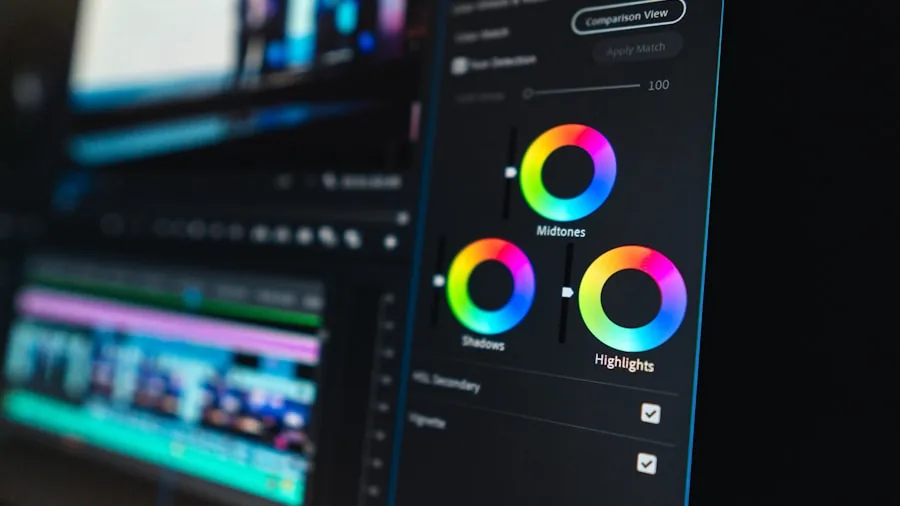
Color gamut refers to the total range of colors a display can reproduce.
For photographers, the three gamuts that matter most are sRGB, Adobe RGB, and DCI-P3. sRGB is the web standard and covers roughly the range of most inkjet printing profiles.
100% sRGB coverage is the minimum worth considering for any photo editing work. If you deliver files destined for web publication, social media, or standard inkjet printing, a 100% sRGB display handles the vast majority of your output targets.
Adobe RGB encompasses a significantly wider gamut, particularly in greens and cyans, and aligns more closely with the output range of professional wide-gamut inkjet printers.
Commercial photographers, fine-art printmakers, and anyone producing large-format prints for galleries should prioritize displays reaching 99% Adobe RGB or higher.
DCI-P3 has become increasingly relevant as more cameras capture in Log profiles that map to P3 output targets, and it overlaps heavily with Display P3, the default color space on Apple hardware.
A display covering 98% or more of DCI-P3 serves both professional photo and light video color work without requiring a separate screen.
If your work spans video editing alongside photography, a wide-gamut panel with both Adobe RGB and DCI-P3 coverage is especially practical.
Be cautious of screens that report high gamut coverage percentages without independent verification. A manufacturer claiming “130% sRGB” is reporting relative coverage of a larger color space, not absolute accuracy within that space.
Look for Calman verification, factory calibration reports, or third-party certification data when evaluating gamut claims.
Resolution and Aspect Ratio
Resolution determines how much image detail you can inspect at full 1:1 zoom and how much canvas space your editing software has to spread its panels and toolbars.
For photo editing, QHD (2560 x 1440) at 27 inches represents a well-balanced sweet spot: pixel density is high enough to render fine sharpness, and the step up from 1080p means noticeably more workspace in Lightroom or Photoshop without requiring GPU scaling compromises.
The majority of recommended picks in this guide operate at QHD, which reflects where most professional and prosumer workflows currently land.
A WUXGA (1920 x 1200) resolution in a 16:10 aspect ratio, as offered on certain 24-inch ASUS ProArt panels, provides a small but meaningful vertical advantage over standard 16:9 1080p screens.
That extra vertical space is useful when reviewing full-frame portrait crops or working with tall palettes in Capture One.
Ultrawide QHD or UWQHD panels (3440 x 1440) offer panoramic canvas space ideal for multi-window workflows, though their wide gamut coverage and calibration support varies more widely.
For photographers who also need broad desktop real estate, our coverage of ultrawide monitors covers those options in more detail.
For workflows demanding the highest pixel density and the ability to evaluate 60MP+ files at native resolution, our roundup of 4K monitors is worth consulting alongside this guide.
Connectivity and USB-C Integration

Modern photo editing setups increasingly run off a laptop as the primary workstation, and USB-C with Power Delivery has become a critical convenience feature.
A single USB-C cable can carry video signal, transmit data, and charge a laptop simultaneously, eliminating the need for a separate dock or power adapter.
Displays offering 90W USB-C Power Delivery cover the full charging spec of most 14-inch and 15-inch laptops used by photographers in the field or between studio and location.
This is no longer a luxury feature; for MacBook Pro or Dell XPS users, it is a meaningful quality-of-life upgrade that affects daily workflow speed.
Beyond USB-C, look for DisplayPort 1.4 and HDMI 2.0 or higher. DisplayPort 1.4 is necessary to run QHD at 100Hz or higher over a wired connection, which matters if you also use the display for tasks beyond still photography.
Built-in USB hubs add further value by providing additional ports for card readers, external drives, or a calibration device.
For photographers who run more elaborate desk setups, pairing the monitor with a docking station can extend connectivity even further when USB-C Power Delivery alone is not enough.
Ergonomics and Physical Adjustability

Long editing sessions demand a monitor that adapts to your body rather than the other way around.
Height adjustment, tilt, swivel, and pivot (portrait rotation) are the four movements that collectively allow you to position the display at precisely the right angle and eye level for your desk and chair setup.
Neck and shoulder strain from a fixed-height monitor is one of the most commonly reported complaints among photographers who spend hours retouching, and it is entirely avoidable with a properly adjustable stand.
Pivot capability, the ability to rotate the screen 90 degrees to portrait orientation, is especially useful when reviewing tall compositions, checking print proofs at their final portrait aspect ratio, or using a dual-monitor setup where one screen handles the image and the other handles panels and metadata.
For anyone building a dual monitor setup, confirming pivot support on at least one of the two screens is worthwhile.
VESA mount compatibility (most commonly 100 x 100mm) allows replacement of the stock stand with a third-party arm if needed, which is relevant for photographers who need the desktop surface cleared entirely.
Hardware Calibration and LUT Support
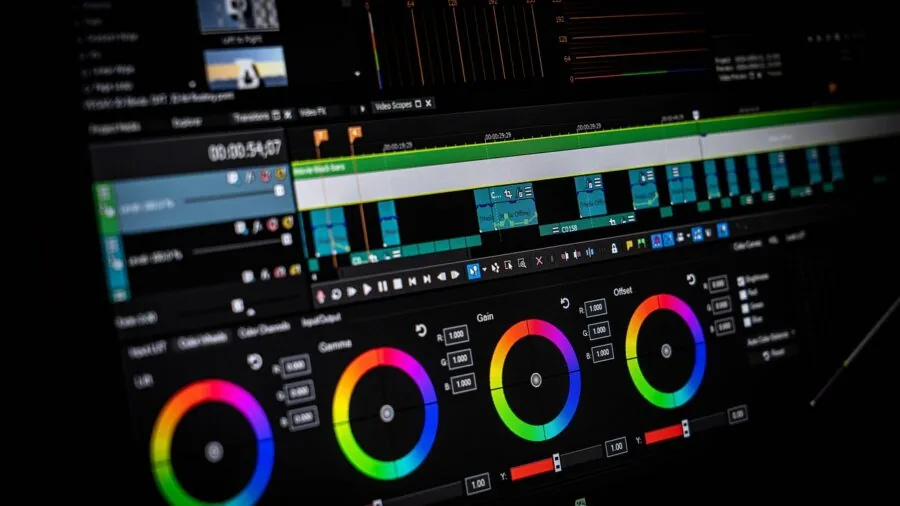
Software calibration adjusts the graphics card’s output curve to compensate for display inaccuracies, but it does so at the cost of bit-depth and reduces the number of distinct gray levels available in the signal.
Hardware calibration writes correction data directly into the display’s internal 3D LUT (Look-Up Table), preserving the full signal path and delivering more accurate results with less tone compression.
For photographers printing to fine-art standards, hardware calibration is the more reliable long-term approach, particularly because display panels drift over time and require periodic recalibration to stay within ΔE < 2 tolerances.
16-bit 3D LUT support, as featured in BenQ’s SW-series professional displays, allows a finer correction grid than the 8-bit or 12-bit LUTs found in less expensive panels.
This translates to smoother gradients in skies, skin tones, and smooth fabric surfaces, where banding would otherwise appear after aggressive tonal corrections in Photoshop or Lightroom. For casual photo enthusiasts, factory Calman verification is sufficient.
For professional photographers with repeatable, high-accuracy print targets, hardware calibration support moves from nice-to-have to genuinely important.
It is worth pairing your calibration investment with one of the capable cameras recommended for color-accurate image capture from the start of the workflow.
Why You Should Trust Us
REMOVU is an independent review publication. We are not affiliated with any monitor brand, retailer, or manufacturer. Every product in this guide was scored using the REMOVU Score system, a 0 to 10 rating scale applied consistently across our entire monitor category.
Each display was assessed against the same set of criteria: color gamut coverage, factory calibration quality, panel type, connectivity, ergonomics, hardware calibration support, and overall value relative to its position in the market.
We do not conduct our own product trials; our evaluations are grounded in research, published data, expert review consensus, and verified buyer feedback.
Our sourcing draws on manufacturer specification sheets, independent display measurement publications, and aggregated confirmed-purchaser feedback to identify patterns of real-world satisfaction and recurring issues.
We do not accept payment from brands to influence rankings, and our editorial team revisits scores when new firmware updates, price movements, or significant new competitor launches change the landscape of a category.
Transparency note: REMOVU may earn a commission when you purchase through links on this page. That affiliate relationship has no bearing on which products are included, how they are ranked, or what scores they receive.
Scores and rankings are determined entirely by the evaluation criteria above. We surface the best options we can identify for each budget tier and use case, full stop.
Final Thoughts
The monitors reviewed in this guide represent the most capable options for photo editing across multiple budgets and workflow types, from affordable IPS panels with factory-verified color accuracy to wide-gamut professional displays built for printing-critical environments.
Below are the standout picks by category, each linked directly to its product card and scored on the REMOVU 0 to 10 scale.
- Best Overall: BenQ SW272Q 27-inch Photographer Monitor earns the top spot in this roundup with the highest REMOVU Score in the group, driven by its 99% Adobe RGB coverage, 98% DCI-P3, nano-matte anti-reflection panel, 16-bit 3D LUT support, and 90W USB-C connectivity. It is the most comprehensively equipped option for photographers who need serious color fidelity and hardware calibration capability.
- Best Mid-Range Value: Dell 27 Plus QHD Monitor S2725DSM stands out among the mid-tier picks with a strong REMOVU Score reflecting its QHD resolution, 144Hz refresh, solid ergonomic adjustability, and competitive pricing. It suits photographers who also want versatility for general desktop use without paying a premium for wide-gamut calibration hardware.
- Best for Professionals on a Mid Budget: ViewSonic VP2756A-2K ColorPro Monitor combines 100% sRGB, Pantone validation, 90W USB-C Power Delivery, and advanced ergonomics at a mid-range price. Its Pantone certification adds useful credibility for photographers delivering to clients or agencies with strict color standards.
- Best Budget Pick: ASUS ProArt PA278QV 27-inch QHD Monitor offers Calman-verified color accuracy, 100% sRGB, Rec. 709 coverage, and full ergonomic adjustability at an accessible price. For photographers entering color-managed workflows without a large equipment budget, it remains one of the most credible entry points in the category.
- Best Ultrawide Option: SANSUI 34-inch Curved UWQHD Monitor provides expansive canvas real estate and 97% DCI-P3 coverage in a curved ultrawide form factor, making it a practical choice for photographers who want panoramic workspace when managing multiple editing panels simultaneously.
For photographers building out a complete workspace, a well-chosen monitor pairs naturally with a home office monitor setup, and the principles for choosing a primary display translate closely to work-focused monitors when the same screen doubles as a productivity display.
Our full monitors and peripherals coverage explores the broader category if you are equipping a new desk from scratch.
Frequently Asked Questions
What is the minimum color accuracy specification I should look for in a photo editing monitor?
Delta E below 2 is the widely accepted professional threshold for color-critical photo editing. At ΔE < 2, color errors are below the perceptible threshold under normal viewing conditions.
Look for factory calibration reports, Calman verification, or third-party certifications that confirm this out-of-the-box accuracy rather than relying on unverified manufacturer claims alone.
Do I need an Adobe RGB monitor, or is 100% sRGB enough?
If your final output is primarily web delivery, social media, or standard inkjet printing profiles, a 100% sRGB display is adequate for the overwhelming majority of color-managed workflows.
Adobe RGB becomes meaningful when you are printing to wide-gamut inkjet printers capable of reproducing those expanded greens and cyans, delivering files to high-end commercial print labs, or working in a studio where the entire chain from camera to printer is wide-gamut managed.
For most photographers, starting with a verified 100% sRGB panel and upgrading to wide gamut when print output demands it is a sensible approach.
Is a 27-inch QHD panel better than a 24-inch 1080p panel for photo editing?
In most cases, yes. QHD at 27 inches delivers higher pixel density than 1080p at the same size, which means finer detail rendering, more visible workspace in editing software, and less need to zoom in to judge sharpness.
The difference becomes especially noticeable when inspecting high-resolution files from modern cameras at 1:1 zoom. The extra resolution also gives Lightroom, Capture One, and Photoshop more room to spread toolbars and panels without crowding the image canvas.
Should a photo editing monitor have a high refresh rate?
For pure photography work, 60Hz is sufficient. Still-image editing does not benefit from high refresh rates the way gaming or video work does.
However, if the same monitor doubles as your general desktop screen for video playback, light gaming, or smooth scrolling through large image libraries, a 100Hz or higher panel removes the motion stutter that 60Hz screens can show during fast scrolling.
Several picks in this guide offer 100Hz or 144Hz as a bonus without compromising color accuracy, making them practical dual-purpose displays. If display performance for interactive work matters to you, our gaming monitors guide covers high-refresh panel options in depth.
How important is hardware calibration for a photography monitor?
Hardware calibration matters most when absolute color accuracy over time is a requirement, such as for fine-art printing, commercial photography with strict brand color standards, or any workflow where a soft proof on screen must reliably predict a physical print.
For hobbyists or photographers delivering primarily to screen, factory Calman verification combined with periodic software calibration using a colorimeter is a cost-effective alternative.
Budget monitors without hardware LUT support can still deliver accurate results if recalibrated regularly with a quality calibration device.
Can I use a photo editing monitor for programming or general office work as well?
Yes, and most of the displays in this guide do double duty effectively. The IPS panels, ergonomic stands, and anti-glare coatings that make these monitors good for photo editing also make them comfortable for long programming or writing sessions.
The main trade-off is that dedicated photo monitors prioritize color accuracy over the contrast ratios or ultra-high refresh rates that gaming-focused screens chase.
For those curious about displays optimized for code work, our monitors for programming guide surfaces the relevant differences. If budget is the primary constraint, our roundup of monitors under $300 highlights well-priced options across multiple use cases.
About the author
Kylie covers processors for REMOVU, balancing core count, clock speed, and platform cost against what readers actually run. She helps builders pick a CPU that fits their workload and budget.