The 10 Best Docking Stations for Dual Monitors
Dual-monitor setups demand a dock that actually delivers on its promises. We researched specs, expert consensus, and verified buyer feedback to find the top options for every budget and laptop type.
 By Harold Torres
Updated July 26, 2026
By Harold Torres
Updated July 26, 2026

Running two monitors from a single laptop can transform how you work, whether you’re managing spreadsheets alongside video calls, coding across split windows, or editing photos while keeping a reference display open.
A capable docking station is the hardware that makes it all possible, bridging your machine’s limited ports to a full desktop-grade setup without sacrificing performance or adding cable chaos.
The market has expanded rapidly, with options ranging from compact travel-friendly hubs to feature-rich desktop docks, and knowing which one actually delivers on its dual-monitor promise requires cutting through a lot of marketing noise.
At REMOVU, we researched the landscape of monitors and peripherals to identify the docking stations that genuinely support dual-monitor workflows.
Our evaluation draws on manufacturer specifications, expert review consensus from across the enthusiast and professional communities, and verified buyer feedback from thousands of real-world purchases.
The picks below cover every budget and use case, from the power user who needs Dual 4K@60Hz to the remote worker seeking a no-fuss plug-and-play hub. Read on to see which docking stations earned a spot on our shortlist.
| Award | Product | REMOVU Score About REMOVU ScoreThe REMOVU Score is our own rating from 0 to 10, based on performance, design and build, ease of use, and value. It reflects independent research and is never influenced by manufacturers, retailers, or affiliate commissions. Learn more › | Price | |
|---|---|---|---|---|
| Best Premium |
 Anker Prime 14-in-1 Docking Station, 160W Dual 4K
|
8.1/10 | Buy | |
 WAVLINK 13-in-1 USB-C Dock, Dual 5K/4K Display
|
7.1/10 | Buy | ||
| Best Overall |
 Anker Nano A83C3 13-in-1 Docking Station with Detachable Hub
|
8.6/10 | Buy | |
 Plugable UD-3900Z Dual HDMI Docking Station
|
6.2/10 | Buy | ||
| Best Budget |
 Anker Nano A210B 8-in-1 USB-C Hub with Dual 4K HDMI
|
7.6/10 | Buy | |
| Best Value |
 Plugable UD-3900 Dual HDMI Docking Station
|
7.2/10 | Buy | |
 UGREEN 7-in-1 USB-C Dock, Dual 4K HDMI
|
7.1/10 | Buy | ||
 Selore 10-in-1 USB-C Docking Station with Triple 4K Display
|
6.4/10 | Buy | ||
 HODO 8-in-1 USB-C Dock with 4K Multi-Display Support
|
6.2/10 | Buy | ||
 Fophmo 10-in-1 USB-C Docking Station with Dual 4K HDMI
|
6.2/10 | Buy |
Anker Prime 14-in-1 Docking Station, 160W Dual 4K
A space-saving 14-port docking station built for Windows laptops that need serious connectivity and power. It delivers 160W across multiple devices simultaneously, supports dual 4K displays, and offers 10Gbps data transfer, making it ideal for professionals juggling multiple monitors and peripherals. Setup requires checking your laptop's DisplayPort version for optimal dual-monitor performance.
Pros
- Extensive port selection with 4 USB-C and 5 USB-A ports plus dual HDMI, audio, and Ethernet in one compact vertical design
- 160W total power output supports charging up to four devices at once, with individual USB-C ports delivering up to 100W each
- 10Gbps data transfer speeds on supported ports for faster file syncing and external storage access
- Advanced thermal management with temperature controls and heat dissipation to maintain safe operation during heavy use
- Customizable power distribution through Dock Manager app for tailored charging profiles
Cons
- Dual display resolution limited to 2K at 60Hz on DP 1.4 laptops or 1080p on DP 1.2, not true 4K for both monitors simultaneously
- Not compatible with Lenovo Legion series laptops and macOS users see identical displays on both external monitors, limiting flexibility
- Requires checking your specific laptop's DisplayPort version and CPU generation to confirm dual-monitor support, adding setup complexity
WAVLINK 13-in-1 USB-C Dock, Dual 5K/4K Display
This DisplayLink-powered docking station lets you run two external monitors simultaneously on M-series Macs and Windows laptops, a feature most single-port devices can't match. The 13-in-1 design consolidates displays, ethernet, multiple USB ports, and audio into one hub, with enough power delivery to keep demanding laptops fully charged during heavy workloads. Best for professionals who need serious multitasking real estate without daisy-chaining accessories.
Pros
- Dual monitor support at 5K@60Hz or 4K@60Hz, even on laptops with limited native ports
- 100W Power Delivery keeps high-performance laptops fully powered during intensive tasks
- 13 integrated ports including Gigabit ethernet, 5 USB ports, and dual video outputs minimize cable clutter
- Works across Windows, macOS M1/M2/M3/M4, Chrome OS, and Android with DisplayLink driver
- High user rating of 4.8 stars based on verified buyer feedback
Cons
- Requires DisplayLink driver installation for video output; macOS users need to manually enable Screen Recording permissions in Privacy settings
- Some HP EliteBook and ZBook models may experience boot issues with ethernet connected at startup, requiring BIOS workaround
- Occasional operational beeping reported by users, though firmware updates may resolve this
Anker Nano A83C3 13-in-1 Docking Station with Detachable Hub
A dual-form docking station that splits into a fixed 13-in-1 desktop dock and removable 6-in-1 portable hub, eliminating the need for separate travel gear. Supports triple displays up to 4K single or triple 1080p, delivers 100W laptop charging, and includes 10Gbps data transfer on one USB-C port. Best suited for remote workers and professionals who alternate between home office setups and mobile work.
Pros
- Detachable design covers both stationary and mobile use cases without buying two separate docks
- Triple display support with flexible resolution options (up to 4K single, dual 2K, or triple 1080p)
- 100W Power Delivery charges most USB-C laptops while running all peripherals simultaneously
- Comprehensive port selection including 10Gbps USB-C data, Gigabit Ethernet, SD/TF card readers, and 3.5mm audio
- Plug-and-play setup with no driver installation required on Windows and macOS
Cons
- Hub may block adjacent USB-C ports on some laptop models, requiring dimension verification before purchase
- Dock requires active laptop connection to function; ports and status light only activate when connected
- Ethernet functionality on Windows requires manual Realtek driver installation for full compatibility
- macOS limited to mirrored display mode only on multiple external monitors
Plugable UD-3900Z Dual HDMI Docking Station
A no-nonsense docking station built for office environments and IT deployments. Delivers dual 1080p displays via USB-C or USB-A, supports Windows, macOS, and ChromeOS, and packs 10 ports including Gigabit Ethernet. Best for productivity workflows, not media streaming or gaming.
Pros
- Dual HDMI outputs up to 1920x1200 from single USB connection, expanding display options on M1-M3 MacBooks normally limited to one external monitor
- 10-port design includes two 5Gbps USB ports, four USB 2.0 ports, Gigabit Ethernet, and audio jack for comprehensive peripheral connectivity
- Includes both USB-C and USB-A host cables for backward and forward compatibility across laptop generations
- Plug-and-play on Windows and ChromeOS; automatic driver installation on Windows via Update
- Compact vertical footprint reduces desk clutter; backed by North American lifetime support and compatibility guarantee
Cons
- Does not charge laptops, requiring separate power solution for the host device
- macOS requires manual DisplayLink software installation for external displays to function
- No HDCP support means streaming services like Netflix and Hulu will not play on connected displays
- DisplayPort monitors not supported; limited to HDMI-only displays
Anker Nano A210B 8-in-1 USB-C Hub with Dual 4K HDMI
This 8-in-1 docking station delivers dual 4K@60Hz video output and 85W laptop charging through a single USB-C connection, making it practical for Windows users managing multiple displays. The aluminum design and 9.84-inch cable reduce desk clutter while supporting 10 Gbps data transfer across USB ports. Best suited for productivity workflows on Windows 10/11 and ChromeOS devices with DP Alt Mode support.
Pros
- Dual 4K@60Hz HDMI output enables genuine extended display on Windows (not mirrored)
- Fast 10 Gbps data transfer on all three data ports (two USB-A, one USB-C)
- 85W pass-through charging supports most modern laptops with compatible 100W PD charger
- Premium aluminum build with effective heat dissipation and organized 9.84-inch cable
- SD/TF card reader built-in for immediate media import at up to 104 MB/s
Cons
- Requires external 100W PD charger and cable (not included) to achieve full 85W charging capacity
- macOS users get mirrored displays only; dual independent displays not supported on Apple devices
- Not compatible with Linux systems or recommended for MacBook dual-monitor setups
- No Ethernet port despite 8-in-1 branding; 15W of the 100W input is reserved for hub operation
Plugable UD-3900 Dual HDMI Docking Station
A straightforward USB docking station that connects two HDMI monitors up to 1920x1200 resolution, plus Ethernet and six USB ports. Best suited for productivity work on Windows, Mac, and Chromebooks, though it requires driver installation on macOS and doesn't charge your laptop.
Pros
- Supports dual HDMI displays simultaneously, ideal for multitasking and productivity workflows
- Works across Windows, macOS (M1-M5 compatible), and Chromebooks with broad device support
- Includes Gigabit Ethernet, audio jacks, and six USB ports for peripheral expansion
- 2-year warranty and lifetime support from North American-based team
- Single USB 3.0 or USB-C connection simplifies setup
Cons
- No laptop charging capability, requiring a separate power adapter during use
- Requires manual DisplayLink driver installation on macOS (automatic on Windows)
- Limited to 1920x1200 at 60Hz per display; no 4K or DisplayPort support
- Cannot stream HDCP-protected content (Netflix, similar services)
- Not compatible with Linux/Unix systems
UGREEN 7-in-1 USB-C Dock, Dual 4K HDMI
A straightforward docking solution for laptop users needing dual monitor setup and fast data transfer. Delivers dual 4K@60Hz HDMI output with 100W charging support and 10Gbps USB ports, making it practical for professionals working with multiple displays. Best suited for Windows users seeking an affordable, compact dock.
Pros
- Dual 4K@60Hz HDMI ports enable true dual-monitor extended display on Windows systems
- Fast 10Gbps USB-A and USB-C data ports for quick file transfers and peripheral connectivity
- 100W USB-C Power Delivery supports charging most laptops simultaneously with dock use
- Compact aluminum design fits well in mobile workspaces and desk setups
- Solid 4.3-star rating from nearly 3,000 verified buyers indicates reliable real-world performance
Cons
- macOS users face mirror-mode limitation only; extended dual displays show identical content, making it unsuitable for Mac workflows requiring separate monitor displays
- Charging port does not support data or video transfer, requiring a separate 100W+ power adapter not included in box
- 10Gbps speeds require both dock and compatible cables to support the standard, limiting plug-and-play convenience
Selore 10-in-1 USB-C Docking Station with Triple 4K Display
This USB-C hub consolidates up to 10 ports into one compact adapter, enabling Windows users to run three 4K monitors simultaneously or one 8K display via DisplayPort 1.4. It includes Gigabit Ethernet, 100W Power Delivery, and a one-touch monitor control button, making it suited for professionals handling multi-monitor workflows. Mac users should note the hub mirrors content across displays rather than extending the workspace.
Pros
- Quad-monitor capability on Windows (two 4K HDMI plus 8K DP) with dedicated smart button for instant mode switching
- 100W Power Delivery input with up to 85W laptop output, plus Gigabit Ethernet for stable wired connectivity
- Broad compatibility with Thunderbolt 3/4/5 and USB-C ports; aluminum chassis with 18-month warranty
- High-speed USB 3.0 data transfer across multiple ports (5Gbps)
Cons
- macOS users limited to mirror mode only, not extended display mode, due to system constraints
- Requires laptop USB-C port with DisplayPort Alt Mode and Power Delivery support; VGA capped at 1080P 60Hz
- Hub consumes 8-15W internally; 65W chargers may trigger slow-charging warnings; DP 1.2 devices see resolution limits with multiple monitors
HODO 8-in-1 USB-C Dock with 4K Multi-Display Support
This USB-C docking station combines four video outputs (dual HDMI, DisplayPort, VGA) with 100W charging and three USB 2.0 ports, making it suitable for professionals needing multi-monitor setups. Broad compatibility spans Dell, HP, Lenovo, and select Apple devices, though success depends on your specific laptop model having full-featured USB-C with DisplayPort Alt Mode.
Pros
- Supports up to four displays simultaneously on Windows (dual/triple at 4K, quad at 1080p)
- 100W USB-C Power Delivery charges most laptops while docked
- Extensive device compatibility with detailed model-specific lists for Dell, HP, Lenovo, Apple, ASUS, and others
- Multiple video output standards (HDMI, DisplayPort, VGA) accommodate various monitor types
- Solid 4.3-star rating from over 4,300 verified reviews
Cons
- Requires compatible USB-C port with DisplayPort Alt Mode and Power Delivery; many budget and gaming laptops lack this capability
- Mac devices only support mirror mode across displays, not extended mode with different content per screen
- Charger and cables not included; requires 65W+ power adapter for optimal performance, and dock consumes 7-8W itself during operation
- VGA connection limits all display resolutions to 1080p; cables cannot exceed 3 meters
- Some users may experience compatibility issues requiring verification with brand support before purchase
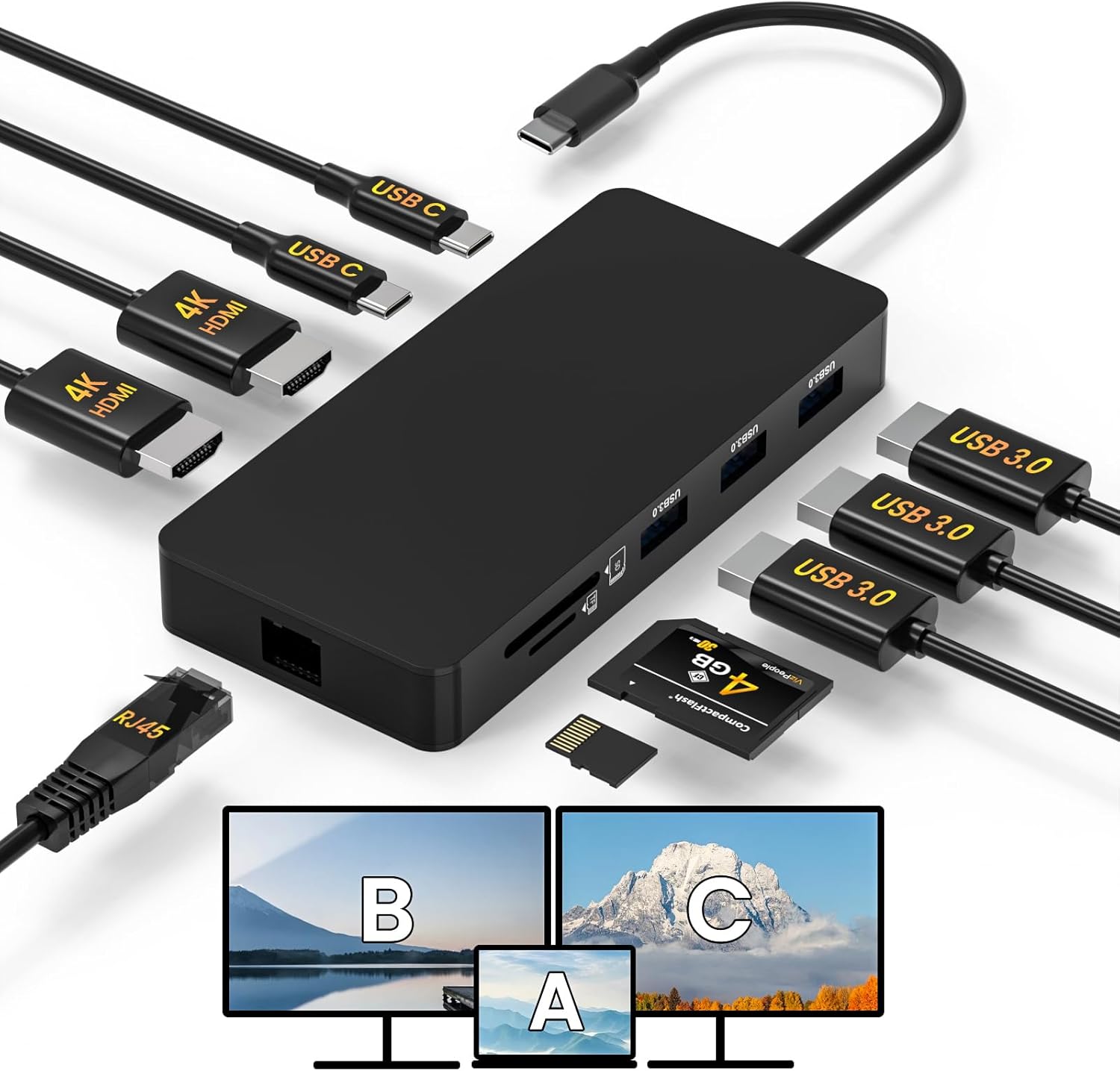
Fophmo 10-in-1 USB-C Docking Station with Dual 4K HDMI
This 10-port docking station brings dual 4K HDMI output, gigabit ethernet, and up to 85W charging to USB-C laptops. It's built for desk setups where you need multiple monitors and wired connectivity, though Mac users should know they're limited to mirror mode only due to system constraints.
Pros
- Dual 4K HDMI ports with both mirror and extended display modes on Windows
- Fast 1000Mbps ethernet connection for stable, wired network performance
- Comprehensive port selection: 3 USB-A, 1 USB-C, SD/TF card reader, and 85W pass-through charging
- Solid 4.3-star rating from 143 verified buyers
- 12-month return policy and 24-hour customer support
Cons
- macOS users cannot extend displays across both HDMI ports, only mirror mode works due to OS limitations
- Cables and power adapter not included; requires separate 65W+ charger for full charging capability
- Setup requires manual configuration on both Mac (Privacy & Security settings) and Windows (device enablement)
Docking Stations for Dual Monitors Buying Guide
Choosing the right docking station for a dual-monitor setup involves more than picking the one with the most ports.
Connection technology, display resolution support, power delivery capacity, and host compatibility all play meaningful roles in whether your day-to-day experience is seamless or frustrating.
The sections below walk through each criterion in practical terms so you can match a dock to your actual workflow rather than a spec sheet.
Display Output Technology and Resolution Support

Not all docks send video the same way, and the distinction matters enormously for image quality and compatibility. Standard USB-A docks typically rely on DisplayLink chipsets, which compress and decompress video in software.
This approach is highly compatible across operating systems but can introduce slight latency and requires a driver installation, which is something to factor in on locked corporate machines.
USB-C and Thunderbolt docks that carry native video signals through the cable tend to deliver sharper, latency-free output with no driver overhead, provided your laptop’s port actually supports video-out over USB-C.
Resolution ceiling is the next variable to nail down. Many budget docks advertise 4K but only hit that resolution on one output at a time, dropping the second to 1080p or forcing a mirrored display.
True Dual 4K@60Hz from a single dock demands enough bandwidth on the host connection, which typically means a DisplayLink chip, a Thunderbolt port, or a DisplayPort Alt Mode capable USB-C port.
If your monitors are 1080p, almost any modern dock will handle both easily.
If you are running or planning to run high-resolution panels, verify that the dock supports the exact configuration you need rather than assuming the headline spec applies to both outputs simultaneously.
Pairing a capable dock with quality monitors makes the difference between a productive workspace and one that constantly disappoints.
DisplayPort and HDMI outputs each have version-specific bandwidth limits. HDMI 2.0 handles 4K@60Hz; older HDMI 1.4 tops out at 4K@30Hz, which introduces visible motion blur during scrolling and video playback.
Docks that combine an HDMI and a DisplayPort output often provide more flexibility than dual-HDMI designs, since DP 1.4 comfortably carries 4K@60Hz and even HDR content. Some premium docks include both DP and HDMI alongside VGA for legacy monitor compatibility.
Host Connectivity and Laptop Compatibility

The connection between your laptop and the dock is the single biggest compatibility variable.
USB-A docks connect via a standard USB 3.0 cable and work with virtually any laptop, including older machines, but they are limited to DisplayLink-based video and cannot deliver power to your laptop.
USB-C docks are more versatile but depend heavily on what your laptop’s USB-C port actually supports: not all USB-C ports carry video signals, and some only charge or transfer data.
Before buying, check whether your machine supports DisplayPort Alt Mode or Thunderbolt over its USB-C port.
Windows machines generally have the broadest compatibility with both USB-A and USB-C docks. macOS users, especially those on Apple Silicon (M1 through M4), face a stricter limitation: Apple’s hardware supports only one external display natively on most MacBook models.
Docks that work around this restriction do so through DisplayLink, which requires installing a driver and gives Apple permission to use the additional video output.
This is a legitimate workaround, but it is worth knowing upfront so you are not surprised after unboxing.
ChromeOS machines are increasingly well supported by mainstream docks, though it is always worth confirming ChromeOS compatibility in the product listing before purchasing.
If you regularly work from a 2-in-1 laptop, ensure the dock’s cable length and port placement work with your machine’s typical orientation.
Power Delivery to Your Laptop
One of the most underrated features of a good docking station is Power Delivery (PD), the ability to charge your laptop through the same USB-C cable that connects the dock.
This eliminates one cable from your desk and means a single connection handles data, video, and power simultaneously. PD wattage varies considerably across docks, from around 60W on budget models up to 130W or more on premium options.
For lightweight ultrabooks, 60W to 85W is typically sufficient.
For performance laptops that draw significant power under load, look for 100W or higher to ensure the dock can keep pace with the machine’s demands rather than just slowing the discharge rate.
Some docks pass through their full rated PD wattage only when no other high-draw ports are in use. Reading verified buyer feedback is particularly useful here because it surfaces real-world charging behaviour that spec sheets rarely disclose.
USB-A docks generally cannot charge your laptop at all through the dock connection, so you will still need your original charger plugged in separately if you go that route.
Port Selection and Data Transfer Speeds
Beyond display outputs, the peripheral ports on a dock define how completely it can replace your laptop’s own ports in a desktop scenario.
A well-rounded dock for most users includes at least four USB-A ports for mice, keyboards, and other accessories, a USB-C data port, Gigabit Ethernet for a stable wired network connection, and a 3.5mm audio jack.
SD and microSD card slots are valuable additions for photographers and videographers who frequently offload media. Many users also appreciate easy-access front-facing ports for USB drives and cameras, rather than having to reach around to the back of the dock.
Data transfer speed matters when you are moving large files. USB 3.0 ports cap at 5Gbps, which is adequate for most peripherals. USB 3.2 Gen 2 ports running at 10Gbps make a noticeable difference when connecting fast external SSDs or high-resolution webcams.
Gigabit Ethernet, present on most mid-range and premium docks, provides a significant reliability and speed advantage over Wi-Fi for video conferencing and large file transfers, a particularly relevant consideration for home offices.
For a broader look at workspace peripherals, webcams and wireless mice are natural complements to a docked setup.
Form Factor and Desk Footprint

Docking stations come in two broad physical categories: compact hubs that sit beside your laptop and full-size desktop docks designed to stand vertically or lie flat on your desk.
Compact hubs are lighter, easier to toss in a bag for hybrid workers, and generally less expensive, but they can run warmer under sustained load and may have fewer ports.
Full-size docks typically include better thermal management, more ports, and higher power delivery, making them a better fit for fixed workstations where portability is not a priority.
Cable management is a practical concern that rarely appears in spec sheets. A dock positioned at the back of your desk with all cables routed cleanly is far less disruptive than a hub dangling from your laptop’s side port.
Consider where the dock will sit relative to your monitors, whether the host cable is long enough to reach without strain, and whether the dock’s own weight keeps it stable when you plug and unplug accessories.
Some compact models include a fold-out or integrated stand that also props the laptop at an ergonomic angle, a small but genuinely useful feature for everyday use.
Driver Requirements and Software Stability

Plug-and-play simplicity is a genuine selling point. Docks that rely on DisplayLink or similar chipsets require driver installation before video output works, and on macOS these drivers also need screen recording permission granted through System Settings.
This is a one-time setup process, but it adds a step that can be inconvenient in managed IT environments or when sharing a dock between machines.
Native USB-C video docks that do not require drivers are inherently simpler and more broadly portable across different computers.
Driver stability over time is something verified buyer feedback illuminates better than any specification. DisplayLink has maintained a solid track record, but individual users occasionally report conflicts after major OS updates.
If software reliability is a top priority, native video docks without drivers are the safer long-term choice. If maximum compatibility across older hardware matters more, DisplayLink-based options remain the most universal solution available.
Either way, pairing your dock with a quality mechanical keyboard and a consistent peripherals setup keeps the day-to-day experience clean and repeatable.
Why You Should Trust Us
REMOVU is an independent review platform. We have no manufacturer relationships that influence our rankings, and we receive no early access or sponsored product consideration.
Every docking station in this guide was evaluated using a consistent set of criteria applied uniformly across the category: display output capability, host compatibility breadth, power delivery performance, port selection, form factor, and real-world reliability as reported by verified buyers.
Each product receives a REMOVU Score on a scale of 0 to 10, reflecting how well it performs across those criteria relative to its price point and competition.
We do not conduct our own product trials; our evaluations are grounded in research, published data, expert review consensus, and verified buyer feedback.
This approach allows us to synthesize a wide body of evidence rather than relying on a single reviewer’s experience with a single unit.
REMOVU may earn a commission if you purchase through a link on this page. That affiliate relationship has zero influence on which products are included, how they are ranked, or what scores they receive.
Our only goal is to help you find the right docking station for your specific setup.
Final Thoughts
The docking station market has matured considerably, and there are genuinely excellent options across every price tier.
Whether you need a compact hub for a hybrid work lifestyle or a full-featured desktop dock that anchors a permanent two-monitor workstation, the picks in this guide represent the strongest performers identified through our research.
Below are the standout categories among our selections.
- Best Overall: Anker Nano Laptop Docking Station 13-in-1 earns the top position with the highest REMOVU Score in the group, combining a detachable modular design, three simultaneous display outputs including two HDMI and one DisplayPort, 10Gbps data speeds, and up to 100W Power Delivery in a package built for serious home office use.
- Best Premium All-Rounder: Anker Prime Docking Station 14-in-1 delivers the highest power output ceiling in the lineup and a Smart Interface that makes it a natural choice for power users who want maximum wattage and dual 4K HDMI alongside fast data transfer, all in a polished desktop form factor.
- Best for Mac and Windows Compatibility: WAVLINK USB-C Docking Station Dual Monitor 13-in-1 stands out for its DisplayLink-based support of Dual 5K or 4K@60Hz across both macOS and Windows, with both HDMI and DisplayPort outputs and a 130W PD ceiling that handles demanding laptops without complaint.
- Best Compact Budget Pick: Anker Nano Laptop Docking Station Dual Monitor 8-in-1 proves that capable dual-monitor performance does not require a large investment, delivering Dual 4K@60Hz HDMI outputs, 10Gbps data ports, and an SD card reader in a small form factor suited for tidier desks and hybrid workers.
- Best for Legacy USB-A Laptops: Plugable Universal Laptop Docking Station UD-3900 remains the most accessible choice for machines that lack USB-C, connecting via USB 3.0 and supporting dual HDMI monitors with Gigabit Ethernet, audio, and six USB ports through a well-established DisplayLink driver.
Whichever dock you choose, the right match depends on your laptop’s port capabilities, your monitors’ resolution, and how many peripherals you need connected simultaneously.
Revisit the buying guide sections above if you are still deciding, and consult our portable monitors category if a second display is also still on your shopping list.
Frequently Asked Questions
Can any docking station run dual monitors simultaneously?
No, not every dock supports true simultaneous dual-monitor output. Some hubs advertise two video ports but only drive one external display at a time, with the second port inactive unless the lid is closed.
Always check whether the product listing specifically states “simultaneous dual monitor” or “extended dual display” support rather than assuming the presence of two video ports means both work at once.
Do docking stations for dual monitors work with MacBooks?
It depends on which MacBook and which dock. Apple Silicon MacBooks (M1 and later) natively support only one external display on most models.
To run two external monitors, you need a dock that uses a DisplayLink chipset, which handles the second output through software. This requires installing the DisplayLink Manager app and granting screen recording permission in macOS System Settings.
Docks that rely solely on USB-C Alt Mode video will typically only drive one monitor on these machines. Intel-based MacBooks do not have this restriction and work with a broader range of docks.
How much Power Delivery wattage do I actually need?
For thin and light ultrabooks and most business laptops, a dock with 65W to 85W Power Delivery is generally sufficient to maintain a full charge during normal use.
For larger performance laptops, creative workstations, or machines with discrete graphics, look for 100W or more to avoid the dock merely slowing discharge rather than actually charging the battery.
When in doubt, check your laptop’s original charger wattage and choose a dock that meets or exceeds it.
Is a Thunderbolt dock worth it over a standard USB-C dock?
Thunderbolt docks offer more bandwidth, native video output without drivers, and daisy-chaining capability, but they require a Thunderbolt-equipped laptop to unlock those benefits.
If your machine has a Thunderbolt port and you want the cleanest, lowest-latency dual-monitor experience with no driver installation, a Thunderbolt dock is worth the premium.
If your laptop has a standard USB-C port without Thunderbolt, a quality DisplayLink USB-C dock delivers very similar real-world results at a lower price point, making the Thunderbolt premium harder to justify.
Will a docking station slow down my computer?
A well-matched dock has negligible impact on overall system performance for typical productivity tasks.
DisplayLink docks do use a small amount of CPU resources to encode and decode the video signal, which can be measurable on older or lower-powered machines but is rarely noticeable on modern processors.
Native USB-C or Thunderbolt docks handle video through dedicated hardware paths and impose essentially no CPU overhead.
If you are running a demanding creative or engineering application on a laptop with a modest processor, a native-video dock is the safer performance choice.
Users interested in maximising their broader PC build performance might also want to explore motherboards for AMD Ryzen builds or consider fast solid-state storage as part of a broader system upgrade.
What is the difference between a docking station and a USB-C hub?
The terms are often used interchangeably in marketing, but there is a practical distinction. A USB-C hub is typically a compact, bus-powered device that expands your laptop’s ports without its own power adapter.
A docking station is generally a larger, self-powered unit that includes dedicated power delivery to your laptop, more robust video output capabilities, Gigabit Ethernet, and a higher port count.
For casual use with a single monitor and a few accessories, a hub may suffice. For a true desktop replacement with dual monitors, wired networking, and multiple peripherals, a proper docking station is the more reliable and capable choice.
You can browse the full range of monitors and peripherals on REMOVU to find complementary gear for your workspace.
About the author
Harold covers network switches for REMOVU, comparing speed, port count, and value across managed and unmanaged models. He helps readers add fast, reliable wired connections where Wi-Fi falls short.