The 7 Best Tablets for Drawing
Picking a drawing tablet means weighing pen precision, screen quality, and budget. Our research covers screenless pads to standalone displays so you find the right fit.
 By Josephine Mason
Updated July 26, 2026
By Josephine Mason
Updated July 26, 2026
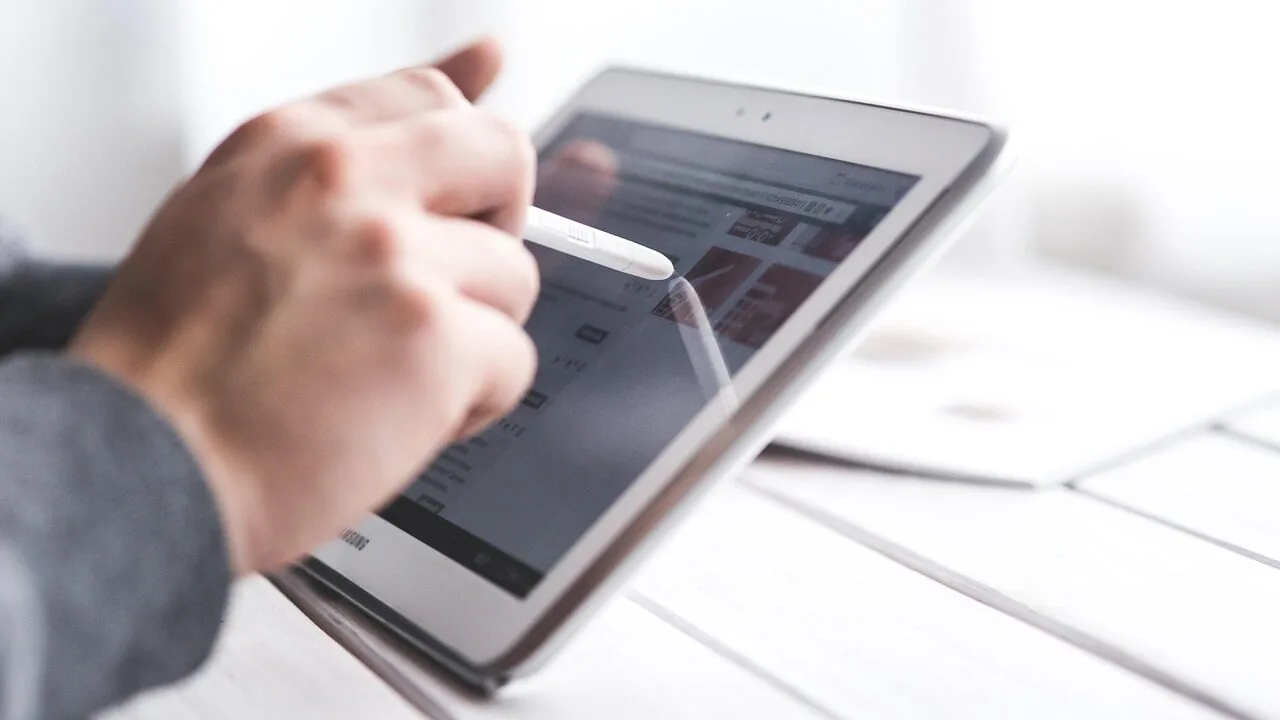
Choosing the right drawing tablet can feel overwhelming when you’re staring down a wall of options ranging from bare-bones screenless pads to fully standalone devices with high-resolution displays.
Whether you’re a hobbyist exploring digital illustration for the first time or a working artist who needs a reliable tool for client work, the tablet you pick shapes everything from line quality to workflow speed.
Brands like Wacom, XPPen, Huion, and GAOMON each take a different approach to pressure sensitivity, display fidelity, and software compatibility, making a side-by-side comparison essential before you commit.
At REMOVU, we researched the drawing tablet landscape by analyzing manufacturer specifications, synthesizing expert review consensus, and weighing verified buyer feedback across hundreds of real-world purchases.
The result is a shortlist of the best tablets for drawing in 2026, covering every budget and skill level from the budget-friendly drawing tablets category up to professional-grade pen displays. Read on for our top picks below.
| Award | Product | REMOVU Score About REMOVU ScoreThe REMOVU Score is our own rating from 0 to 10, based on performance, design and build, ease of use, and value. It reflects independent research and is never influenced by manufacturers, retailers, or affiliate commissions. Learn more › | Price | |
|---|---|---|---|---|
| Best Value |
 Wacom Intuos Pro Medium Pen Tablet with Pro Pen 3
|
7.9/10 | Buy | |
 Huion Kamvas 13 Gen 3 13.3-Inch Pen Display
|
7.6/10 | Buy | ||
| Best Overall |
 Wacom Cintiq 16 Full HD Display Pen Tablet
|
8.3/10 | Buy | |
| Best Premium |
 XPPen Magic Drawing Pad 12.2 Standalone Tablet
|
7.5/10 | Buy | |
| Best Budget |
 XPPen Deco 01 V3 10x6 Drawing Tablet
|
8.1/10 | Buy | |
 Frunsi RubensTab T11 Pro 10.1-inch Standalone Tablet
|
7.2/10 | Buy | ||
 GAOMON M10K 10x6 Graphics Tablet
|
6.8/10 | Buy |
Wacom Intuos Pro Medium Pen Tablet with Pro Pen 3
A professional-grade drawing tablet built for motion graphics, 3D sculpting, and photo editing workflows. The Pro Pen 3 delivers industry-leading precision with 8192 pressure levels and customizable grip options, while dual mechanical dials and 10 ExpressKeys keep shortcuts within arm's reach. Designed for artists who need seamless integration with Adobe Creative Suite, ZBrush, and Maya without interrupting their creative flow.
Pros
- Pro Pen 3 offers exceptional pressure sensitivity and lag-free tracking with zero battery dependency
- Dual mechanical dials and 10 customizable ExpressKeys streamline complex workflows in 3D and video editing
- Lightweight magnesium alloy construction at 4mm thin makes it portable between studio and remote work
- Wireless Bluetooth connectivity to multiple devices with easy toggle between USB and paired computers
- Proven 40-year track record with broad software compatibility across professional creative applications
Cons
- No user reviews available yet to validate real-world performance and durability claims
- Premium positioning means it carries a higher price point compared to entry-level alternatives
- Requires software driver installation and learning curve for dial and ExpressKey customization to maximize productivity
Huion Kamvas 13 Gen 3 13.3-Inch Pen Display
A mid-range pen display built for digital artists and designers who need accurate color work on a compact screen. The fully laminated Canvas Glass 2.0 surface reduces glare while maintaining drawing precision, and dual dials plus six shortcut keys streamline creative workflows. Works with Windows, Mac, and Android devices via USB-C.
Pros
- Canvas Glass 2.0 surface with full lamination delivers reduced glare and improved drawing feel
- 16384 pressure levels with PenTech 4.0 ensures responsive, natural pen input
- 99% sRGB coverage with factory calibration report provides reliable color accuracy for professional work
- Dual dial buttons and programmable shortcut keys enable efficient creative workflows
- Adjustable stand included for comfortable working angles
- Cross-platform compatibility: Windows, macOS, Android, and Linux
Cons
- Requires connection to a computer or external device to function, not standalone
- No pen nibs included in the box unlike some competing models
- 13.3-inch screen may feel cramped for users accustomed to larger displays
Wacom Cintiq 16 Full HD Display Pen Tablet
A mid-range pen display that lets you draw directly on screen with natural, responsive input. The 15.4-inch Full HD display pairs with Wacom's Pro Pen 2 for precise control, making it a solid choice for hobbyists and design students stepping up from paper or basic tablets. Adjustable stand and anti-glare coating support long work sessions without eye strain.
Pros
- Pro Pen 2 with 8,192 pressure levels and zero-charge design feels responsive with minimal lag
- Anti-glare Full HD display (1920x1080) delivers clear visuals and true color without distracting reflections
- Foldable legs adjust to 19-degree angle for ergonomic positioning and reduced fatigue
- Works seamlessly on both Windows and macOS with included 3-in-1 cable
- Lightweight at 4 pounds and thin profile make it portable for studio or home use
Cons
- Full HD resolution lags behind newer models (2.5K and 4K options available) for detailed professional work
- No touchscreen support limits workflow compared to premium Cintiq Pro lines
- Color gamut (72% NTSC) is adequate but not ideal for color-critical design work
XPPen Magic Drawing Pad 12.2 Standalone Tablet
A standalone Android drawing tablet designed for artists who want to work without a computer. The 12.2-inch display delivers a paper-like experience with 16K pressure sensitivity, solid color accuracy at 115% sRGB, and respectable specs like 8GB RAM and 256GB storage. Best suited for digital illustrators seeking portability and independence from desktop setups.
Pros
- 16384 pressure levels in X3 Pro stylus provide precise, nuanced line work without stylus charging or pairing
- Standalone Android 14 system eliminates computer dependency, includes 3-month access to Clip Studio Paint and ibis Paint X
- Paper-like AG-etched display with TÜV Rheinland eye comfort certification and ten-step soft light treatment
- Lightweight and slim (599g, 6.9mm) with 8000 mAh battery supporting up to 13 hours of continuous use
- Expandable storage up to 1TB via microSD card plus dual-window multitasking for productivity
Cons
- Color gamut at 115% sRGB trails higher-end XPPen models (159% sRGB on larger Artist Pro 16), limiting professional color-critical work
- No mention of stylus pressure recovery time or latency specifications, which matter for responsive drawing feel
- Screen resolution of 2160x1440 is lower than comparable XPPen tablets at similar price points, potentially impacting workspace clarity
XPPen Deco 01 V3 10x6 Drawing Tablet
A beginner-friendly drawing tablet with 16,384 pressure levels and a battery-free stylus that works across Windows, Mac, Android, and Chrome OS. Its slim 8mm profile and 10x6.25-inch workspace make it portable without sacrificing creative space, backed by strong compatibility with design software like Photoshop and Clip Studio.
Pros
- 16,384 pressure levels with battery-free stylus eliminates charging friction for new artists
- Lightweight and portable at 8mm thin, fits easily in bags for on-the-go drawing
- Broad OS compatibility including Android 10+, Chrome OS, and Linux with included USB-C adapters
- 8 customizable hotkeys designed for both right and left-handed users
- Generous 10x6.25-inch active area balances portability with practical drawing space
Cons
- Limited pressure sensitivity compared to professional-grade tablets in the same price range
- No built-in display, requiring users to look at a separate screen while drawing
- Android compatibility requires XPPen Tools app download and may need manual screen mapping adjustment
Frunsi RubensTab T11 Pro 10.1-inch Standalone Tablet
A fully independent drawing tablet that requires no computer connection, featuring a 10.1-inch FHD display and pressure-sensitive pen. Pre-loaded with professional drawing apps, it suits artists, students, and professionals who need portable creative tools. The 5-hour battery and compact design make it practical for both studio work and travel.
Pros
- Completely standalone operation with no computer or external device required
- 10.1-inch Full HD IPS display delivers sharp visuals and wide viewing angles for detailed artwork
- Pressure-sensitive pen requires no battery and offers natural, responsive strokes
- Pre-installed drawing apps and tutorials lower the barrier for beginners
- 5800mAh battery supports up to 5 hours of continuous use with USB-C charging
- Certified to international safety standards (GMS, FCC, CE) with 12-month warranty
Cons
- 5-hour battery life may be limiting for extended creative sessions without access to charging
- No detailed specifications provided for processor performance, RAM, or storage capacity, making it difficult to assess overall speed and capability
- Zero verified customer reviews available, so real-world reliability and user experience remain unconfirmed
GAOMON M10K 10x6 Graphics Tablet
A mid-range drawing tablet designed for beginners and hobbyists seeking a larger work surface. The M10K delivers solid pressure sensitivity with its battery-free stylus, customizable controls, and broad software compatibility across Windows, Mac, and Android. Best suited for digital artists transitioning from mouse-based work or casual illustrators who value affordability and ease of setup.
Pros
- Large 10x6.25 inch work area with papery texture surface mimics traditional drawing experience
- 8192 pressure levels with battery-free stylus provides natural pen control for digital art
- 10 customizable hot keys plus touch ring streamline workflow for design and editing tasks
- Wide compatibility across Windows, Mac, Android, and major creative software like Photoshop and Krita
- Beginner-friendly with simple USB connectivity and included accessories (pen case, replacement nibs)
Cons
- Requires driver installation and uninstalling conflicting drivers before first use, which may frustrate less technical users
- Touch ring functionality requires programming and may have a learning curve for customization
- Limited to USB connectivity with no wireless option for portability
Best Tablets for Drawing Buying Guide
The right drawing tablet comes down to understanding how each specification translates into everyday creative work. The sections below break down the criteria that matter most, so you can match a tablet’s strengths to the way you actually draw.
Pen Technology and Pressure Sensitivity
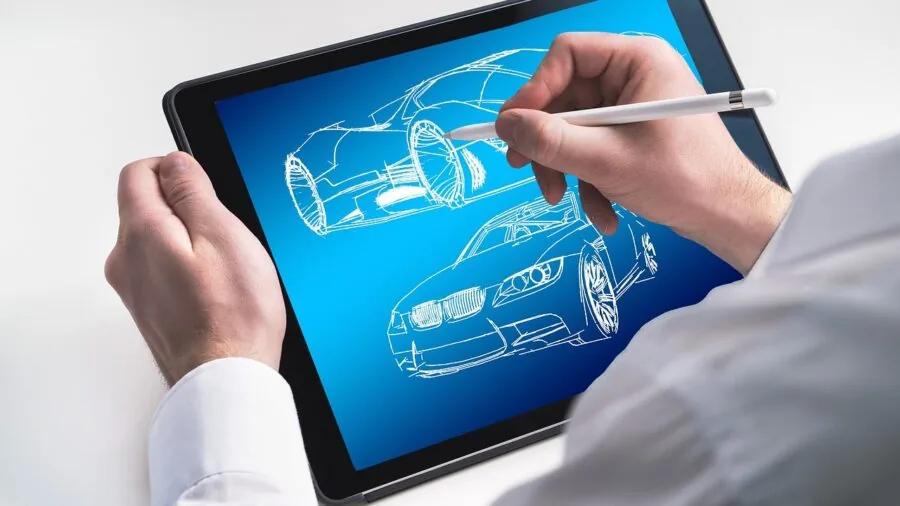
Pressure sensitivity is the single most important spec for natural-feeling brushstrokes. Modern drawing tablets typically offer either 8,192 or 16,384 levels of pressure.
The practical difference between those two tiers is subtle for casual illustration but becomes meaningful in fine-detail work where you want the thinnest possible line variation.
What matters just as much as the number of levels is the pen’s initial activation force: a pen that requires too much pressure before it registers will feel stiff and unresponsive.
Tilt support is the companion spec to pressure sensitivity. Most styluses in this price range support tilt angles between 60 and 80 degrees, which lets you replicate the natural lean of a pencil when shading.
Battery-free EMR (Electromagnetic Resonance) styluses are now standard across all the picks in this guide, eliminating the interruption of charging your pen mid-session.
If you rely heavily on pressure ramps in programs like Clip Studio Paint or Procreate (on supported hardware), look closely at whether a model uses the manufacturer’s latest pen generation.
Latency, sometimes called report rate, describes how quickly the tablet communicates pen position to your software. A higher report rate (measured in PPS, or points per second) means less visible lag between your stroke and what appears on screen.
For animation and fast gesture drawing in particular, this responsiveness can spell the difference between a fluid workflow and a frustrating one. Pairing a low-latency tablet with a capable graphics card ensures your entire pipeline stays responsive.
Screen vs. Screenless: Which Type Is Right for You?
Screenless graphics tablets (also called pen tablets) send input to your monitor without showing the drawing surface itself.
They tend to be lighter, cooler, and significantly more affordable than pen displays, and many professional illustrators swear by them because they encourage better hand-eye coordination with the screen in your natural line of sight.
The learning curve for screenless tablets is real, but most users adapt within a week or two of regular practice.
Pen displays, on the other hand, let you draw directly on the screen, which feels immediately intuitive and is especially valuable for precise inking, photo retouching, and comic lettering.
The trade-off is heat buildup during long sessions, potential parallax between the nib and the cursor, and a higher price tag.
Fully standalone drawing tablets go one step further by running their own operating system, meaning no PC connection is required at all, which makes them appealing for artists who work on the go or prefer a tablet-like experience.
Standalone models overlap somewhat with the broader world of phones, tablets, and wearables, but their specialized pen engines and drawing-focused software set them apart from general-purpose Android tablets.
If portability and sketch-anywhere convenience are high priorities, a standalone device deserves serious consideration alongside traditional pen displays.
Active Area Size and Workspace Ergonomics
Active area is the region of a screenless tablet that maps to your monitor. Larger is not always better: a very large active area demands wider arm movements, which can cause shoulder fatigue in long sessions.
The 10×6-inch format has become a sweet spot because it maps cleanly to most widescreen monitors while keeping movement comfortable at a desk.
Smaller tablets (roughly 6×4 inches) work well for portability and tight desk spaces, while larger formats appeal to users who need sweeping gesture control for concept art or 3D sculpting.
For pen displays, screen size directly affects how much canvas area you see at once. A 13-inch display is easy to travel with but may feel cramped for multi-panel comic pages.
A 16-inch display hits a comfortable middle ground between portability and usable real estate.
Placement angle matters too: an adjustable stand keeps your wrist in a neutral position, reducing the strain that leads to repetitive stress injuries over months of daily use.
Display Quality for Pen Displays
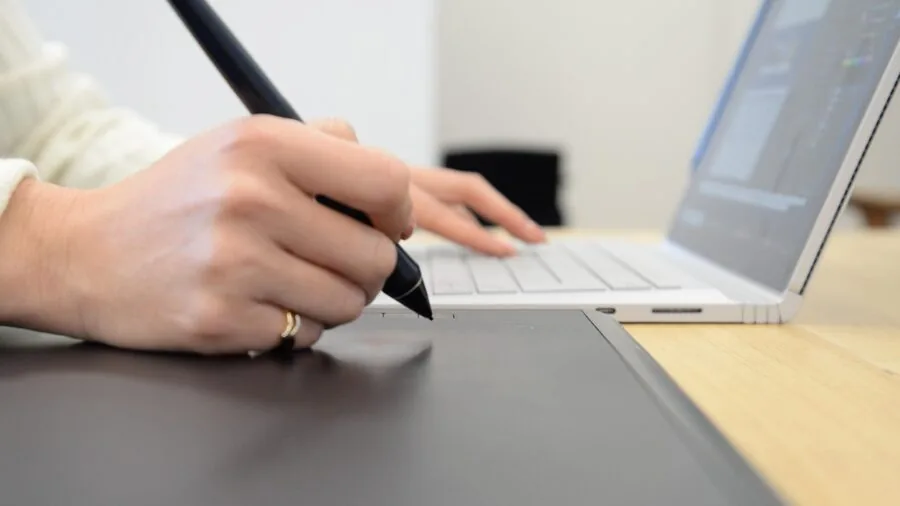
If you’re buying a pen display, color accuracy is non-negotiable. Look for a panel that covers at least 90% of the sRGB color space at minimum; for print-oriented illustration or professional client work, targeting 90% or higher Adobe RGB coverage becomes important.
Color calibration tools from the manufacturer and hardware-level color profiles help maintain consistency across different lighting environments.
Full lamination (bonding the glass directly to the panel) eliminates the air gap that causes parallax, making your pen nib appear to touch the line it’s drawing. Anti-glare coatings reduce reflections but can soften perceived sharpness on very high-resolution panels.
Some manufacturers now offer paper-like film surfaces that simulate the tooth of drawing paper, which many artists prefer for its tactile feel even though it wears down pen nibs faster than a standard glass surface.
Resolution and pixel density directly affect how clean your linework looks zoomed in. A Full HD panel at 13 inches delivers around 166 PPI, which is acceptable but not exceptional.
QHD or higher resolutions at similar sizes push density above 200 PPI, yielding noticeably crisper details. If you also use your display for reference imagery or photo editing, higher resolution pays dividends.
Artists who prioritize accurate color output may also want to consider how their monitor choice complements their workflow, which is why our guide to DSLR cameras notes similar color-accuracy principles for photographers making the switch to digital art pipelines.
Connectivity and Software Compatibility
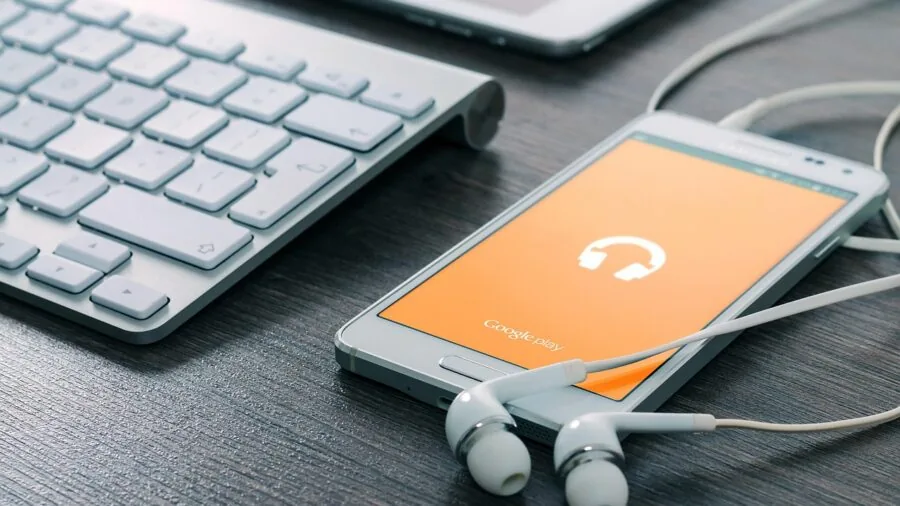
Most drawing tablets connect via USB-C today, though some budget models still rely on USB-A or a proprietary cable.
Wireless Bluetooth connectivity is increasingly common and adds genuine freedom of movement, though it introduces a small latency overhead that most users won’t notice in normal drawing but competitive OSU players may.
Always verify that the tablet you’re considering lists your operating system explicitly: macOS, Windows, ChromeOS, and Android compatibility can differ even within a single product line.
Driver stability is an underappreciated factor. Wacom’s driver ecosystem has decades of polish behind it and integrates tightly with industry software like Photoshop and Illustrator.
XPPen and Huion have both improved their driver quality substantially in recent hardware generations, with users on verified purchase platforms reporting significantly fewer pressure-curve glitches than in earlier years.
Before buying, check community forums for your specific software (Clip Studio Paint, Krita, Affinity Designer) to confirm the tablet model has a clean compatibility record.
Hotkeys, shortcut rings, and touch strips accelerate your workflow by putting common commands like undo, brush resize, and zoom within thumb reach. The number of programmable buttons ranges from 6 to 12 across the models in this guide.
If you work on a compact setup or use a 2-in-1 laptop as your primary machine, onboard hotkeys become even more valuable because screen real estate for toolbars is limited.
Budget Tiers and Value Assessment

Drawing tablets span a wide price range.
Entry-level screenless pads from XPPen and GAOMON deliver surprisingly capable pen engines at budget-friendly prices, making them an excellent starting point for students and hobbyists who are not yet sure whether digital art will become a long-term pursuit.
Mid-range pen displays from Huion add a screen and better color accuracy for artists who have outgrown a screenless workflow.
At the premium end, Wacom’s pen displays and professional pen tablets command a higher price but deliver a driver ecosystem and resale value that few competitors match.
Standalone drawing tablets occupy their own value tier: they remove the computer dependency entirely, which can actually represent strong value for artists who lack a capable desktop or laptop.
Consider total system cost when evaluating price: a standalone device may look expensive in isolation but becomes competitive when you factor in not needing a separate computer.
For artists whose creative workflow extends beyond drawing into video production or 3D rendering, investing in a capable laptop alongside a screenless pen tablet often makes more economic sense than a standalone device.
Why You Should Trust Us
REMOVU is an independent review publication. We do not sell products, fulfill orders, or have any involvement in warranty or return processes. Every recommendation on this page is produced through rigorous research rather than brand relationships or paid placements.
Each drawing tablet in this guide was evaluated against a consistent set of criteria: pen technology and pressure sensitivity, active area and ergonomics, display quality (for pen displays), connectivity and driver stability, software compatibility, and overall value within its price tier.
We synthesized manufacturer-published specifications, expert review consensus from the broader editorial community, verified buyer feedback from confirmed purchasers, and publicly available benchmark data.
We do not conduct our own product trials; our evaluations are grounded in research, published data, expert review consensus, and verified buyer feedback.
Each product is assigned a REMOVU Score on a scale of 0 to 10, reflecting its overall standing across all evaluated criteria. Products are ranked by their REMOVU Score, with the highest-scoring model listed first.
If you purchase through a link on this page, REMOVU may earn an affiliate commission. That relationship has no bearing whatsoever on scores, rankings, or which products are included or excluded.
Our editorial process is designed to surface the best option for the reader, not the most profitable one for us.
Final Thoughts
After analyzing the full field of drawing tablets available in 2026, the picks in this guide represent the strongest options across every meaningful buyer segment.
Whether you prioritize a distraction-free standalone experience, the precision of a professional pen display, or an affordable entry point into digital illustration, there is a well-matched option in the list above. Below are the standout designations from our research.
- Best Overall: Wacom Cintiq 16 earns the top spot with the highest REMOVU Score in the group, combining a Full HD pen display, the acclaimed Pro Pen 2 with tilt response, and Wacom’s industry-leading driver ecosystem into a package that professional illustrators, animators, and designers consistently praise for reliability and precision.
- Best Professional Screenless Tablet: Wacom Intuos Pro Medium is the go-to choice for artists who prefer working with their eyes on the monitor rather than the surface, delivering Bluetooth freedom, ProPen 3 precision, and a dense array of programmable ExpressKeys suited to animation, photo editing, and 3D workflows.
- Best Pen Display for Mid-Budget Artists: Huion Kamvas 13 Gen 3 stands out for its fully laminated Canvas Glass 2.0 panel, dual dial shortcut controls, and PenTech 4.0 pen engine, delivering near-professional display quality at a mid-range price that makes it accessible to advancing illustrators and educators alike.
- Best Standalone Drawing Tablet: XPPen Magic Drawing Pad 12.2 offers the most polished computer-free drawing experience in the group, pairing a paper-like screen with 16,384 pressure levels and generous onboard storage for artists who need a portable, self-contained creative device.
- Best Budget Pick: XPPen Deco 01 V3 delivers an impressive 16,384-level battery-free stylus and a generously sized active area at an entry-level price, making it an outstanding first drawing tablet for students, hobbyists, and anyone exploring digital art without a large upfront commitment.
For artists who are also building out a broader creative workstation, pairing your new drawing tablet with a well-chosen monitor and the right peripherals makes a significant difference in daily comfort.
Our guides to all-in-one computers and compact desktop PCs can help you build a complete creative setup around whichever tablet you choose.
Frequently Asked Questions
Do I need a drawing tablet with a screen, or will a screenless pad work just as well?
For most beginners, a screenless pen tablet is the smarter starting point. They are lighter, run cooler, and cost significantly less than pen displays.
The hand-eye disconnect feels strange at first but becomes second nature within a few weeks of regular use.
If you already have experience with digital art and find yourself wanting a more direct, intuitive feel, upgrading to a pen display makes sense.
Professionals working in character design, inking, or lettering often prefer displays for the precision they offer at fine scales.
What is the difference between 8,192 and 16,384 levels of pressure sensitivity?
In practical terms, the difference is subtle for most artists. Both levels of pressure sensitivity produce smooth, natural-feeling line weight variation in everyday illustration work.
The improvement from 8,192 to 16,384 levels becomes more perceptible when working at very fine scales, painting with delicate opacity ramps, or performing precise photo retouching where you need granular control at the lightest touch.
If you are just starting out, 8,192 levels is more than sufficient. Power users doing detailed character art or fine-art digital painting will appreciate the extra headroom that 16,384 levels provides.
Are drawing tablets compatible with iPads or Android devices?
Android compatibility has expanded significantly across XPPen, Huion, and GAOMON’s recent product lines.
Several models in this guide explicitly list Android support, meaning you can connect them via USB-C OTG to a compatible Android phone or tablet and use apps like Sketchbook or Infinite Painter with full pressure sensitivity. iOS and iPadOS compatibility is more limited for traditional pen tablets; Apple’s ecosystem is more tightly integrated with the Apple Pencil.
If mobile drawing is a priority and you use an iPad, a standalone drawing tablet or a purpose-built iPad stylus solution may serve you better than a traditional USB graphics tablet.
How important is the number of programmable hotkeys on a drawing tablet?
Hotkeys become more valuable as your workflow matures. Beginners often ignore them entirely at first, relying on keyboard shortcuts instead.
Over time, mapping undo, brush size up and down, canvas rotation, and zoom to your tablet’s physical buttons reduces the constant hand migration between stylus and keyboard, which adds up to meaningful time savings in longer sessions.
If you work in a software-intensive pipeline, look for a model with at least 8 programmable buttons.
Artists who work on a compact setup, like a small desk or alongside a 2-in-1 laptop, benefit most from well-placed onboard controls since screen toolbars eat into their limited real estate.
Can I use a drawing tablet for purposes other than illustration?
Absolutely. Drawing tablets are widely used for photo retouching and masking in Photoshop, where pressure-sensitive brushes give you more natural edge control than a mouse. Educators and online instructors use them to annotate slides and whiteboards in real time.
Some users adopt screenless tablets as a mouse replacement for general computing, which reduces wrist strain compared to a standard mouse. GAOMON in particular markets its tablets explicitly toward digital writing and document editing workflows alongside artistic use.
The versatility of a good pen tablet makes it a useful tool well beyond traditional drawing and painting.
Is Wacom still worth the premium price compared to XPPen or Huion?
For most users, the gap has narrowed considerably. XPPen and Huion now offer pen engines, display quality, and driver stability that rival Wacom at a fraction of the cost, which is why both brands appear in our top picks.
Where Wacom continues to lead is in driver longevity (older Wacom tablets often remain fully functional on new operating systems years after launch), deep integration with professional creative software, and the ProPen ecosystem’s consistently low initial activation force.
If you are a working professional whose livelihood depends on your tools performing reliably every day for years, Wacom’s premium is justifiable.
If you are a student, hobbyist, or even a freelance illustrator on a budget, XPPen and Huion deliver exceptional value that makes the price difference hard to defend purely on performance grounds.
About the author
Josephine covers mechanical keyboards for REMOVU, comparing switch feel, layout, and build quality for typing and gaming. She helps readers navigate a deeply personal choice with clear, practical advice.