7 Tips to Enable and Use Sound Glow on Your HomePod Speaker
Discover how to enable and optimize Sound Glow visual effects on your HomePod for parties and everyday listening.
 By Ava Herrera
Updated October 19, 2026
By Ava Herrera
Updated October 19, 2026
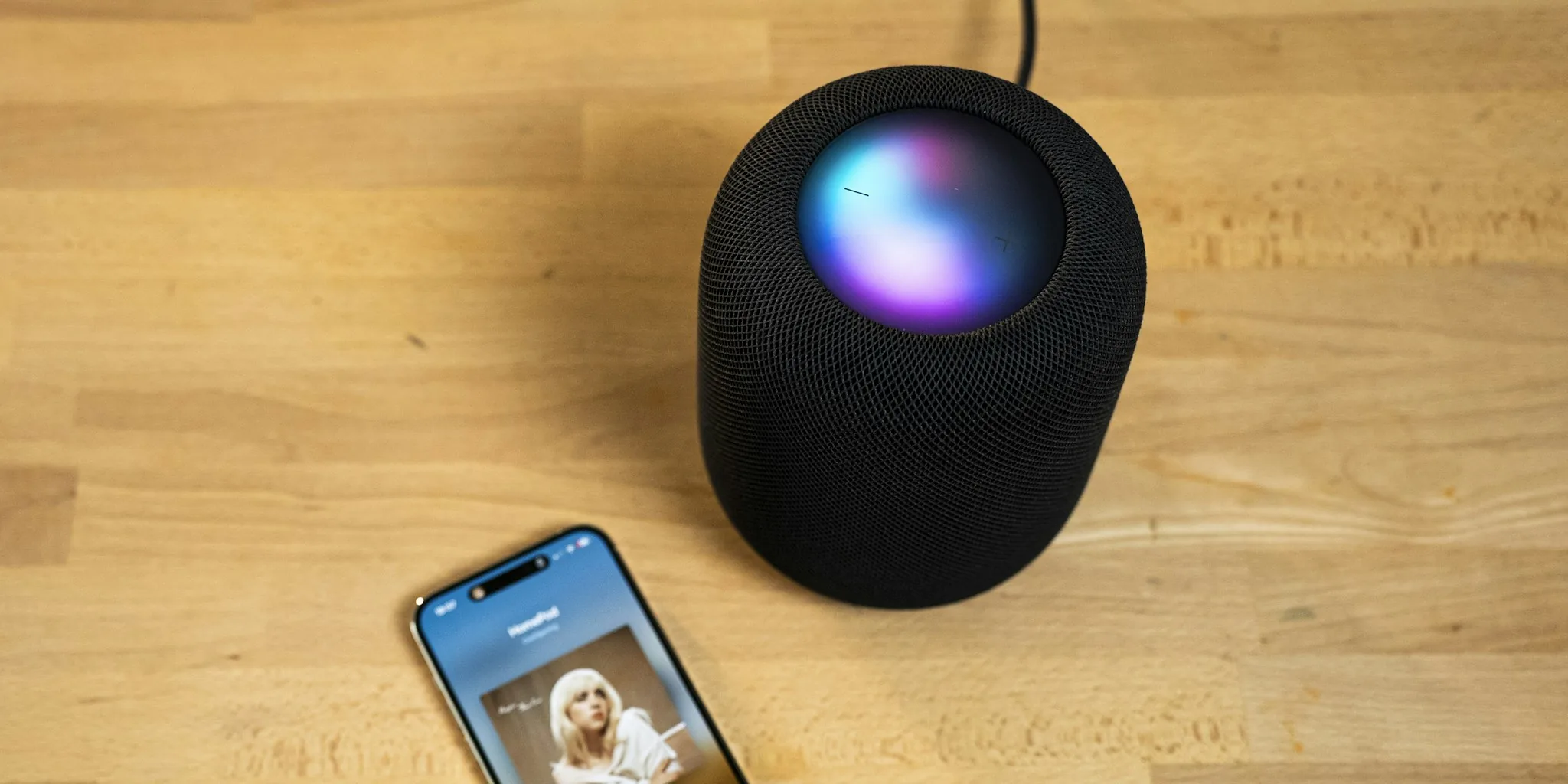
Apple is rolling out an exciting visual feature across its HomePod lineup that transforms your speaker into a dynamic light show synchronized with your music. Sound Glow adds colorful animated effects to the touch surface of your HomePod, creating an immersive audio and visual experience perfect for entertaining or enhancing your everyday listening. If you own a compatible HomePod model, here are seven practical tips to get the most out of this new capability.
1. Check Your HomePod Compatibility First
Not all HomePod models support Sound Glow. The feature works on HomePod mini and the second-generation full-size HomePod. If you own the original large HomePod, unfortunately this feature is not available on your device. Before attempting to enable Sound Glow, verify which HomePod model you have so you know whether the feature applies to your setup.
2. Update to the Latest Software Version

To access Sound Glow, your HomePod must be running software version 27.2 or newer. Ensure your speaker has the latest firmware installed by checking for updates through your connected Apple devices. Keeping your smart home devices current ensures you get access to new features and security improvements as soon as they become available.
3. Enable Sound Glow Through the Home App
The primary method for activating Sound Glow is through Apple’s Home app. Open the app, locate your HomePod, and long-press on the device icon. Scroll down through the settings menu until you find the Sound Glow toggle switch. Simply enable it and the feature activates immediately. This straightforward process takes just a few taps and puts the visual effects under your control.
4. Use Control Center for Quick Adjustments
If you have an Apple TV paired with your HomePods, you can toggle Sound Glow directly from Control Center without opening the full Home app. This quick-access method is especially convenient during social gatherings. Press and hold on your Apple TV remote, navigate to the HomePod menu option, and toggle Sound Glow on or off as needed. Having this easy-access option means you can activate party mode quickly when guests arrive and disable it just as easily afterward.
5. Play Music with Album Artwork for Best Results
Sound Glow displays animated light effects based on the dominant colors from album artwork of whatever content is currently playing. To see the feature in action, you need to play music or podcasts that include cover art. Streaming services like Apple Music, Spotify, and others provide artwork for their tracks and episodes. When you play content without album art, Sound Glow will not display any visual effects, so choose your music sources wisely if you want to enjoy the full experience.
6. Position Your HomePod Strategically for Visibility
The HomePod’s touch surface is not extremely bright, but its visual impact increases when placed strategically in your space. Position your speaker against a white or light-colored wall in a dimly lit room to maximize the ambient light cast from the colored effects. Even if you cannot see the top of the HomePod directly, you may still notice the colored glow reflecting onto nearby surfaces. Experiment with placement to find the position that works best for your room layout and lighting conditions. Security cameras in your smart home can help you plan your entertainment space layout.
7. Turn Off Sound Glow When Not Needed
While Sound Glow is entertaining during parties and social events, the animated effects can become distracting during casual listening or when you prefer a quieter, less stimulating environment. The ability to quickly disable the feature through Control Center means you can customize your HomePod experience moment to moment. Use the toggle to turn it off for regular daily use and enable it only when hosting gatherings or when you want that extra visual dimension to your music. Portable power solutions ensure your smart home devices stay running smoothly.
Understanding How Sound Glow Works
Sound Glow analyzes the primary colors present in the album artwork of currently playing content and displays two or three of those colors as animated balls of light that bounce across the speaker’s surface. This creates motion and visual interest without being overly bright or harsh. The effect works best when content has rich, colorful artwork with distinct color separation. Instrumental tracks, podcasts with minimal artwork, or older music with simple cover designs may produce more subtle visual effects.
Maximize Your Entertainment Experience
Sound Glow represents Apple’s commitment to creating multi-sensory smart home experiences that go beyond basic functionality. By following these seven tips, you can fully utilize this feature to enhance your audio entertainment, impress your guests, and customize your HomePod to match your preferences and lifestyle. Reliable connectivity ensures your HomePod performs optimally within your smart home ecosystem. Whether you use Sound Glow occasionally during gatherings or embrace it as part of your daily listening routine, understanding how to enable and control this feature gives you greater command over your home audio setup.
About the author
Ava is REMOVU's laptop writer, balancing speed, battery life, and build quality against price across the whole range. She helps readers find the sweet spot as each new chip shifts what a dollar buys.