7 Ways to Launch Your Photo App Camera Faster and Never Miss the Moment
Stop navigating menus. Discover the fastest ways to access your photo app's camera directly from anywhere on your phone.
 By Ava Herrera
Updated October 22, 2026
By Ava Herrera
Updated October 22, 2026
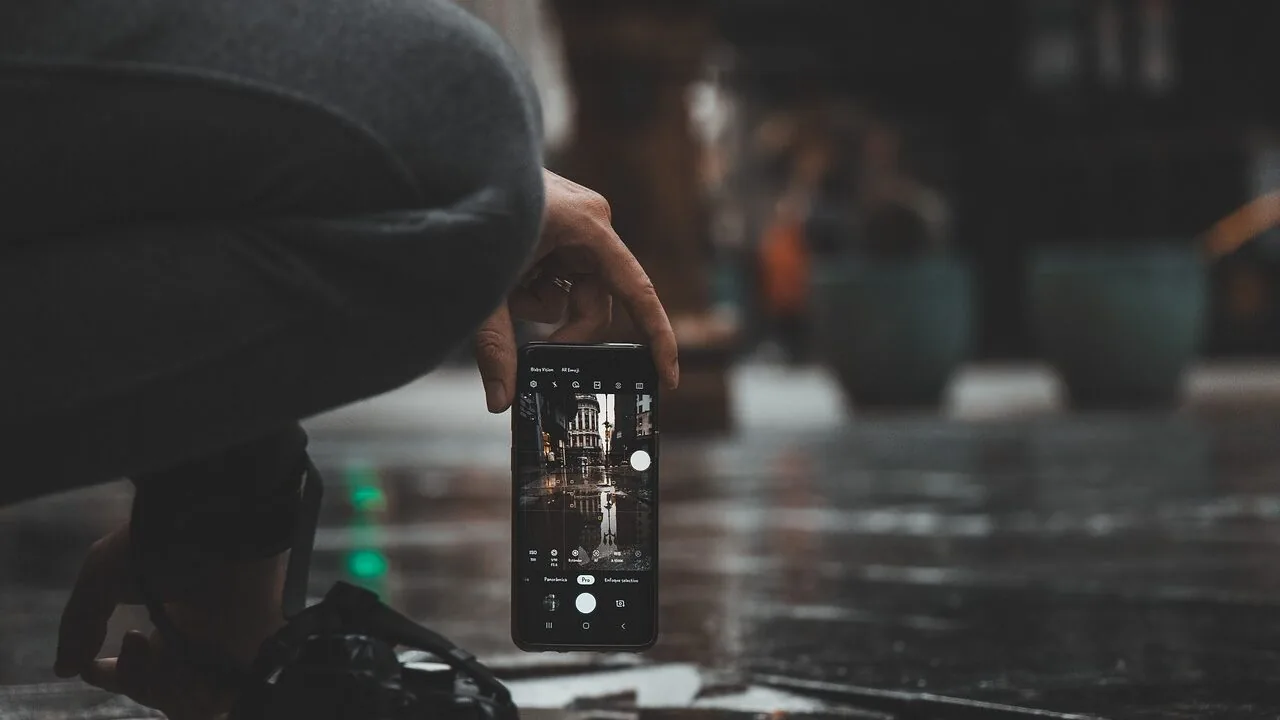
Photography is all about capturing the moment before it passes. When inspiration strikes, the last thing you want is to fumble through multiple menu screens or app menus just to open your camera. Modern photo editing apps are increasingly designed with this reality in mind, making it easier to transition from inspiration to capture. If you use a dedicated photo app with its own built-in camera, you’ll want to know the fastest methods to access it without unnecessary delays.
1. Use Your Phone’s Power Button for Instant Access
Many Android devices, particularly those from Samsung, allow you to assign custom actions to hardware buttons. By double-pressing the power button, you can launch specific apps directly from your lock screen or home screen. This feature is traditionally set to open the standard camera app, but you can reassign it to your preferred photo editing application’s camera instead. This method works even when your phone is locked, making it ideal for those unexpected moments when you need to shoot immediately. The advantage here is that you’re using a physical button that’s always available, regardless of your screen state or what app is currently running.
2. Create a Home Screen Shortcut
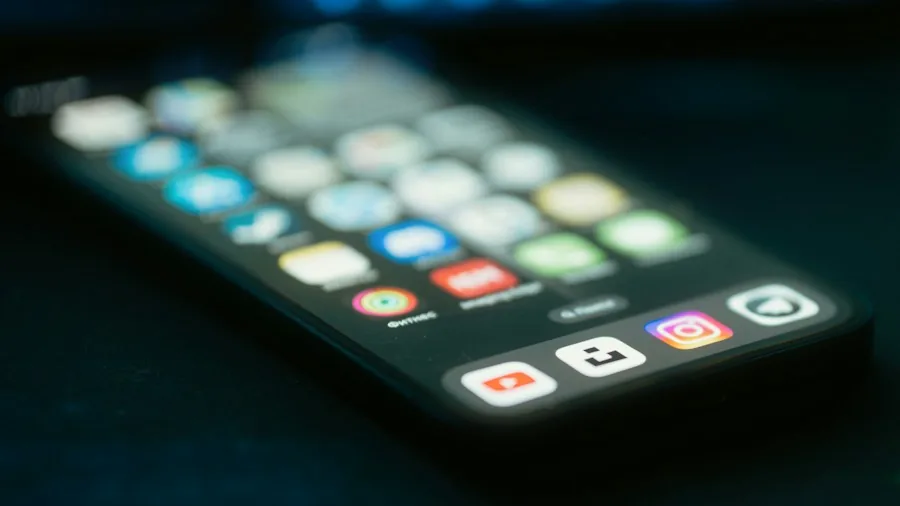
The simplest way to access your photo app’s camera is to create a dedicated home screen icon specifically for launching the camera function. Instead of opening the full app and navigating to the camera, you can press and hold the app icon and drag the camera option directly to your home screen. This creates a standalone shortcut that bypasses the main app interface entirely. Once created, tapping this icon takes you straight to the camera without any intermediate steps. This approach works on virtually all Android devices and doesn’t require any special permissions or configuration.
3. Enable Quick Settings Tiles
Quick Settings tiles are the buttons you access by swiping down from the top of your screen. Google is working to make camera access available through this interface, which means you could have a dedicated tile that launches your photo app’s camera directly. This approach is particularly useful when you’re already using your phone for other tasks and notice a photo opportunity. Rather than closing your current app or searching through your home screen, you can swipe down and tap the camera tile within seconds. Quick Settings tiles appear in the pull-down menu alongside brightness controls, WiFi toggles, and other system functions.
4. Add a Lock Screen Shortcut
Lock screen customization has become increasingly powerful on modern Android devices. Soon, photo apps may allow you to pin their camera function directly to your lock screen, similar to how the native camera app functions. This means you could access the camera without even unlocking your phone, which is crucial for those moments when speed matters most. Lock screen shortcuts are visible at a glance, making them impossible to miss and requiring just a single tap to activate. This method combines accessibility with security, as you can photograph something urgent before fully unlocking your device.
5. Use App Icon Long-Press Actions
If you’re not ready to create permanent home screen shortcuts, long-pressing the app icon offers a quick alternative. When you press and hold the app icon, a menu appears showing available actions, including direct access to the camera. This method keeps your home screen organized while still providing fast access to the camera function. The long-press menu appears immediately, so you can open the camera within a second or two without navigating through the app structure. This approach is especially useful for devices where you want to keep your home screen clean but still need quick access to specific features.
6. Explore Gesture Controls
Some devices and applications support custom gesture controls that can launch specific features. Depending on your phone manufacturer and software version, you may be able to assign a custom gesture or combination of button presses to open your photo app’s camera. These controls vary by device but can include double-tap shortcuts, three-finger swipes, or other motion-based triggers. Setting up gesture controls requires exploring your device’s accessibility and customization settings, but once configured, they provide one of the fastest ways to access camera functionality.
7. Keep the App on Your Main Home Screen
While it might seem obvious, positioning your photo app prominently on your main home screen ensures you never have to swipe through multiple screens to find it. Many users bury photography apps in folders or secondary screens, which defeats the purpose of having quick access. By keeping the app icon visible on your primary home screen, you ensure that even if you can’t remember a custom shortcut method, opening the app takes just one tap. When you’re looking for professional-grade editing tools alongside a capable camera, having reliable multimedia tools is essential for content creators, and that same principle applies to mobile photography.
Preparing for Easier Camera Access
The photography experience improves dramatically when your tools respond to your workflow rather than forcing you to work around them. As developers continue refining photo applications, expect to see more of these convenience features become standard. The methods listed above range from simple organization strategies to advanced hardware button customization, so you can choose the approach that fits your habits best. Whether you need to ensure your phone stays charged during extended photo sessions or optimize your app launch methods, the goal remains the same: spending less time accessing tools and more time capturing memories.
About the author
Ava is REMOVU's laptop writer, balancing speed, battery life, and build quality against price across the whole range. She helps readers find the sweet spot as each new chip shifts what a dollar buys.