How to Fix Your Apple Watch When It’s Showing the Wrong Time
Simple steps to correct time discrepancies on your Apple Watch without visiting Apple Support.
 By Kristen Jennings
Updated November 3, 2026
If your Apple Watch is displaying an incorrect time, you’re not alone. A known software issue can cause some Apple Watches to show the wrong time by an hour, particularly after seasonal time changes. While this glitch isn’t universal, it can create real frustration, especially if you rely on your watch as an alarm clock or for scheduling. The good news is that correcting this problem requires just a few straightforward steps and takes only minutes to complete.
Why Your Apple Watch Shows the Wrong Time
Apple Watches should automatically adjust to the correct time when daylight saving time occurs or when you travel between time zones. However, a software bug occasionally prevents this automatic synchronization from working properly. When this happens, your watch display will be off by an hour, while your iPhone displays the correct time. This disconnect occurs at the software level, not because your watch’s internal clock is broken.
Method 1: Restart Your Apple Watch
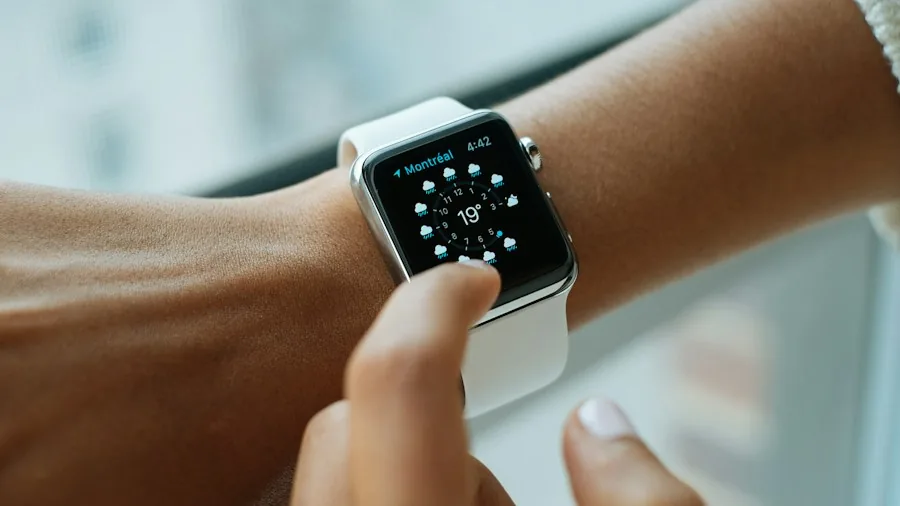
The quickest solution is to perform a simple restart. Press and hold the side button on your watch until the power slider appears on the screen. Continue holding until the Apple logo displays, which signals the restart is complete. After your watch powers back on, check whether the time has corrected itself. This straightforward approach resolves the issue for many users and takes less than a minute.
Method 2: Change Your Watch Face and Switch Back
If restarting doesn’t resolve the problem, changing your watch face acts as a reliable workaround. This method forces your Apple Watch to refresh its display settings and sync with the correct time. Here’s how to execute this fix:
Step 1: Open Face Gallery on Your iPhone
Launch the Apple Watch app on your iPhone and navigate to Face Gallery at the bottom center of the screen. This section contains all available watch face options.
Step 2: Select and Download a Different Watch Face
Browse the available faces and tap Get on any watch face that appeals to you. Since this is temporary, your choice doesn’t matter. Wait a few seconds for the download to complete on your phone.
Step 3: Install the New Face on Your Watch
Once downloaded, tap the preview of your chosen watch face, then select Add to Watch. Your Apple Watch will install this new face within moments. At this point, your watch should display the correct time, confirming that the face refresh resolved the issue.
Step 4: Return to Your Original Watch Face
Now that the time is accurate, you can switch back to your preferred face. Tap My Watch at the bottom left of the Apple Watch app, then select your original watch face from the My Faces carousel at the top of the screen. Customize your watch experience with faces that match your daily routine and device setup.
Step 5: Confirm Your Preference
Scroll down to the bottom of the watch face customization page and tap Set as Current Watch Face. This reinstalls your original face while maintaining the correct time display.
Why This Solution Works
Switching watch faces and returning to your original face forces your Apple Watch to resynchronize with your iPhone and Apple’s time servers. This refresh action clears any cached time data that might be causing the discrepancy. The new face installation essentially resets the display parameters, allowing your watch to fetch and display the accurate time once again.
Preventing Future Time Issues
Keep your Apple Watch software updated to the latest version, as Apple releases patches that address known bugs. Check for watchOS updates regularly through the Apple Watch app on your iPhone. Additionally, ensure your iPhone’s time is set to automatic, which allows both devices to synchronize properly. If you travel across time zones frequently, consider devices that automatically detect location and adjust settings accordingly.
When to Seek Additional Help
If neither method resolves your time display issue, check that your watch is running the current version of watchOS. You can also try unpairing and repairing your watch with your iPhone, though this is a more involved process. If the problem persists after these steps, contact Apple Support for further assistance. Your watch may require a more detailed diagnostic or professional service.
Make the Most of Your Apple Watch
Once your time display is corrected, explore other features that enhance your watch’s utility. Learn about enabling voice commands, adjusting notification settings, and customizing complications for quick information access. Your Apple Watch becomes significantly more valuable when all features function correctly and sync properly with your iPhone.
About the author
Kristen writes about smartwatches for REMOVU, comparing features, battery life, and ecosystem fit. She helps readers tie together health tracking, notifications, and apps on the right watch.