The 6 Best Internal Hard Drives Under $100
Storage capacity without overspending: this guide breaks down the top internal hard drives under $100 by spindle speed, interface, and intended workload so you buy the right drive the first time.
 By Yolanda Carroll
Updated July 26, 2026
By Yolanda Carroll
Updated July 26, 2026
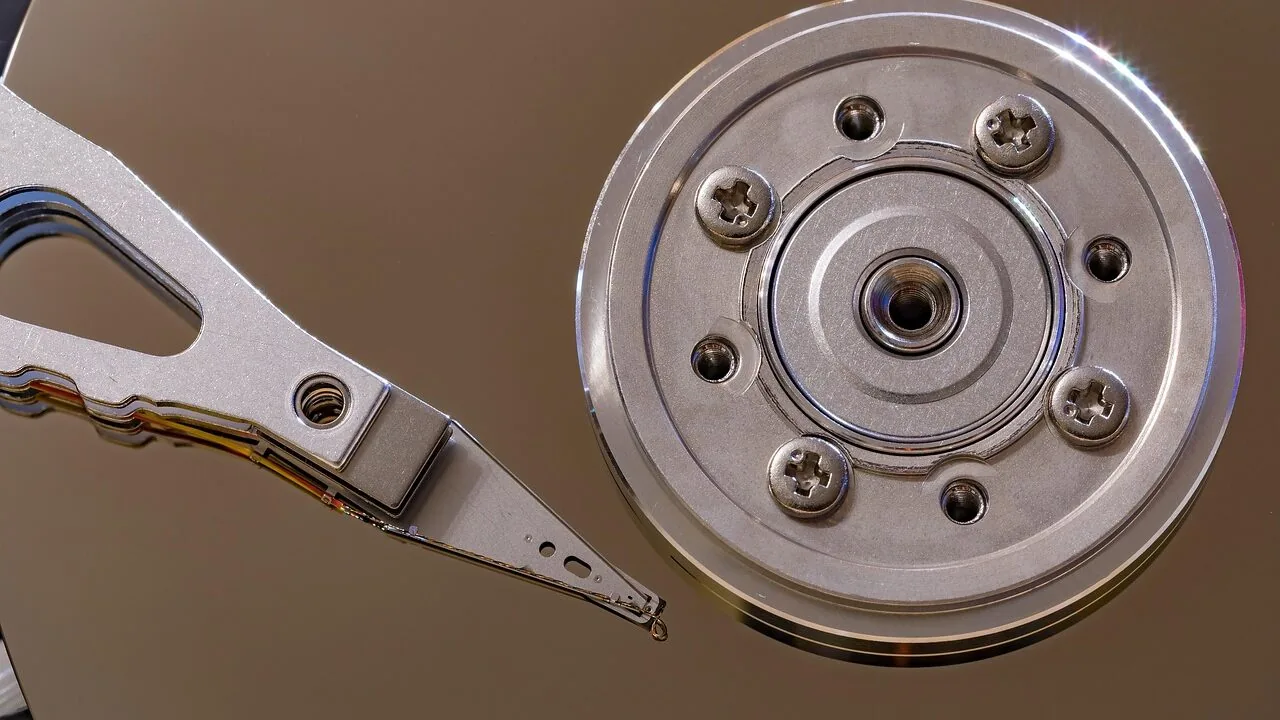
Internal hard drives remain one of the most cost-effective ways to expand storage in a desktop PC, a NAS enclosure, a DVR, or a surveillance system.
While SSDs have taken over as the go-to for operating systems and frequently used applications, a spacious mechanical hard drive still offers the best gigabyte-per-dollar ratio for bulk storage, media libraries, and backups.
Finding a reliable model without overspending, however, requires sorting through a crowded field of drives that vary widely in speed, cache size, intended workload, and long-term reliability track record.
This guide focuses on the best internal hard drives under $100, drawing on publicly available specifications, expert review consensus from across the storage enthusiast community, and verified buyer feedback gathered from major retail platforms.
REMOVU’s research-based approach lets us cut through marketing noise and surface the drives that genuinely deliver for everyday desktop users, home media builders, and light enterprise needs alike.
Whether you need a fast 7,200 RPM workhorse or a quiet, energy-efficient drive for a NAS, the picks below cover the most defensible choices at this price point. Read on for our top-ranked selections.
| Award | Product | REMOVU Score About REMOVU ScoreThe REMOVU Score is our own rating from 0 to 10, based on performance, design and build, ease of use, and value. It reflects independent research and is never influenced by manufacturers, retailers, or affiliate commissions. Learn more › | Price | |
|---|---|---|---|---|
| Best Overall |
 Seagate BarraCuda 1TB 3.5-inch Desktop HDD
|
8.5/10 | Buy | |
| Best Premium |
 WD Blue 1TB 3.5-Inch Desktop Hard Drive
|
8.4/10 | Buy | |
| Best Budget |
 WD10EZEX 1TB 7200RPM SATA Desktop HDD
|
8.1/10 | Buy | |
| Best Value |
 Seagate 1TB Mobile HDD 7mm SATA
|
7.3/10 | Buy | |
 Seagate Video 3.5 1TB Internal HDD
|
7.1/10 | Buy | ||
 HGST Ultrastar 7K3000 3TB Enterprise SAS Drive
|
6.2/10 | Buy |
Seagate BarraCuda 1TB 3.5-inch Desktop HDD
A budget-friendly internal hard drive built for everyday desktop computing and content creation. The BarraCuda 1TB delivers solid read/write performance through multi-tier caching and comes backed by Seagate's 20-year track record of reliability, making it a straightforward upgrade for gamers, photo editors, and video professionals who need extra storage without breaking the bank.
Pros
- Proven reliability with two decades of engineering history
- Multi-tier caching technology for faster data access and file transfers
- Wide range of capacity options available in the BarraCuda line
- Cost-effective storage solution for desktop upgrades
- High customer rating of 4.6 stars across 11,487 reviews
Cons
- Traditional HDD technology is slower than modern SSDs for boot and application launch times
- 1TB capacity is modest by today's standards; higher capacities cost significantly more
- No mention of optional data recovery plan inclusion in base model
WD Blue 1TB 3.5-Inch Desktop Hard Drive
A reliable 1TB internal drive designed for everyday PC and Mac storage, backed by a 4.3-star rating from 645 verified buyers. WD Blue balances capacity and affordability for users building or upgrading systems without demanding high-speed performance, though it prioritizes quiet operation and data protection over raw speed.
Pros
- Proven reliability with 4.3-star user rating across 645 reviews
- IntelliSeek technology reduces power consumption, noise, and vibration for quieter operation
- Data LifeGuard continuously monitors drive health to prevent unexpected failures
- NoTouch Ramp Load protects the recording head when powered down
- Versatile compatibility with PC, Mac, NAS, CCTV, DVR, and RAID systems
Cons
- 5400-7200 RPM speed is slower than modern SSDs and high-performance HDDs, limiting boot and transfer speeds
- Mounting hardware and cables not included, requiring separate purchase for installation
- 1-year warranty is shorter than some competing desktop drives
WD10EZEX 1TB 7200RPM SATA Desktop HDD
A straightforward 1TB internal drive built for desktop PCs and gaming rigs that prioritizes capacity and speed. With 7200RPM spindle and 6Gb/s transfer rates, it delivers solid performance for users who need dependable storage without premium pricing. Best suited for budget-conscious builders or secondary drive installations.
Pros
- 1TB capacity provides ample space for OS, games, and applications at an accessible price point
- 7200RPM speed and 6Gb/s interface deliver consistent read/write performance for everyday computing and gaming
- High customer satisfaction with 4.6-star rating across 1,883 verified reviews
- Reliable OEM-grade component with proven track record in desktop systems
Cons
- Mechanical drive technology means slower boot and load times compared to modern SSDs
- 3.5-inch form factor limits compatibility to desktop systems only, not laptops or compact builds
- No advanced features like NAS optimization or enhanced vibration dampening found in higher-tier models
Seagate 1TB Mobile HDD 7mm SATA
A slim, high-capacity 2.5-inch hard drive designed for laptop upgrades and portable systems. The 7mm form factor keeps weight minimal while delivering up to 1TB of storage, making it practical for users who need substantial capacity without the bulk of traditional 9.5mm drives. Best suited for standard laptops and consumers prioritizing storage expansion over performance.
Pros
- Lightweight 7mm design reduces laptop bulk without sacrificing storage capacity
- Strong storage density at 1TB capacity with reliable SATA 6Gb/s interface for straightforward integration
- Affordable cost-per-TB option compared to SSDs, ideal for capacity-focused upgrades
- Self-Encrypting Drive (SED) option available with FIPS 140-2 validation for security-conscious users
- Solid 4.5-star rating from 1,117 verified reviews indicates consistent user satisfaction
Cons
- Mechanical hard drive with slower performance than SSDs; not ideal for gaming or performance-demanding tasks
- 2-year limited warranty is shorter than some competing laptop drives, which may offer 5+ years
- Spin-based technology generates more heat and power consumption compared to solid-state alternatives
Seagate Video 3.5 1TB Internal HDD
Built for continuous surveillance and storage workloads, this 1TB drive pairs a 5900 RPM spindle with a 64MB cache for steady performance across desktop and NAS systems. The 4.4-star rating from nearly 600 owners reflects solid reliability for 24/7 duty, though it's optimized for video archival rather than general-purpose computing.
Pros
- Designed explicitly for 24/7/365 operation in surveillance, NAS, and DVR environments
- 64MB cache and SATA 6.0Gb/s interface support reliable bulk transfers
- Low power consumption and quiet operation reduce cooling demands
- Compatible with any SATA system, offering flexible deployment options
- Strong user confidence with 4.4-star rating across 599 verified reviews
Cons
- 5900 RPM speed is slower than desktop drives, limiting random access performance
- 1TB capacity is modest by modern standards; larger workloads may require multiple units
- Video-focused design means it may underperform for general computing or gaming use cases
HGST Ultrastar 7K3000 3TB Enterprise SAS Drive
A 7200 RPM enterprise hard drive built for data center reliability, the Ultrastar 7K3000 delivers 3TB capacity with a proven 2.0 million hour MTBF rating and five-year warranty. It's engineered for 24/7 operations in server and storage environments where downtime costs money, though it's overkill for consumer workloads.
Pros
- Industry-leading 2.0M hours MTBF rating with five-year warranty, reducing unexpected failures
- 7200 RPM performance with up to 3x faster sustained transfer rates than prior generation, reaching 157 MB/sec
- Enterprise-grade reliability field-proven by major OEMs and cloud providers
- Multiple interface options (SAS 6Gb/s) with optional TCG Enterprise encryption for data security
- Power-efficient design with Advanced Power Management modes, reducing operational costs
Cons
- Enterprise-class pricing makes it cost-prohibitive for personal or small business use
- Designed exclusively for server/data center environments, not suitable for consumer desktops or NAS
- No information on actual real-world failure rates from verified buyer feedback in provided data
Internal Hard Drives Under $100 Buying Guide
Choosing a mechanical hard drive in 2026 is less about brand loyalty and more about matching a drive’s design envelope to your specific workload.
The sections below walk through the criteria that matter most, from form factor and spindle speed to interface compatibility and intended use case.
Pairing your new drive with the right motherboard and a capable power supply ensures you get full performance from day one.
Form Factor: 3.5-Inch Desktop vs. 2.5-Inch Mobile
Most desktop builds and NAS enclosures use 3.5-inch drives because the larger platter diameter allows higher areal density and greater cache headroom at lower cost.
A standard mid-tower PC case will almost always have dedicated 3.5-inch drive bays, making installation straightforward. If you are populating a home server rack or a multi-bay NAS, 3.5-inch drives are almost always the right default.
The 2.5-inch mobile form factor trades capacity and raw throughput for a thinner profile, lower power draw, and reduced vibration.
It is the appropriate choice when upgrading a laptop’s secondary storage slot or fitting a drive into a compact HTPC chassis with limited bay space.
One model in our selection, the Seagate 1TB Mobile HDD, targets exactly this use case with its 2.5-inch footprint and 15 mm z-height, making it a practical option where a full-size drive simply will not fit.
Before purchasing, confirm that your chassis or enclosure physically supports the form factor you need, and verify that your motherboard or controller card has an available SATA data port.
Most modern boards ship with at least four to six SATA ports, but it is easy to run out when combining an SSD boot drive with multiple storage HDDs.
Spindle Speed and Cache Size
Rotational speed, measured in RPM, is the single biggest lever on sequential read and write performance for a mechanical drive.
A 7,200 RPM drive will move large files noticeably faster than a 5,400 RPM model, which matters when transferring a multi-gigabyte video project or performing a full system backup.
The Seagate BarraCuda and the Western Digital WD10EZEX both spin at 7,200 RPM and represent the mainstream sweet spot for desktop workloads that demand consistent throughput.
Cache, also called buffer memory, temporarily holds frequently accessed data to smooth out the gap between the fast CPU and the slower spinning platter. Drives in this price range typically ship with 64 MB or 128 MB of cache.
The Seagate 1TB Mobile HDD stands out with a 128 MB cache buffer, which helps sustain burst write speeds even when the drive is under continuous load from multiple simultaneous operations.
For strictly sequential workloads such as video surveillance recording or large media file archiving, the speed difference between 5,400 and 7,200 RPM is less critical than it is for random-access tasks.
Drive manufacturers sometimes rate their surveillance and video-optimized models at variable RPM ranges to balance heat and noise across long continuous-write sessions, so read the product datasheet carefully before committing.
Interface: SATA vs.
SAS
The vast majority of consumer and prosumer drives in this price range use the SATA 6 Gb/s interface, which is supported natively by virtually every desktop motherboard and laptop sold in the past decade.
SATA drives are plug-and-play on standard systems, require no additional controller, and are the correct choice for home PC builds, gaming rigs, and home NAS enclosures.
One outlier in our selection is the HGST Ultrastar HUS723030ALS640, which uses a SAS 6 Gb/s interface. SAS (Serial Attached SCSI) is an enterprise-grade bus designed for workstation servers and data-center storage arrays.
It supports dual-port connectivity, higher sustained I/O operations per second under concurrent multi-user workloads, and longer duty cycles than consumer SATA drives.
However, SAS drives require a dedicated SAS host bus adapter (HBA) or a server motherboard with a native SAS controller; they will not connect to a standard consumer SATA port.
Unless you are building or upgrading a small workgroup server with an existing SAS backplane, choose a SATA drive.
The SAS model earns its place in our list for buyers who specifically need enterprise-grade reliability in a tight budget envelope, but it is emphatically not a drop-in replacement for typical desktop use.
Intended Workload and Drive Classification

Hard drive manufacturers segment their lineups by workload type, and buying the wrong class of drive for your use case can shorten its service life.
Desktop drives such as the Seagate BarraCuda and Western Digital Blue are rated for desktop duty cycles, typically around 55 TB per year of total workload.
They are optimized for the burst-heavy, idle-heavy pattern of a personal computer and are not designed to write continuously around the clock.
The Seagate Video 3.5 HDD is purpose-built for digital video recorders and CCTV systems that write a continuous stream of video data 24 hours a day, 7 days a week.
It is tuned for low vibration during sustained sequential writes and is firmware-optimized to handle the error recovery behavior expected by DVR controllers, which differs from the aggressive error correction used by desktop drives.
Pairing a desktop drive with a surveillance system can lead to premature failure and data loss.
The HGST Ultrastar sits at the other end of the workload spectrum, rated for enterprise-class duty cycles with an annualized failure rate well below many consumer models.
If you are assembling a budget small-business file server and already own a SAS-capable platform, this drive’s heritage as a Hitachi enterprise product gives it credibility that pure consumer drives cannot match.
For everything else, match the drive classification to the system it will live in.
Reliability, Warranty, and Long-Term Ownership
Hard drives are mechanical devices with a finite lifespan, and the statistical reality is that every spinning drive will eventually fail. The practical question is how to minimize risk and protect your data.
Warranty length is a reasonable proxy for manufacturer confidence: Western Digital’s Blue desktop drives and the WD OEM unit both carry a one-year warranty at this price tier, while Seagate’s BarraCuda is backed by two years.
Enterprise and near-line drives like the HGST Ultrastar often come with longer coverage, though OEM or bare-drive listings may have reduced warranty terms.
Verified buyer feedback across major retail channels shows that batch-level quality can vary even within the same model generation, so it is worth reading recent reviews rather than relying solely on a drive’s historical reputation.
Regardless of which drive you choose, pairing it with a solid state drive for your operating system reduces the mechanical drive’s random-access burden and extends its effective service life.
Regular backups, ideally following a 3-2-1 strategy, remain the only true safeguard against data loss.
Compatibility with Your Existing System
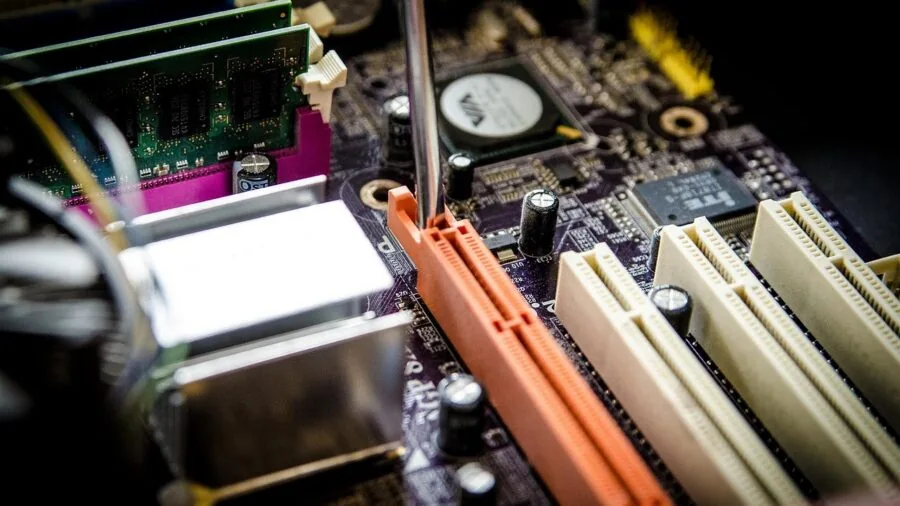
Before clicking buy, confirm a few compatibility points. First, check that your system’s power supply has a free SATA power connector; an adapter is inexpensive but adds one more potential failure point.
Second, verify that your BIOS or UEFI firmware recognizes drives at the capacity you are purchasing, particularly on older boards that may have a 2 TB or 3 TB recognition ceiling.
Third, if you are adding a drive to an existing RAID array or NAS, confirm that the drive model is on the vendor’s compatibility list, since some NAS manufacturers explicitly list approved drive models to ensure vibration compensation firmware works correctly.
For desktop builders assembling a complete system from scratch, pairing your HDD with the right processor and sufficient RAM ensures the rest of the system does not bottleneck your storage throughput.
A mechanical hard drive is rarely the weakest link in a modern desktop, but it will feel slow if you are using it as a boot drive without an SSD alongside it.
Plan your storage hierarchy accordingly, and let the HDD do what it does best: store large volumes of data affordably and reliably over many years.
Why You Should Trust Us
REMOVU is an independent review publication.
Every product in this guide was evaluated against a consistent set of criteria covering performance specifications, interface and form-factor suitability, intended workload classification, warranty terms, and long-term reliability signals drawn from published engineering data and community consensus.
Each model receives a REMOVU Score on a 0 to 10 scale, reflecting how well it performs across those criteria relative to its peers in the same price and category segment.
We do not conduct our own product trials; our evaluations are grounded in research, published data, expert review consensus, and verified buyer feedback.
This approach lets us assess a broad range of products with consistent methodology without the constraints of single-sample physical review. When expert consensus and verified buyer sentiment diverge significantly, we surface that tension transparently rather than smoothing it over.
REMOVU may earn a commission if you purchase through a link in this article. That affiliate relationship has no bearing on which products are included, how they are ranked, or what scores they receive.
Our editorial recommendations are determined solely by research quality and how well each product serves the reader’s needs, not by commission rates or commercial agreements.
Final Thoughts
The internal hard drive market under $100 is more nuanced than it first appears.
The right drive depends heavily on whether you need a fast desktop workhorse, a quiet 24/7 surveillance unit, a slim mobile upgrade, or an enterprise-grade component for a small server.
After weighing specifications, workload classification, interface compatibility, and the broad consensus from verified buyers and storage-focused expert sources, here are our editorial standouts from this selection:
- Best Overall: Seagate BarraCuda 1TB Internal Hard Drive earns the top spot with the highest REMOVU Score in the group, combining a proven 7,200 RPM spindle speed, SATA 6 Gb/s interface, and a strong reliability track record that has made it a consistent recommendation among PC builders across multiple drive generations.
- Best for Desktop Versatility: Western Digital Blue 1TB Desktop 3.5-Inch HDD stands out for its broad compatibility across PC, Mac, NAS, DVR, and RAID applications, making it the most flexible all-rounder in the group for users who are not certain of their exact workload profile.
- Best OEM Value: Western Digital 1TB 3.5-Inch SATA 7200 RPM OEM Drive (WD10EZEX) delivers near-identical desktop performance to the retail Blue line at a meaningfully lower price point, making it the smart pick for budget-conscious builders who are comfortable with an OEM bare-drive purchase.
- Best for Mobile and Laptop Use: Seagate 1TB Mobile HDD 2.5-Inch (ST1000LM035) is the only 2.5-inch drive in the group and the right answer for laptop upgrades or compact HTPC builds where a full-size drive will not fit, with a 128 MB cache buffer that helps compensate for the lower platter density inherent to the smaller form factor.
- Best for Surveillance and DVR Systems: Seagate Video 3.5 HDD 1TB (ST1000VM002) is purpose-engineered for continuous-write video recording workloads, with firmware tuned for the error-recovery behavior and vibration tolerance that DVR and CCTV controllers require from a 24/7 drive.
For most readers building or upgrading a desktop PC in 2026, the BarraCuda 1TB is the safest, most capable starting point.
If your build calls for something more specialized, whether that is the compact footprint of a mobile drive or the enterprise heritage of the HGST Ultrastar for a SAS-capable server, the buying guide sections above give you the framework to make that call with confidence.
Pair your new hard drive with thoughtful component choices elsewhere, including a reliable CPU cooler and a well-ventilated PC case, and your storage will serve you well for years to come.
Browse the full PC components section for additional research across every layer of your build.
Frequently Asked Questions
How do internal hard drives compare to SSDs for everyday desktop use?
A solid state drive is significantly faster for random-access tasks such as booting an operating system, launching applications, and loading game levels, because it has no moving parts and virtually zero seek time.
A mechanical hard drive, however, offers far more storage capacity per dollar for bulk data like video archives, photo libraries, and system backups.
The most cost-effective desktop setup combines an SSD as the primary boot drive with an HDD as a secondary storage volume.
For a tight budget where only one drive is feasible, the right choice depends on whether speed or capacity is the higher priority.
Can I use a desktop internal hard drive in a NAS enclosure?
Technically, most desktop SATA drives will operate in a NAS enclosure, but it is not always recommended.
NAS enclosures subject drives to continuous operation, vibration from multiple spinning drives in close proximity, and RAID rebuild operations that push drives hard for extended periods.
Drives purpose-built for NAS duty, such as those in Western Digital’s Red or Seagate’s IronWolf lines, include firmware optimizations for vibration compensation and error recovery tuned for multi-drive arrays.
If your NAS manufacturer publishes a compatibility list, consult it before using a desktop-class drive in a multi-bay system.
What does 7,200 RPM mean in practice, and do I need it?
RPM stands for revolutions per minute and describes how fast the magnetic platters inside the drive spin. A higher RPM means the read/write heads reach the target data more quickly, reducing average latency and boosting sequential throughput.
At 7,200 RPM, drives like the Seagate BarraCuda and the WD desktop models can sustain sequential read speeds in the range of 150 to 180 MB/s under ideal conditions. At 5,400 RPM, throughput typically drops to the 100 to 130 MB/s range.
For large file transfers, video editing scratch storage, or frequent backups, 7,200 RPM makes a measurable difference. For pure archival storage where files are written once and rarely read, the speed premium matters less than price per terabyte.
Is a SAS hard drive compatible with a standard desktop PC?
No. A SAS drive requires a SAS host bus adapter or a server motherboard with a native SAS controller. Standard consumer desktop motherboards expose only SATA ports, and a SAS drive’s connector, while physically similar, is electrically incompatible with SATA.
Attempting to connect a SAS drive to a SATA port will not damage either component, but the drive will not be recognized.
The HGST Ultrastar in this guide is worth considering if you have an existing SAS-capable platform, such as a refurbished enterprise server or a workstation with an add-in SAS HBA, where its enterprise-grade reliability and duty-cycle rating justify the interface requirement.
How long do internal hard drives typically last?
Mean time between failures (MTBF) figures published by manufacturers typically range from 1 million to over 2 million hours for consumer and near-line desktop drives, but those are statistical population averages, not individual unit guarantees.
Real-world data from large-scale drive deployments suggests that annual failure rates for consumer drives run roughly between 1 and 5 percent, with failure risk increasing after the third or fourth year of continuous operation. Heat, vibration, and workload intensity all accelerate wear.
The practical takeaway: treat any hard drive as a device that will eventually fail, maintain regular backups to a separate physical medium, and replace drives proactively when they begin showing warning signs in S.M.A.R.T. diagnostic data.
Do I need any special tools or software to install an internal hard drive?
Installing a 3.5-inch or 2.5-inch SATA drive requires only a Phillips head screwdriver and an available SATA data and power connection inside your case. Most mid-tower cases include drive rails or tool-free sleds that make mounting straightforward.
Once physically installed, the drive will appear in your operating system’s disk management utility (Disk Management on Windows, Disk Utility on macOS) where you can initialize, partition, and format it.
No proprietary software is required for basic installation, though drive manufacturers often offer optional utilities for health monitoring and firmware updates that are worth running on a new drive before putting it into service.
Related Guides
About the author
Yolanda covers tablets for REMOVU, weighing performance, display, and value across iPad and Android options. She helps readers pick a tablet that fits couch time or real work.