7 Tips for Choosing a Fast Charging Monitor for College and Beyond
Pick the right specs to charge your laptop, phone, and tablet with a single monitor cable while saving desk space.
 By Adrian Rogers
Updated August 24, 2026
By Adrian Rogers
Updated August 24, 2026
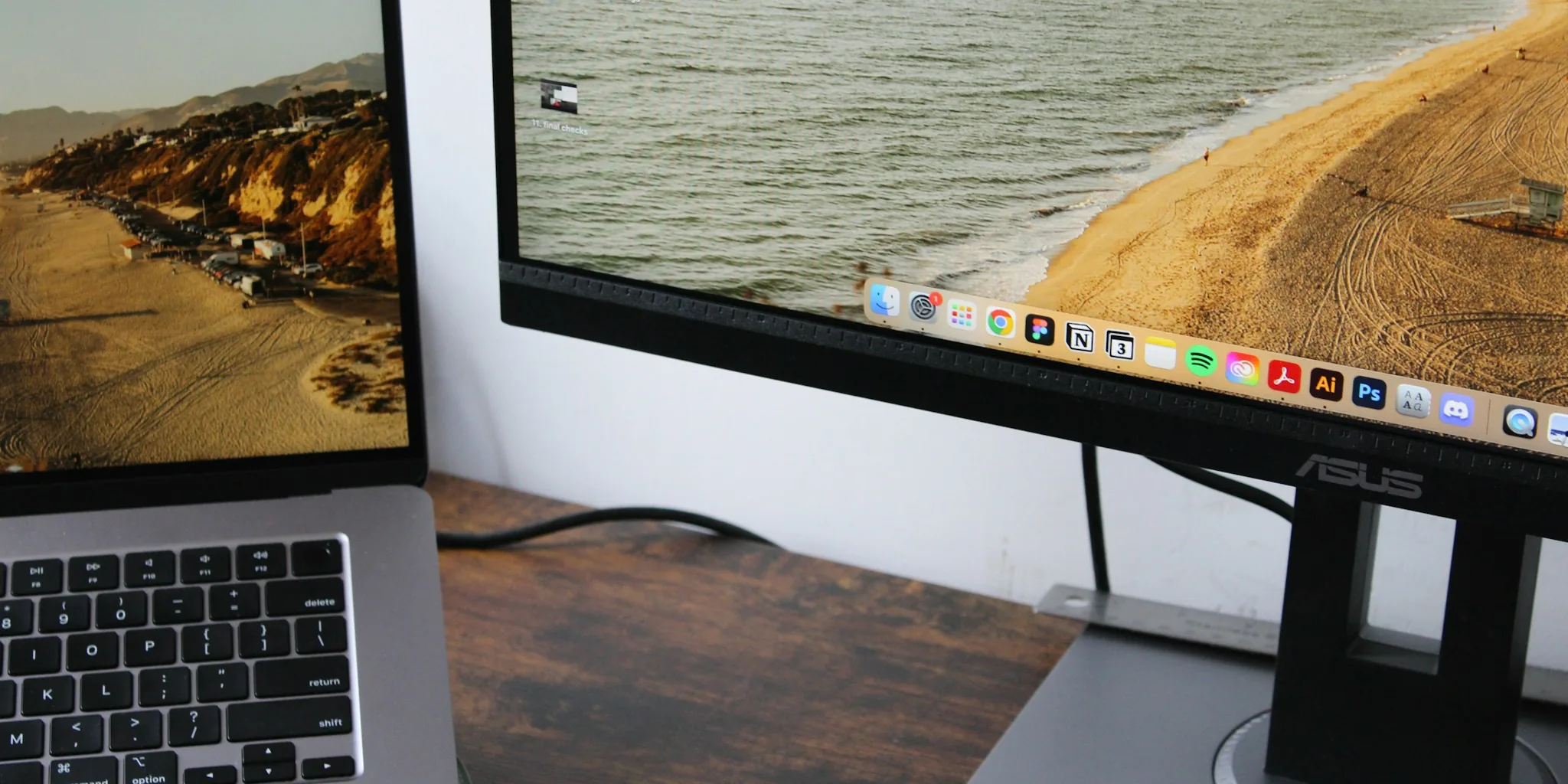
When you’re heading to college or moving into a shared living space, every square inch of real estate matters. A large television might seem appealing, but in a cramped dorm room or small bedroom, it will consume precious desk space you need for studying, your laptop, and other essentials. The smarter choice is a monitor equipped with USB-C connectivity and fast charging capabilities, which can serve as a productivity hub, entertainment center, and charging station all in one.
1. Prioritize USB-C with Power Delivery Over Basic USB-C
Not all USB-C monitors are created equal. Many budget-friendly options feature USB-C connectivity but offer only 15 watts of power delivery, which is barely sufficient to trickle-charge a smartphone. When shopping, look for a monitor that delivers at least 65 watts of power delivery if you have a smaller laptop like a 13 or 14-inch model. If you’re using a larger, more power-hungry machine such as a 16-inch MacBook Pro, target a monitor with 90 to 100 watts of power delivery. This ensures your device battery remains fully charged while you work without slowly draining during intensive editing or gaming sessions.
2. Plan for Your Future Computing Needs
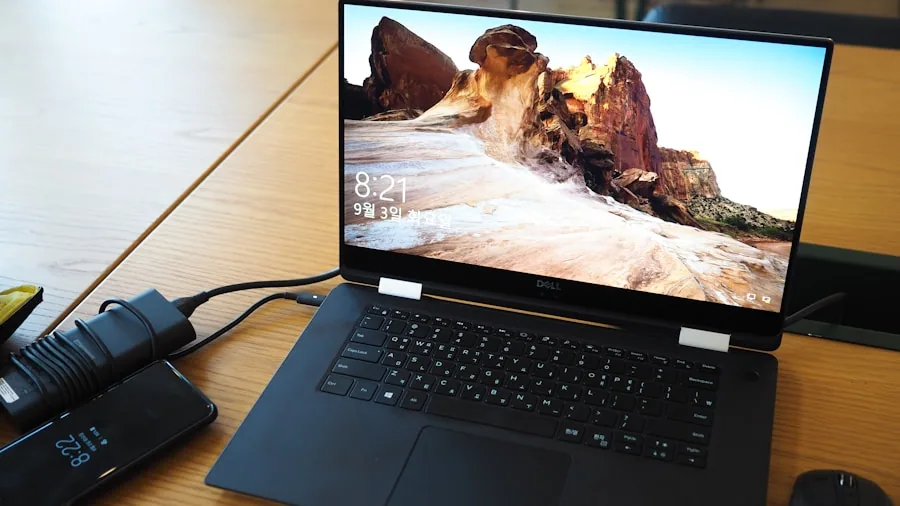
Your laptop needs may change significantly from your first year to your final year of college. You might start with a compact 13-inch model and later upgrade to a 16-inch workstation. To avoid needing a new monitor midway through your education, invest in one with 90 watts of power delivery or higher if your budget permits. This future-proofs your setup and ensures your monitor will support whatever device you upgrade to down the road.
3. Choose a High-Quality Cable
The cable connecting your laptop to your monitor carries both video signal and charging power, making it crucial to choose wisely. If your display doesn’t ship with a high-quality USB-C cable, or if you need a backup, purchase one specifically rated for high-wattage charging that explicitly supports video pass-through. Look for cables that handle at least 240 watts of power delivery and support fast data transfer speeds. Quality cables prevent connection issues and ensure maximum charging speed without compromising video quality.
4. Look for Built-in KVM Switch Functionality
A keyboard, video, and mouse switch (KVM) built into your monitor allows you to control multiple devices using a single set of peripherals. This feature is invaluable if you regularly switch between a laptop, desktop computer, tablet, or phone. When shopping, look for a rear panel that includes a USB-C port, a USB-B port, and several USB-A downstream ports. You can plug your keyboard, mouse, and webcam directly into the monitor, and it will automatically route them to whichever device is currently displayed on screen without requiring you to unplug any wires.
5. Consider a Monitor Arm for Flexible Positioning
Unlike a television, a monitor can be mounted on an adjustable arm, freeing up valuable desk space. You can angle your display toward your bed for late-night streaming or pivot it toward your chair for focused studying. A monitor arm also allows you to achieve proper ergonomic positioning, reducing strain during long study sessions. Many affordable monitor arms are available online and can transform your desk setup without requiring permanent wall installation, which dorm rules typically prohibit.
6. Evaluate Your Device Charging Ecosystem
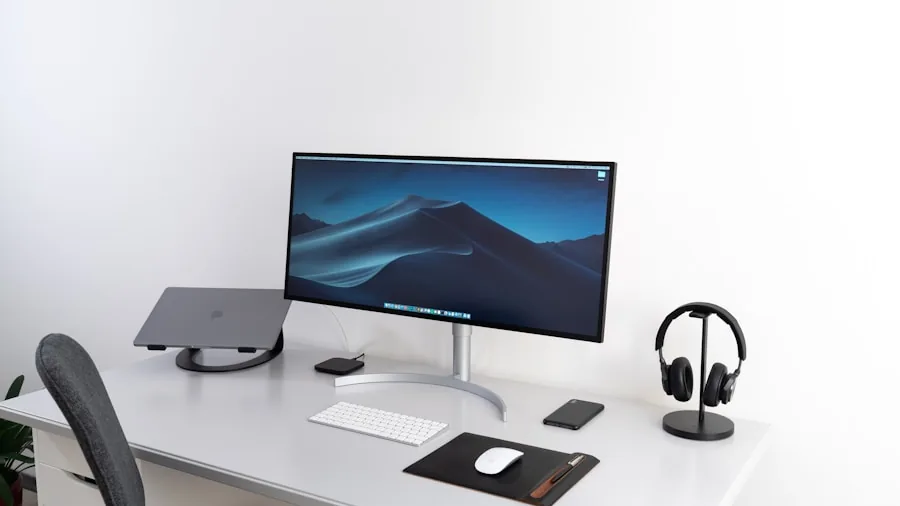
Beyond laptops, modern tablets, flagship smartphones, and iPads can output video over USB-C directly to a monitor. If you plan to use multiple devices simultaneously, a fast charging monitor becomes even more valuable. For instance, you could charge your phone and use your laptop at the same time through a single monitor connection, provided the power delivery is sufficient. This capability makes your setup far more efficient than managing separate chargers and cables for each device. Many people rely on power banks as backup solutions, but a monitor with robust power delivery eliminates that need during your desk-based work sessions.
7. Select a Resolution and Refresh Rate Suited to Your Workflow
Your monitor should support the display resolution and refresh rate your devices can output. A 1440p resolution works well for most college tasks and gaming, while higher refresh rates like 144Hz provide smoother motion if you enjoy gaming or creative work. Ensure your chosen monitor can accept video input via USB-C using DisplayPort Alt Mode, which is the standard for transmitting high-resolution video through a USB-C connection. Verify that your laptop or device supports both DisplayPort Alt Mode for video output and USB Power Delivery for charging so you can take full advantage of your monitor’s capabilities.
By selecting a monitor with fast charging through USB-C power delivery, a sturdy cable rated for high wattage, and practical features like KVM switching and monitor arm compatibility, you’ll create a workspace that adapts to your needs throughout your college years and beyond. A single cable handling both your display and charging needs simplifies your desk setup, reduces cable clutter, and ensures you can stay productive without constantly hunting for power outlets or replacement chargers.
About the author
Adrian writes about power banks for REMOVU, balancing capacity, charging speed, and pocketability for phones and laptops. He helps readers stay topped up without carrying a brick.