How to Set Up the Steam Frame: 9 Essential Tips for New VR Users
Master Steam Frame setup with comfort-focused guidance on fit, accessories, and wireless connection.
 By Tara Peters
Updated August 19, 2026
By Tara Peters
Updated August 19, 2026
Virtual reality hardware is becoming more accessible, and Valve’s upcoming Steam Frame promises to bring high-end VR directly to PC gamers. If you’re planning to bring home this advanced headset, understanding how to set it up properly will ensure you get the best experience from day one. Here are the essential steps and tips to guide you through the process.
Unbox Carefully and Inventory Your Contents
When your Steam Frame arrives, take your time unpacking it. The box includes the headset itself, a pair of motion controllers, a spacer designed for eyeglass wearers, a wireless adapter for connecting to your PC, an information booklet, and a USB-C charging cable. Lay everything out and verify each component is present before proceeding. This prevents confusion later if something is missing from your shipment.
Charge All Devices Before Initial Setup
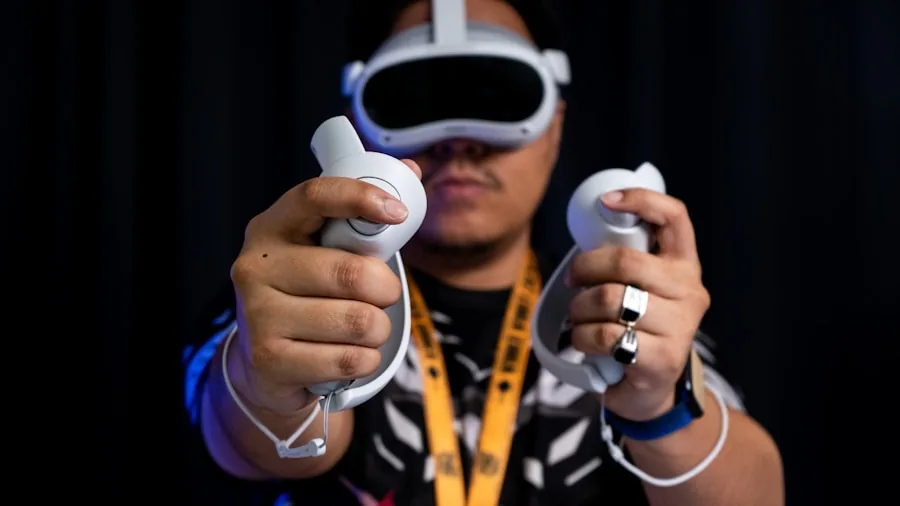
The Steam Frame ships in a power-saving mode, so you’ll need to charge it before your first use. Connect the USB-C cable to the headset and plug it into a power source. Allow the battery to reach full capacity before attempting to power on the device. This ensures you have enough charge to complete the initial configuration and get comfortable with the interface without interruption.
Install the Wireless Adapter on Your PC
The wireless adapter is essential for connecting your Steam Frame to your computer without cables. Plug the adapter into an available USB port on your PC. The system should recognize the hardware automatically, though you may need to install drivers from Valve’s official support page. Ensure your PC meets the minimum system requirements, including adequate processing power and RAM to handle VR applications smoothly.
Adjust the Headset Fit for Comfort
Getting the right fit is crucial for extended VR sessions. The headset features adjustable straps that allow you to customize how snugly it sits on your head. Position the device so the lenses are centered with your eyes, then tighten the side straps gradually until the headset feels secure but not overly tight. You should be able to fit one finger between the strap and your head for comfort during longer play sessions.
Use the Spacer if You Wear Glasses
If you wear eyeglasses, the included spacer accessory provides extra clearance between your eyes and the lenses. Install the spacer before putting on the headset to prevent your glasses from fogging or creating pressure points. This small addition makes a significant difference in comfort for users who rely on corrective lenses.
Configure Interpupillary Distance Settings
The interpupillary distance, or IPD, is the measurement between your pupils. The Steam Frame allows you to adjust this setting through its software menu. Finding your correct IPD ensures the virtual image aligns properly with your vision, reducing eye strain during gameplay. You can find your IPD measurement through an eye care professional, or use online calculators if you know your eyeglass prescription values.
Enhance Stability with Optional Accessories
Consider investing in the top headstrap accessory for additional stability during active gameplay. The controller handstraps are equally valuable, as they secure your motion controllers to your hands during intense gaming sessions. For a more immersive experience, the extended light blocker prevents light leaks around the front of the device, which is especially beneficial for users with smaller nose bridges. These upgrades transform the experience from comfortable to exceptional.
Calibrate the Wireless Connection
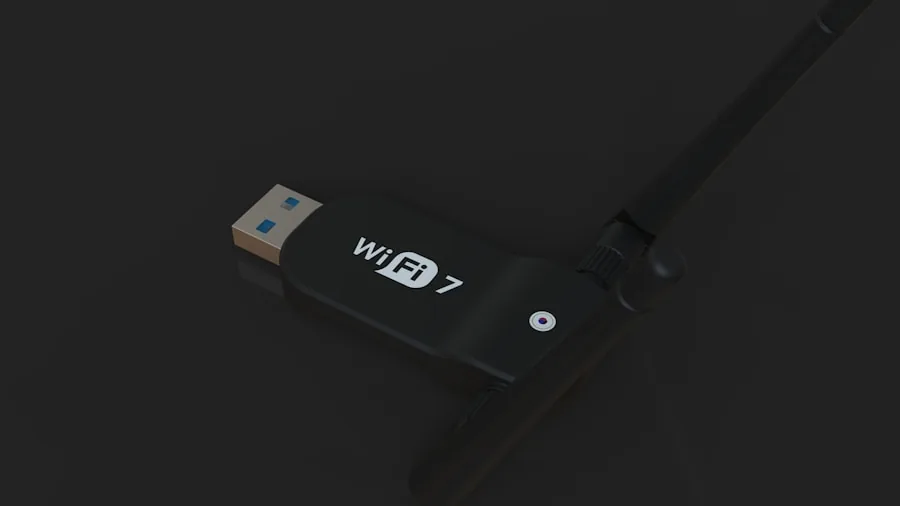
After installing the wireless adapter, launch the Steam software on your PC and navigate to the VR settings menu. The system will guide you through pairing the Steam Frame with the adapter. Ensure your PC and the headset are in the same room with minimal interference from other wireless devices. A strong, stable connection is vital for smooth gameplay without latency or connection drops.
Start with Comfortable Settings and Adjust Gradually
During your initial session, configure the brightness, audio levels, and motion sensitivity to comfortable defaults. You can always refine these settings after a few hours of use. Some users need time to adjust to VR, so starting with moderate settings prevents discomfort. As you become more familiar with the device, you can explore more advanced graphics settings and features.
Setting up your PC gaming setup for VR requires attention to both hardware and personal comfort. Taking time to properly configure your Steam Frame during the unboxing phase ensures you’ll enjoy gaming for hours without fatigue or frustration. Whether you’re new to VR or upgrading from older headsets, these foundational steps create a solid platform for everything the device can deliver. The combination of proper fit, correct settings adjustment, and optional accessories transforms the Steam Frame into a fully optimized entertainment system.
About the author
Tara covers VR headsets for REMOVU, weighing visuals, comfort, and library strength across standalone and PC-tethered models. She helps readers find a headset worth strapping in for.