The 11 Best Drawing Tablets for Beginners
Not sure where to start with digital drawing? We break down pen pads, pen displays, and standalone options from Huion, XPPen, Wacom, GAOMON, and Frunsi to help you find the right fit.
 By Bessie Alvarez
Updated July 26, 2026
By Bessie Alvarez
Updated July 26, 2026
Picking up a drawing tablet for the first time can feel overwhelming.
The market spans everything from bare-bones pen pads under budget price points to feature-rich pen displays with built-in screens, and the specs on the box rarely tell you what actually matters for someone just starting out.
Whether you want to practice digital illustration, try graphic design, or simply move away from mouse-driven workflows, the right drawing tablet will make the learning curve significantly shorter and the experience far more enjoyable.
Options from brands like Huion, XPPen, Wacom, GAOMON, and Frunsi now cover nearly every need and price point, so beginners are not forced to overspend to get a capable tool.
At REMOVU, we researched each model in this roundup by analyzing published specifications, synthesizing consensus from expert reviewers across the industry, and weighing verified buyer feedback from confirmed purchasers.
The result is a ranked list designed to cut through marketing noise and match you with a tablet that suits your skill level and budget.
Read on for our top picks, then dive into the buying guide below to understand exactly what to look for before committing.
| Award | Product | REMOVU Score About REMOVU ScoreThe REMOVU Score is our own rating from 0 to 10, based on performance, design and build, ease of use, and value. It reflects independent research and is never influenced by manufacturers, retailers, or affiliate commissions. Learn more › | Price | |
|---|---|---|---|---|
 Huion Inspiroy H640P 6x4 Drawing Tablet, 8192 Pressure
|
6.2/10 | Buy | ||
| Best Value |
 XPPen Deco 01 V3 10x6 Drawing Tablet
|
8.1/10 | Buy | |
| Best Budget |
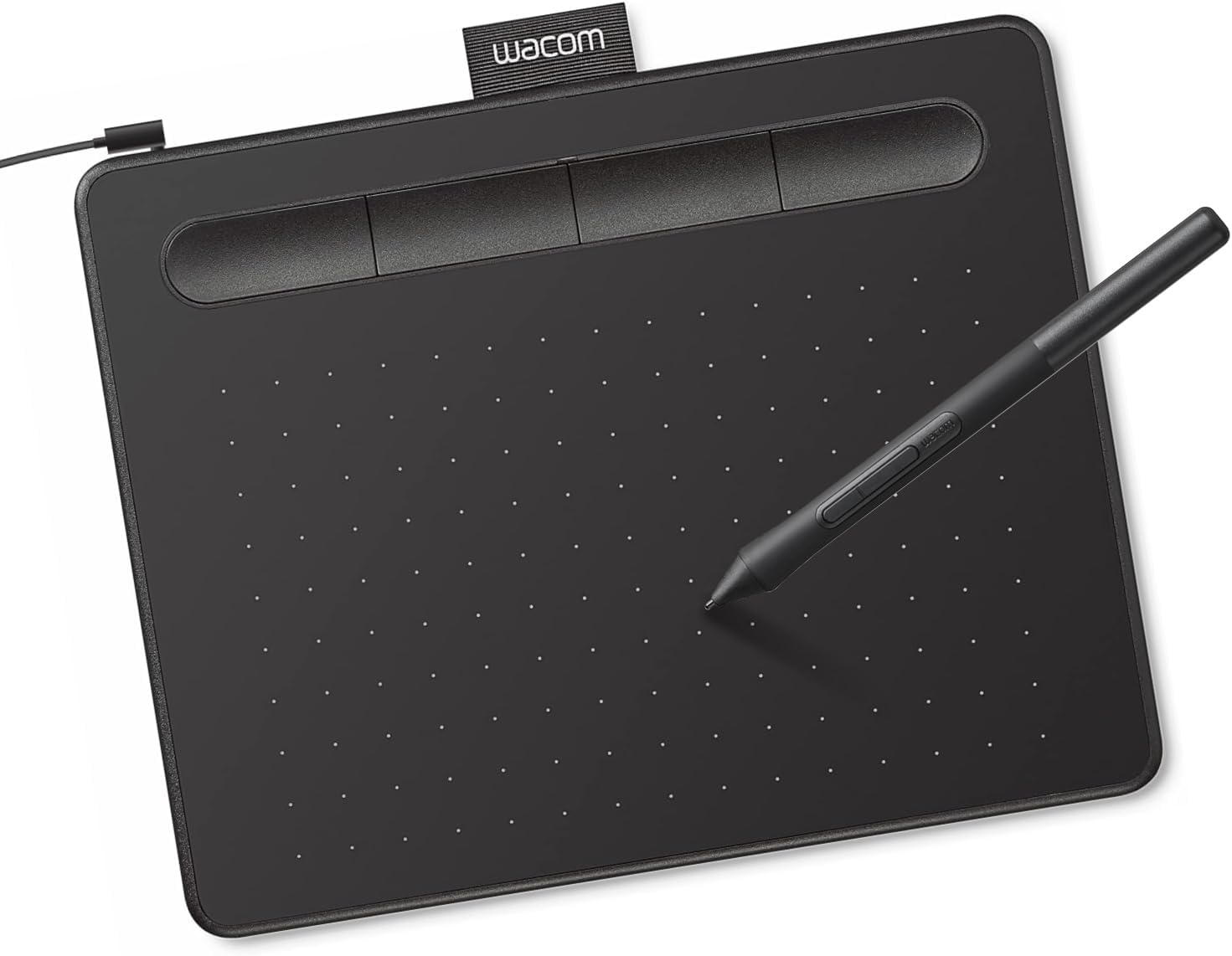 Wacom Intuos Small Pen Tablet
|
7.8/10 | Buy | |
 Huion HS610 10x6.25 Drawing Tablet with Battery-Free Pen
|
6.5/10 | Buy | ||
 GAOMON M10K 10x6 Graphics Tablet
|
6.8/10 | Buy | ||
 Huion Inspiroy H1060P 8192 Pressure Graphics Tablet
|
7.2/10 | Buy | ||
| Best Premium |
 Huion Kamvas 13 Gen 3 13.3-Inch Pen Display
|
7.6/10 | Buy | |
| Best Overall |
 XP-Pen Artist12 11.6" FHD Pen Display
|
8.9/10 | Buy | |
 Frunsi RubensTab T11 Pro 10.1-inch Standalone Tablet
|
7.2/10 | Buy | ||
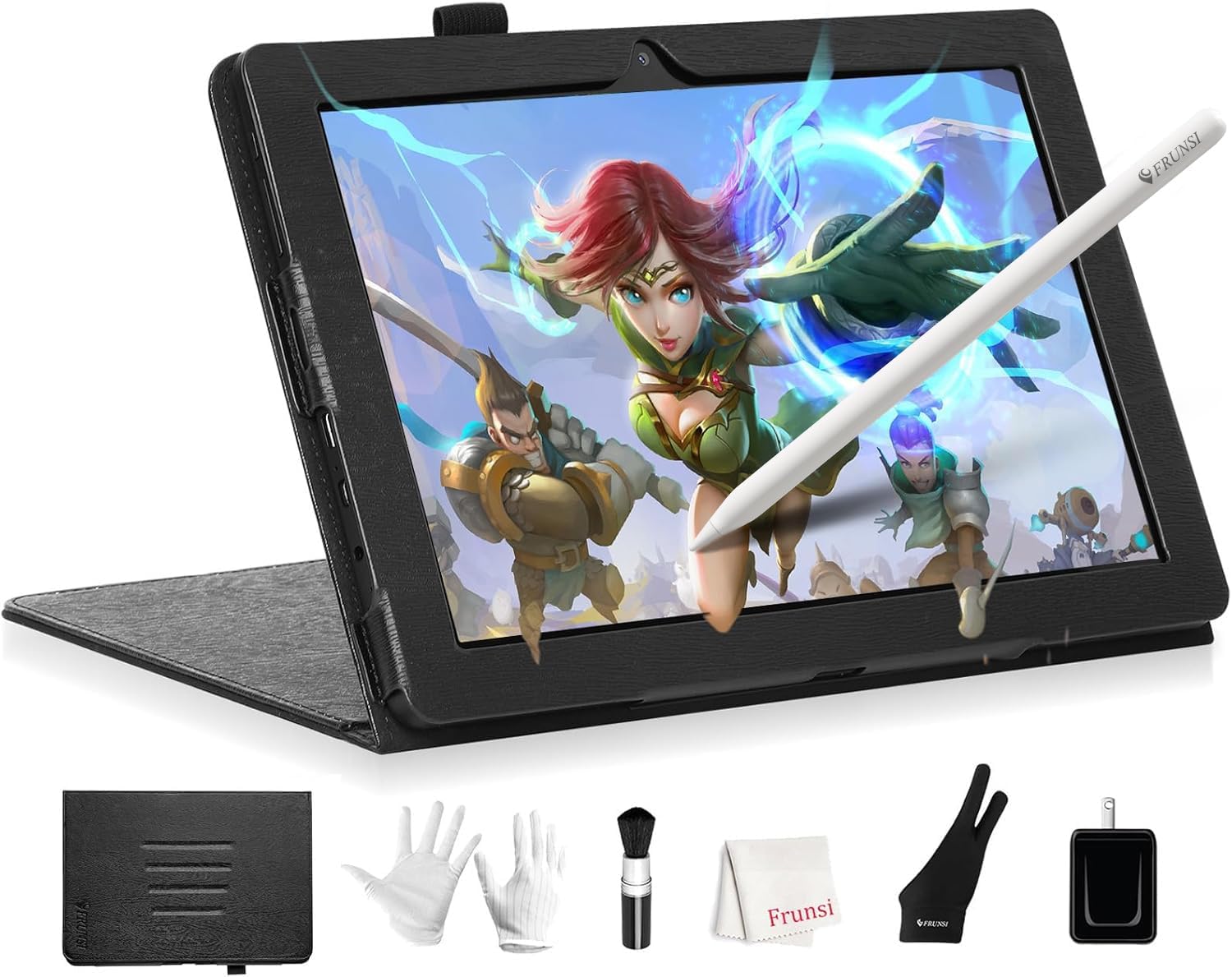 Frunsi RubensTab T8 8-Inch Standalone Drawing Tablet
|
6.2/10 | Buy | ||
 XPPen Artist 13.3 Pro 16384-Level Pen Display
|
7.5/10 | Buy |
Huion Inspiroy H640P 6x4 Drawing Tablet, 8192 Pressure
A compact, budget-friendly pen tablet designed for digital art beginners and students. The H640P delivers solid hardware with 8192 pressure levels and customizable shortcut keys, though its small active area and lack of iOS support limit its appeal for some users.
Pros
- Excellent entry-level value at budget price point with responsive pen performance
- Lightweight and slim design (0.3 inch thickness) fits easily in laptop bags for mobile work
- Easy setup process with straightforward driver installation and intuitive customization
- Natural drawing experience with smooth pen feel and minimal lag reported by users
- Versatile compatibility across creative software, note-taking apps, and remote work platforms
Cons
- Does not support iOS, limiting connectivity to Apple tablets and phones
- Small 6x4 inch active area may feel cramped for experienced users accustomed to larger work surfaces
- Micro USB connection lacks reversibility compared to USB-C alternatives
XPPen Deco 01 V3 10x6 Drawing Tablet
A beginner-friendly drawing tablet with 16,384 pressure levels and a battery-free stylus that works across Windows, Mac, Android, and Chrome OS. Its slim 8mm profile and 10x6.25-inch workspace make it portable without sacrificing creative space, backed by strong compatibility with design software like Photoshop and Clip Studio.
Pros
- 16,384 pressure levels with battery-free stylus eliminates charging friction for new artists
- Lightweight and portable at 8mm thin, fits easily in bags for on-the-go drawing
- Broad OS compatibility including Android 10+, Chrome OS, and Linux with included USB-C adapters
- 8 customizable hotkeys designed for both right and left-handed users
- Generous 10x6.25-inch active area balances portability with practical drawing space
Cons
- Limited pressure sensitivity compared to professional-grade tablets in the same price range
- No built-in display, requiring users to look at a separate screen while drawing
- Android compatibility requires XPPen Tools app download and may need manual screen mapping adjustment
Wacom Intuos Small Pen Tablet
Wacom's entry-level drawing tablet delivers industry-standard pen-on-paper feel with 4096 pressure levels and plug-and-play USB connectivity across Windows, Mac, and Chromebook. Best suited for students, hobbyists, and professionals seeking reliable tablet performance without premium pricing.
Pros
- Genuine pen-on-paper feel from Wacom's established EMR technology, preferred by professional graphic designers
- Universal software compatibility makes it practical for any creative workflow without learning curve
- Included software bundle and training resources add value beyond hardware
- Small form factor with plug-and-play setup reduces friction for new users
- Strong buyer confidence reflected in high review count and consistent 4.6-star rating
Cons
- Wired USB-A connection limits portability and workspace flexibility compared to wireless models
- 4096 pressure levels trail higher-end tablets offering 8192+ levels for subtle pressure gradation
- Small active area may feel cramped for detailed illustration work or larger creative projects
Huion HS610 10x6.25 Drawing Tablet with Battery-Free Pen
A portable pen tablet designed for digital artists, animators, and designers who need cross-platform compatibility without breaking the bank. The HS610 offers solid pressure sensitivity, Android support via OTG adapter, and a compact form factor suitable for both desktop and mobile workflows.
Pros
- Battery-free stylus eliminates charging hassle and provides consistent responsiveness
- Mobile-ready design with OTG support makes it genuinely portable for phone and tablet drawing
- 12 programmable keys and touch ring offer good workflow customization options
- Compact 10x6.25 inch active area balances usable workspace with portability
- Broad OS compatibility covers Windows, Mac, Linux, and Android devices
Cons
- Micro USB connection is outdated compared to USB-C found on competing models at similar price points
- No Bluetooth connectivity limits wireless flexibility on mobile devices
- Zero verified buyer reviews currently available to validate real-world reliability claims
GAOMON M10K 10x6 Graphics Tablet
A mid-range drawing tablet designed for beginners and hobbyists seeking a larger work surface. The M10K delivers solid pressure sensitivity with its battery-free stylus, customizable controls, and broad software compatibility across Windows, Mac, and Android. Best suited for digital artists transitioning from mouse-based work or casual illustrators who value affordability and ease of setup.
Pros
- Large 10x6.25 inch work area with papery texture surface mimics traditional drawing experience
- 8192 pressure levels with battery-free stylus provides natural pen control for digital art
- 10 customizable hot keys plus touch ring streamline workflow for design and editing tasks
- Wide compatibility across Windows, Mac, Android, and major creative software like Photoshop and Krita
- Beginner-friendly with simple USB connectivity and included accessories (pen case, replacement nibs)
Cons
- Requires driver installation and uninstalling conflicting drivers before first use, which may frustrate less technical users
- Touch ring functionality requires programming and may have a learning curve for customization
- Limited to USB connectivity with no wireless option for portability
Huion Inspiroy H1060P 8192 Pressure Graphics Tablet
A compact 10x6.25-inch drawing tablet with 8192 pressure levels and battery-free stylus, designed for digital artists, photo editors, and remote workers. Offers broad OS compatibility across Windows, Mac, Android, and Linux, plus 12 customizable hot keys for streamlined workflows.
Pros
- Slim, portable form factor (0.77 kg) ideal for travel and workspace flexibility
- No battery required on stylus means uninterrupted drawing sessions
- Extensive customization with 28 total programmable keys for faster creative work
- Multi-platform support including Android devices via OTG connection
- Includes complete accessory kit: 8 pen nibs, pen holder, USB-C adapter
Cons
- Lower pressure sensitivity (8192 levels) compared to higher-end Huion models (16384 levels)
- Android compatibility limited to devices with OTG function; iPhone and iPad not supported
- No display on tablet itself, requires connection to external monitor or device
- Linux support requires Xorg display server; Wayland not compatible
Huion Kamvas 13 Gen 3 13.3-Inch Pen Display
A mid-range pen display built for digital artists and designers who need accurate color work on a compact screen. The fully laminated Canvas Glass 2.0 surface reduces glare while maintaining drawing precision, and dual dials plus six shortcut keys streamline creative workflows. Works with Windows, Mac, and Android devices via USB-C.
Pros
- Canvas Glass 2.0 surface with full lamination delivers reduced glare and improved drawing feel
- 16384 pressure levels with PenTech 4.0 ensures responsive, natural pen input
- 99% sRGB coverage with factory calibration report provides reliable color accuracy for professional work
- Dual dial buttons and programmable shortcut keys enable efficient creative workflows
- Adjustable stand included for comfortable working angles
- Cross-platform compatibility: Windows, macOS, Android, and Linux
Cons
- Requires connection to a computer or external device to function, not standalone
- No pen nibs included in the box unlike some competing models
- 13.3-inch screen may feel cramped for users accustomed to larger displays
XP-Pen Artist12 11.6" FHD Pen Display
A compact pen display designed for digital artists and educators who need a portable drawing screen with direct-on-display input. Features a 1920x1080 IPS panel, 8192 pressure levels, and battery-free stylus, but requires a computer connection and offers mid-range color accuracy.
Pros
- Genuinely portable compared to larger 15.6-inch models, ideal for students and remote work
- Full lamination and anti-reflective screen protector reduce parallax and glare
- Battery-free pen design means no charging anxiety during long sessions
- Solid build quality with responsive IPS display and 178-degree viewing angles
- Includes all necessary accessories out of the box plus 8 spare pen nibs
Cons
- 72% NTSC color gamut is entry-level, limiting accuracy for professional color-critical work compared to larger XP-Pen models
- Requires computer connection via HDMI and USB-A ports; adapters may be needed for newer laptops
- 11.6-inch screen feels cramped for detailed illustration work, especially with smaller hand sizes
Frunsi RubensTab T11 Pro 10.1-inch Standalone Tablet
A fully independent drawing tablet that requires no computer connection, featuring a 10.1-inch FHD display and pressure-sensitive pen. Pre-loaded with professional drawing apps, it suits artists, students, and professionals who need portable creative tools. The 5-hour battery and compact design make it practical for both studio work and travel.
Pros
- Completely standalone operation with no computer or external device required
- 10.1-inch Full HD IPS display delivers sharp visuals and wide viewing angles for detailed artwork
- Pressure-sensitive pen requires no battery and offers natural, responsive strokes
- Pre-installed drawing apps and tutorials lower the barrier for beginners
- 5800mAh battery supports up to 5 hours of continuous use with USB-C charging
- Certified to international safety standards (GMS, FCC, CE) with 12-month warranty
Cons
- 5-hour battery life may be limiting for extended creative sessions without access to charging
- No detailed specifications provided for processor performance, RAM, or storage capacity, making it difficult to assess overall speed and capability
- Zero verified customer reviews available, so real-world reliability and user experience remain unconfirmed
Frunsi RubensTab T8 8-Inch Standalone Drawing Tablet
A portable Android 13 drawing tablet that works without a computer, equipped with a quad-core CPU, 2048 pressure levels, and pre-installed drawing apps. Best suited for beginners and artists seeking an affordable, mobile-friendly creative tool.
Pros
- Truly standalone device with no computer dependency, ideal for drawing on the go
- Strong verified buyer consensus on durability and build quality despite compact size
- Excellent customer service responsiveness and warranty support based on multiple reviews
- Runs professional drawing apps like Clip Studio Paint, ibis Paint X, and Krita smoothly
- Comes with comprehensive accessories and pre-loaded software to start immediately
Cons
- Occasional lag or line jitter when using taxing brushes or drawing slow diagonal lines, requires line smoothing adjustments
- No native palm rejection or pressure sensitivity control app, limiting workflow customization
- Lower resolution display at 1200x800 compared to premium standalone tablets
XPPen Artist 13.3 Pro 16384-Level Pen Display
A compact 13.3-inch pen display built for digital artists who need color accuracy without breaking the bank. The fully-laminated screen eliminates parallax, while 16384 pressure levels and a responsive stylus deliver smooth, lag-free strokes. Requires a computer connection but ships with all cables and a stand, making it an accessible entry point into professional-grade drawing tablets.
Pros
- Wide color gamut (123% sRGB, 88% NTSC) delivers accurate colors for design and printing work
- Fully-laminated FHD display removes parallax and provides a distraction-free drawing surface
- 16384 pressure levels with ultra-low activation force capture feather-light strokes without jitter
- Includes ergonomic stand, battery-free stylus with 8 spare nibs, and both USB-C and HDMI cables in the box
- Red Dial and 8 customizable shortcut keys streamline workflow for zoom, brush sizing, and canvas manipulation
Cons
- Requires a computer or laptop to function, cannot operate as a standalone device
- Full HD resolution (1920×1080) is lower than larger professional models, which may feel cramped for complex projects
- No VESA mounting holes limit desk setup flexibility compared to larger Artist series tablets
Drawing Tablets for Beginners Buying Guide
Buying your first drawing tablet involves more trade-offs than most beginners expect.
A pen-only tablet (no built-in screen) trains hand-eye coordination faster and costs far less, while a pen display lets you draw directly on the surface just like paper but demands a higher budget and a capable host computer.
Neither choice is wrong; what matters is matching the tablet to how you actually plan to work. The sections below walk through every criterion worth thinking about before you buy.
Tablet Type: Pen Pad vs. Pen Display vs. Standalone

The most fundamental decision is whether you want a pen pad (a drawing surface that connects to a computer and shows nothing on the tablet itself), a pen display (a monitor with a built-in screen you draw on directly), or a standalone drawing tablet (an Android-based device that runs apps without a PC).
Pen pads are the most beginner-friendly in terms of price and portability; most of the budget picks in this roundup fall into this category.
They require a separate monitor, but they are lighter, generate less heat, and tend to have more refined stylus responses at a given price.
Pen displays bridge the gap between a traditional tablet and a Cintiq-style professional setup.
The XPPen Artist 12 and the Huion Kamvas 13 (Gen 3) are the pen display entries in our list, and they genuinely change how intuitive the drawing process feels for beginners who struggle with the pen-pad hand-eye disconnect.
The trade-off is cost and the need for a reasonably powerful computer.
Standalone tablets like the Frunsi RubensTab T11 Pro and the Frunsi T8 remove the PC dependency entirely, which makes them appealing for students or artists working away from a desk, but their Android-based software ecosystem is more limited than desktop apps like Clip Studio Paint or Adobe Fresco.
If you also rely on a dedicated computer setup, pairing the right tablet with a capable machine (see our guide to desktop computers for work) matters more than most beginners realize.
Active Area Size
Active area refers to the portion of the tablet surface that actually registers pen input. It is measured diagonally or as width-by-height in inches.
For beginners, a 6×4-inch active area is perfectly workable for learning basic strokes and shortcuts, while a 10×6-inch surface feels more natural for illustration and gives your hand more room to gesture.
Going larger than 10×6 on a pen pad can actually slow beginners down because wide arm movements tire you out faster than wrist-and-elbow strokes.
The Huion H640P offers a compact 6×4-inch active area that is genuinely fine for most beginner workflows.
The Huion H1060P and the GAOMON M10K both sit in the 10×6-inch range, giving you noticeably more real estate without pushing the price into mid-range territory.
If you plan to use your tablet alongside a mini PC in a compact desk setup, a medium-sized pen pad is typically the better spatial fit.
Pen Pressure Sensitivity and Battery-Free Stylus
Pen pressure sensitivity determines how many distinct levels of pressure the stylus can detect between a feather-light touch and full press.
Entry-level tablets used to cap at 2,048 levels; today even budget models ship with 8,192 levels (13-bit), and a handful like the XPPen Deco 01 V3 and the Huion Kamvas 13 (Gen 3) offer 16,384 levels (14-bit).
In practice, the jump from 8,192 to 16,384 is subtle for beginners, but the gap between 2,048 and 8,192 is noticeable in brush tapering and line variation. Prioritize at least 8,192 levels for any creative work beyond basic signing or annotation.
Battery-free styluses are now standard across nearly every model in this roundup, which is excellent news. A battery-powered pen adds weight and requires charging or AA batteries, both of which interrupt creative flow.
All eleven tablets on this list ship with battery-free EMR styluses, so you will not need to worry about that variable.
What does vary is initial activation force (IAF), which describes how lightly you can touch the surface before the pen registers. Lower IAF means more natural sketching; look for under 3 grams if you plan to use light pencil-sketch techniques.
Express Keys, Touch Controls, and Customization
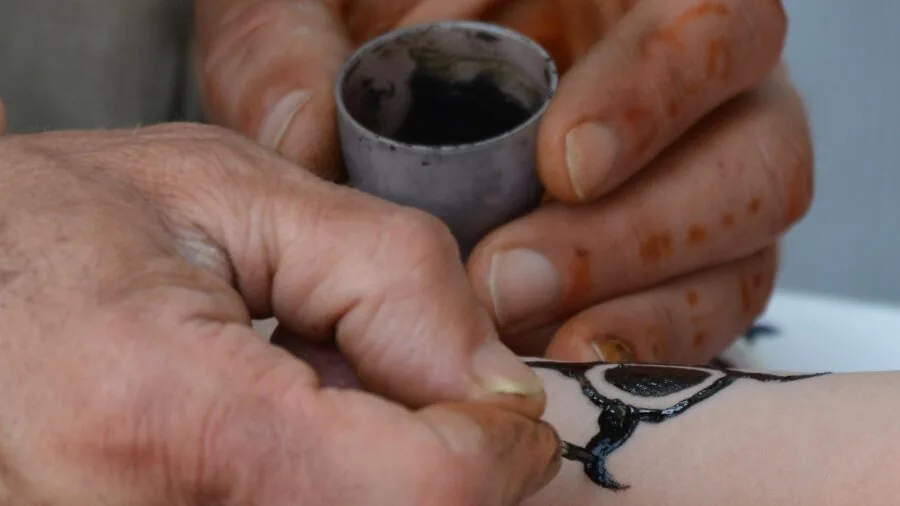
Express keys are programmable shortcut buttons on the tablet body. They let you undo strokes, switch tools, zoom, or rotate the canvas without lifting the pen or reaching for the keyboard.
Most beginners underestimate how much these keys speed up a workflow.
Models with eight to twelve express keys (like the Huion H1060P with twelve keys or the Huion HS610 with twelve keys plus a touch strip) give you enough buttons to map the most common shortcuts without crowding the layout.
Touch rings and touch strips add an analog scrolling or zooming gesture on top of button shortcuts.
The GAOMON M10K includes a touch ring, and the Huion HS610 adds a touch strip, both of which feel intuitive for canvas navigation once muscle memory kicks in.
Wacom’s driver ecosystem is widely regarded as the most polished in the industry for key customization, which partly explains why the Wacom Intuos Small earns strong recommendations among beginners despite fewer express keys than some GAOMON or Huion competitors.
Reliable software matters as much as hardware in this category.
Connectivity and Compatibility
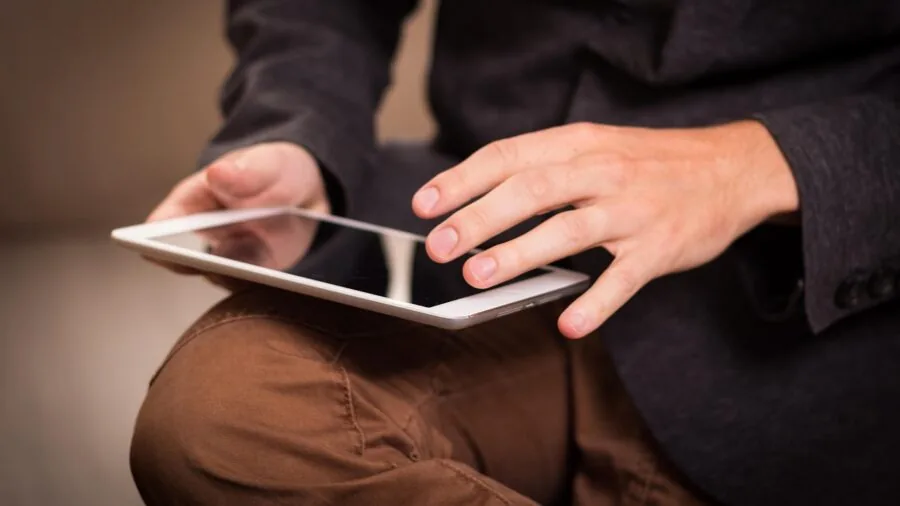
Most pen pads connect via USB-C or USB-A and work out of the box on Windows and macOS after a driver install.
Android support (for drawing directly on a phone or tablet without a PC) has become more common and is available on most Huion and XPPen models in this roundup.
Chromebook compatibility is more selective; the Wacom Intuos Small is one of the few pen pads in this price range officially certified to work with Chrome OS, which matters if you are a student using school-issued hardware.
Wireless connectivity is notably absent from most budget and mid-range pen pads; nearly all models here are wired, which actually helps beginners because there is no latency uncertainty or battery management to worry about.
Pen displays like the XPPen Artist 12 and the XPPen Artist 13.3 Pro require both a data connection and a video signal, typically via USB-C or a three-in-one cable, so confirm your laptop or desktop has the right ports before buying.
If you are building or planning a broader creative workstation, consider what other peripherals you need: a good setup often pairs a drawing tablet with quality microphones for YouTube creators or video capture gear if content creation is part of your workflow.
Display Quality (Pen Displays Only)
If you are considering a pen display rather than a pen pad, the quality of the built-in screen becomes a critical factor.
Full lamination (where the glass is bonded directly to the display panel) eliminates the parallax gap between where your pen tip touches and where the cursor appears.
This feature is present on the Huion Kamvas 13 (Gen 3) with its Canvas Glass 2.0 surface and dramatically reduces the disorientation that beginners feel when the cursor seems offset from the pen tip.
Color accuracy, measured in sRGB coverage percentage, determines how faithfully colors on screen will translate when you export work for print or web.
A display covering 95 percent sRGB or higher is considered accurate for digital illustration; the XPPen Artist 13.3 Pro claims 123 percent sRGB (using a wide-gamut panel), while the Huion Kamvas 13 (Gen 3) targets 99 percent sRGB.
Anti-glare coatings also matter if you draw near a window; matte-etched surfaces reduce hotspots but can slightly soften fine line detail.
Consider your studio lighting conditions as carefully as the spec sheet before choosing a pen display over a pen pad.
Why You Should Trust Us
REMOVU is an independent review site. We have no manufacturer relationships that influence our rankings, and we do not receive free products in exchange for favorable coverage.
Every product in this roundup was evaluated using a consistent research framework: we analyzed published specifications, synthesized expert review consensus from across the industry, and incorporated verified buyer feedback from confirmed purchasers.
We do not conduct our own product trials; our evaluations are grounded in research, published data, expert review consensus, and verified buyer feedback.
Each product is assigned a REMOVU Score on a scale of 0 to 10, reflecting how well it performs across the key criteria relevant to its category.
For drawing tablets aimed at beginners, those criteria include stylus precision and pressure sensitivity, active area usability, express key layout and software reliability, build quality for daily use, and overall value relative to price tier.
Scores are assigned based on the totality of research, not on any single review source or spec number.
REMOVU earns a commission when readers purchase through our links. This affiliate relationship does not influence which products appear in our roundups, how they are ranked, or what scores they receive. Rankings are based entirely on our research-driven evaluation criteria.
We do not accept payment for placement. REMOVU cannot assist with orders, returns, warranties, or after-sale support; for those matters, contact the retailer or manufacturer directly.
Final Thoughts
The drawing tablet market for beginners has never been more competitive or more accessible.
Whether you want a compact pen pad to learn digital sketching on a tight budget, a mid-size workhorse with plenty of shortcut keys, or a pen display that eliminates the hand-eye disconnect entirely, there is a strong option at every tier among the products we researched.
Below are the standout picks from this roundup, each recognized for a specific strength.
- Best Overall: XPPen Artist12 11.6 Inch FHD Drawing Monitor earns the top REMOVU Score in this roundup thanks to its full-HD pen display, 8,192-level battery-free stylus, and a feature set that would satisfy a beginner well into intermediate skill levels.
- Best Budget Pen Pad: XPPen Deco 01 V3 stands out among affordable pen pads with its 16,384-level pressure resolution, generous 10×6-inch active area, and broad OS compatibility, making it one of the most capable entry-level options available at a budget-friendly price.
- Best for Wacom Ecosystem and Driver Reliability: Wacom Intuos Small remains the go-to recommendation for beginners who prioritize driver stability, Chromebook compatibility, and access to bundled creative software, even though its active area is smaller than some competitors.
- Best Upgrade Pen Display: Huion Kamvas 13 (Gen 3) is the most polished pen display in this roundup for beginners ready to invest in a screen-based workflow, combining full lamination, Canvas Glass 2.0, dual dials, and PenTech 4.0 in a package that feels genuinely premium.
- Best Standalone (No PC Required): Frunsi RubensTab T11 Pro is the right pick for beginners who want to draw without any computer at all, offering a full-HD display, octa-core CPU, and pre-installed drawing apps out of the box.
If you are still deciding between a pen pad and a pen display, lean toward a pen pad first.
The lower price lets you learn fundamentals without a large financial commitment, and you can always upgrade to a pen display once you know your drawing habits.
For those already set on a screen-based experience, the Huion Kamvas 13 (Gen 3) and XPPen Artist 12 are both strong entry points with room to grow.
Whatever direction you choose, the tablets on this list represent some of the most thoroughly researched picks available for beginners in 2026.
Frequently Asked Questions
Do I need a pen display or will a pen pad work for a beginner?
A pen pad works extremely well for beginners and is what most experienced digital artists started on.
The hand-eye disconnect (drawing in one place, watching results appear on a monitor) feels awkward for a few days but typically becomes natural within a week of consistent practice.
Pen pads cost significantly less, require no extra power source, and tend to have longer-lasting surface textures. If budget is a concern, start with a pen pad and consider a pen display later once you know your workflow.
That said, beginners who have tried drawing on an iPad or Android tablet and strongly prefer the direct-on-screen experience may find a pen display easier to adapt to from day one.
Is 8,192 levels of pen pressure enough, or should I look for 16,384?
For beginners, 8,192 levels (13-bit) is more than sufficient. The difference between 8,192 and 16,384 levels is subtle even for professional illustrators and largely depends on driver implementation and the brush engine of your software.
Prioritize a reliable battery-free stylus with low initial activation force over chasing the highest pressure number.
If two tablets are otherwise equal and one offers 16,384 levels at the same price, take it, but do not pay a significant premium for that spec alone as a beginner.
What software should I use with my new drawing tablet?
Most drawing tablets in this roundup are compatible with a wide range of software. Beginners frequently start with Krita (free, open source, Windows and macOS) or Medibang Paint (free, cross-platform).
Clip Studio Paint is a popular step up for comic and manga artists and is often bundled at a discount with Wacom or Huion tablets. Adobe Fresco and Photoshop work well if you are already in the Adobe ecosystem.
For standalone tablets like the Frunsi models, pre-installed Android apps like Ibis Paint X and Sketchbook cover most beginner needs without any additional purchase.
Pair your creative setup with reliable peripherals; if you plan to record tutorials or voiceovers, a quality vocal microphone makes a noticeable difference in production quality.
Will a drawing tablet work with my Chromebook?
Chromebook compatibility is not universal among drawing tablets. The Wacom Intuos Small is the most reliably certified option for Chrome OS in this roundup.
Some Huion and XPPen models offer partial Android app support through the Chrome OS Play Store, but full driver functionality may be limited.
If you are primarily on a Chromebook, verify compatibility on the manufacturer’s website before purchasing any tablet not explicitly listed as Chromebook-compatible.
Students who use tablets and portable devices across multiple platforms should double-check OS support for every intended use case.
How long do drawing tablets typically last?
The pen pad surface (the texture layer you draw on) is a consumable. It wears down over time depending on how firmly you draw and how often you use the tablet.
Most manufacturers sell replacement surface sheets or nibs for a modest cost. The electronics and stylus of a mid-range pen pad can realistically last five or more years with normal use.
Pen displays have an additional variable: the screen itself, which is subject to the same lifespan considerations as any monitor.
Storing the stylus in its holder, keeping the surface clean, and updating drivers regularly are the easiest ways to extend the life of any drawing tablet.
For beginners starting with a budget pen pad, the longevity is typically more than enough to progress through intermediate skill levels before an upgrade becomes worthwhile.
Can I use a drawing tablet for tasks beyond digital art?
Absolutely. Drawing tablets are useful for handwritten note-taking, PDF annotation, photo retouching, video editing with precise cursor control, and even online teaching (writing equations or diagrams in real time).
Many educators use pen pads as a whiteboard substitute during video lessons.
If your workflow involves video production or content creation alongside digital art, you may also want to explore complementary tools like action cameras for capturing reference footage or video tripods for stable recording setups.
A drawing tablet integrates naturally into a broader creative workstation once you get comfortable with pen input.
About the author
Bessie covers solar chargers and panels for REMOVU, weighing real-world output, durability, and value for the outdoors. She helps readers keep devices charged off-grid.