7 Tips for Protecting Your Laptop Webcam and Securing Your Privacy
Simple physical covers and security steps keep your camera safe from prying eyes.
 By Ava Herrera
Updated November 26, 2026
Why Laptop Webcam Privacy Matters
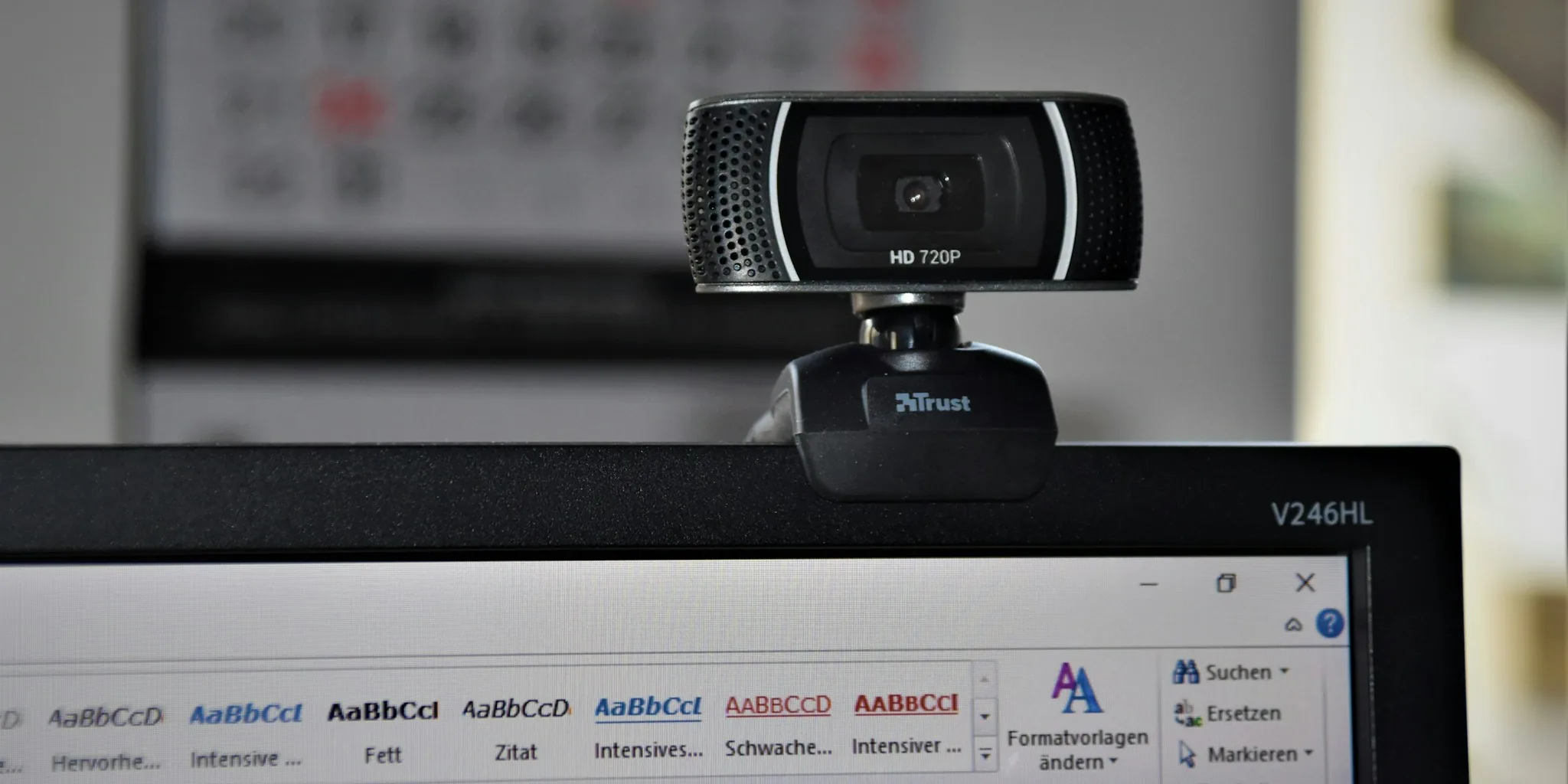
Your laptop’s webcam is designed to deliver crystal-clear video calls and conferencing experiences. Modern built-in cameras capture vibrant, high-resolution footage that makes you look professional during meetings. But this same lens that broadcasts your image to colleagues and friends also represents a potential privacy vulnerability that deserves your attention.
Accidental exposure happens more often than you might think. Applications like Zoom and other video conferencing software can automatically activate your camera based on default settings, potentially revealing your personal space or surroundings without your awareness. Beyond embarrassment, there’s a more serious concern: cybercriminals have historically used malware known as remote access tools (RATs) to gain unauthorized control of infected computers and activate webcams without consent. A notorious case involved a cybercriminal organization that distributed such malware to over 500,000 computers across more than 100 countries before law enforcement intervened.
7 Essential Tips for Webcam Protection
1. Use Your Laptop’s Built-In Privacy Shutter
Many modern laptops include physical camera shutters designed specifically for privacy. Dell’s automatic webcam shutter mechanism and Lenovo’s slider system are prime examples of this convenient feature. These built-in solutions require just a simple action: slide or toggle the cover to block the lens instantly. Check your laptop’s manual or settings to determine whether your model includes this feature, as not all manufacturers offer it.
2. Install an Aftermarket Webcam Cover
If your laptop lacks a factory shutter, affordable aftermarket webcam covers are readily available. These accessories mount onto your display bezel and use a sliding mechanism to cover the lens. They come in various sizes, so select one that matches your laptop’s dimensions precisely. MacBook users need extra caution: Apple advises that the tight space between the display and keyboard could cause damage if any substantial cover is applied. A small piece of opaque tape serves as the safest solution for Mac devices.
3. Enable Your System Firewall
A firewall acts as your computer’s first line of defense against unauthorized network access. Enabling this built-in feature blocks suspicious incoming connections before they can compromise your system. Both Windows and macOS devices include robust firewall protection that should remain active at all times.
4. Keep Your Operating System Updated
Software updates do far more than add new features. These patches frequently include critical security improvements that address vulnerabilities cybercriminals exploit. Set your system to install updates automatically, or check for them weekly. Delaying updates leaves your computer exposed to known security flaws.
5. Install Reputable Antivirus Protection
Built-in antivirus solutions like Microsoft Defender on Windows and XProtect on macOS provide solid baseline protection. If you want additional security coverage, Malwarebytes is widely recognized by cybersecurity professionals for its superior detection capabilities. Quality antivirus software can identify, quarantine, and remove malicious code before it causes harm.
6. Practice Smart Download and Clicking Habits
This is perhaps the most critical protection strategy of all. Avoid downloading files from suspicious sources or clicking links in unexpected emails. Malware typically reaches computers through user actions, not through thin air. Verify that links come from legitimate sources before clicking, and be cautious with file downloads from unfamiliar websites. When shopping for quality webcams, purchase only from authorized retailers to ensure genuine products.
7. Adjust Your Video Conference Settings
Review the default settings in every video conferencing application you use. Many applications allow you to disable automatic camera activation, require permission before turning on the camera, or let you choose which camera to use. Taking five minutes to customize these settings can prevent unwanted camera activation. Additionally, investing in an external webcam means you can physically disconnect it when not in use, eliminating any risk entirely.
Creating a Comprehensive Privacy Strategy
Physical camera protection and security software work best together. Physical covers prevent any possibility of unauthorized visual access, while software defenses protect against the malware that would enable such access in the first place. Combine both approaches for maximum peace of mind.
Your digital hygiene extends beyond the webcam itself. Maintain awareness of which applications have camera permissions, review your privacy settings in operating systems regularly, and stay informed about emerging security threats. When upgrading your camera setup, choose devices with proven security records and manufacturer support for regular firmware updates.
Moving Forward with Confidence
Protecting your webcam privacy doesn’t require expensive solutions or complicated procedures. A simple physical cover or built-in shutter, combined with standard security practices, eliminates virtually all risk. Keep your computer updated, use reliable antivirus software, stay cautious about what you download and click, and maintain awareness of your application settings. Follow these straightforward steps, and you can confidently use your laptop’s camera for legitimate purposes without worrying about unauthorized surveillance.
About the author
Ava is REMOVU's laptop writer, balancing speed, battery life, and build quality against price across the whole range. She helps readers find the sweet spot as each new chip shifts what a dollar buys.