7 Tips to Control Google Wallet Features You Actually Want to Use
Customize your Google Wallet settings to remove features you don't need and streamline your payment experience.
 By Ava Herrera
Updated November 9, 2026
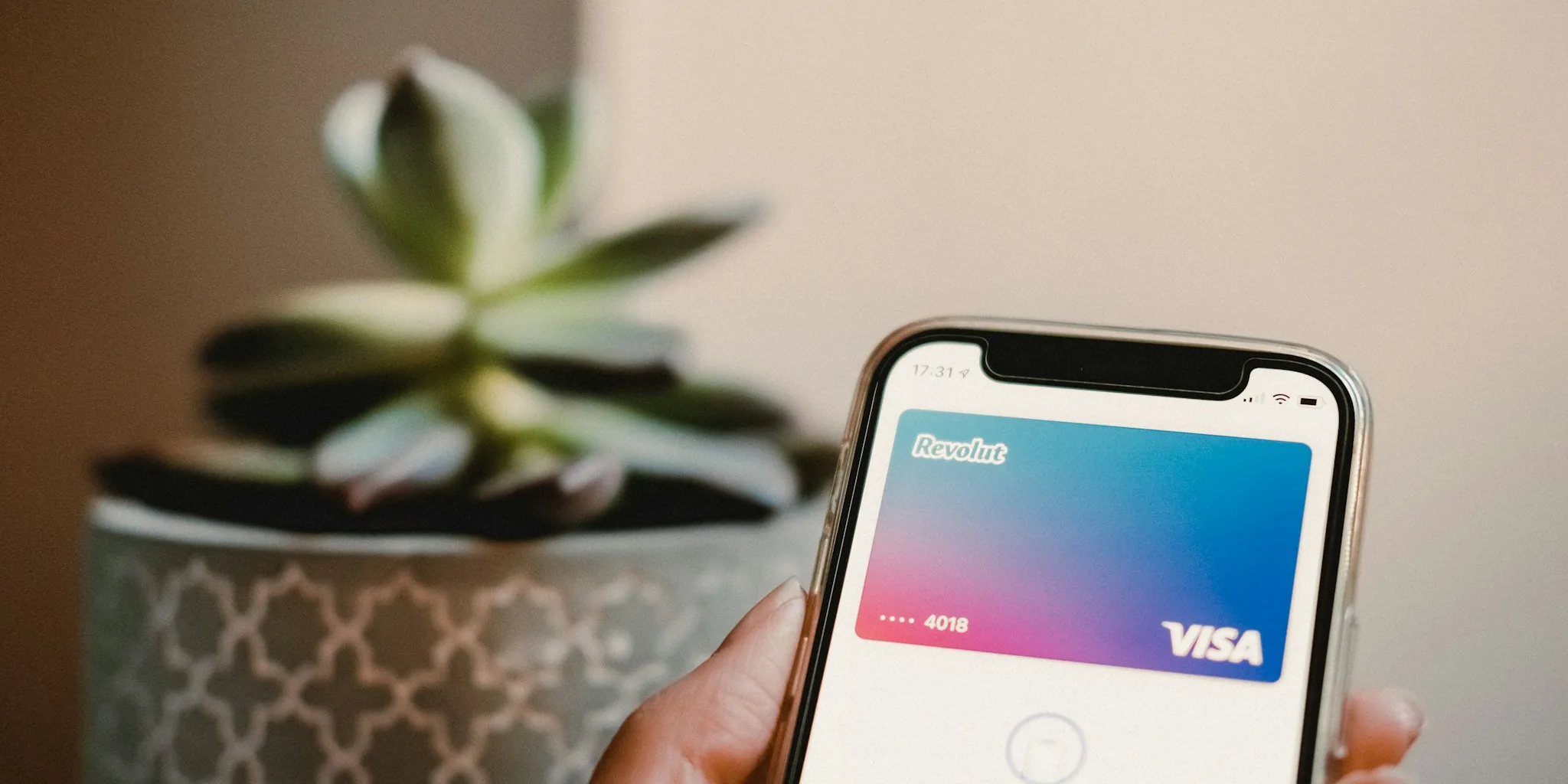
Google Wallet has become a go-to payment solution for millions of people across the US. Whether you’re tapping your phone at checkout, storing boarding passes, or accessing loyalty cards, the app offers undeniable convenience. However, not every feature is useful for every user, and some settings can actually make your experience more cluttered rather than streamlined. The good news is that you have complete control over what Google Wallet does on your device. By adjusting a few key settings, you can customize the app to match your actual needs and preferences.
1. Disable Cross-App Pass Sharing If You Prefer One Central Location
By default, Google Wallet shares your saved passes, boarding passes, and loyalty cards across multiple Google services like Maps, Calendar, and Chrome. While this integration sounds helpful, it can create unnecessary clutter if you prefer keeping all your important cards and passes in one dedicated app. When you have passes popping up in different places, finding what you need becomes less intuitive. If you’d rather manage everything from Google Wallet itself, you can turn this feature off. Navigate to Google Wallet, tap your profile picture, select Your data in Wallet, find Manage passes data, and toggle off the Use passes across Google option. This keeps your information contained and organized exactly where you want it.
2. Remove the Lock Screen Shortcut for a Cleaner Home Screen Experience
A crowded lock screen competes for your attention every time you pick up your phone. If you’re someone who values a minimalist interface, the Google Wallet lock screen widget might feel unnecessary. You can access payments quickly without this shortcut sitting there permanently. To remove it on Samsung devices, go to Settings, select Lock screen and AOD, choose Edit lock screen, tap the Wallet shortcut, and either replace it with a different app or delete it entirely. Removing this shortcut doesn’t affect your ability to make contactless payments. You’ll still unlock your phone normally and use compatible payment terminals without any issues.
3. Manage Notifications to Reduce Digital Noise
Notification fatigue is real, and Google Wallet can contribute to it if you don’t adjust the notification settings. The app sends alerts about pass updates, offers, card changes, and promotional information. If you primarily use Wallet for quick payments and occasional loyalty card access, these constant notifications become distracting rather than helpful. Open Google Wallet, tap your profile picture, go to Wallet settings, then select Manage Wallet notifications. Review the available categories and disable the ones you don’t need while keeping essential payment alerts active. This way, you stay informed about what matters without being bombarded with every minor update.
4. Turn Off Personalization If You Want Greater Data Privacy Control
Google Wallet uses your transaction history and shopping patterns to personalize your experience. While some people appreciate recommendations based on their activity, others prefer to make their own choices about what information guides their decisions. If you fall into the latter category, you can disable personalization entirely. In Google Wallet, tap your profile picture, navigate to Your data in Wallet, select Manage passes data, and turn off Personalization within Wallet. This gives you more control over how your shopping behavior and payment data influence what the app shows you.
5. Review Permission Settings Regularly to Stay in Control
Apps receive permissions during setup that you might want to revisit. Check whether Google Wallet really needs access to your device’s camera, location, contacts, or other sensitive features. Not all permissions are necessary for basic payment functionality. Review these settings in your phone’s app permissions menu and revoke anything that makes you uncomfortable. This is especially important if you use multiple payment devices across your daily routine.
6. Disable Biometric Sign-In If You Prefer Manual Authentication
While biometric authentication through fingerprint or face recognition adds convenience, some users prefer the extra security layer of manual authentication. If you’d rather enter a PIN or password every time you access sensitive payment information, you can disable biometric sign-in in your Wallet settings. This personal choice depends entirely on your comfort level with authentication methods and your specific security preferences.
7. Clear Out Unused Cards and Passes to Keep Your Wallet Organized
Sometimes the best way to simplify Google Wallet is to remove information you no longer need. Archive or delete expired loyalty cards, old event tickets, and cards from stores you rarely visit. A streamlined Wallet with only active, useful cards makes the app faster to navigate and less overwhelming. This practice keeps your digital wallet as functional and relevant as keeping your physical space organized and purpose-driven.
Finding the Right Balance for Your Needs
Google Wallet doesn’t require you to accept all of its features as they come. The platform is flexible enough to support different user preferences and priorities. Some people love having passes integrated across their Google ecosystem, enjoy lock screen shortcuts, and appreciate personalized recommendations. Others prefer minimal notifications, single-location organization, and stricter data control. Neither approach is wrong. The key is understanding what options are available and making intentional choices about which features deserve space on your device. Taking twenty minutes to adjust these settings can significantly improve your daily experience with the app. You’ll use Google Wallet more efficiently because it’s working the way you actually want it to, not the way the defaults assume you should. That’s the real value of customization: making technology work for you instead of working around technology.
About the author
Ava is REMOVU's laptop writer, balancing speed, battery life, and build quality against price across the whole range. She helps readers find the sweet spot as each new chip shifts what a dollar buys.