7 Tips to Prevent Wi-Fi From Disrupting Your Zigbee Smart Home Network
Your Wi-Fi might be silently sabotaging your smart home. Here is how to stop it.
 By Ava Herrera
Updated October 8, 2026
By Ava Herrera
Updated October 8, 2026
Understanding the Hidden Interference Problem
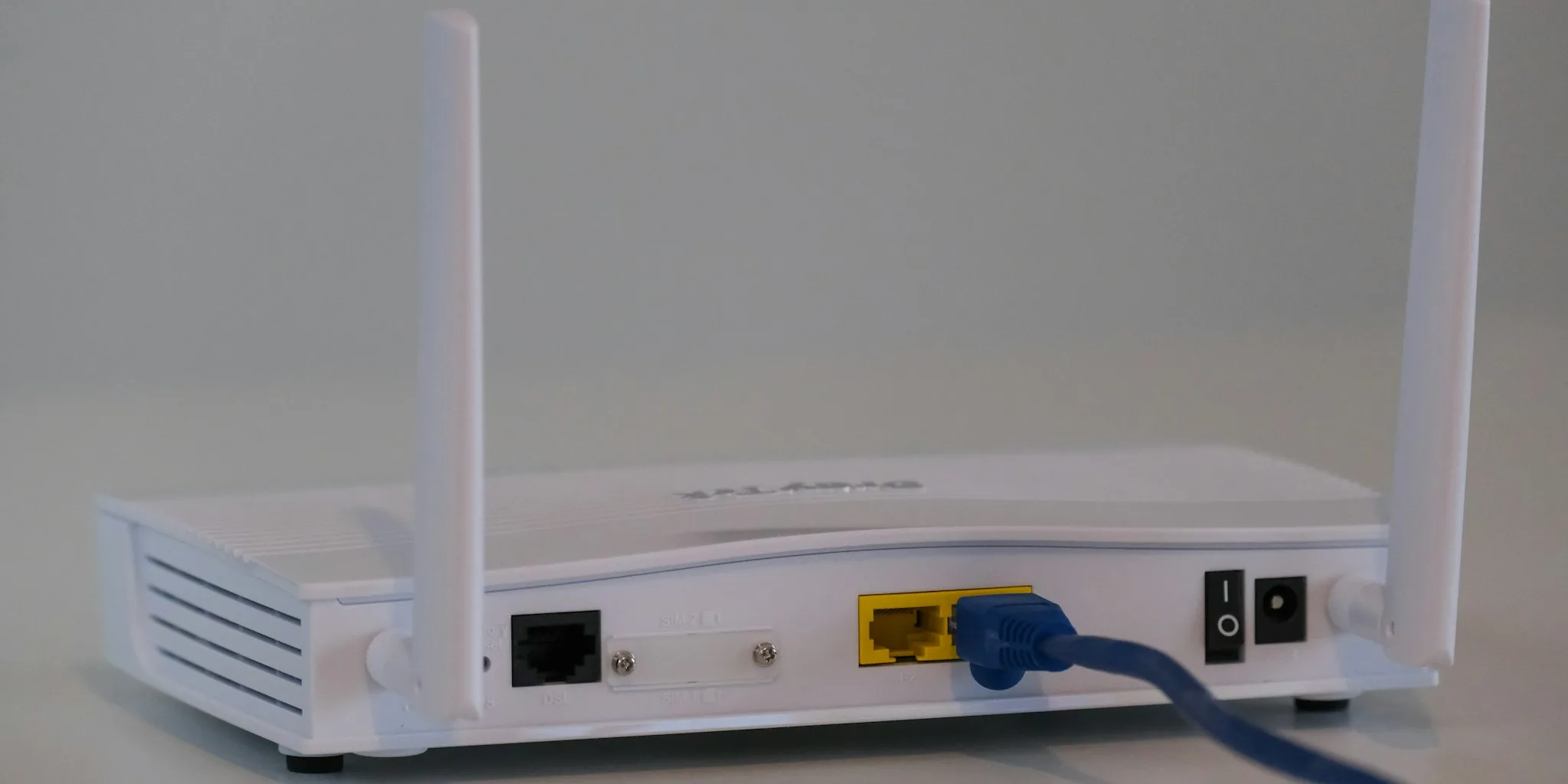
Your home Wi-Fi and Zigbee networks are competing for the same airspace, yet most people never realize it. While you can easily see neighboring Wi-Fi networks in your scanner apps, your Zigbee smart home network remains invisible. Both systems operate in the unlicensed 2.4 GHz frequency band, but they use different channel widths: Wi-Fi relies on 22 MHz channels while Zigbee uses narrower 2 MHz channels. This fundamental difference means your stronger Wi-Fi signals can easily overpower your lower-power Zigbee transmissions, causing delays, dropped devices, and battery drain across your smart home ecosystem.
Tip 1: Optimize Your Wi-Fi Channel Selection

The most effective strategy for reducing interference is strategic channel planning. Configure your Wi-Fi router to use channels 1, 6, or 11, which are the only non-overlapping channels available in the 2.4 GHz band. This prevents your Wi-Fi from occupying the same frequencies as your Zigbee devices. Channels 1 through 11 on Wi-Fi directly overlap with Zigbee channels 11 through 22, creating a conflict zone. By keeping your Wi-Fi confined to these three primary channels, you preserve cleaner airspace for your Zigbee network to operate without constant interruption.
Tip 2: Configure Zigbee on Non-Overlapping Channels
Once you have your Wi-Fi locked into channels 1, 6, or 11, shift your Zigbee coordinator to channels 15, 20, or 25. These Zigbee channels have minimal to no overlap with standard Wi-Fi usage patterns. Most commercial smart home hubs allow you to configure this setting through their companion apps or web interfaces. If you are using a Zigbee dongle connected to a PC or hub, changing channels typically requires a factory reset of your coordinator followed by re-pairing all your devices. While this takes time, it creates a much more stable environment for your smart home devices.
Tip 3: Increase Physical Distance Between Devices
Radio interference weakens with distance. Position your Zigbee coordinator and Wi-Fi router at least 10 feet apart whenever possible. Many people make the mistake of stacking these devices together in a central closet or near their modem for cable management convenience. This proximity dramatically amplifies interference problems. Instead, consider placing your Zigbee hub in a different room or corner of your home. If your router must stay in one location, move your Zigbee coordinator to the farthest practical distance to minimize direct radio interaction.
Tip 4: Protect USB Devices From Electromagnetic Interference
If you are using a Zigbee dongle with a PC or Linux-based hub, never plug it directly into a USB 3.0 port. USB 3.0 connections emit significant electromagnetic interference that can severely disrupt Zigbee’s low-power transmissions. Instead, use a USB 2.0 port with an extension cable, positioning the dongle several feet away from your computer. This simple modification introduces physical separation and shielding that prevents USB interference from overwhelming your Zigbee signal. Conversely, dedicated commercial smart home hubs like popular bridge devices already include proper shielding and isolation, so this concern does not apply to those systems.
Tip 5: Evaluate Your Overall Wi-Fi Device Load
Heavy Wi-Fi traffic from numerous connected devices amplifies interference problems. If your home runs dozens of Wi-Fi devices, security cameras, streaming boxes, and smart speakers simultaneously, your Zigbee network faces constant signal competition. Review what devices genuinely need Wi-Fi connectivity versus what could operate on other protocols. Moving suitable devices to wired connections or alternative networks reduces the overall noise floor in your 2.4 GHz band. This frees up airspace for your Zigbee devices to communicate reliably.
Tip 6: Monitor for Performance Degradation
Watch for warning signs that interference is affecting your smart home. Delayed responses from smart lights and switches, missed automations, devices showing offline status, or unusual battery drain all point to Zigbee interference. When these symptoms appear, your first response should be reviewing channel configuration rather than assuming device failure. Many users simply replace devices when the actual problem stems from interference that channel adjustments could solve. Keep detailed notes of when problems started to correlate them with changes in your Wi-Fi network.
Tip 7: Consider Professional-Grade Smart Home Hubs
Investing in a dedicated smart home hub eliminates many interference issues. Commercial systems, including popular Zigbee bridge devices, incorporate proper shielding, optimal antenna placement, and manufacturer tuning to coexist peacefully with Wi-Fi. While these solutions cost more than simple dongles, they deliver superior performance and reliability. When evaluating options, prioritize hubs that clearly document their interference mitigation features. Quality smart home infrastructure supports a wide range of devices, and proper hub selection matters as much as channel configuration.
Making Your Smart Home Reliable
Zigbee delivers excellent power efficiency and range for smart home applications, but it demands thoughtful setup to coexist with modern Wi-Fi networks. By implementing these seven strategies, you eliminate the frustrating performance issues that arise from frequency overlap and signal interference. Start with channel optimization, as this single change often resolves the majority of problems. Progress to physical separation and USB shielding if you need additional stability. The investment of time in proper configuration pays dividends through years of reliable smart home operation without mysterious dropouts or sluggish responses. Your smart home should work invisibly and reliably in the background, and proper interference management ensures it does.
About the author
Ava is REMOVU's laptop writer, balancing speed, battery life, and build quality against price across the whole range. She helps readers find the sweet spot as each new chip shifts what a dollar buys.