USB-C to HDMI Adapters: What Buyers Need to Know About Performance Limits
Not all USB-C ports support video output, and cable quality directly impacts resolution and refresh rates.
 By Ava Herrera
Updated October 5, 2026
By Ava Herrera
Updated October 5, 2026
USB-C to HDMI Adapters: What Buyers Need to Know About Performance Limits
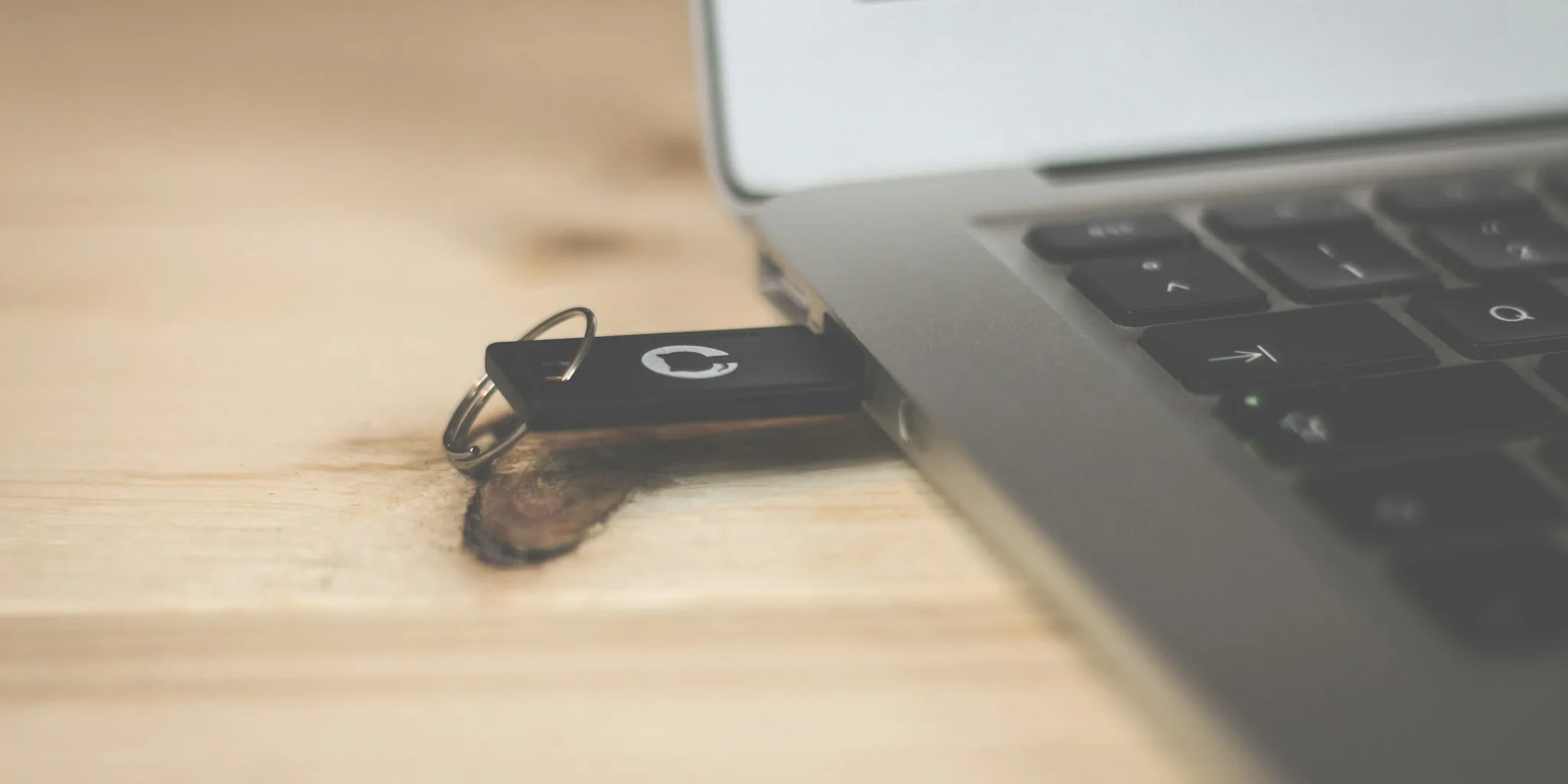
The shift to USB-C has revolutionized device connectivity, offering faster data transfers and improved charging speeds. However, this transition has introduced new challenges for anyone trying to connect their laptop or tablet to an external display. If your device lacks a traditional HDMI output and your monitor or TV doesn’t support USB-C input, a USB-C to HDMI adapter might seem like the obvious solution. While these adapters can bridge the gap between mismatched ports, they come with important limitations that every shopper should understand before making a purchase.
Understanding the Connection Chain
Think of a USB-C to HDMI setup as a relay race where your device, adapter, cable, and display all work together to transmit a video signal. Your laptop’s USB-C port sends a video signal through the adapter, which converts it into an HDMI signal that your TV or monitor can recognize. That signal then travels through the HDMI cable to reach your display. The critical takeaway: the quality of your entire setup depends on the weakest link in this chain. An incompatible port, an outdated cable, or a low-quality adapter can compromise your entire viewing experience, resulting in poor video quality or a completely blank screen.
Not All USB-C Ports Support Video Output
Here’s an issue many shoppers overlook: not every USB-C port is created equal. Some USB-C ports are only designed for charging and data transfer, with no video capability whatsoever. For video output to work, your device’s USB-C port must support DisplayPort Alternate Mode, a feature that uses the same digital display interface found in graphics cards. Manufacturers can choose whether to include this optional feature or not.
The version of DisplayPort Alternate Mode your port supports directly impacts the maximum resolution and refresh rate you can achieve. DisplayPort 1.4 can deliver stunning 8K resolution at 60 Hz, though 8K displays remain extremely expensive and rare in consumer markets. DisplayPort 1.2, more commonly found in laptops, maxes out at 4K resolution with a 60 Hz refresh rate. If you’re unsure whether your device supports DisplayPort Alternate Mode, check your device’s manual or manufacturer specifications online.
Thunderbolt ports, which use the same USB-C connector, guarantee video output capabilities as part of their standard. If your laptop features Thunderbolt ports, you’re in a better position to use a USB-C to HDMI adapter reliably.
Cable Quality Matters More Than You Think
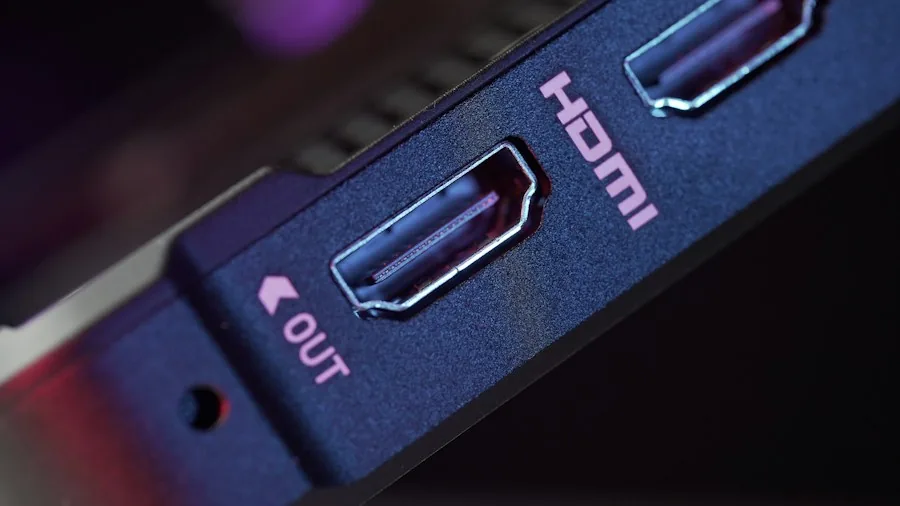
A standard USB-C charging cable cannot transmit video signals, even if your USB-C port supports DisplayPort Alternate Mode. You’ll need a fully-featured USB-C to HDMI cable or a dedicated adapter with a built-in chip that converts the DisplayPort or Thunderbolt signal into HDMI. The quality of this conversion depends on which HDMI standard the cable or adapter supports.
Ideally, your laptop should have at least two USB-C ports so you can charge your device while simultaneously using another port to power an external display, eliminating the need to choose between power and video output.
HDMI Standards: Which Generation Do You Need?
Since its introduction in 2002, HDMI has evolved through multiple generations, each offering greater bandwidth and support for higher resolutions and refresh rates. Your connection will be limited to the oldest standard supported by any component: your port, cable, or adapter.
HDMI 2.1, also called Ultra High Speed HDMI, represents the current gold standard for consumer applications. It supports up to 48 Gbps of bandwidth and delivers 8K resolution at 60 Hz or 4K at 120 Hz. This generation also includes support for variable refresh rates and enhanced audio formats like Dolby Atmos and DTS:X, making it ideal for high-end gaming and premium home theater setups.
HDMI 2.0 offers a solid middle ground for most users. These adapters and cables support 4K resolution at 60 Hz with 18 Gbps bandwidth. For streaming video, browsing, and productivity work, HDMI 2.0 performs admirably. Where it falls short is in high-end gaming scenarios, where the lower bandwidth may not provide the smoothest experience.
Older HDMI 1.4 adapters should be avoided entirely. While technically capable of 4K resolution, they max out at a sluggish 30 Hz refresh rate, noticeably degrading picture quality and user experience. Unless you’ve been holding onto a very old adapter for years, this shouldn’t be a practical concern.
Better Alternatives for Your Setup
For permanent display connections, USB-C hubs or docks are often superior to simple adapters, offering multiple ports and more robust build quality. Alternatively, consider purchasing a dedicated USB-C to HDMI cable instead of a separate adapter. Both approaches tend to deliver more reliable performance than standalone adapters.
Before purchasing any adapter or cable, verify your device’s USB-C capabilities and decide what video resolution and refresh rate your workflow actually requires. A basic HDMI 2.0 solution may satisfy your needs if you primarily handle streaming and office work, while gamers and content creators should prioritize HDMI 2.1 compatibility whenever possible. Understanding these limitations ensures you’ll make a purchase that genuinely serves your connectivity needs.
About the author
Ava is REMOVU's laptop writer, balancing speed, battery life, and build quality against price across the whole range. She helps readers find the sweet spot as each new chip shifts what a dollar buys.