7 Ways to Type on Android Beyond the Standard Keyboard
Explore handwriting, voice input, glide typing, and more alternatives built into Android.
 By Josephine Mason
Updated October 3, 2026
By Josephine Mason
Updated October 3, 2026

Most Android users settle into a single typing routine and rarely venture beyond it. You open a text field, the keyboard appears, and muscle memory takes over. But Android offers far more input methods than the standard QWERTY layout most of us rely on every day. Whether you’re looking for faster text entry, improved accuracy for specific tasks, or a method that works better for your needs, Android has built-in alternatives worth exploring.
Glide Typing: Swipe Across Letters Instead of Tapping
Glide typing transforms how you interact with the keyboard by letting you drag your finger across letters instead of tapping each one individually. Start at the first letter, move your finger smoothly to the next letter, and lift when you finish the word. Gboard interprets your path and inserts the word into your text field. This approach works especially well for one-handed typing because your thumb keeps moving rather than hopping between tiny targets repeatedly.
The trade-off is accuracy. Glide typing struggles with proper names, acronyms, URLs, and technical terms, so switch back to traditional tapping when precision matters more than speed. You can enable this feature through Gboard Settings, then navigate to Glide typing and toggle it on. Once activated, you’ll discover several other Gboard customizations that can speed up your daily typing as well.
Voice Typing: Let Your Words Flow Naturally

Gboard’s voice typing feature works almost anywhere a traditional keyboard appears on screen. Tap the microphone icon, speak your message, and watch your words convert to editable text in real time. You can even dictate punctuation and paragraph breaks, though specific features vary depending on your language.
Pixel 6 and newer Pixel phones access Advanced Voice Typing, which offers automatic punctuation insertion, emoji support, and voice commands for editing like deleting text or making corrections. This advanced version currently supports English, French, German, Italian, Japanese, and Spanish. Voice input shines when you already have your thoughts organized mentally and want to capture them faster than manual typing allows. Long emails, rough notes, and first drafts move significantly quicker when spoken aloud, then refined afterward.
Keep in mind that technical jargon and unusual names often get misinterpreted, and dictating in crowded public spaces can feel awkward. Alternative options like FUTO Keyboard provide offline voice typing that processes speech recognition directly on your device rather than sending audio to cloud servers.
Handwriting Recognition: Write Letters Directly
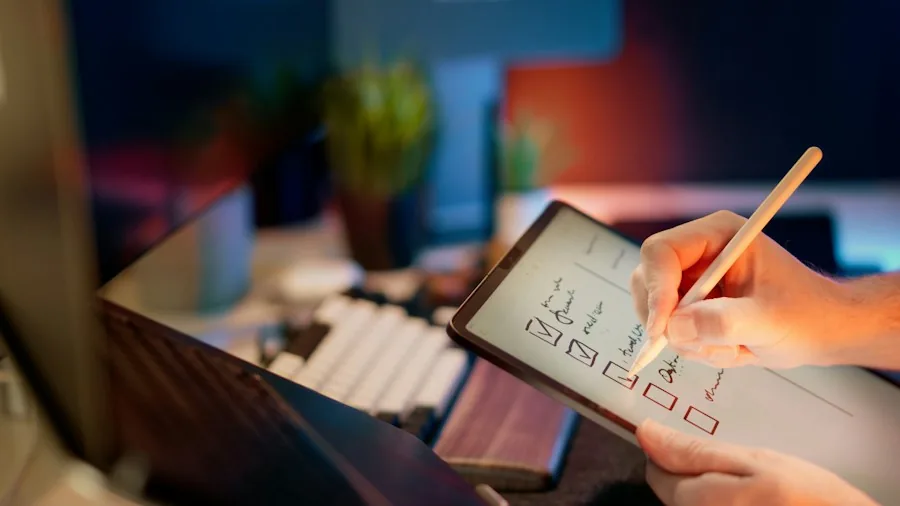
Gboard includes a handwriting layout that replaces the standard letter grid with an open writing area. Draw letters with your finger or stylus, and Gboard converts those strokes into regular text you can edit, copy, and share. Enable this through Gboard Settings by selecting your language and turning on the Handwriting layout option, though support depends on your language choice.
Finger writing works fine for short bursts but becomes tedious quickly. A stylus makes handwriting entry far more practical and accurate. Samsung Keyboard also offers its own handwriting mode, and compatible Galaxy phones let you write directly into text fields using the S Pen. For Galaxy device owners, the S Pen delivers advantages beyond handwriting that many overlook entirely.
Physical Keyboards: Turn Your Phone Into a Workstation
Android connects to Bluetooth and USB keyboards, transforming your phone or tablet into a device that functions like a laptop. The system includes hardware keyboard layout settings and keyboard shortcut support across many apps. This approach makes far more sense on a tablet, where you can prop up the screen and add a keyboard to tackle emails, spreadsheets, web forms, and documents without the endurance test that comes from constant screen tapping.
Apps that support keyboard shortcuts reduce how often you need to reach up and interact with the display. While carrying a keyboard just to reply to a few messages seems excessive, the setup becomes practical when your Android device occasionally needs to handle computer-like tasks. Power-hungry productivity sessions benefit from portable charging solutions to keep your setup running throughout the day.
Morse Code: A Practical Accessibility Option
Hidden within Gboard’s U.S. English layouts sits a Morse code keyboard that goes beyond novelty. Instead of displaying a full letter grid, it provides dot and dash inputs, then converts those sequences into text while offering word predictions. Add it through Gboard by selecting Languages, English (US), and Morse code.
Customization options include character and word timeouts, repeating keys, audio feedback, and external switch support. That last feature gives Morse code genuine practical value for people with specific motor or accessibility requirements, since two large inputs can replace a dense QWERTY layout more effectively.
Braille Input: Text Entry for Braille Readers
Android’s accessibility features include an on-screen Braille keyboard for people who read and write Braille. TalkBack enables six-dot Braille input directly on your touchscreen, with your fingers mapping to Braille dots rather than printed letters. Android also connects to compatible refreshable Braille displays for navigation and text entry.
To set this up, enable TalkBack through Settings, Accessibility, then TalkBack. Access TalkBack settings, select Braille keyboard, and follow the setup instructions. Once configured, open any app with a text field, bring up the keyboard, choose Switch input method, and select TalkBack braille keyboard. The system supports gestures for spaces, line breaks, character or word deletion, language switching, and text editing. For Braille users, this input method eliminates the barrier that a printed QWERTY layout creates between your hands and the text field.
Finding Your Best Input Method
QWERTY remains the default for most people because years of muscle memory make it the obvious choice. However, Android provides room to select what works best for your device type, the content you’re entering, and your preferred interaction style. Content creators exploring video work may benefit from professional-grade capture tools to complement their mobile productivity setup. Standard keyboards represent where most of us begin, but exploring Android’s alternatives ensures you’re not limiting yourself unnecessarily when other input methods could serve you better.
About the author
Josephine covers mechanical keyboards for REMOVU, comparing switch feel, layout, and build quality for typing and gaming. She helps readers navigate a deeply personal choice with clear, practical advice.