7 Ways to Expand Your PC Storage Without Upgrading Your Motherboard
Add storage to your PC affordably without replacing hardware. HBA cards offer surprising flexibility and value.
 By Ken Mendoza
Updated October 25, 2026
By Ken Mendoza
Updated October 25, 2026
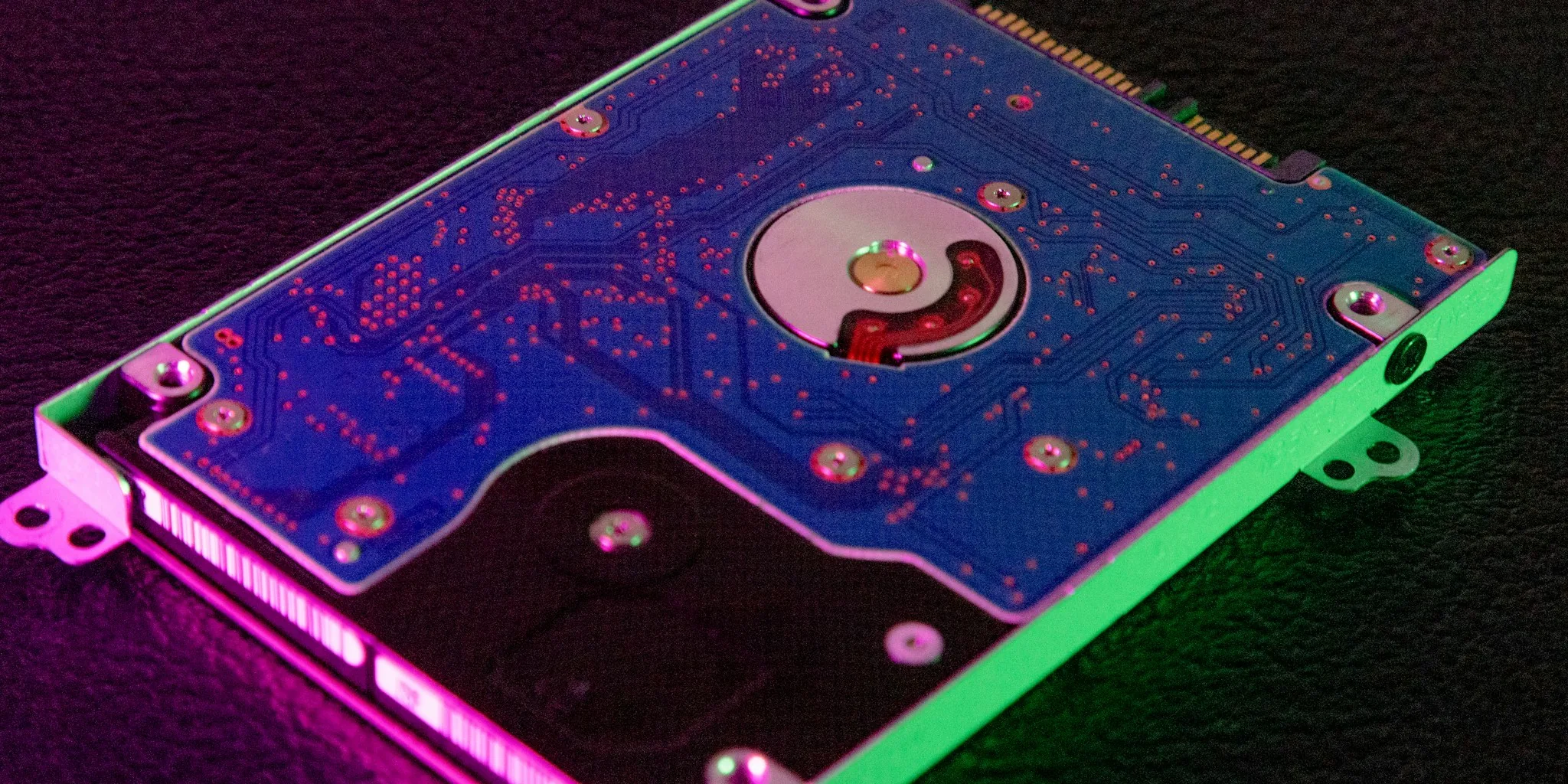
Running out of storage space on your PC is a common frustration for gamers, content creators, and anyone who maintains a large digital library. While the obvious solution might seem to be replacing your motherboard, that’s an expensive and unnecessary step. Modern motherboards ship with fewer SATA ports than ever before, and some connections even disappear when you populate certain M.2 slots. Fortunately, several affordable and practical methods exist to add significant storage capacity without touching your existing hardware setup.
Understand What a Host Bus Adapter Card Can Do
A host bus adapter (HBA) card is a storage controller designed primarily for servers, but it’s becoming increasingly popular with PC builders who need serious capacity. These cards sit between your PCIe bus and your drives, passing them directly to your operating system without any RAID layer or proprietary interference. An HBA card like the LSI 9207-8i can support eight drives simultaneously through a single PCIe slot, with each drive receiving a dedicated 6Gb/s lane. What makes this especially compelling is the price: quality used HBA cards often sell for under thirty dollars on the secondary market, and most come with the breakout cables you’ll need.
Choose Between PCIe Slot Options Carefully
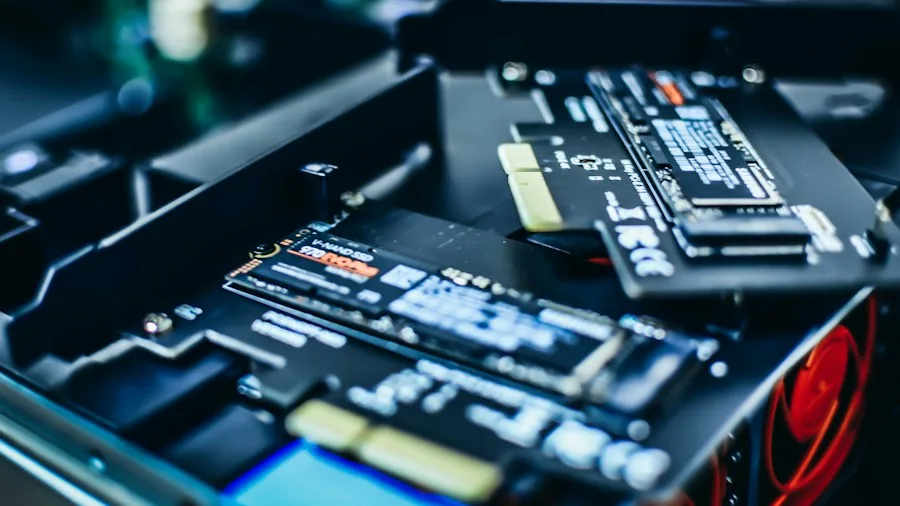
Where you install an expansion card matters significantly for performance. Many motherboards designate their bottom full-length slot to the chipset, which often runs at x2 or x4 bandwidth instead of full x16 speed. At x4, you’ll experience minimal performance impact, but x2 becomes restrictive when all drives are active simultaneously. Before purchasing an HBA or SATA expansion card, check your motherboard’s manual to identify which slots maintain full bandwidth. Quality expansion accessories deserve proper placement in your system to deliver optimal performance.
Evaluate Standard SATA Expansion Cards for Simpler Setups
If an HBA seems like overkill for your needs, conventional SATA expansion cards offer a more straightforward solution. Most popular models add six SATA ports through a PCIe 3.0 x2 connection, providing roughly 2GB/s of combined bandwidth. For mechanical hard drives, this bandwidth is more than adequate. Some cards use port multipliers, which chain multiple drives through a single SATA lane, though this approach can create bottlenecks under heavy usage. These cards typically cost significantly less than HBA solutions and require minimal compatibility troubleshooting on consumer motherboards.
Access the Used Enterprise Market Through SAS Compatibility
One of the most compelling advantages of HBA cards is their ability to handle both SATA and SAS (Serial Attached SCSI) drives interchangeably. Consumer motherboards and standard SATA expansion cards can only communicate with SATA drives, which means the enormous used enterprise market for SAS drives remains inaccessible. Enterprise-grade SAS drives often cost considerably less than equivalent SATA models because most PC builders can’t connect them. By investing in an HBA, you unlock access to these bargain drives. Simply ensure you have the correct breakout cables with SFF-8482 connectors and SATA power pass-through capabilities, not standard SATA data plugs.
Install HBA Cards in IT Mode Firmware
When shopping for an HBA card, specifically seek models flashed with IT mode firmware. This configuration strips away RAID controllers and proprietary features, presenting raw disks directly to your operating system. IT mode works seamlessly with Windows, Linux, ZFS, TrueNAS, Unraid, and virtually every other storage solution. This firmware approach ensures maximum compatibility and flexibility for your specific setup. Cards with other firmware modes may introduce complexity and compatibility issues that create unnecessary troubleshooting headaches.
Plan for Thermal and Compatibility Challenges
Server hardware in a consumer desktop environment requires additional attention to cooling and system integration. HBA cards generate significant heat during sustained operation, and a hot card can cause drive failures. Many users successfully mount small aftermarket fans directly onto the HBA heatsink using cable ties to maintain proper temperatures during continuous operation. Additionally, some HBA controllers communicate over the SMBus, which can conflict with your motherboard’s memory detection systems and prevent successful boot sequences. Consulting community forums specific to your motherboard model can reveal known workarounds, such as covering certain edge connector pins with electrical tape. Careful system integration prevents these issues from derailing your storage expansion project.
Consider Power Management Implications
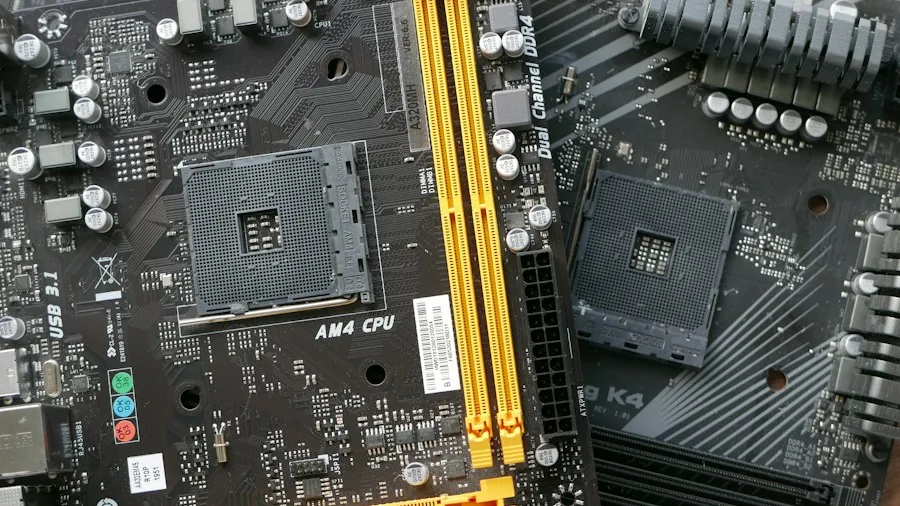
Certain HBA models don’t support PCIe link power management, which means your system may remain in a higher power state even when all drives are spinning down. This can noticeably impact your electricity consumption if you run your PC continuously. Before finalizing your purchase, research the specific power characteristics of your intended model by reviewing user reports and specifications. Understanding these details helps you calculate whether the storage savings justify any slight increases in your power usage over time.
Match Your Solution to Your Storage Ambitions
The right storage expansion method depends entirely on your specific requirements. Someone adding just two or four drives to a gaming system might find a modern SATA expansion card perfectly suitable and far less complicated than an HBA setup. However, if you’re serious about building significant storage capacity and the lower used market prices for SAS drives appeal to you, an HBA card represents the most cost-effective path forward. These cards have earned their reputation through years of reliable server-room deployment, making them a battle-tested solution that often costs considerably less than consumer-focused SATA expansion alternatives.
About the author
Ken covers motherboards for REMOVU, comparing features, power delivery, and value across sockets. He helps builders pick a solid foundation with room to upgrade.