7 Essential Things to Look for When Choosing a USB-C Cable
Wattage ratings mislead buyers. Discover the specs that actually matter for your charging and data transfer needs.
 By Ava Herrera
Updated September 29, 2026
By Ava Herrera
Updated September 29, 2026
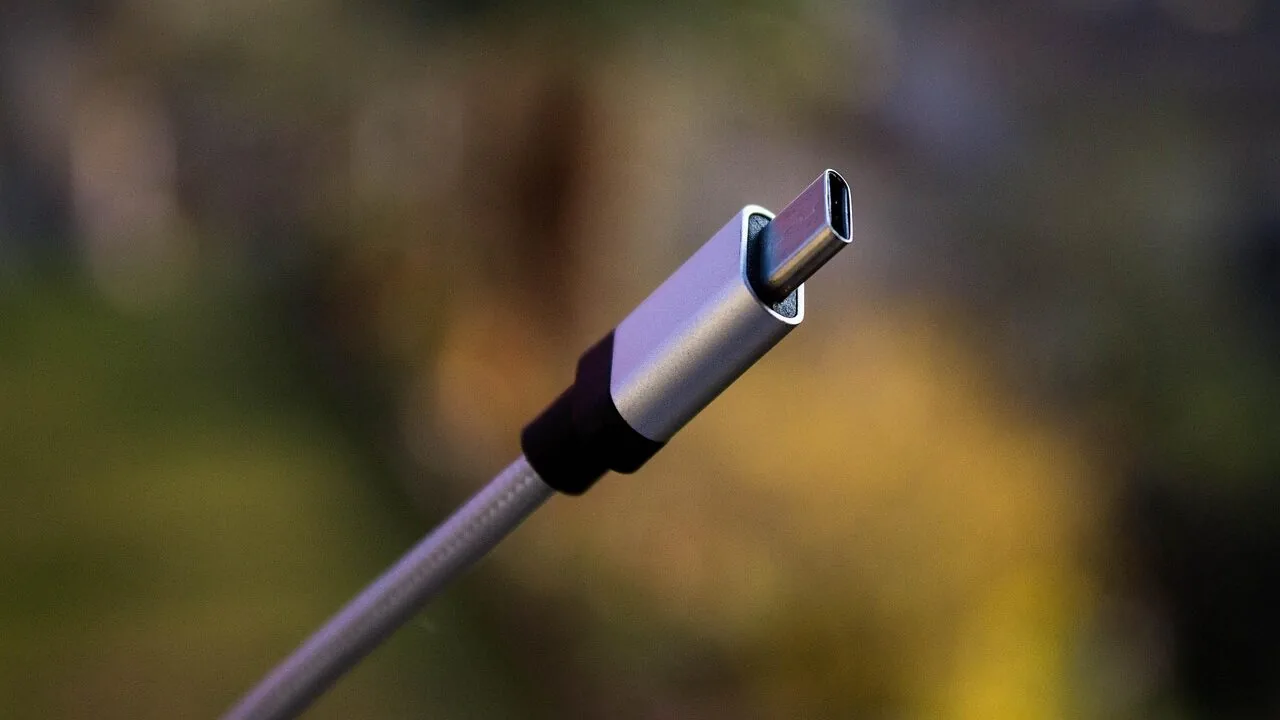
USB-C Wattage Tells Only Part of the Story
When you’re shopping for a USB-C cable, the wattage rating printed on the packaging can be misleading. A cable rated for 240W of charging power might sound impressive, but that specification tells you absolutely nothing about its data transfer speed. You could buy a premium cable capable of delivering 240W to your device while it simultaneously moves data at only USB 2.0 speeds, which maxes out at 480 megabits per second. This disconnect between charging capacity and data performance is one of the most confusing aspects of USB-C shopping today.
Understand That Wattage Only Measures Charging Performance

The fundamental issue is that cable manufacturers label their products with charging wattage because it’s the metric most consumers care about. When you plug in your phone or laptop, you want it to charge quickly. Data transfer speed is secondary for most people’s daily use. The result is a market flooded with cables optimized for charging but not for moving files. This creates a situation where you might own several USB-C cables without realizing most of them are incapable of fast data transfers. Even major manufacturers ship cables that prioritize charging speed over everything else.
Always Verify Data Speed Specifications Explicitly
The safest assumption is to expect any USB-C cable to be USB 2.0 unless the listing explicitly states otherwise. If a cable doesn’t specify its data transfer rate, you should treat it as a charging-only option. Many cable packages don’t even mention data speeds because they don’t have to, and manufacturers know most customers won’t ask. If you need a cable for a specific purpose beyond charging, you must actively search for that specification. Look for cables labeled USB 3.1, USB 3.2, USB4, or Thunderbolt if you require faster speeds.
Search for Clear Labeling and Certification Marks
USB-certified cables should display both charging and data transfer specifications on their packaging, but certification isn’t mandatory. Some manufacturers skip the certification process entirely, which means they’re under no obligation to list performance details. When shopping, look for Thunderbolt logos (represented by a lightning bolt symbol), USB4 labels, or specific USB 3.x designations. These visual markers make it much easier to identify what you’re actually getting. Uncertified cables may be cheaper but often lack these helpful identifiers.
Check Your Device’s Actual Capabilities
Before buying a cable for a specific device, verify what speeds your equipment actually supports. Your smartphone might have a USB-C port, but it could be limited to USB 2.0 speeds even though newer models of phones support USB 3.2. If you’re transferring files between devices, backup systems like network storage often reveal which cables are inadequate for your workflow. On Windows, open Device Manager and navigate to Universal Serial Bus controllers to see what speed your device connects at. On macOS, go to System Information, select USB under Hardware, and check the speed listed for each connected device. This verification step takes just a minute and eliminates guesswork.
Recognize the Confusing USB Standard Naming Scheme
The organization responsible for USB standards created an unnecessarily complicated naming convention. USB 3.2 can operate at 5 gigabits per second, 10 gigabits per second, or even 20 gigabits per second, depending on the cable and device. The same designation applies to different speed classes, making it nearly impossible to understand what you’re purchasing without detailed research. USB 2.0 remains extremely common because it’s cheap to manufacture, so many devices still use it despite being from recent years. This fragmentation means you cannot assume anything about speed based on the cable’s appearance or basic labeling.
Match Your Cable to Your Actual Usage Pattern
If you only charge your devices, cable data speed is completely irrelevant, and you can ignore those specifications entirely. However, if you regularly transfer large files, backup photos, or connect to networked devices, you need a cable matched to those demands. Consider how you’ll actually use the cable before purchasing. A charging-only cable works perfectly fine for smartphones and tablets if you use cloud services or wireless methods for file transfers. But if you’re connecting a new laptop or external drive for data transfer, you absolutely need to verify the cable supports appropriate speeds. The mismatch between wattage and speed capability won’t matter until it suddenly does, leaving you frustrated when a file transfer crawls at USB 2.0 speeds on what you assumed was a modern, high-performance cable.
About the author
Ava is REMOVU's laptop writer, balancing speed, battery life, and build quality against price across the whole range. She helps readers find the sweet spot as each new chip shifts what a dollar buys.