How to Speed Up Your Windows 11 Laptop and Extend Battery Life
Learn which Windows 11 visual effects drain your battery and slow your laptop down, plus exactly how to turn them off.
 By Ava Herrera
Updated October 6, 2026
By Ava Herrera
Updated October 6, 2026
Understanding the Performance Impact of Windows 11 Design Features
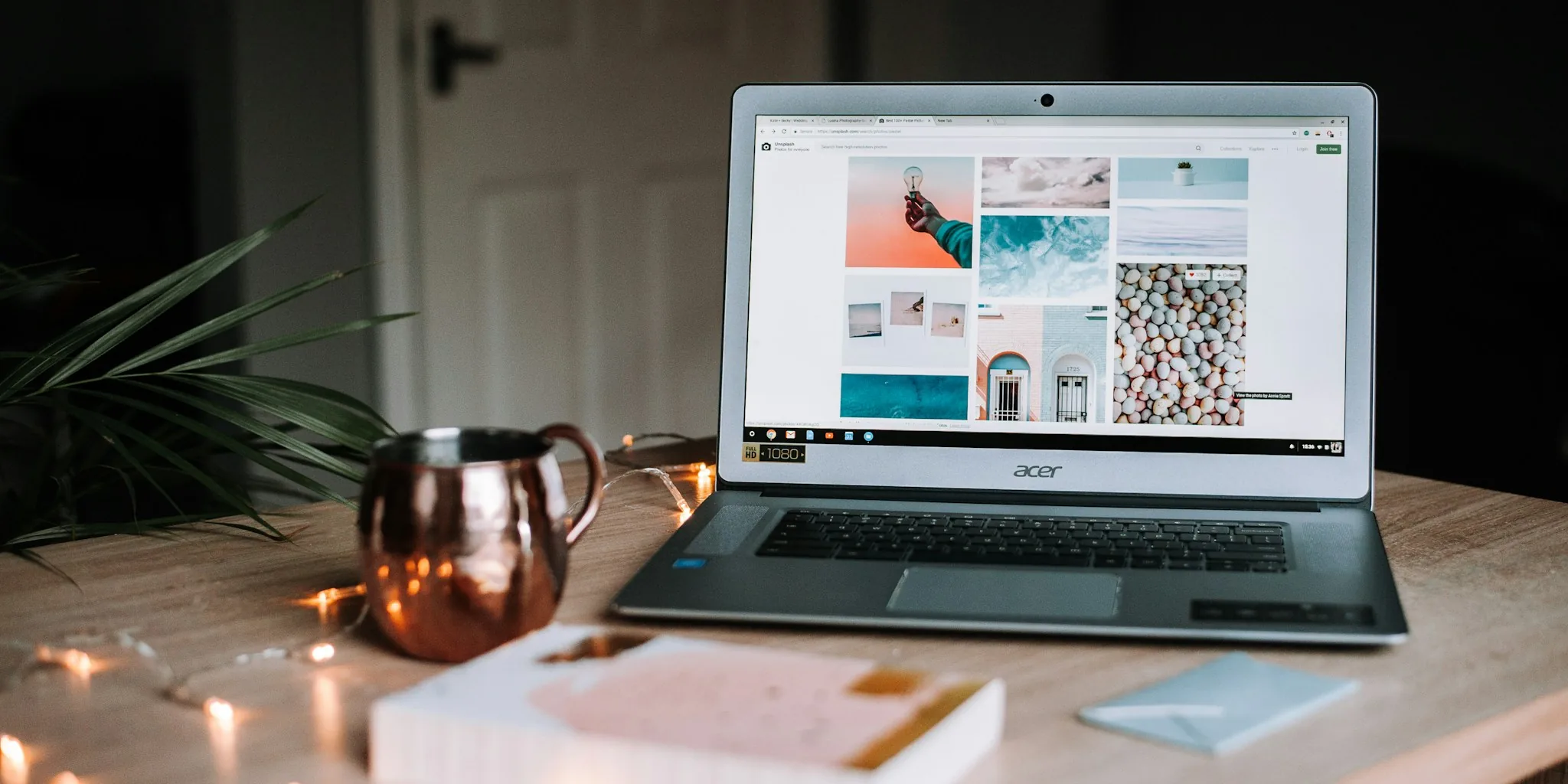
Windows 11 introduced a modern, visually appealing interface called Fluent Design, which features transparent menus, smooth animations, and glass-like effects. While these design elements create an attractive user experience, they demand significant processing power from your laptop’s graphics processor. When your system runs these visual effects, it consumes battery energy faster and can cause noticeable slowdowns on older hardware or laptops with limited resources. Understanding this trade-off between aesthetics and performance helps you make informed decisions about which visual features to keep and which to disable.
Disable Transparency Effects for Immediate Responsiveness
One of the quickest ways to improve your laptop’s performance is to turn off transparency effects. Open the Settings app by pressing Win + I, then navigate to Personalization and select Colors. You’ll find a toggle switch for Transparency effects near the top of the page. Alternatively, you can access this same setting through Accessibility and Visual effects. When you disable transparency, Windows stops rendering the frosted glass appearance on menus and windows, which frees up GPU resources. The interface will appear slightly flatter and simpler, but you’ll notice your system responds more quickly to your actions. This adjustment is especially beneficial if you frequently run multiple applications simultaneously or use resource-intensive software.
Turn Off Animations to Reduce Processing Demand
Windows 11 includes various animated transitions whenever you open, minimize, or move windows across your screen. These smooth animations look polished but require your graphics processor to constantly render new frames. By disabling animation effects, you eliminate these transitions entirely. Access this setting through Settings > Accessibility > Visual effects and toggle off the Animation effects switch. Once disabled, windows and menus will appear instantly without any motion effects or brief transitions. Your interface will feel more direct and immediate, and your laptop will dedicate those processing cycles to applications that matter to you. This is particularly useful when you’re working with multiple programs or when battery life is critical.
Use the Performance Adjustment Tool for Comprehensive Effect Removal
For a more thorough approach, Windows offers a built-in performance adjustment tool that disables numerous visual effects at once. Search your taskbar for ‘Adjust Windows appearance and performance’ and open the corresponding Control Panel window. Click on the Visual Effects tab and select the option to adjust for best performance. This setting will automatically disable multiple animations and graphical effects across your entire system. While this approach removes more visual polish than the individual transparency and animation settings, it provides the greatest performance boost, especially on older laptops or budget mini PCs. You can always re-enable specific effects later if you find the interface too plain for your preferences.
Manage Startup Programs to Reduce Boot Time and Background Load
Many laptops slow down because unnecessary programs automatically launch when Windows starts. These startup applications consume memory and processing power even when you’re not actively using them. Open Task Manager by pressing Ctrl + Shift + Esc and navigate to the Startup apps tab. Review the list of programs that start automatically and disable any that you don’t need running constantly. For example, if you don’t regularly use a particular cloud storage service or communication platform, you can disable it here. Your laptop will boot faster, and you’ll have more system resources available throughout your day. You can always re-enable any startup program from this same location whenever you need it.
Realistic Expectations for Performance Gains
It’s important to understand that these tweaks produce different results depending on your hardware. On modern gaming laptops or powerful workstations, disabling visual effects will have minimal impact because your system has ample processing power. However, on older laptops, budget-friendly mini PCs, or devices with integrated graphics, you’ll likely experience noticeably smoother performance and longer battery endurance. If you rely on your laptop throughout the workday without access to power outlets, disabling these visual features can give you extra hours of productivity. Consider pairing these settings with other wireless productivity accessories to maximize your mobile work setup.
Balancing Visual Appeal with Practical Performance
Customizing your Windows 11 settings represents a personal choice between visual aesthetics and system efficiency. You don’t need to disable all effects at once. Start by turning off transparency and animations, then monitor whether your laptop feels more responsive and your battery lasts longer. If you’re satisfied with the improvement, you’re done. If you need more performance gains, then move on to the comprehensive performance adjustment tool. This gradual approach lets you maintain as much visual polish as your workflow allows while still achieving meaningful performance improvements. Regularly reviewing your startup applications ensures your laptop continues running efficiently as you install new software over time.
About the author
Ava is REMOVU's laptop writer, balancing speed, battery life, and build quality against price across the whole range. She helps readers find the sweet spot as each new chip shifts what a dollar buys.