7 Ways to Make Your Aging Smart TV Feel Brand New
Discover easy ways to make your aging smart TV feel brand new without replacing it.
 By Maxine Hansen
Updated November 6, 2026
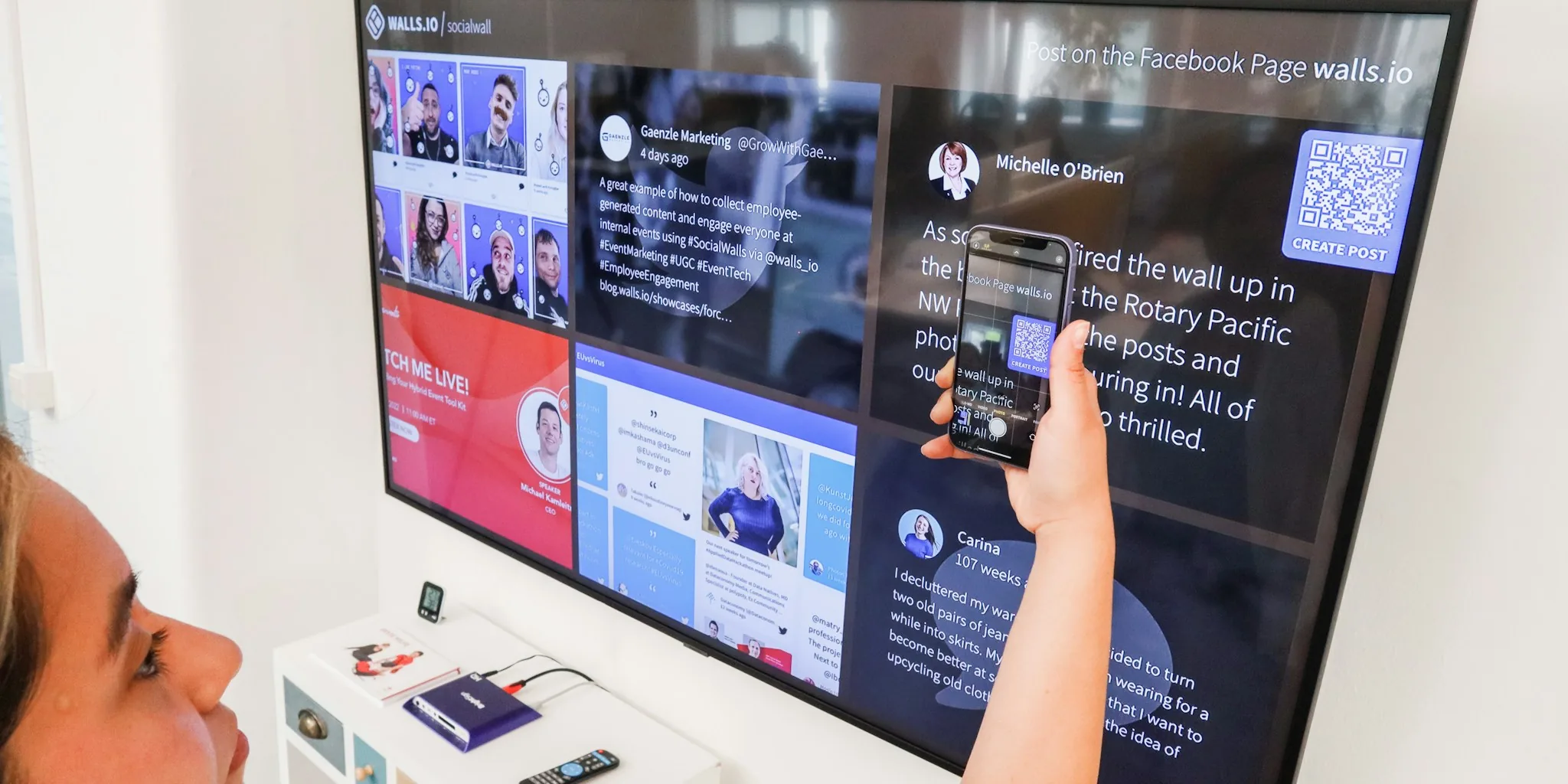
If your smart TV has been sitting in your living room for several years, you’ve probably noticed it doesn’t perform quite like it used to. Apps take longer to load, the menu system feels sluggish, and navigating between screens becomes frustrating. The good news is that you don’t need to buy a new television to fix these problems. A few simple adjustments can breathe new life into your older TV and make the streaming experience feel modern again.
1. Uninstall Apps You No Longer Use
Over the years, you likely download apps out of curiosity, use them once or twice, and then forget about them entirely. These unused applications consume valuable storage space on your TV, which is typically limited compared to phones or tablets. Go through your installed apps systematically and remove anything you haven’t opened in months. This simple cleanup frees up space and reduces the clutter cluttering your home screen, making it easier to find the apps you actually use.
2. Clear App Cache Regularly
Temporary files accumulate inside apps over time, which is supposed to help with faster loading. However, this cache can also take up significant storage space and occasionally cause crashes or slow performance. Clearing the cache won’t delete your login information or saved preferences, so you won’t need to sign back into your accounts. Access your TV’s settings, locate the apps section, and clear the cache for any app that isn’t running smoothly. This maintenance task takes just a few minutes but can noticeably improve app reliability.
3. Enable Developer Options to Speed Up Animations
When you navigate between menus or switch apps, your TV displays smooth animations that are meant to enhance the visual experience. On older hardware, these animations can stutter or make the interface feel slower than it actually is. You can reduce the animation duration without disabling them completely. By adjusting animation settings through Developer Options, you can set transitions to play at half speed instead of full speed. This creates a snappier feel when moving through the interface without making it look jarring or unpolished. The perception of speed improves significantly, even though your TV’s processor isn’t actually any faster.
4. Restart Your TV Properly
A simple power cycle can resolve temporary software glitches that cause slowdowns. Instead of just turning your TV off with the remote, perform a full restart by unplugging it from the power outlet for at least 30 seconds. This clears the device’s memory and forces the system to reload completely. Many performance issues disappear after a proper restart, making it one of the easiest troubleshooting steps to try first.
5. Update Your TV’s Software
Manufacturers release software updates that improve performance and fix bugs affecting older devices. Check your TV’s settings menu for available updates and install any pending patches. These updates sometimes include optimizations that help older hardware run more efficiently. Set your TV to download and install updates automatically so you don’t miss important improvements.
6. Reduce Background Activity and Startup Apps
Some apps run in the background even when you’re not using them, consuming processing power and slowing down your overall experience. Access your settings to see which apps launch automatically when your TV starts up. Disable startup apps that you don’t actually need running constantly. This reduces the load on your TV’s processor and helps the system respond faster when you’re actively using it.
7. Consider a Streaming Device as an Alternative
If you’ve tried all the above steps and your TV still struggles, you might want to consider adding a dedicated streaming device. External devices like media streaming boxes plug directly into your TV’s HDMI port and essentially replace your TV’s built-in smart platform. These devices come with their own processors, updated operating systems, and access to the latest app versions. Evaluating modern streaming hardware can help you find an option that fits your budget and viewing preferences. Even if your TV is five or six years old, adding a streaming device lets you enjoy a current-generation streaming experience without buying a completely new television. This approach is considerably cheaper than replacing your display while giving you access to newer interfaces and faster performance.
Your older smart TV can still deliver an enjoyable streaming experience with a little attention and maintenance. These adjustments don’t require technical expertise or expensive purchases. Start with the simpler steps like uninstalling unused apps and clearing cache, then move on to animation adjustments if you want to further improve responsiveness. Before you decide to replace your TV entirely, give these methods a chance to revitalize your device.
About the author
Maxine is REMOVU's TV writer, comparing OLED, QLED, and LED sets on picture quality, gaming features, and value. She helps readers cut through a crowded field to the right screen.