How to Fix Google Account Storage Filling Up Too Fast
Your 15GB fills fast by design. Here's how to reclaim space with simple, actionable steps.
 By Ava Herrera
Updated September 6, 2026
By Ava Herrera
Updated September 6, 2026

Why Your Google Account Storage Fills So Quickly
Google’s cloud ecosystem is remarkably convenient, automatically backing up your photos, videos, emails, and device data without you lifting a finger. However, this same convenience works against you when it comes to storage management. By design, Google makes it far too easy to hit your 15GB free storage limit, betting that you’ll upgrade to a paid plan. Understanding where your storage goes is the first step toward reclaiming valuable space.
Your Google Account Storage covers three main areas: Google Photos, Google Drive, and Gmail. Each one syncs aggressively with default settings, and each one can balloon in size faster than you realize. The real challenge is that most users don’t know what’s consuming their space or how to control the sync behavior across multiple devices and services.
Delete Videos from Google Photos First

Google Photos is the primary culprit behind rapid storage consumption. Video files are significantly larger than photos, so they should be your first target when you need to free up space. Use the search feature in Google Photos to find all videos at once, then review and delete anything unnecessary. Simply type ‘videos’ in the search bar on mobile or your browser to filter results instantly. You can click each video to preview it before deletion, making it easy to identify unwanted footage like failed attempts or accidental recordings.
Beyond deleting unnecessary media, adjust your upload quality settings. Google Photos defaults to ‘Original quality,’ which uploads files at maximum size. Switch to ‘Storage saver’ mode to compress photos and videos automatically. On mobile, navigate to your profile icon, then Photos settings, Backup, and select Storage saver. On a browser, open Google Photos, click the gear icon, and choose Storage saver. This single change prevents future uploads from consuming excessive space.
Another critical step is disabling Google Photos sync on devices where you don’t need it. If you have the app installed on multiple phones or tablets, each active device is uploading new media continuously. Review your synced devices and turn off backup on any device that doesn’t require it.
Manage Google Drive Shared and Backup Files
Google Drive accumulates storage through three mechanisms: files you create and upload, device backups, and shared files. Start by reviewing your ‘Shared with me’ folder. Files in this section don’t count toward your storage unless you create a copy or move them to your Drive. You can safely remove these shared items by selecting them and dragging them into the trash from the left navigation panel.
If you’ve created shared, collaborative files that you no longer need, consider transferring ownership to someone else before deleting them. This prevents removing access for collaborators while freeing up your space. When sharing files, use Drive links instead of attaching copies whenever possible, as attached copies count double toward your storage quota.
Device backups from your Android phone or other Google devices can also consume significant storage. Access your Google Account settings on your Android device and navigate to Settings, Google, then All services. Scroll to the ‘Backup and restore’ section and tap Backup. Disable backups for apps that sync data to their own cloud service, such as weather apps, social media platforms, and browser data. These backups are redundant since the apps themselves maintain their own copies.
Address Gmail Attachments and Old Messages
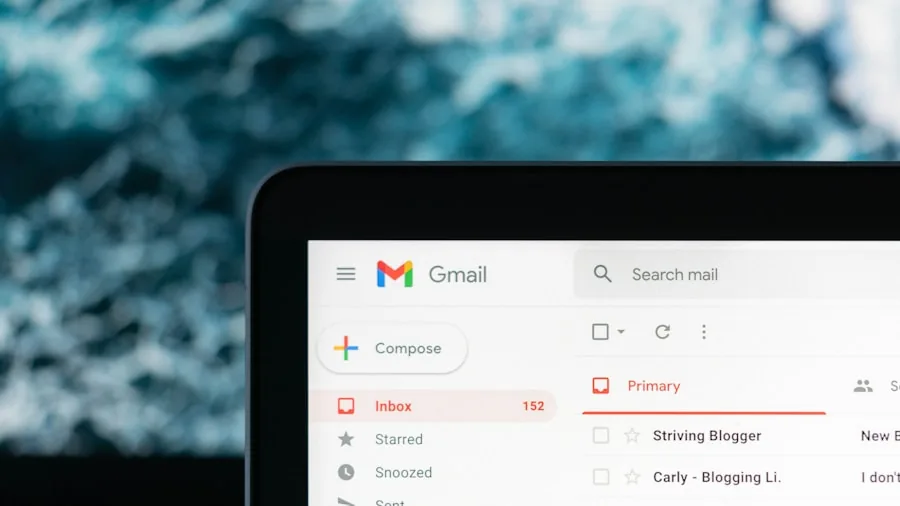
Gmail often gets overlooked as a storage problem, but attachments and accumulated messages can consume surprising amounts of space. Video and large file attachments are the main offenders. If you receive an attachment larger than 50MB, Google automatically stores it on your Drive and converts it to a link in the email, so attachment management is essential.
Create organized folders within Gmail for different message types: Orders, Subscriptions, Promotions, and so on. Regularly sort incoming emails into these folders and delete old messages you no longer need. Your Promotions folder especially tends to accumulate unnecessary emails that can be safely removed.
To find and delete older emails with attachments efficiently, use Gmail’s search feature. Type the search query ‘has:attachment older_than:5y’ (or adjust the year as needed) to display messages with attachments from years past. This method identifies exactly which old messages are hogging space, allowing you to review and delete them in bulk. Combine this with organizing your inbox regularly, and you’ll prevent Gmail from becoming a major storage drain. Whether you’re managing work correspondence or personal messages, keeping your digital communications organized helps you maintain control of your overall storage.
Establish Regular Maintenance Habits
Storage management isn’t a one-time fix. Google Photos continuously uploads new media from your devices, Drive accumulates files from daily work, and Gmail receives new attachments constantly. Set a monthly reminder to review each storage area and remove unnecessary content before you approach your limit.
Check your storage quota regularly through the Google Account storage settings. This dashboard shows you exactly how much space each service is using and gives you a clear picture of where problems are developing. Catching issues early prevents the frustration of receiving storage warnings when you’re trying to back up important photos or documents.
By taking control of your automation settings and performing routine maintenance, you’ll maintain a lean cloud storage system that serves your needs without requiring a paid upgrade. The key is understanding what gets stored where and having the tools to manage it effectively.
About the author
Ava is REMOVU's laptop writer, balancing speed, battery life, and build quality against price across the whole range. She helps readers find the sweet spot as each new chip shifts what a dollar buys.