How to Connect Multiple Monitors with DisplayPort Using One Cable
Connect several displays through a single cable using daisy chaining and MST technology.
 By Tara Russell
Updated August 18, 2026
By Tara Russell
Updated August 18, 2026
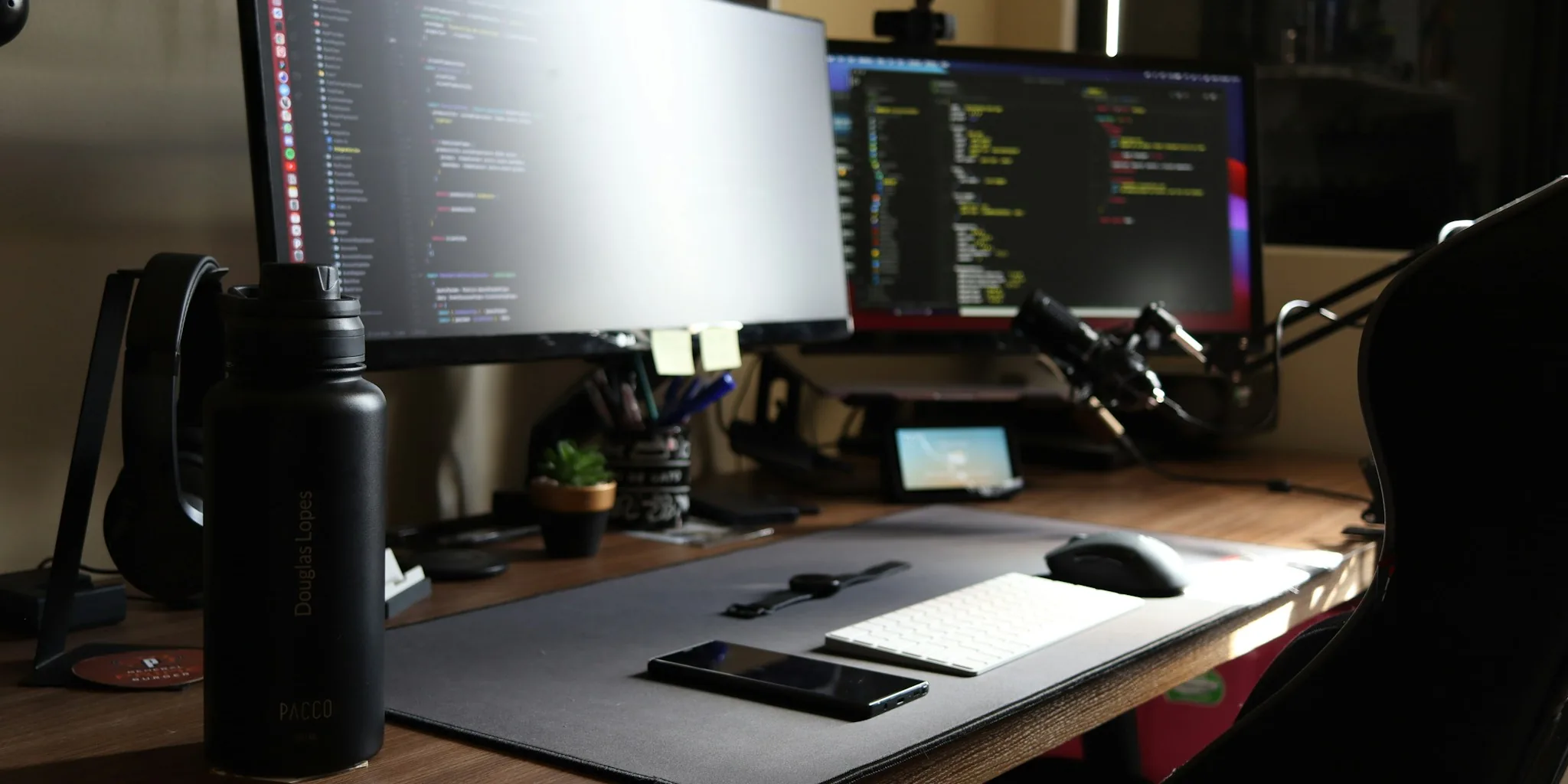
If you’ve assumed that each monitor requires its own dedicated cable connection to your computer, it’s time to reconsider. DisplayPort technology offers a smarter solution that can dramatically simplify your workspace setup. By leveraging Multi Stream Transport, or MST, you can run multiple displays from a single DisplayPort connection, eliminating cable clutter and creating a cleaner desk environment.
Understand Multi Stream Transport Technology
Multi Stream Transport is the technology that powers multiple-monitor connectivity through one DisplayPort cable. This feature has been available on graphics cards and monitors since DisplayPort 1.2 was introduced around 2013, meaning most modern systems already support it. The beauty of MST is that it doesn’t require specialized hardware or complicated setup procedures. Instead, it works by having one monitor receive and process part of the video signal while passing the remainder downstream to the next display in the chain. This elegant solution allows data to flow through multiple screens using just one cable path from your computer.
Verify Your Hardware Compatibility
Before attempting to set up a multi-monitor DisplayPort configuration, confirm that your graphics card supports MST technology. Check your graphics card’s specifications sheet or manufacturer documentation. You’ll also need at least one monitor with a DisplayPort output port, which is typically labeled as “DP Out.” This output port is crucial because it acts as the relay point for the video signal. Alternatively, if none of your monitors have DisplayPort output capability, you can use an MST hub instead, which we’ll discuss in detail later.
Set Up a Daisy Chain Connection
The physical setup for multiple monitors is straightforward and requires only a few basic steps. Connect your computer’s DisplayPort output directly to the first monitor’s DisplayPort input. Then, take another DisplayPort cable and connect it from the first monitor’s DP output to the second monitor’s input port. The final monitor in this chain needs only a standard DisplayPort input and doesn’t require an output port since it’s the endpoint of the signal path.
This arrangement is called “daisy chaining,” and it can be extended as far as your system supports. After making the physical connections, access the first monitor’s settings menu and enable the MST function. Windows will automatically detect the additional displays and add them to your system. You can then arrange them in Windows display settings according to your preferences, mirroring them or extending your desktop across all screens.
Choose Multiple DisplayPort Connections as an Alternative
If your computer has several DisplayPort ports available, you don’t need to use daisy chaining at all. Simply connect each monitor directly to its own DisplayPort port on your graphics card. This approach can sometimes offer improved stability and refresh rate consistency compared to daisy chaining, though both methods are perfectly valid. The choice between this method and daisy chaining depends on your specific hardware configuration and whether you want to minimize cable runs.
Use an MST Hub for Maximum Flexibility
If your monitors lack DisplayPort output ports, or if you want even greater flexibility in your setup, consider investing in an MST hub. This device connects to your computer’s DisplayPort or USB-C port and distributes the video signal across multiple display outputs. An MST hub is particularly useful for laptop users, as many portable computers feature only a single video output port. By using an MST hub, you can maintain a multi-monitor setup while keeping your cable management clean and organized, even if you’re working with limited ports on your device.
Optimize Your Display Arrangement
Once your monitors are connected and recognized by Windows, spend time configuring them in your display settings. You can arrange monitors in any layout that matches your physical desk setup, whether that’s a horizontal line, an L-shape, or another configuration. The operating system will understand where each display is positioned relative to the others, making your cursor movement and window management feel natural. Taking a few minutes to properly configure this arrangement pays dividends in daily usability.
Troubleshoot Common Issues
If your additional monitors aren’t detected automatically, first verify that MST is enabled in the first monitor’s menu system. Consult your monitor’s manual for the exact menu location, as this varies by manufacturer. You might also try unplugging and replugging the cables to force Windows to recognize the new displays. If problems persist, updating your graphics card drivers could resolve compatibility issues. Most driver updates include improvements to DisplayPort functionality and MST support.
DisplayPort’s ability to handle multiple monitors through a single cable represents a significant advancement in workspace efficiency. Whether you’re using multiple displays for professional work or creative pursuits, this technology simplifies the physical setup while delivering clean, organized cable management. By understanding how Multi Stream Transport works and following these straightforward setup procedures, you can create a professional multi-monitor workspace that looks as clean and organized as it performs.
About the author
Tara writes about monitors for REMOVU, balancing resolution, panel quality, and size for work and creative use. She helps readers match a display to the way they actually work.