How to Choose the Right Refresh Rate for Your Gaming Monitor
Higher isn't always better. Here's how to pick the refresh rate that matches your needs.
 By Jamie Kuhn
Updated November 26, 2026
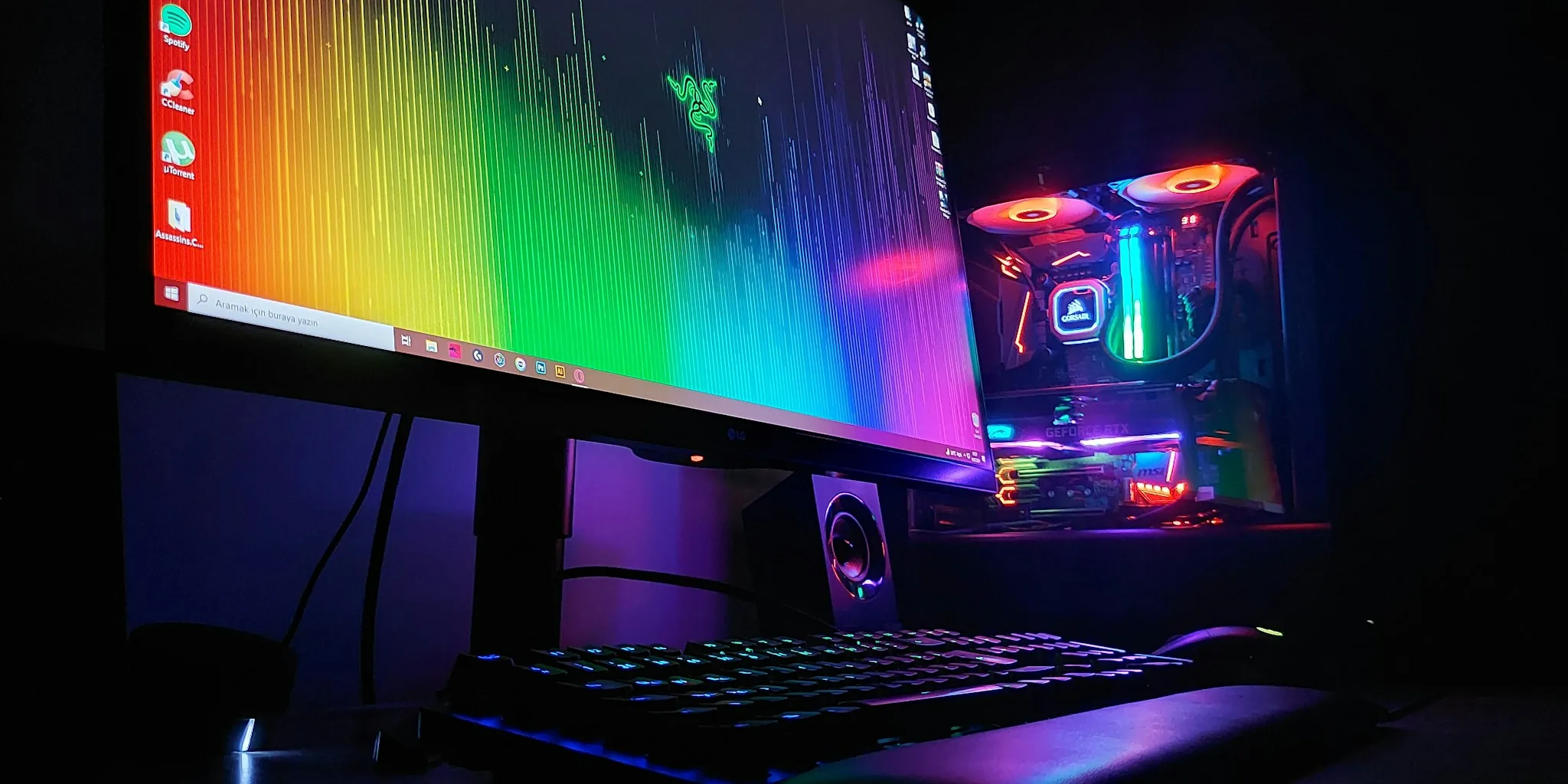
Refresh rate is one of the most discussed specs in gaming displays, but it’s also one of the most misunderstood. Many shoppers focus solely on hitting the highest number possible, assuming more is always better. The reality is more nuanced. Understanding refresh rate and how it interacts with your graphics card, your games, and your specific use case will help you make a purchase decision that actually matches your needs and budget.
Understanding Refresh Rate Basics
Refresh rate measures how many times per second your monitor updates the image on screen, expressed in Hertz (Hz). A 60Hz display refreshes 60 times per second, while a 240Hz display refreshes 240 times per second. Higher refresh rates reduce motion blur and can make fast-paced games feel smoother and more responsive. However, your graphics card must actually output enough frames per second to take advantage of that higher refresh rate. If your GPU maxes out at 100 frames per second but your monitor can display 240Hz, you’re only seeing 100 of those potential refreshes.
Frame Rate and Refresh Rate Synchronization
The relationship between your frame rate output and your monitor’s refresh rate capability matters significantly. When these numbers fall out of sync, you may experience screen tearing, where portions of multiple frames appear on screen simultaneously, creating a jarring visual artifact. This is why variable refresh rate technology, branded as G-Sync by Nvidia and FreeSync by AMD, became so valuable in gaming monitors. VRR allows your display to adjust its refresh rate dynamically to match whatever frame rate your GPU is producing at any given moment.
The Issue of VRR Flicker at Specific Frame Rates
OLED gaming monitors have become increasingly popular, but they can experience a subtle visual problem called VRR flicker, particularly at around 60 frames per second. This manifests as barely noticeable pulsing or shimmer, especially visible during dark loading screens or static cutscenes. The issue stems from how graphics drivers handle frame doubling at lower frame rates. Most VRR displays support a range, typically from 48Hz up to their maximum refresh rate. When your frame rate dips below that floor, the driver begins showing each frame multiple times. On high-refresh-rate monitors, this frame doubling often begins around 58 to 65 FPS rather than at the technical floor, creating a problematic middle ground where your monitor rapidly switches between displaying frames once versus twice. This constant switching triggers brightness shifts that read as flicker on OLED panels.
Matching Refresh Rate to Your Games and Performance
Your ideal refresh rate depends largely on what you play and what performance your hardware can deliver. Competitive online shooters benefit tremendously from higher refresh rates, as 144Hz or 165Hz can noticeably improve your ability to track moving targets and react quickly. If you primarily play story-driven single-player games, campaign-based titles, or console ports, you may find that 60Hz or 120Hz feels completely adequate. Curved gaming monitors at various refresh rates can enhance immersion regardless of the specific Hz number.
Budget Considerations and Diminishing Returns
Display price increases substantially as refresh rate climbs. The jump from 60Hz to 144Hz represents a meaningful cost increase for a substantial visual improvement. The jump from 144Hz to 240Hz costs considerably more but delivers returns that many players find less dramatic. Consider your actual GPU capability before investing heavily in ultra-high refresh rates. If your graphics card struggles to output 240 frames per second consistently, buying a 240Hz display becomes an exercise in future-proofing that may not make financial sense today.
Optimize Your Refresh Rate Settings
Once you’ve selected a monitor, don’t assume its default settings are optimal for your situation. VRR can be toggled on or off depending on your preference and your specific monitor model. Some OLED displays with VRR enabled experience that problematic flicker issue at certain frame rates. Using driver tools to adjust how your graphics processor handles variable refresh rate behavior at lower frame rates can eliminate this common trigger. This kind of optimization requires just a few minutes but can dramatically improve your experience, particularly if you play games that frequently run around 60 FPS.
Future-Proofing Your Monitor Purchase
Displays last much longer than graphics cards. While your GPU may become outdated within four to five years, a good monitor can serve you for seven to ten years or longer. This suggests choosing a refresh rate somewhat ahead of your current hardware’s capabilities makes sense. However, avoid the trap of purchasing a 360Hz display if your budget could instead afford a 165Hz option with superior panel quality, color accuracy, or size. The best monitors balance overall value across multiple dimensions, not just the refresh rate number.
By understanding how refresh rate functions within your complete system, matching it to your actual gaming patterns, and taking advantage of driver optimization tools available to you, you’ll maximize your display investment and enjoy the smoothest possible gaming experience for years to come.
About the author
Jamie is REMOVU's gaming monitor writer, comparing refresh rate, response time, and motion clarity across panel types. He helps players find smooth, responsive displays at every budget.