How to Choose Google Maps Settings to Maximize Your Phone Battery on Long Drives
Three simple settings changes reduce Google Maps battery drain and keep your phone powered through long drives.
 By Eleanor Garcia
Updated October 12, 2026
By Eleanor Garcia
Updated October 12, 2026
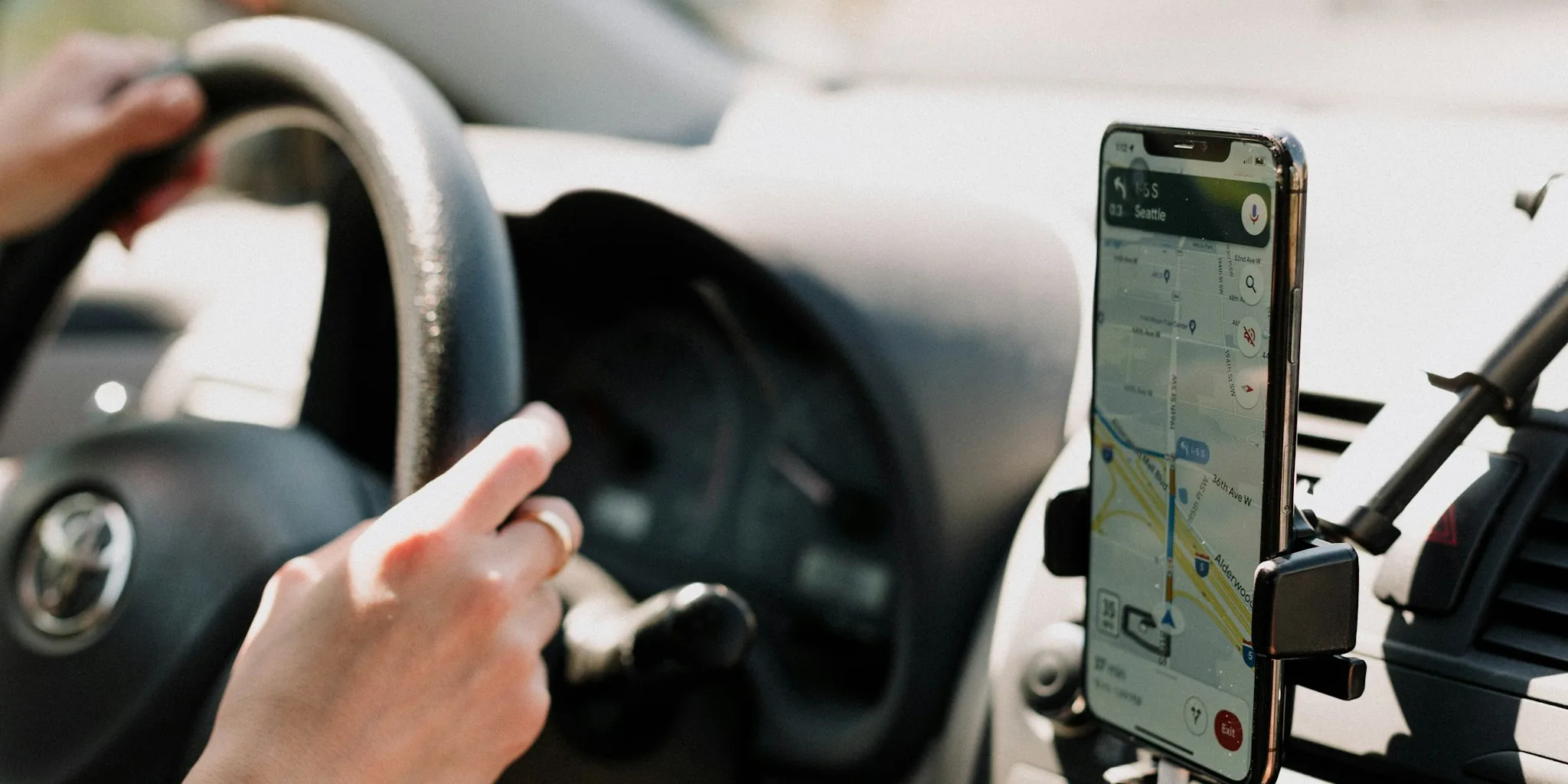
Long road trips can be stressful enough without watching your phone battery drain to critical levels before you reach your destination. If you rely on Google Maps for navigation during extended drives, you may have noticed the app consuming power at an alarming rate. The good news is that several adjustable settings within Google Maps can significantly reduce battery drain while maintaining the navigation features you actually need.
By making strategic changes to how Google Maps operates, you can extend your phone’s battery life by several hours without sacrificing the core functionality that keeps you on the right route. These adjustments are straightforward to implement and don’t require special hardware or workarounds.
Use Glanceable Directions to Keep Your Display Off
One of the most effective ways to preserve battery life is to enable Glanceable Directions While Navigating. This feature displays your turn-by-turn navigation directly on your phone’s lock screen, eliminating the need to keep the main app open and your display constantly active.
Since your phone’s display is one of the largest power consumers on any device, keeping it off for most of your journey can add hours of battery life. With Glanceable Directions activated, you get all the essential information at a glance: upcoming turns, estimated arrival time, remaining distance, and route progress. This streamlined view provides everything necessary for safe navigation during long drives.
To enable this feature, open Google Maps and tap your profile picture in the top right corner. Select Settings, navigate to the Navigation section, and toggle on Glanceable Directions While Navigating. The setup takes less than a minute, and you’ll immediately notice the difference in battery consumption on your next trip.
Download Maps for Offline Navigation

Downloading maps for offline use is an underutilized feature that can substantially reduce both battery consumption and data usage during navigation. When you download a map region in advance, Google Maps accesses locally stored navigation data instead of constantly pulling information from the internet.
This offline capability means your phone doesn’t need to maintain active network connections throughout your drive, which is a major battery drain. Additionally, offline maps work perfectly fine even in areas with poor cellular coverage, making them invaluable for drives through rural regions or areas with unreliable network infrastructure.
To download offline maps, tap your profile icon and select Offline Maps. Choose Select Your Own Map, highlight the region you plan to travel through, and tap Download. When preparing for a trip, download a larger area than your exact route to account for potential detours or changes in direction.
Keep in mind that while offline maps provide turn-by-turn directions without internet, you won’t receive real-time traffic updates when disconnected. For this reason, it’s still wise to keep mobile data enabled when possible so you can benefit from live traffic information and dynamic route adjustments.
Enable Power Saving Mode on Compatible Devices

Google Maps includes a dedicated Power Saving Mode that strips away non-essential visual elements and displays navigation on a simplified black-and-white interface. This mode removes elements like 3D building renderings, street labels, and other decorative features, leaving only the critical navigation information you need to reach your destination.
By reducing the visual complexity of the display, Power Saving Mode directly improves battery efficiency. Your phone’s processor works less hard to render detailed graphics, and your screen uses less energy displaying a minimalist interface.
Currently, this feature is limited to select Pixel devices including the Pixel 10, Pixel 10 Pro, Pixel 10 Pro XL, and Pixel 10 Pro Fold. Google may expand availability to other devices in the future. When available on your device, activate Power Saving Mode by opening Google Maps Settings, going to Navigation, scrolling to Driving Options, and enabling the Power Saving Mode toggle.
Note that this mode functions only when your phone is in portrait orientation and you’re actively in driving mode. Once enabled, you can activate it during navigation by pressing your device’s power button once.
Put These Settings Into Practice
Implementing these three settings changes creates a noticeably different experience on long drives. Your phone’s battery will last significantly longer, often providing an additional two to three hours of navigation without requiring a charge.
While some drivers consider charging their phone through a car’s USB port as a backup solution, many vehicles provide insufficient power through these ports. Your phone frequently ends up more drained by the end of the trip than when you started, even while connected. With these optimized settings, you won’t face this frustration.
The beauty of these adjustments is that they don’t compromise the core navigation experience. You retain all the information necessary for safe, confident driving. If you frequently take long road trips or drive through areas with spotty coverage, these settings are essential. They transform navigation from a battery-draining concern into a reliable, efficient tool that accompanies you throughout your entire journey.
About the author
Eleanor covers smartphones for REMOVU, balancing cameras, battery life, and software support against price. She helps readers find the best value as the field shifts with every release.