MacBook USB-C Ports Explained: What Shoppers Need to Know About Missing Labels
Why Apple removed port labels from MacBooks and how to identify your device's actual capabilities.
 By Ava Herrera
Updated November 13, 2026

Apple’s decision to leave USB-C ports unlabeled on MacBooks has puzzled many users and generated questions about which cables work with which ports. Understanding this design choice and what it means for your device will help you charge and connect peripherals without confusion.
Why Apple Removed the Labels
Modern MacBooks, along with iMac and Mac Studio computers, use unified port designs that accept both Thunderbolt and USB-C cables interchangeably. Since these ports are multifunctional by design, Apple determined that adding individual labels would be redundant. The company has never publicly explained this approach, but the industry consensus suggests that such markings became unnecessary once the ports achieved true compatibility across cable types.
Another factor contributing to this choice is the sleek, minimalist design language Apple has embraced. MacBooks are among the thinnest laptops available, leaving limited physical space for additional symbols or text near port openings. Manufacturers must make difficult decisions about where to allocate that precious real estate, and Apple prioritized overall aesthetics over port identification.
Understanding the Actual Differences
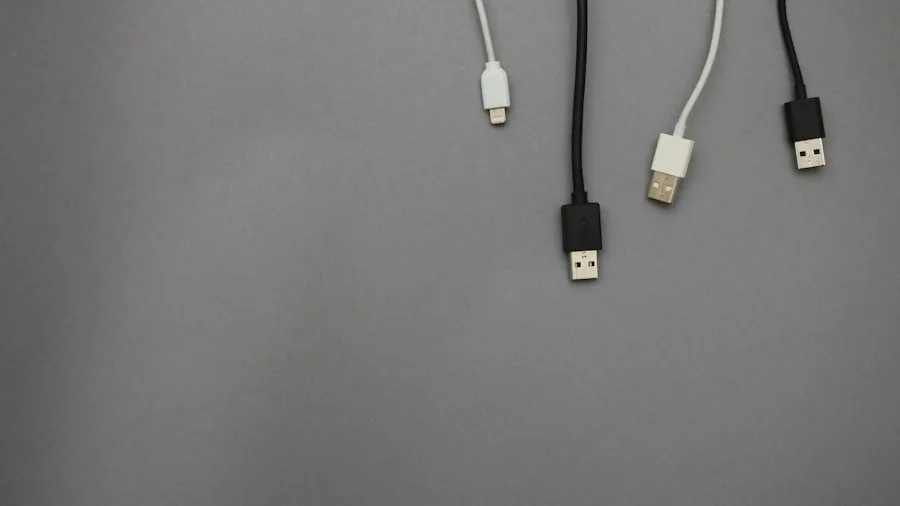
The confusion around USB-C labeling stems from a fundamental misconception about what the term means. USB-C only describes the physical shape of the port, not its capabilities or intended function. Two ports can look identical yet perform very differently depending on the device and its internal hardware configuration.
On current MacBooks, some ports may display a Thunderbolt symbol while others appear completely unmarked. This distinction matters more than many shoppers realize. Ports labeled with the Thunderbolt bolt symbol are primarily engineered for Thunderbolt functionality, though they will accept standard USB-C cables for charging and basic data transfer. Unmarked ports work with USB-C cables for charging, though they may have different performance characteristics depending on your specific model.
The 2025 and later MacBook Air, 2024 and later 14-inch MacBook Pro with Pro or Max chips, and newer Mac Studio computers all follow this design pattern. Each model might have different port capabilities, making it essential to verify your device’s specifications before connecting expensive peripherals.
How to Identify Your Ports Correctly
Rather than relying on visual inspection or guesswork, Apple provides clear documentation for each MacBook model. To find authoritative information about your device’s ports, open the Apple menu and select About This Mac. This screen displays your exact model identifier, which you can then use to search Apple’s support documentation.
Visit the Apple Support website and enter your model name in the search bar. Navigate to the Technical Specifications page for your device, where you will find a section titled Charging and Expansion. This section explicitly details each port’s capabilities, whether it supports Thunderbolt, USB-C, or both, and what speeds you can expect for data transfer and power delivery.
Taking 30 seconds to check these specifications can save frustration when purchasing docking stations or other connectivity accessories later. Many owners discover incompatibilities only after connecting new equipment, so verification beforehand is a smart practice.
What This Means for Your Charging Setup
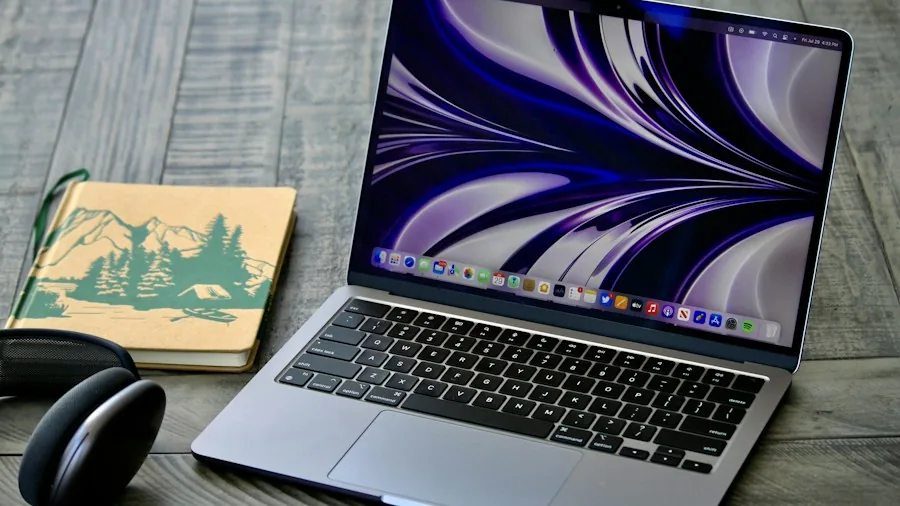
USB-C cables are now the industry standard, appearing on everything from smartphones to tablets to external drives. The good news is that nearly any USB-C cable will charge your MacBook, regardless of whether your ports display a Thunderbolt symbol. This universal approach means you can use the same cable with multiple devices throughout your home and office.
However, differences emerge when transferring large files or connecting external displays. Thunderbolt-equipped ports deliver faster data transfer speeds and support high-resolution displays with additional bandwidth. If you frequently work with video editing, large photo libraries, or multiple external monitors, knowing your port type becomes important for workflow optimization.
When shopping for portable charging solutions or expansion accessories, cross-reference the product specifications with your MacBook’s documented port capabilities. This approach ensures compatibility and prevents purchasing equipment that won’t meet your performance expectations.
Moving Forward
Apple’s minimalist labeling philosophy reflects broader industry trends toward cleaner device designs and universal standards. While this approach creates initial confusion for new users, it ultimately simplifies the manufacturing process and reduces visual clutter on increasingly compact devices. Understanding that USB-C describes shape rather than function, and taking time to review your specific model’s documentation, will eliminate most connectivity concerns and help you make informed purchasing decisions for accessories and peripherals.
About the author
Ava is REMOVU's laptop writer, balancing speed, battery life, and build quality against price across the whole range. She helps readers find the sweet spot as each new chip shifts what a dollar buys.