7 Tips to Disable Annoying Google Maps Features and Customize Navigation
Discover how to silence intrusive alerts, adjust voice guidance, and protect your privacy with these practical customization tips.
 By Ava Herrera
Updated November 13, 2026
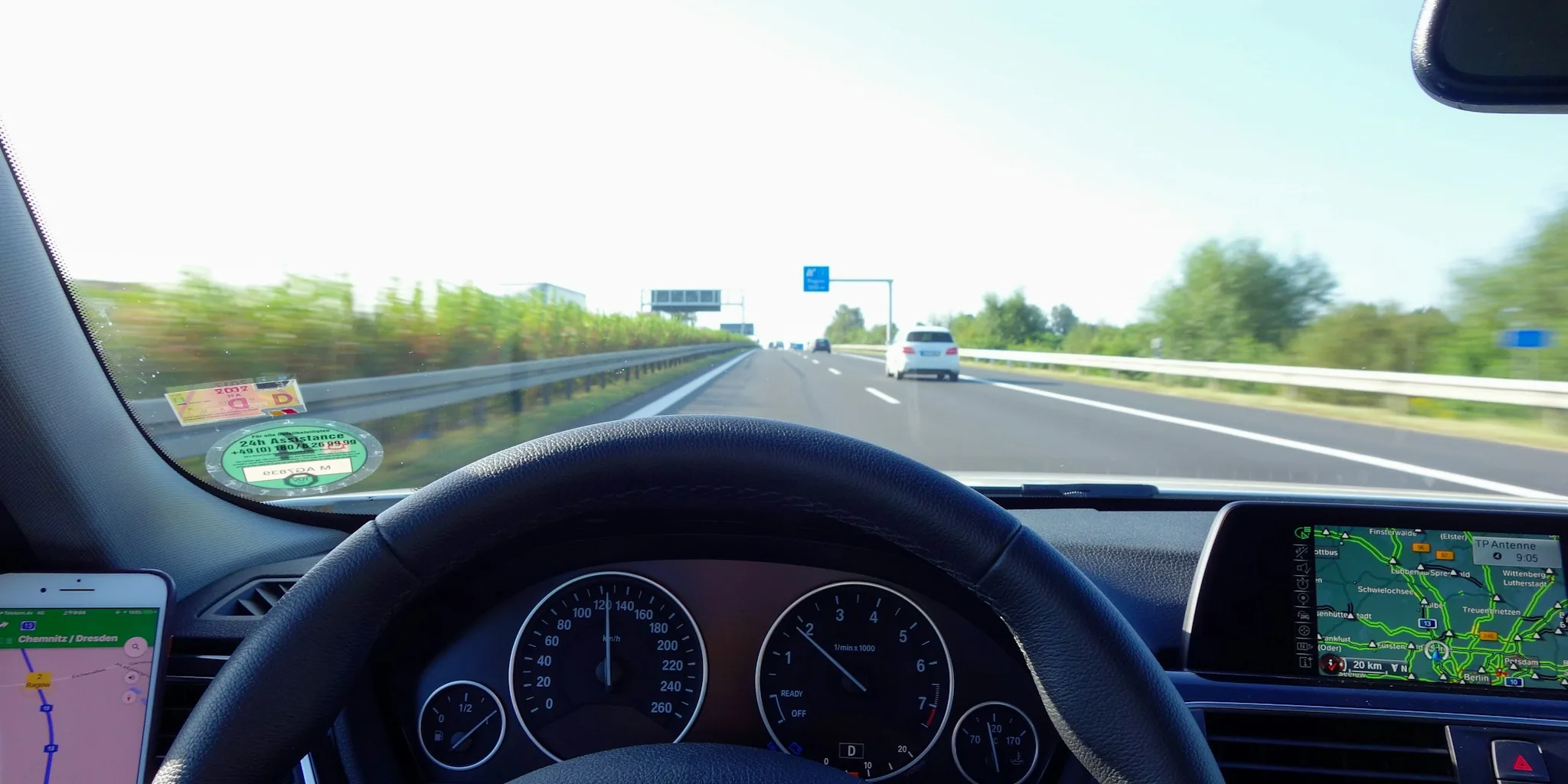
Google Maps is one of the most popular navigation apps on smartphones, but its default settings and design choices can create unnecessary distractions and frustrations while driving. If you’ve ever felt bombarded by notifications, unwanted alerts, or irrelevant recommendations, you’re not alone. The good news is that most of these bothersome features can be turned off with a few simple adjustments to your settings.
Turn Off Intrusive Questions and Alerts While Driving
Google Maps constantly asks for feedback about your driving experience, road conditions, and nearby incidents. While crowdsourced information can be valuable, these prompts can pull your attention away from the road. To silence these interruptions, open Google Maps and tap your profile icon in the top right corner, then navigate to Settings, followed by Notifications. Look for the Q&A and chat section and disable “Your area, roads, and trips.” This single adjustment will significantly reduce distracting questions during your journey. You should also consider turning off alert notifications for reported incidents unless you specifically find them helpful for route planning.
Adjust Voice Guidance to Your Preference

Navigation voice instructions present a common problem with two extremes: either the app talks constantly about every turn, or it stays silent when you need guidance most. If you’re familiar with your route and only need help during the final segments, constant verbal directions become annoying. Conversely, silence in an unfamiliar city can cause you to miss important turns. Address this by going to Settings and selecting Navigation. You’ll find options for “Mute state” and “Guidance volume” under the Sound & Voice section. Adjust these settings based on your comfort level and familiarity with your planned route. You can even modify these preferences on the fly during navigation to match your needs in real time.
Configure Fuel Type Recommendations for Your Vehicle
Google Maps defaults to showing gas station locations, which works perfectly for most drivers. However, if you drive an electric vehicle, hybrid, or alternative fuel vehicle, this default setting wastes your time and screen space. Navigate to Settings and select Your vehicles to tell Google Maps what type of vehicle you operate. If you drive an EV, you can specify your charging connector type as well, whether it’s Tesla Supercharger, CCS, CHAdeMO, or another standard. Once configured, searching along your route will prioritize charging stations over gas pumps, streamlining your trip planning considerably.
Limit Location Tracking and Timeline History
One of the most invasive features within Google Maps is Timeline, which maintains a detailed record of everywhere you’ve traveled. Over time, this creates a comprehensive history spanning months or even years of your movements. While this feature can be useful for personal reference, the privacy implications are significant, especially if someone gains access to your account. To disable this feature, go to Settings, tap Location & privacy, scroll down to Timeline, and turn it off. You can also delete any existing location history that Google has already stored. Additionally, ensure your account password is strong and unique to prevent unauthorized access. Smartwatches and other connected devices often sync with Google Maps, so review all connected devices in your account settings.
Clean Up Notification Preferences Broadly
Beyond the specific settings mentioned above, Google Maps sends numerous notifications about new restaurants, trending locations, and special offers. Most of these are essentially advertisements masquerading as helpful suggestions. Return to your notification settings and review each category, disabling those that don’t align with your actual needs. This cleanup process takes just a few minutes but dramatically reduces the noise you receive from the app. You’ll enjoy a cleaner, less cluttered experience overall.
Consider Alternative Navigation Applications
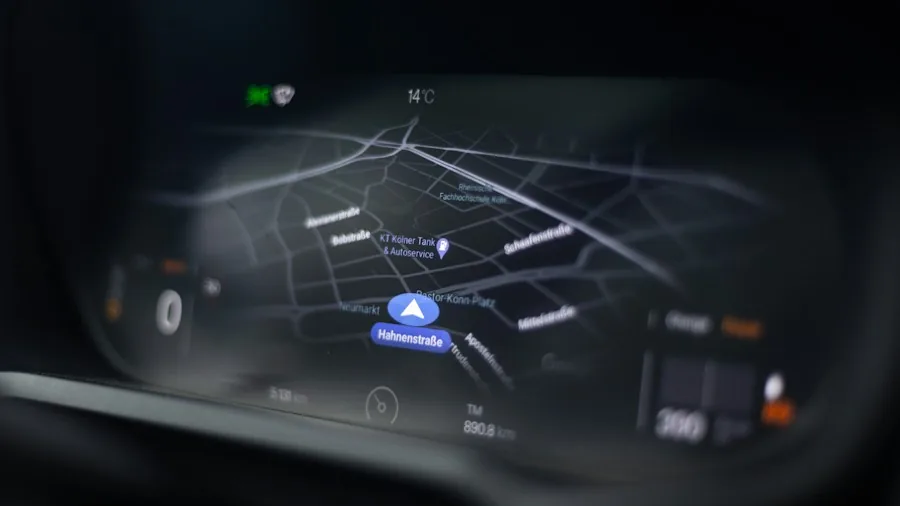
If Google Maps continues to frustrate you despite these customizations, alternative navigation apps exist that may better suit your preferences. Many tech enthusiasts and content creators explore options like HERE Maps, Magic Earth, OSMAnd, and Organic Maps, each offering different strengths. Some prioritize privacy, others emphasize offline functionality, and some leverage open-source technology. Spending time evaluating these alternatives might reveal a navigation solution that requires far fewer adjustments and delivers a better user experience from the start.
Maintain Your Customizations
After making these changes, periodically review your settings as Google frequently updates the app with new features and sometimes resets preferences. Set a reminder to check your notification and privacy settings every few months. This ensures that new default behaviors don’t sneak in and reinstate the annoying features you’ve worked to disable. Staying proactive about your settings keeps your personal data secure and your experience streamlined, similar to how you’d maintain privacy settings on other connected devices and services.
By implementing these seven strategies, you’ll transform Google Maps from a source of distraction into a streamlined navigation tool that respects your preferences and protects your privacy. The app’s core functionality remains excellent, but only when you’ve customized it to match your actual needs rather than accepting Google’s default assumptions about what drivers want.
About the author
Ava is REMOVU's laptop writer, balancing speed, battery life, and build quality against price across the whole range. She helps readers find the sweet spot as each new chip shifts what a dollar buys.