7 Samsung Galaxy Features You Should Actually Use Every Day
Discover practical Samsung Galaxy tools that solve real problems and deserve a place in your daily routine.
 By Eleanor Garcia
Updated November 7, 2026
Make the Most of Your Samsung Phone with These Practical Tips
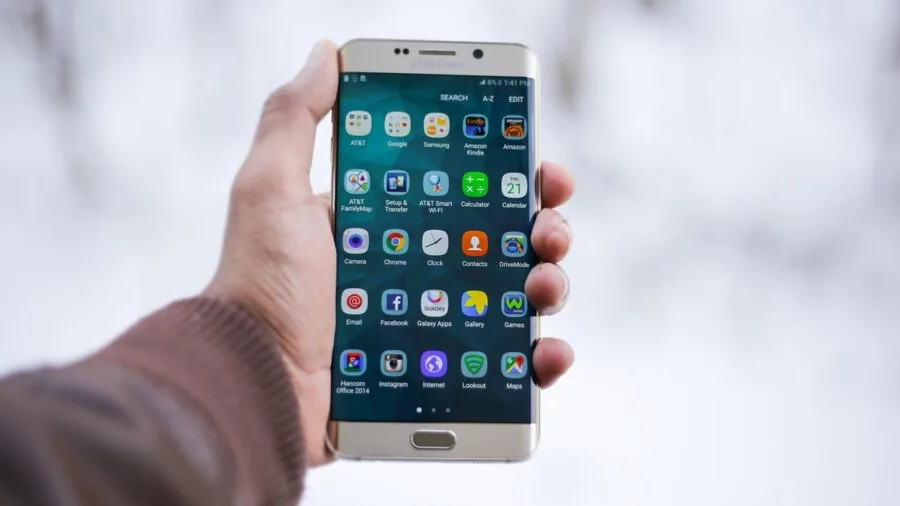
Samsung Galaxy phones are loaded with capabilities that go far beyond basic texting and calling. The sheer volume of features built into One UI means many useful tools get overlooked or forgotten. If you own a Galaxy device, you’re likely sitting on several hidden gems that could genuinely simplify your daily routine. The key is knowing where to find them and how to activate them.
The following features represent some of the most practical options available on your Samsung phone. Each one solves a real problem you’ve probably faced at some point, whether it’s managing your photo library, controlling notifications, or multitasking more efficiently. Once you enable these settings, you’ll wonder how you ever lived without them.
Customize Your Gallery Album Cover Images
Every album in your Samsung Gallery app displays a cover image that represents its contents. By default, this is the most recent photo in that folder. If you’ve ever cringed when opening your gallery to show someone a photo, only to see a screenshot or personal image you didn’t want visible, you understand the value of controlling what people see first.
Change which photo appears as the album cover by long-pressing any album, tapping the three-dot menu button, and selecting “Change cover image.” Choose any photo from that album to display as the permanent cover, then hit Apply. This simple action keeps your gallery looking polished and prevents awkward moments when sharing your phone with friends or family. Apply this to all your albums except Recent to maintain complete control over your visual library.
Enable the Alarm “Turn Back On” Reminder
Weekends and days off require turning off your alarm, but the real challenge comes Monday morning when you need to remember to turn it back on. Samsung’s solution is elegantly simple: a helpful notification that appears when you disable an alarm. This toast message asks if you’d like the system to “Turn back on for tomorrow,” letting you skip just one day without losing your weekday routine.
If you normally wake at 6:30 every weekday but want to sleep in on Saturday, disable the alarm and accept the suggestion to restore it automatically for Sunday. You’ll never again wake up at 9 AM, panicked because you forgot to re-enable your alarm. This small feature prevents the anxious moment of realizing you’ve overslept and made you late for work or commitments.
Master Gesture Controls for Instant Muting
Your Samsung Galaxy includes several gesture controls that remain underutilized despite their genuine usefulness. The “Mute with gestures” feature is particularly valuable when you need to silence incoming calls or alarms without touching buttons.
Navigate to Settings, select Advanced features, then Motions and gestures, and toggle on “Mute with gestures.” From this menu, you’ll discover multiple gesture options worth exploring. Place your hand over the screen or flip your phone over to instantly silence notifications. These gestures work beautifully in situations where you can’t reach the volume buttons, such as during a meeting, in a dark room, or when your hands are full.
If you own a Galaxy Watch, the gestures extend to your wrist as well. A quick shake can reject incoming calls directly from your watch, offering convenience that goes beyond your phone. Galaxy smartwatches with gesture controls provide seamless integration across your Samsung ecosystem.
Create App Pair Shortcuts for Instant Multitasking
The App Pair feature represents one of the most productive additions to Samsung phones, yet many owners remain unaware it exists. This capability lets you launch two apps simultaneously in split-screen mode using a single tap on your home screen.
Think about the app combinations you use regularly: YouTube and a browser, Gmail and your calendar, or a messaging app paired with your notes application. Instead of opening each separately, open both in split-screen view, tap the divider between them, and select the star icon. Save this pair to your home screen, and future access requires just one tap. For Galaxy Z Fold owners, the same principle applies, with the added bonus of fitting three apps on screen simultaneously.
This feature transforms how you work on your phone, especially if you frequently reference information from one app while using another. Video creators often pair streaming apps with communication tools to manage content while staying connected.
Explore Additional Hidden Capabilities
Beyond these primary features, your Samsung Galaxy contains several other useful tools worth investigating. Modes and Routines allow you to create automatic settings changes based on time, location, or activity. One-Hand Operation+ makes navigating your phone easier when using it single-handed. Customizable app sounds let different applications have distinct notification tones, helping you identify which app needs attention without looking at your screen.
The notification management system has also received improvements that reduce overwhelming alerts while keeping you informed about what matters most. Spending time in your settings to explore these features transforms your phone from a capable device into a truly personalized tool.
Samsung Galaxy phones excel because they provide power users with meaningful customization while remaining accessible to casual users. These features represent just a fraction of what your device can accomplish. Take time this week to enable a few of these tools, and you’ll immediately notice how they improve your daily experience.
About the author
Eleanor covers smartphones for REMOVU, balancing cameras, battery life, and software support against price. She helps readers find the best value as the field shifts with every release.