iPhone Location Tracking: Essential Privacy Settings Shoppers Should Know Now
Your wireless carrier may be tracking your iPhone. Here's how to take back your privacy with Apple's newest controls.
 By Eleanor Garcia
Updated November 5, 2026
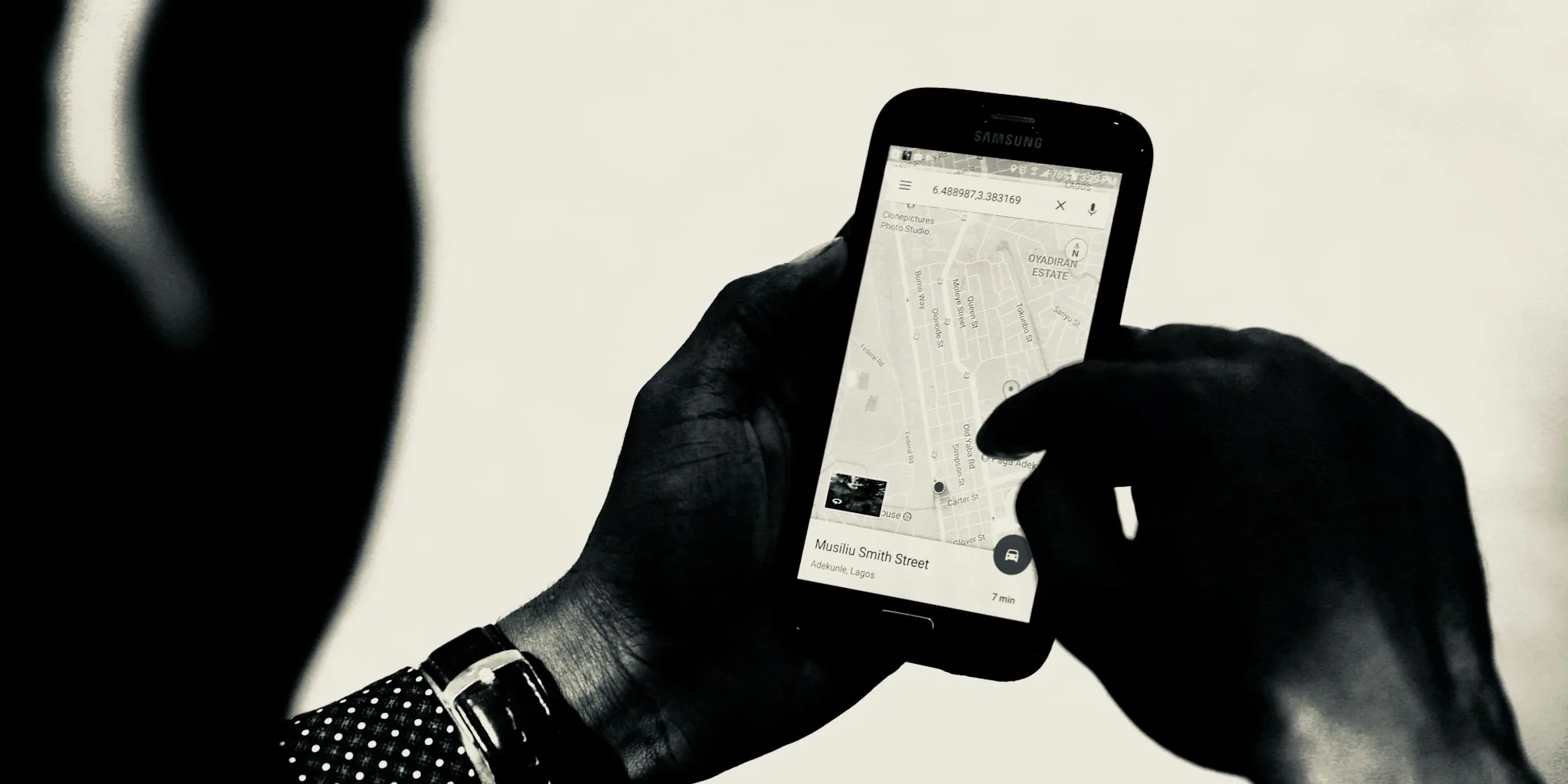
If you own an iPhone, your wireless carrier may be tracking your location data more closely than you realize. Major carriers have faced significant fines from the FCC for sharing and selling customer location information without proper consent. The good news: Apple has introduced privacy controls that give you real power over who can access your location data, and understanding these settings is crucial for protecting your personal information.
How Carriers Track Your iPhone
Wireless carriers collect location data from iPhones as part of their network operations, but historically this information has been shared with third parties or sold for profit. Your cellular provider can determine your approximate location based on which cell towers your device connects to, and without proper safeguards, this data represents a significant privacy vulnerability. The FCC has repeatedly penalized carriers for this practice, making it clear that consumers deserve better protection.
Apple’s New Precise Location Controls

Starting with iOS 26.3, Apple introduced the Limit Precise Location feature, a powerful tool that restricts how much location information reaches your cellular network. When you enable this setting, your carrier may only detect your approximate location, such as your neighborhood, rather than your exact street address. Apple confirms this feature won’t compromise signal quality, emergency services access, or functions like Find My, making it a win for privacy without sacrificing essential functionality.
Currently, this feature requires carrier support and is only available with certain iPhone models that include Apple’s custom modem, such as the iPhone Air, iPhone 16e, and newer devices. In the United States, Boost Mobile is the primary carrier offering this support, though carriers across Europe and Asia have begun rolling it out.
Managing App-Level Location Permissions
Beyond carrier tracking, individual apps on your iPhone request location access for various purposes. Navigate to Settings > Privacy & Security > Location Services to review and control which applications can access your location. You’ll find four permission levels for each app:
- Never completely blocks location access
- Ask Next Time or When I Share prompts you each time the app requests location data
- While Using the App restricts access to moments when you actively use the application
- Always permits continuous tracking, even when the app runs in the background
Purple and gray arrow icons next to app names indicate recent location activity. A purple arrow means the app accessed your location recently, while gray indicates access within the last 24 hours. This visual feedback helps you identify which iPhone and smartphone apps are most data-hungry.
Control Precise Location Sharing with Apps
Even if you allow an app location access, you can toggle off Precise Location within individual app settings. This forces apps to work with approximate location data only, which suffices for most services like weather apps or general navigation. However, ride-sharing services and turn-by-turn mapping genuinely need precise coordinates, so you may choose to enable this feature selectively for those applications.
Disable Unnecessary System Services
Apple’s Location Services extend beyond user-facing apps. Within Settings > Privacy & Security > Location Services > System Services, you’ll discover numerous background location features you can disable. Many of these are optional and worth turning off if you don’t use associated features. Features like Cell Network Search, Networking & Wireless, and iPhone Analytics send location data to Apple without providing direct benefit to most users. Conversely, keep Emergency Calls & SOS active, as it ensures first responders can locate you during emergencies.
Other toggleable services include Compass Calibration, HomeKit automation, location-based alerts, and time zone adjustments. Motion Calibration and Distance tracking prove useful only if you rely on fitness apps, so disable them if you don’t track workouts. Apple smartwatches and fitness devices pair well with these features when actively in use, but they’re expendable otherwise.
Enable Location Status Indicators
Within the System Services menu, activate Status Bar Icon to display a small arrow in your status bar whenever location services are active. This visual indicator reveals when your iPhone is accessing location data in real time, providing transparency into what’s happening behind the scenes.
What This Means for iPhone Shoppers
If privacy matters to you, location tracking capabilities should factor into your iPhone purchase decisions. Newer models with Apple’s custom modem offer superior privacy protections that older phones cannot match. Additionally, your current wireless carrier’s support for precise location limiting determines how much protection you can actually achieve. Consider contacting your carrier to ask whether they support Apple’s Limit Precise Location feature before upgrading.
Taking control of your location settings requires just minutes of effort but yields significant privacy benefits. By adjusting these controls systematically, you reclaim authority over your personal data while maintaining access to services that genuinely need location information. Pair these settings adjustments with wireless audio devices and other accessories, and you’ve built a privacy-conscious iPhone experience that doesn’t sacrifice convenience.
About the author
Eleanor covers smartphones for REMOVU, balancing cameras, battery life, and software support against price. She helps readers find the best value as the field shifts with every release.