How to Fix Windows File History and Restore Your Files
File History not working? Here's how to enable it, troubleshoot errors, and restore your backed-up files.
 By Ava Herrera
Updated October 28, 2026
By Ava Herrera
Updated October 28, 2026
Why Windows File History Matters
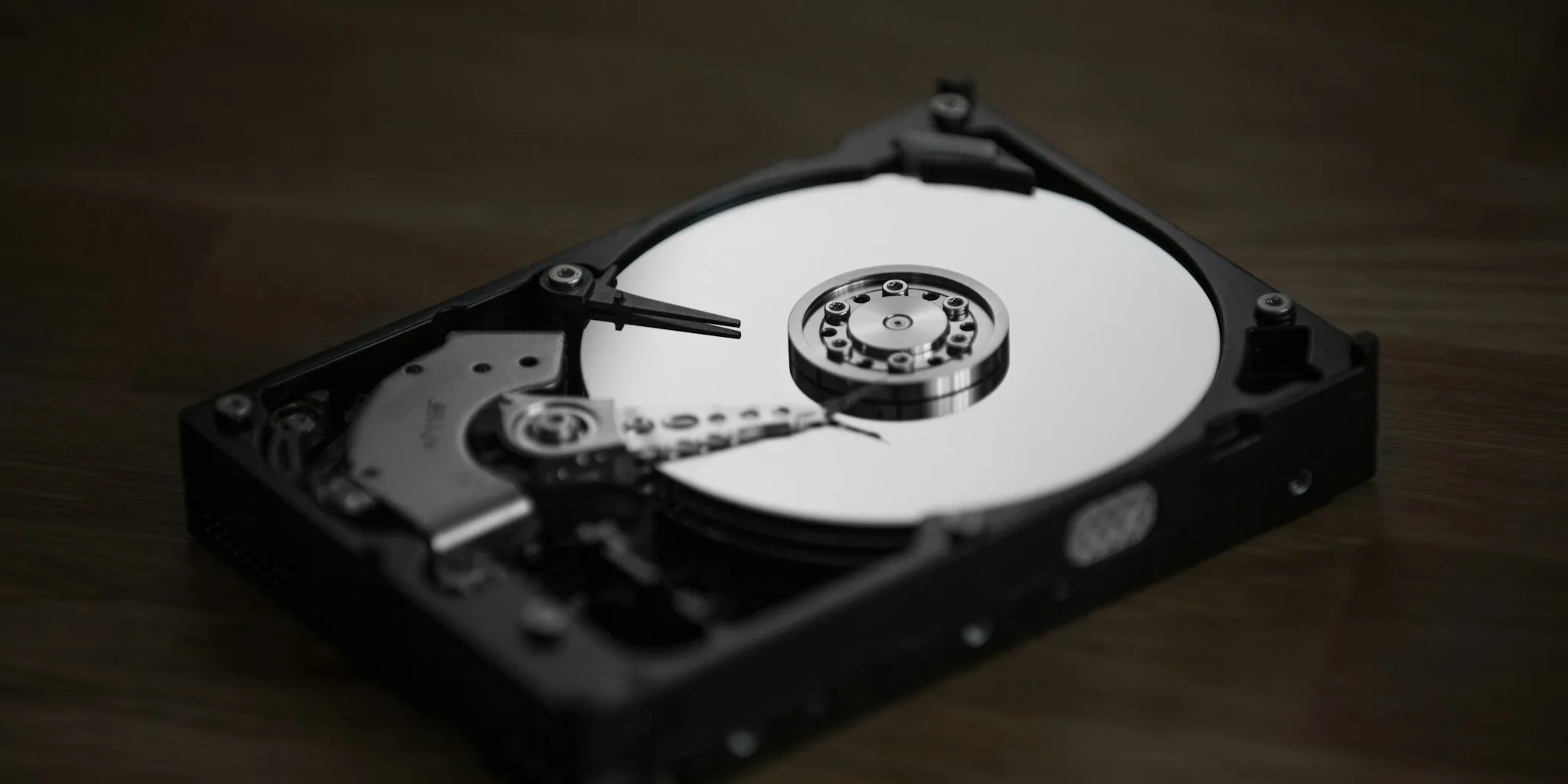
Windows includes a powerful automatic backup feature called File History that many users overlook. This built-in tool quietly backs up your personal files to an external drive or network location, ensuring you can recover everything if your computer fails or you need to reinstall the operating system. Without a working backup system in place, a hardware failure or major software issue could mean losing irreplaceable documents, photos, and other important data permanently.
Reason 1: File History Is Disabled by Default
The most common reason File History isn’t protecting your files is that it starts in a disabled state. Windows assumes you’ll opt into automatic backups rather than enabling them automatically for everyone. This means unless you actively turn on File History, your computer isn’t creating any backups at all.
To enable File History, open your Control Panel and look for the File History option. In icon view, you’ll find it listed among your settings. Click on it to access the File History control panel.
Reason 2: Configuration Problems Require a Reset
Sometimes File History stops working due to configuration errors. These issues can occur after Windows updates or if settings become corrupted. The good news is that you can often fix configuration problems by resetting the feature. Your existing backup files remain safe during this process, so you don’t risk losing any previously backed-up data.
Setting Up File History Correctly
Once you’ve opened File History in the Control Panel, select a backup destination by clicking Select Drive on the left side. An external hard drive works well for most home users, offering plenty of capacity and reliability. If you prefer storing backups on a network location, click the Add Network Address link to configure that option instead.
After confirming your selection by clicking OK, launch your first backup by clicking Run Now. This initial backup may take some time depending on how many files you have, but subsequent backups happen automatically according to your schedule.
Fixing Configuration Errors Through Folder Deletion
If File History continues to malfunction even after enabling it and selecting a drive, try removing the configuration files. File History stores its configuration data in a specific Windows folder that can be safely deleted to force a fresh start.
Open File Explorer and navigate to: C: Users[username]AppDataLocalMicrosoftWindowsFileHistory
Inside this directory, locate the Data and Configuration folders and delete both of them. Important note: you can only delete the Configuration folder if File Version Control is currently disabled on your system. After removing these folders, restart your computer completely.
When you restart Windows and launch File History again, the system will automatically recreate the deleted folders with clean settings. This fresh configuration often resolves stubborn problems that standard troubleshooting can’t fix.
Selecting the Right Backup Drive
Choosing the correct backup destination is crucial for a reliable system. External USB drives offer the most straightforward option for most users. Look for drives with sufficient capacity to hold all your important files, ideally at least as much storage as your computer’s main hard drive. For those with more advanced network setups, backing up to a network attached storage device or shared network folder provides additional flexibility.
When you’re using backup solutions for creative or professional work, consider pairing File History with other tools. For example, if you frequently use video conferencing, reliable backup ensures your recordings and meeting notes stay safe. The best 4K webcams for streaming aren’t just about capture quality, they’re also about having content worth preserving through proper backups.
Restoring Your Backed Up Files
When you need to recover files from your backup, File History makes the process straightforward. Return to File History in the Control Panel and click Restore Personal Files on the left side. This opens a window displaying all your backed-up folders organized by date.
Navigate to the folder containing the file you need by double-clicking it. You’ll see all the file versions from different backup points. Double-click the specific file you want to restore, and File History copies it directly to your computer’s storage drive.
Preventive Maintenance for Ongoing Backups
After resolving any File History issues, establish good backup habits going forward. Check your backup destination occasionally to confirm that files are being saved regularly. Keep your external backup drive connected and in good working condition, or ensure your network storage stays accessible.
Whether you’re protecting work documents, family photos, or audio recordings from the best Bluetooth speakers at your events, regular backups provide peace of mind. A working File History system means you’ll never lose important files due to unexpected hardware problems or software errors.
About the author
Ava is REMOVU's laptop writer, balancing speed, battery life, and build quality against price across the whole range. She helps readers find the sweet spot as each new chip shifts what a dollar buys.