Windows 11 October 2026 Update Fixes Mouse Stuttering in Games: What Gamers Should Know
Microsoft quietly fixed mouse stuttering in games and resolved five other hidden issues in its latest Windows 11 security patch.
 By Clyde Spencer
Updated October 25, 2026
By Clyde Spencer
Updated October 25, 2026
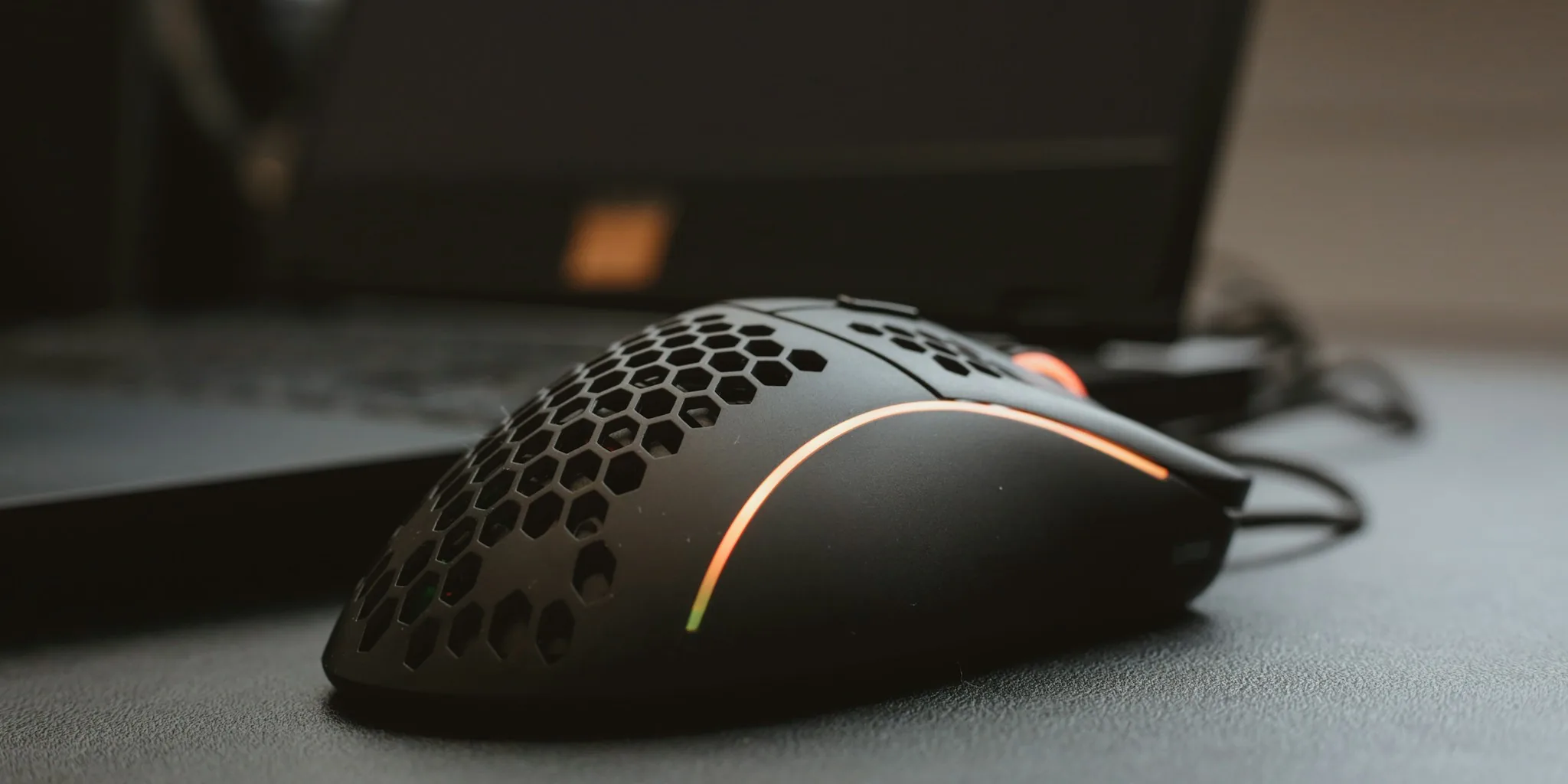
Microsoft released its October 2026 cumulative security update (KB5127648) on October 13, bringing multiple quality-of-life improvements to Windows 11. Among the headline features like a new Tips widget and Copilot key remapping options, the company quietly addressed several persistent issues that have frustrated users for years. For gamers specifically, one fix stands out: the update resolves mouse input stuttering that affected performance in certain titles.
Mouse Stuttering Fix Addresses Gaming Frustration
One of the most impactful improvements in this month’s security release targets a specific bug that caused mouse input to stutter during gameplay. This issue made aiming, camera movement, and other precision-dependent actions feel inconsistent and unreliable, particularly in competitive or fast-paced games where smooth input is essential.
If you’ve experienced erratic mouse behavior while gaming, especially after recent Windows updates, installing KB5127648 may resolve the problem. However, Microsoft notes that this fix addresses one particular bug, so it won’t guarantee a solution for every instance of mouse stuttering or performance drop. Other factors like hardware compatibility, driver conflicts, or network latency can also contribute to input lag.
Gamers who use wireless mice or wired peripherals should both benefit from this fix, as the bug affected the operating system’s input handling rather than specific device types. For those who’ve dealt with inconsistent cursor responsiveness for months, this targeted patch provides a straightforward resolution by simply installing the latest update.
Six Hidden Improvements Worth Installing
Beyond the gaming fix, the October update quietly resolved five other problems that have disrupted workflows across different scenarios. Understanding what’s included helps you decide whether immediate installation is necessary for your setup.
Bluetooth Reliability Enhancements
The update includes eight separate Bluetooth improvements designed to strengthen connections and performance. These changes address audio compatibility with certain Bluetooth accessories, improve how Windows reports disconnection status, and fix a bug where the Bluetooth radio could be disabled even though the toggle in Settings appeared active. Users who stream audio over Bluetooth will appreciate fixes to crashes during playback and enhanced stability for Bluetooth Low Energy (LE Audio) devices.
Fingerprint Sign-In Restoration
Windows Hello fingerprint authentication offers convenience, but a bug prevented it from working after a cold boot on some machines. This update restores that functionality, allowing users to rely on biometric sign-in without resorting to passwords or PIN codes after powering on their computers from a full shutdown.
Printing and VPN Connection Fixes
Specific printer driver configurations using RAW or Generic Text Only formats experienced job failures following the August update. Similarly, an Always On VPN bug could leave connections stuck in a connecting state or show port-already-in-use errors, creating reliability issues in corporate environments. Both problems now have resolutions.
File Explorer Stability
Multi-user environments, particularly those using Azure Virtual Desktop with FSLogix, experienced File Explorer crashes that sometimes left screens black. The update prevents explorer.exe from failing during sign-in or repeatedly crashing in these scenarios.
Should You Install It Right Away?
The October update installs automatically on most Windows 11 devices, but you can manually check by navigating to Settings and selecting Windows Update, then clicking Check for Updates. Builds 26300.9711, 26200.9711, and 26100.9711 are available for versions 26H2, 25H2, and 24H2 respectively.
If you’ve experienced any of these specific issues, installing this update should be a priority. Gamers frustrated with mouse input problems, remote workers relying on VPN, or office environments managing printing workflows will see the most immediate benefits.
For those interested in optimizing their gaming setup beyond software fixes, exploring the best gaming mice for every playstyle and budget can complement these system improvements by ensuring your hardware matches your gaming needs.
Important Note for Windows 11 24H2 Users
Windows 11 version 24H2 has reached end of support as of this October update release. Users still on 24H2 should upgrade to version 25H2 or 26H2 to continue receiving security patches and improvements. The upgrade requires only the latest cumulative update and an enablement package, both available through Windows Update settings.
While the headline features often grab attention, these quieter fixes can have significant real-world impact. The Bluetooth improvements alone cover multiple problem areas, and the gaming mouse fix addresses something that’s likely affected anyone who plays competitive titles. Installing this update ensures you’re not missing out on stability gains and bug fixes that make everyday computing smoother.
About the author
Clyde covers wireless mice for REMOVU, weighing comfort, precision, and battery life for work and productivity. He helps readers find a mouse that fits their hand and their desk.