How to Fix Smart Home Interference from Your Neighbors
Stop interference from shared internet and wireless signals with simple router adjustments that require no new equipment.
 By Armando Washington
Updated October 20, 2026
By Armando Washington
Updated October 20, 2026
If you live in an apartment, townhome, or dense neighborhood, your smart home might be suffering from interference you never suspected. Your neighbors don’t even need to know it’s happening. Shared internet connections, overlapping wireless signals, and unshielded remote frequencies mean your devices can lag, drop offline, or even respond to commands meant for the unit next door. The good news is that most of these problems have straightforward solutions that don’t require replacing equipment or switching internet providers.
Understand How Shared Internet Slows Your Devices
Your home internet isn’t a private pipeline to the web. It flows through a shared hub that serves dozens or hundreds of neighbors simultaneously. In apartment complexes and HOA communities, the entire development often runs on a single connection divided among all units. When everyone streams video, downloads updates, or uploads security footage at the same time, that shared pipe gets congested. Packets queue up waiting for their turn, and even though a speed test might show decent numbers, the actual latency becomes unbearable for smart devices.
Video doorbells stutter and pixelate. Security cameras drop frames. Voice commands lag or fail to respond. Automations that depend on quick back-and-forth communication simply don’t fire. This happens because smart home devices are extremely time-sensitive, unlike regular web browsing, which tolerates delay.
Enable Smart Queue Management on Your Router
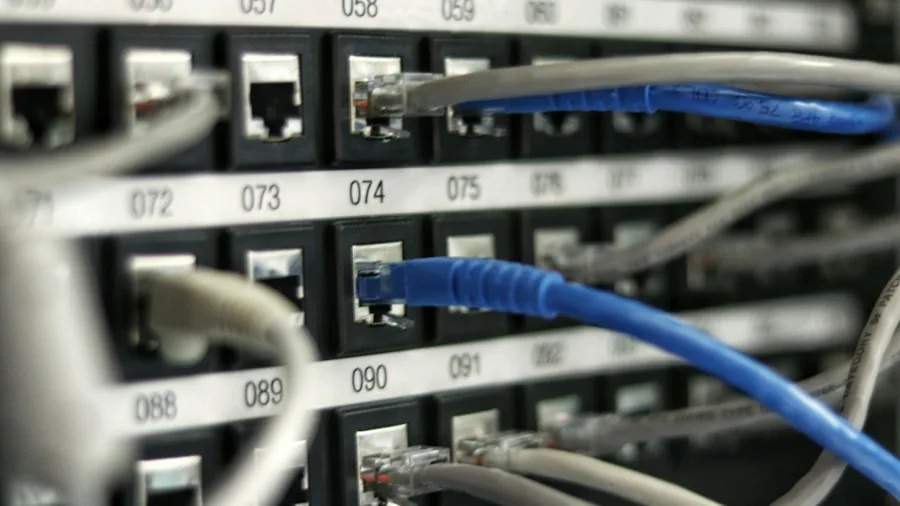
The permanent fix is enabling Smart Queue Management, which takes control away from your ISP’s overloaded equipment and puts it directly on your router. Modern algorithms like CAKE or FQ-CoDel actively prioritize traffic so background downloads don’t choke your smart devices.
Here’s how to set it up: Configure your router to shape traffic at 85 to 95 percent of your actual connection speed. The algorithm then manages the queue internally, ensuring your smart home’s time-critical signals always get priority. This works with cable internet, though not all routers support it, so check your device’s manual first.
If your ISP offers Low Latency DOCSIS, that’s an additional layer of protection. This technology creates a dedicated fast lane for the quick signals your smart devices send back and forth, keeping response times low even when the entire neighborhood is online.
Separate Your Wireless Protocols from Wi-Fi Interference
Zigbee and Thread are the two most common mesh protocols for smart home devices, and both operate in the 2.4 GHz band where Wi-Fi also lives. That’s where the conflict arises. A standard Wi-Fi channel spans about 22 MHz, while Zigbee and Thread channels are only 2 MHz wide. A single neighbor’s Wi-Fi router on Channel 6 or Channel 11 can wipe out multiple Zigbee or Thread channels simply by existing in the same space.
The problem gets worse because Wi-Fi routers don’t recognize low-power Zigbee or Thread signals. The router transmits right over them, forcing your smart sensors to wait until the channel clears before they can send anything. Battery-powered sensors drain quickly from constantly retransmitting failed messages. Devices drop off the network entirely.
Lock all your 2.4 GHz Wi-Fi access points to 20 MHz channel width on Channels 1 and 6 only. Disable 40 MHz channel bonding in the 2.4 GHz band completely. Then manually move your Zigbee coordinator and Thread border router to Channel 25 or Channel 26, which sit above the upper edge of Wi-Fi Channel 11 with almost no overlap. Check your device documentation first to confirm Channel 26 support.
If your mesh system uses a 2.4 GHz wireless backhaul connecting your access points, replace it with wired Ethernet or move that backhaul to the 6 GHz band, where Zigbee and Thread don’t operate.
Protect Against Accidental Voice Activation
In apartments and townhomes with thin shared walls, neighbors can accidentally trigger your smart speakers. A loud conversation or TV volume near a wall can cause voice assistants to hear what sounds like a wake word and act on it. Voice assistants are sophisticated but not perfect, and words that sound similar from the next unit can fool the system.
Older wireless remotes and sensors transmit on 315 MHz or 433 MHz frequencies that cover vast distances. Ceiling fan remotes, garage door openers, and wireless outlets all use these frequencies. The real risk: older systems transmit the same fixed radio code every time. A neighbor with the same brand remote can accidentally trigger your garage door. Someone with a software-defined radio could record your signal and play it back later without ever touching a button.
Newer Matter and Bluetooth devices broadcast an open pairing invitation for about three minutes when powered on. During that window, your neighbor’s phone might detect your device on their app. Matter devices require a unique setup code, so they can’t pair without it, but Bluetooth devices without code protection could be claimed by someone else.
Recognize Privacy Risks from Close Proximity
Your phone constantly broadcasts probe requests scanning for known Wi-Fi networks. Modern phones rotate their hardware address to prevent tracking, but that protection is weaker than advertised. Someone with a laptop and free software can fingerprint your phone using details in those signals and track your device as it moves through your home, figuring out when you sleep or leave.
Position your doorbell camera carefully to avoid capturing your neighbor’s windows or property. Check your HOA rules about camera placement, as they often have specific restrictions.
Start With Router Settings
Most of these problems are fixable through router configuration alone. Channel adjustments and queue management require no new hardware purchases or ISP changes. The solutions are already available in your current equipment’s settings.
About the author
Armando covers Wi-Fi routers for REMOVU, balancing speed, range, and features for homes of every size. He helps readers match a router to their space and their devices.