7 Tips for Perfect Monitor Placement to Protect Your Posture and Eyes
Simple adjustments to height, distance, and angle can eliminate eye strain and back pain.
 By Tara Russell
Updated September 28, 2026
By Tara Russell
Updated September 28, 2026
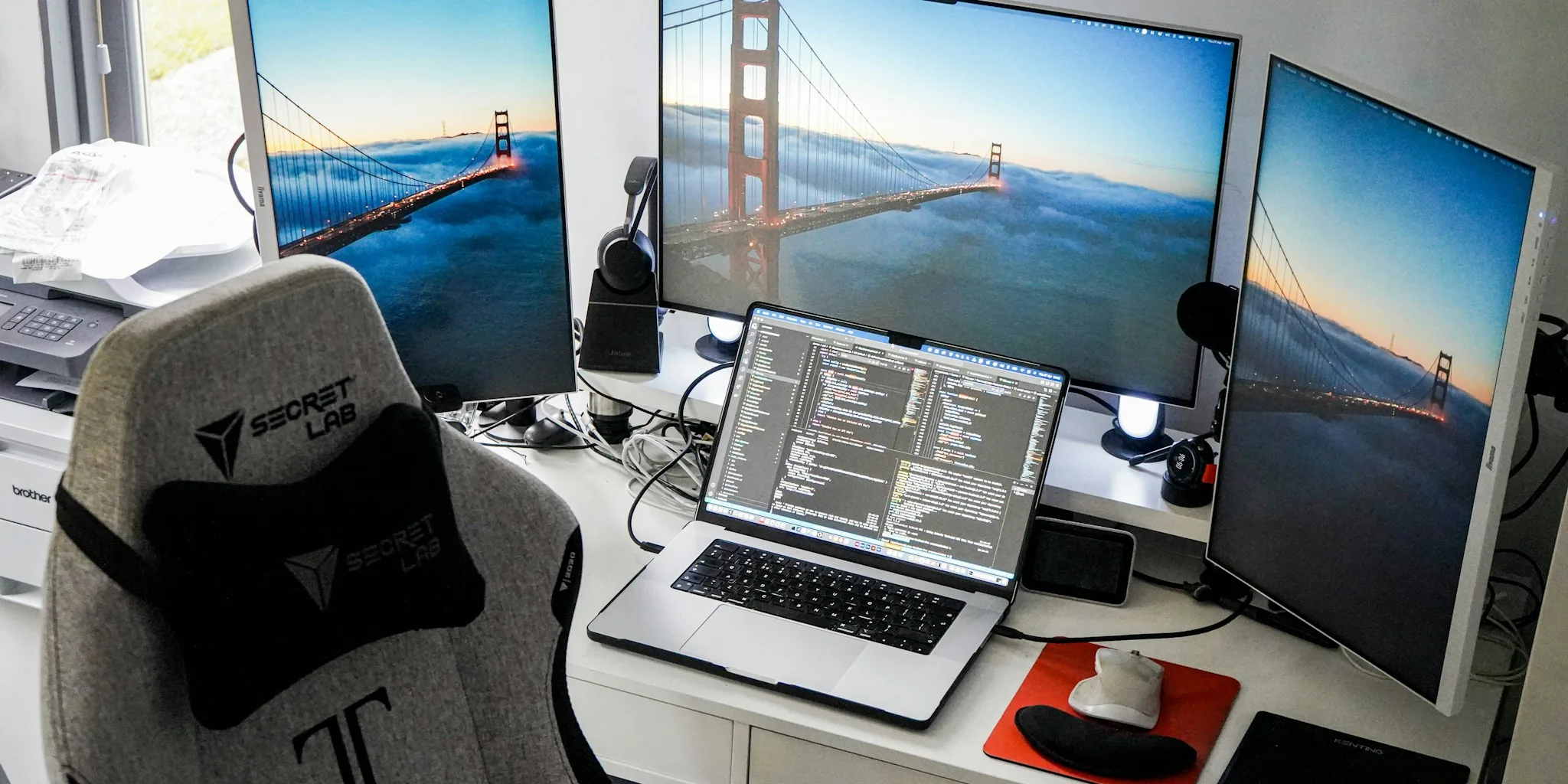
Your monitor’s position directly affects your physical health. Whether you work at a desk, game regularly, or spend extended hours online, improper screen placement can lead to persistent issues like eye strain, neck pain, back discomfort, and even more serious conditions such as herniated disks. Getting your setup right matters far more than most people realize.
1. Position Your Monitor Straight Ahead
Your monitor should sit centered in front of you whenever possible. This keeps your head in a neutral, forward-facing position rather than forcing you to turn at awkward angles. When your neck stays centered, you dramatically reduce strain on the cervical spine and shoulder muscles.
If you use multiple monitors, aim to minimize how far you turn your head. Avoid extreme angles that require constant neck rotation. Some people find that using a vertical monitor arrangement or stacking monitors vertically helps reduce the need for excessive head movement. The goal is consistent, comfortable positioning throughout your workday.
2. Align Your Monitor at Eye Level
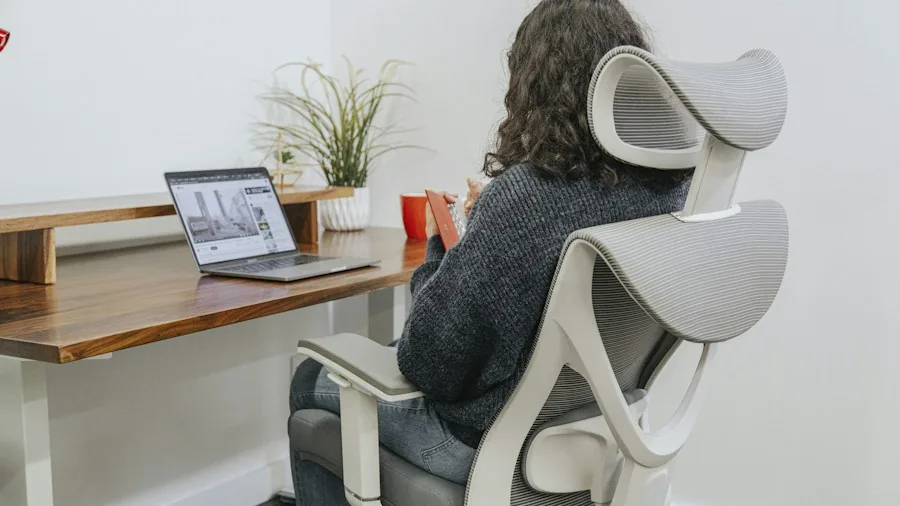
Your eyes should naturally rest between the top edge of the display and approximately one-third down the screen. This slightly downward gaze angle mimics how our eyes naturally focus, reducing tension in the neck and eye muscles. Never position your monitor so low that you must look down at a steep angle, similar to how looking down at a phone all day damages posture.
If you wear bifocals, you may need to adjust this guidance slightly. Position the monitor to align with the close-distance portion of your lenses, then tilt it to find your comfortable viewing angle. Keep important content, like paragraphs you’re reading, toward the upper portion of the screen to maintain proper eye height throughout the day.
3. Maintain Proper Distance from Your Screen
For monitors between 21 and 27 inches, sit approximately an arm’s length away. Extend your arm straight in front of you: your fingertips should barely brush the screen or come very close. This distance prevents both eye strain from sitting too near and comprehension difficulties from sitting too far.
Larger displays may require you to sit further back. Adjust your monitor’s scaling and resolution settings as needed to maintain text legibility. The priority is achieving visual comfort without straining to read or see details clearly.
4. Apply a Slight Upward Tilt
Most ergonomic experts recommend tilting your monitor upward by 10 to 15 degrees. This angle accommodates the way our eyes naturally gaze downward and significantly improves comfort during extended viewing sessions. The tilt also encourages a more neutral head position.
If your monitor stand doesn’t provide tilt adjustment, consider investing in a monitor arm, which offers superior positioning control. Bifocal wearers may benefit from a more pronounced tilt angle. Spend a few days experimenting to find the angle that eliminates both neck and eye strain by day’s end.
5. Eliminate Glare and Reflections
Position your monitor away from windows and bright light sources. Direct sunlight or harsh artificial lighting bouncing off your screen causes eye strain and makes content harder to read. The more your eyes must work to discern information through glare, the faster fatigue sets in.
If you can’t avoid bright areas, use blinds, curtains, or consider working with reduced ambient lighting. Matte-finish monitor coatings also help minimize reflective glare compared to glossy surfaces. Reducing glare is one of the quickest ways to notice improved comfort.
6. Position Keyboard and Mouse for Neutral Posture
Your monitor setup only works when your input devices support proper positioning too. Keep your elbows, forearms, and wrists in a neutral alignment by positioning your keyboard and mouse at a height where your elbows rest at approximately 90 degrees. A keyboard tray can help achieve this positioning if your desk height doesn’t naturally support it.
Poor keyboard and mouse positioning leads to repetitive strain injuries in the wrists and forearms, undoing the benefits of proper monitor placement. Treat your entire workstation as an integrated system.
7. Take Regular Breaks and Move Throughout the Day
Even perfect monitor positioning doesn’t eliminate the need for movement breaks. Follow the 20-20-20 rule: every 20 minutes, look away at something 20 feet distant for 20 seconds. This allows your eye muscles to relax and refocus at different distances.
Beyond eye breaks, move your body every hour. Stand, stretch, walk, or do light exercises to prevent the health problems associated with prolonged stillness. The human body requires regular movement to function optimally. You might also explore ergonomic accessories like wireless earbuds for video calls, which can encourage movement during conversations rather than keeping you anchored to your desk.
Making the Transition
Adjusting your monitor placement and adapting to a new setup takes time. Your body may feel uncomfortable for several days or even weeks as it adjusts to the new positioning. This adjustment period is normal. Make small refinements every few days as needed, and be patient with yourself.
The payoff comes once your body adapts. You should notice improvements in posture, reduced pain, and decreased eye fatigue. Combined with stretching routines and regular movement, proper monitor placement can virtually eliminate workspace-related discomfort. Taking these setup steps seriously is ultimately taking care of your long-term health.
About the author
Tara writes about monitors for REMOVU, balancing resolution, panel quality, and size for work and creative use. She helps readers match a display to the way they actually work.