7 Ways to Install Apps on Android Without Developer Verification
From Google's Advanced Flow to ADB and custom ROMs, here's how to install unverified apps on Android.
 By Ava Herrera
Updated October 2, 2026
By Ava Herrera
Updated October 2, 2026
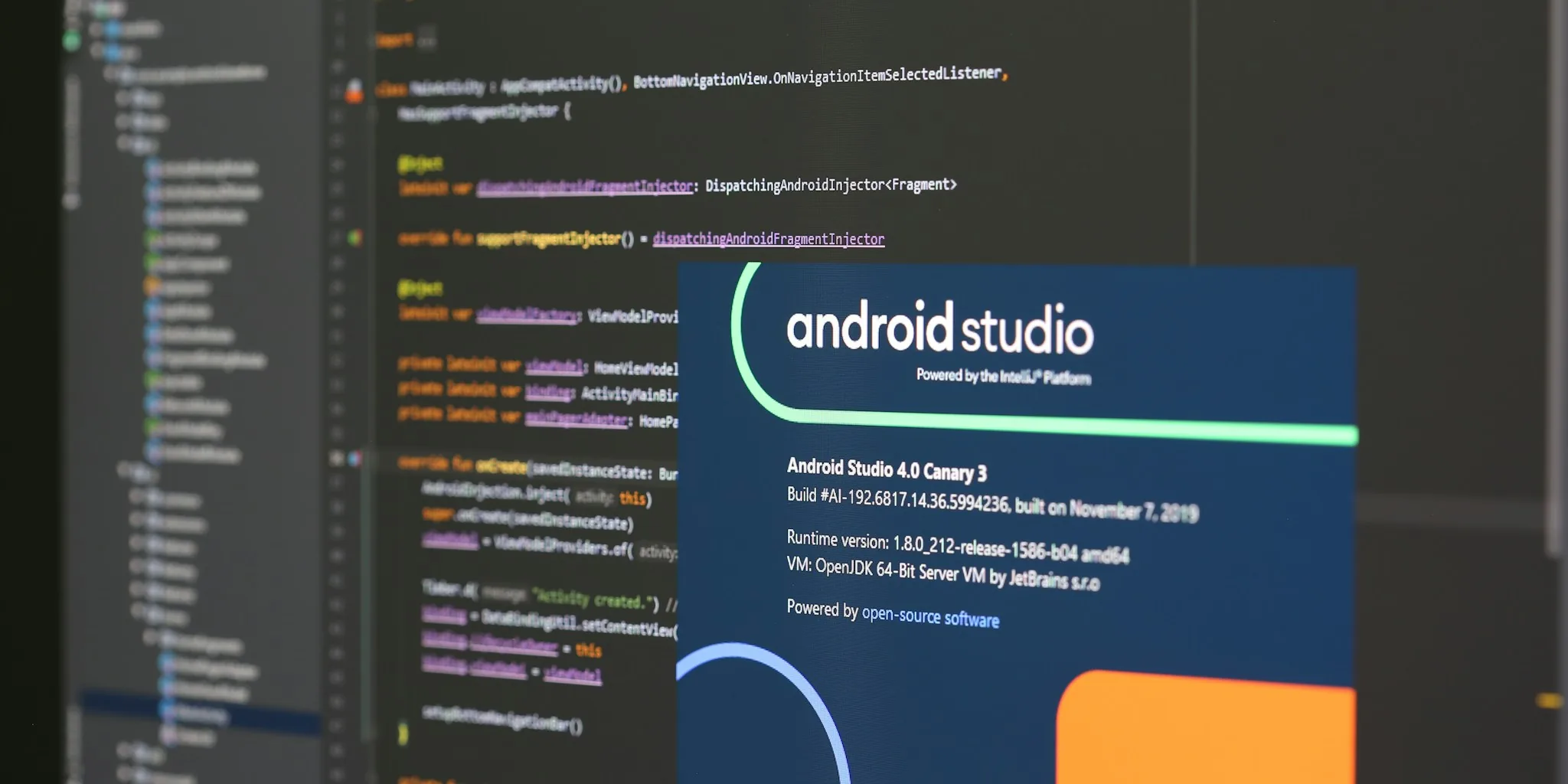
Google’s developer verification rules are rolling out globally, making it harder to install unverified applications on Android devices. If you use your phone beyond the typical consumer experience and frequently download apps from sources outside the Play Store, you’ve likely encountered friction from these new restrictions. The good news: several legitimate pathways exist to install unverified applications while maintaining control over your device.
Understanding the Restrictions
Certified Android devices running Google Play Services in Brazil, Indonesia, Singapore, and Thailand are already blocking apps from unverified developers. A worldwide rollout is scheduled for 2027. These restrictions apply specifically to applications installed through participating app stores, though developers registered with Google’s Android Developer Verification Program remain unaffected. Apps from sources like GitHub, F-Droid, and community-patched versions face immediate installation blocks unless you take deliberate action to override them.
Method 1: Google’s Advanced Flow
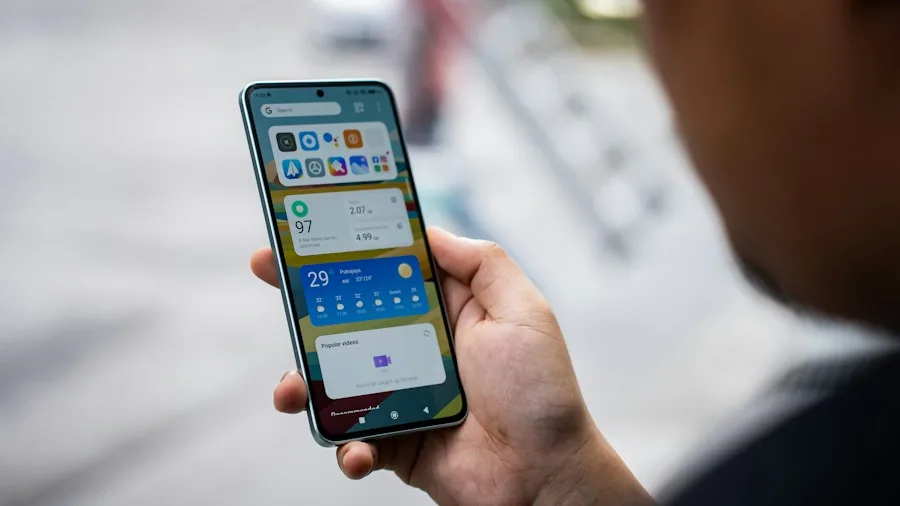
The official easiest route is Google’s Advanced Flow, designed for users unfamiliar with technical workarounds. Start by enabling Developer Options in Settings, then navigate to System > Developer Options and toggle “Apps from Unverified Developers.” Confirm the system dialog, then restart your device. Here comes the catch: you must wait 24 hours as a mandatory one-time waiting period per device. After the wait, return to Settings > System > Developer Options, scroll past warnings, authenticate with your biometrics or PIN, and select either “Allow temporarily” for seven days or “Allow indefinitely.” Check the confirmation box, and you can now tap “Install anyway” when installing unverified applications.
One critical detail: turning off Developer Options afterward doesn’t revert your permissions. The restrictions remain lifted whether you chose temporary or permanent access.
Method 2: Android Debug Bridge (ADB)
ADB is Google’s second official method and eliminates the 24-hour waiting period entirely. Enable USB Debugging in Developer Options, then use ADB commands through a computer to install applications directly to your phone via a wired or wireless connection. Unlike Advanced Flow, there are no restart requirements, no cooldowns, and no repeated confirmations needed. For power users comfortable with a command-line interface, ADB remains the quickest path to unrestricted installation.
Method 3: Shizuku
If the 24-hour delay feels excessive and you prefer avoiding a computer setup, Shizuku offers a middle ground. This tool leverages wireless debugging already built into Android, allowing you to install and update unverified applications without waiting. Shizuku requires a bit more technical familiarity than Advanced Flow but remains more accessible than traditional ADB setup.
Method 4: Custom ROMs
Custom ROM distributions like Lineage OS and GrapheneOS don’t implement Google’s Developer Verifier framework at all, keeping your installation options completely open. If you’re already running a custom ROM, you won’t face these restrictions. However, flashing a custom ROM is a significant undertaking involving device preparation, bootloader unlocking, and careful installation steps, making this option practical only for experienced users pursuing it for reasons beyond app installation alone.
Method 5: Device Rooting
Root access grants you the ability to bypass installation restrictions through privileged permissions. However, rooting introduces security risks and complexity that outweigh the benefit for simple app installation. Smart devices increasingly require secure execution environments, making rooting a less practical choice for most users managing multiple connected devices.
Method 6: Updating Previously Installed Apps
Applications you installed before restrictions took effect will continue functioning without interruption. However, updating them requires completing one of the bypass methods above. This matters significantly for users who maintain a collection of legacy or alternative applications they’ve relied on for years. Plan accordingly before restrictions activate in your region.
Method 7: Do Nothing
The reality is most users needn’t worry. If you primarily download applications through the Play Store and major official app marketplaces, these restrictions have zero impact on your experience. For users streaming or recording with quality hardware, availability through major distribution channels remains consistent. Google’s phased rollout specifically targets power users and developers, not mainstream consumers.
Important Clarifications
Your phone operates normally during the 24-hour waiting period required by Advanced Flow. You don’t experience slowdowns, delays, or restricted functionality while the timer runs. Uninstalling the Android Developer Verifier app won’t disable the restrictions themselves since Google Play Services handles the actual blocking through Play Protect.
If you’re in a region where these restrictions haven’t yet activated, monitoring official announcements helps you prepare in advance. Understanding which method suits your workflow now means you won’t face delays when restrictions arrive. For casual users, Advanced Flow works fine. For enthusiasts and developers, ADB offers the professional-grade efficiency needed for productivity, much like portable power solutions for mobile professionals.
About the author
Ava is REMOVU's laptop writer, balancing speed, battery life, and build quality against price across the whole range. She helps readers find the sweet spot as each new chip shifts what a dollar buys.