7 Ways to Avoid Wasting Your Fast NVMe SSD in a USB Enclosure
Your expensive fast SSD gets crippled by USB limits. Here's what to do instead.
 By Kevin Hunt
Updated August 30, 2026
By Kevin Hunt
Updated August 30, 2026
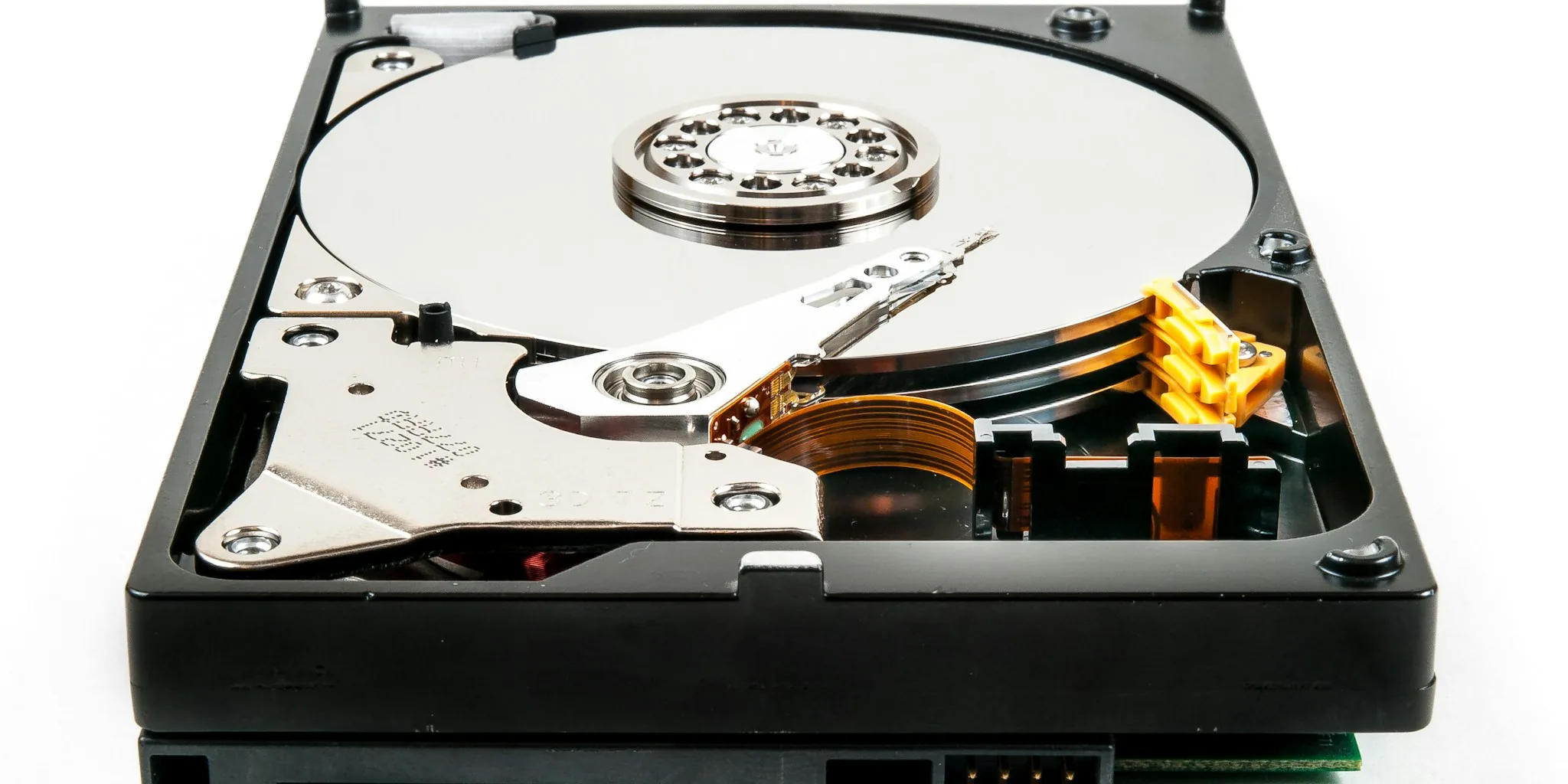
NVMe solid-state drives have become the standard for high-performance storage, but many people make a critical mistake after upgrading: they assume placing a fast drive into a USB enclosure is the obvious next step. While enclosures seem convenient, they introduce severe bottlenecks that can reduce your drive’s speed by up to 70 percent or more. If you’ve invested in a high-end NVMe drive, understanding how to use it properly will protect that investment.
Understand the USB Speed Ceiling
The fundamental problem with USB enclosures is straightforward: they limit your drive’s performance through the USB port. While your NVMe drive might support speeds exceeding 14,000 MB/s, even the most expensive 40Gbps enclosures cap out around 3,600 MB/s. That’s a massive gap. Your $200 PCIe Gen 5.0 drive performs at the same speed as a much cheaper Gen 3 drive once it’s locked inside an enclosure. Before placing any drive in an enclosure, research your port’s actual specifications. USB standards vary dramatically: 2.0 offers 480 Mbps, 3.0 delivers 5 Gbps, 3.1 reaches 10 Gbps, and newer standards go higher. The problem is that identical-looking ports on your computer may have completely different capabilities.
Check Every Connection Point in Your Setup
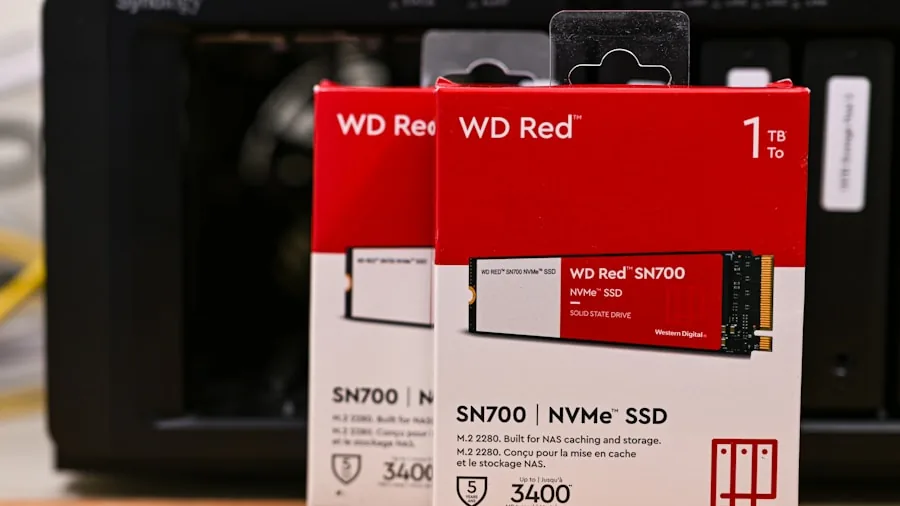
Speed isn’t determined solely by the enclosure. Your cable, connector, and computer port all play roles in the final performance you’ll achieve. An expensive enclosure paired with a slow USB port delivers disappointing results. Create an inventory of your actual hardware specifications before committing. Look up your motherboard or laptop manual to find which ports support which speeds. Check the enclosure specs the same way. Only when you’ve verified that every component supports the speed you expect should you consider this setup viable. Front-panel USB ports often run at lower speeds than back-panel connections, so avoid using those unless absolutely necessary.
Use the Correct Cable and Avoid Hubs
The cable included with your enclosure exists for a reason. Using a different cable, adapter, or hub introduces another layer of potential problems. Hubs often negotiate slower connection speeds and add latency. Always use the original cable supplied with your enclosure, and plug directly into a back-panel USB port for the most reliable connection. This eliminates one more variable that could undermine your drive’s performance. Skip convenience here in favor of stability, especially if you’re transferring large files or relying on the drive for time-sensitive work.
Recognize That Enclosures Add a Point of Failure
Beyond speed limitations, enclosures introduce reliability concerns. The connection between drive and enclosure can cause unexpected disconnections during large transfers, making them unreliable for backup storage. Your drive might work perfectly inside your computer but behave erratically inside an enclosure. Since the primary reason most people consider enclosures is portability combined with backup capability, these reliability issues defeat the purpose. If backup is your goal, consider alternatives that don’t sacrifice both speed and dependability. Portable power solutions have similar reliability concerns when dealing with multiple connection points.
Consider Thermal Management for Extended Use
Enclosures can restrict airflow around your drive, causing heat buildup during sustained transfers. If you regularly move large files, choose an enclosure with active cooling or excellent passive thermal design. Aluminum enclosures dissipate heat better than plastic alternatives. High temperatures degrade performance and can shorten drive lifespan. Quality enclosures from reputable manufacturers often include better thermal engineering, which justifies their higher cost. Check reviews that specifically address thermal performance under load.
Install a Second Drive Inside Your Computer Instead
If you have an older or slower NVMe drive you’re replacing, the best option is installing both drives in your computer. Your new drive becomes the boot drive for your operating system and frequently-used applications, while the older drive handles less critical tasks like game libraries or scratch space for creative software. This approach preserves your original drive’s full performance potential without needing an enclosure at all. Most modern motherboards support multiple M.2 slots, making this an accessible solution.
Explore NAS Storage for Better Performance and Backup
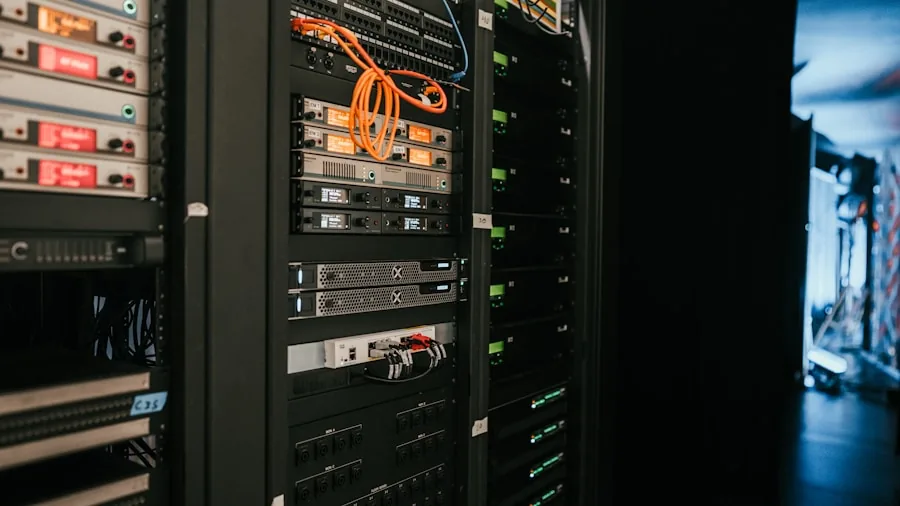
For users with extensive backup needs, a network-attached storage device represents a superior alternative to external enclosures. An all-SSD NAS solution is expensive, but even a traditional NAS benefits dramatically from having one SSD installed as a cache drive. Your NVMe drive can actually perform at reasonable speeds in this context, and you gain the advantage of centralized, redundant storage. This approach works especially well for households or small offices managing multiple computers. Whether you add smart devices to your network or build a complete storage infrastructure, a NAS provides flexibility that portable enclosures cannot match.
The core principle is simple: expensive, fast NVMe drives deserve better treatment than being confined by USB bandwidth limitations. If portability isn’t essential, keep your drive inside your system where it can perform as designed. If you do need external storage, verify that your entire setup (port, cable, enclosure, and drive) works together to deliver the speeds you’re paying for. Otherwise, you’re essentially throwing money away on performance capabilities you’ll never use.
About the author
Kevin is REMOVU's SSD writer, comparing NVMe and SATA drives on speed, endurance, and price per gigabyte. He helps readers pick the SSD that delivers the biggest real-world speed boost for their PC.