7 Tips to Maximize Your Xbox Experience with New Customization Features
Master the latest Xbox customization features to improve your gaming setup and daily console experience.
 By Serenity Richards
Updated November 12, 2026

Xbox has been delivering meaningful updates at a steady pace, and the latest round of features rolling out to Xbox Insiders shows no signs of slowing down. Whether you’re a longtime console owner or relatively new to the ecosystem, understanding how to leverage these fresh customization options can significantly enhance your daily gaming experience. Here are seven practical tips to help you get the most from your Xbox with these newly available features.
1. Reposition Your Guide for Optimal Screen Navigation
One of the most straightforward yet impactful updates allows you to choose which side of the screen your Xbox Guide appears on when you access it. If you’ve been frustrated with the default positioning blocking certain on-screen content or disrupting your view of the game, now you can switch it to the opposite side. Take time to experiment with both left and right placements during your next gaming session. Your preference may depend on your setup, seating position, or the types of games you play most frequently. Left-handed gamers, in particular, may find repositioning the Guide significantly improves their comfort and access speed.
2. Organize Your Digital Game Library with Disc-to-Digital Categories

If you own a game console and have taken advantage of disc-to-digital licensing, you now have the ability to view these converted games in a dedicated category within your full library. This organization feature makes it substantially easier to track which titles you’ve converted and locate them quickly without scrolling through your entire collection. Create a mental inventory of which physical games you plan to convert, then monitor how they appear in your new library category. This separation also helps you understand your total digital ownership at a glance.
3. Curate Your Favorite Dynamic Backgrounds
Dynamic backgrounds offer visual variety every time you power on your console, but now you can take control of which ones rotate on your home screen. Rather than seeing all available dynamic backgrounds cycle randomly, you can save your favorite selections and let them shuffle automatically. Choose backgrounds that resonate with your gaming preferences or current mood. Perhaps you prefer backgrounds from specific franchises you love or aesthetics that match the season. The ability to manually curate this list means your console’s visual presentation becomes truly personalized.
4. Streamline Your Navigation Workflow
With the repositionable Guide feature, optimize your overall navigation by positioning it where your eyes naturally travel during gameplay. Consider your monitor or television placement and where you typically sit. If you frequently use the Guide to message friends, check achievements, or access Game Pass, moving it to a less obtrusive screen position can reduce gameplay interruptions. Test the alternative position during a casual gaming session rather than during competitive play where you need maximum focus.
5. Take Advantage of Insider Programs for Early Access
These customization features are initially rolling out through the Xbox Insiders program, specifically in the Alpha Skip-Ahead ring. If you’re interested in accessing new features before general release, consider joining the Insider program through your console settings. Keep in mind that Insider builds sometimes include experimental features that may have occasional issues, so this path works best for players who value early access over absolute stability. The feedback from Insider participants directly shapes which features make it to the broader user base.
6. Pair New Features with External Accessories
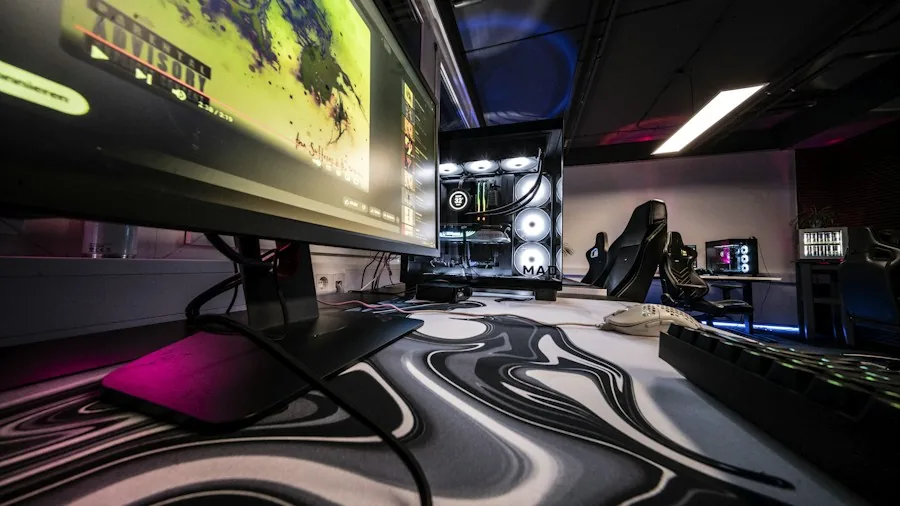
As you customize your console experience, consider how external storage solutions and other peripherals complement your setup. A larger digital library organized with disc-to-digital categories means you might benefit from expanded storage. Similarly, if you use specialized controllers or racing wheels, positioning your Guide on your non-dominant side keeps it from interfering with your equipment layout during gaming sessions.
7. Establish a Personalization Routine
Once you’ve adjusted your Guide position and saved your favorite dynamic backgrounds, establish a routine for regularly refreshing your background rotation based on seasonal preferences or current gaming interests. During periods when you’re focused on specific game series, update your dynamic background selections accordingly. This small practice keeps your console feeling fresh without requiring major adjustments each time.
These emerging customization features represent Xbox’s commitment to giving players more control over their experience. By thoughtfully implementing each of these tips, you’ll find your console becomes increasingly tailored to your personal gaming style and preferences. The gradual rollout means you may need to wait a bit depending on which Insider ring you’ve joined, but these features should become available to all players in due course.
About the author
Serenity covers home game consoles for REMOVU, weighing performance, exclusive libraries, and the ecosystem each platform locks you into. She helps players pick the console that fits how and what they play.