7 Tips to Maximize Your Galaxy Z Fold and Z Flip Experience
Maximize your Galaxy Z Fold and Z Flip with AI tools, custom settings, and smart features that simplify daily tasks.
 By Eleanor Garcia
Updated September 28, 2026
By Eleanor Garcia
Updated September 28, 2026
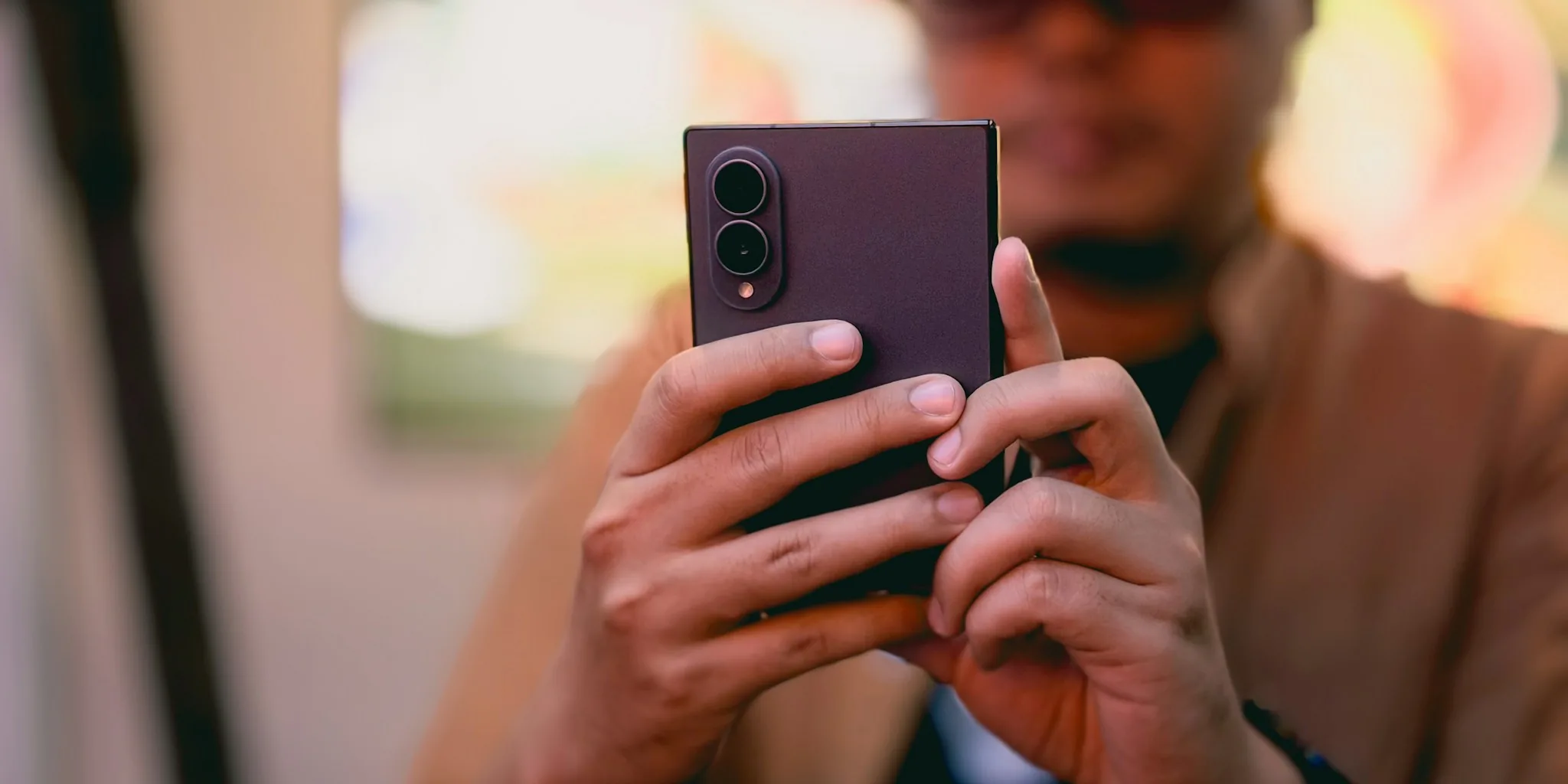
Samsung’s latest foldable devices represent a major leap forward in mobile innovation, and the newest software updates bring powerful features designed to help you get the most out of your investment. Whether you’ve just picked up a Galaxy Z Fold 7, Z Flip 7, or an earlier model, understanding how to leverage new capabilities can transform the way you interact with your device. Here are seven practical tips to enhance your foldable smartphone experience.
1. Master My FanCam for Video Reframing
One of the standout additions to Samsung’s latest ecosystem is My FanCam, an AI-powered tool that automatically reframes video footage after you’ve shot it. This feature is particularly useful if you’re recording sports events, concerts, or family moments where your subject moves around the frame. Instead of worrying about keeping the action centered while recording, you can simply capture the scene. The AI then analyzes your footage and intelligently keeps your selected person in the frame throughout the video. This means you can enjoy more cinematic results without requiring professional videography skills. For smartphone users who frequently create content, this capability saves significant time in post-production editing.
2. Customize Your Quick Settings Panel for One-Handed Use
The Quick Settings redesign in recent updates allows you to relocate brightness and volume controls to the bottom of the panel. For foldable device owners, this adjustment is particularly valuable because it improves accessibility when using your phone with one hand. By moving these controls lower, you reduce the need to reach across the screen, making adjustments faster and more natural. This customization is found in your settings menu and takes only moments to implement. Once configured, you’ll notice an immediate improvement in how intuitively you can adjust display brightness and audio levels throughout your day.
3. Use Now Nudge to Stay Organized Proactively
The enhanced Now Nudge feature uses artificial intelligence to analyze what’s happening on your screen and offer contextually relevant suggestions. For example, when someone shares a location with you in a messaging conversation, Now Nudge will immediately display a prompt to save that location to your contacts or maps. This feature works across multiple apps and scenarios, helping you capture important information without manually searching through menus. By accepting these intelligent prompts, you create a more organized digital life with less manual data entry. It’s particularly useful for managing social commitments, travel plans, and important addresses shared by friends and colleagues.
4. Leverage Improved Motion Assist for Accessibility
Samsung’s enhanced Motion Assist functionality helps users interact with their devices more comfortably. If you experience any hand tremors, limited dexterity, or simply prefer gesture-based navigation, Motion Assist refines how your device responds to your movements. This update improves the accuracy and responsiveness of motion-controlled features, making your overall experience smoother. Accessibility features like this demonstrate how modern smartphones can adapt to individual user needs. Whether you’re aging into different physical capabilities or managing a temporary condition, these refinements matter significantly for daily usability.
5. Optimize Document Scanning Capabilities
The improved document scanning tools in the latest software update make capturing and digitizing paper documents easier than ever. When you need to save receipts, contracts, or important letters, your device can now process these images with better edge detection and clarity correction. The AI-assisted scanning feature automatically crops images to document boundaries and adjusts lighting to ensure text remains legible. For professionals, students, and anyone managing important paperwork, this capability reduces the need for dedicated scanning hardware. Simply use your camera and let the software handle the optimization.
6. Reposition Your Search Bar for Improved Navigation

Recent updates introduced the option to move your home screen search bar from the top to the bottom of the display. This change might seem minor, but it significantly impacts how quickly you can access search functionality with one hand. By placing the search bar at the bottom, you reduce the reach required to perform searches, making your device feel more ergonomic during typical use. This customization option is available in your home screen settings and takes seconds to enable. For users who rely on voice search or frequently look up information, this repositioning creates a more fluid workflow.
7. Enable Enhanced Privacy Alerts for Better Security
Samsung’s improved privacy alerts provide clearer visibility into how applications access your data. The latest software iteration makes these notifications more prominent and easier to understand, so you remain aware of which apps are using your location, camera, microphone, or contacts. This transparency helps you make informed decisions about permissions and can prompt you to revoke access for apps that don’t need it. By reviewing these alerts regularly, you maintain better control over your personal information. Privacy protection should be an active part of your device management, and these enhanced alerts support that goal. Check your permission settings monthly to ensure only necessary apps retain sensitive access.
These seven strategies will help you extract maximum value from your foldable device. By implementing each suggestion, you’ll discover features specifically designed to improve your daily experience and make your Galaxy device work harder for you.
About the author
Eleanor covers smartphones for REMOVU, balancing cameras, battery life, and software support against price. She helps readers find the best value as the field shifts with every release.