7 Tips to Fix Your Ethernet Connection Running at Slow Speeds
When Auto Negotiation sets your connection too low, your speeds suffer. Here's how to diagnose and resolve the issue.
 By Ava Herrera
Updated September 14, 2026
By Ava Herrera
Updated September 14, 2026

Why Your Ethernet Connection Might Be Running Slower Than Expected
You switched from Wi-Fi to a wired Ethernet connection expecting a major speed boost, but something feels off. Your connection seems sluggish, downloads crawl, and streaming stutters. The culprit often lies in a setting called Speed and Duplex, which determines how fast your Ethernet adapter communicates with your router. When this setting negotiates incorrectly, you could find yourself stuck at speeds reminiscent of early 2000s internet, even with modern hardware.
Understand the Speed and Duplex Setting
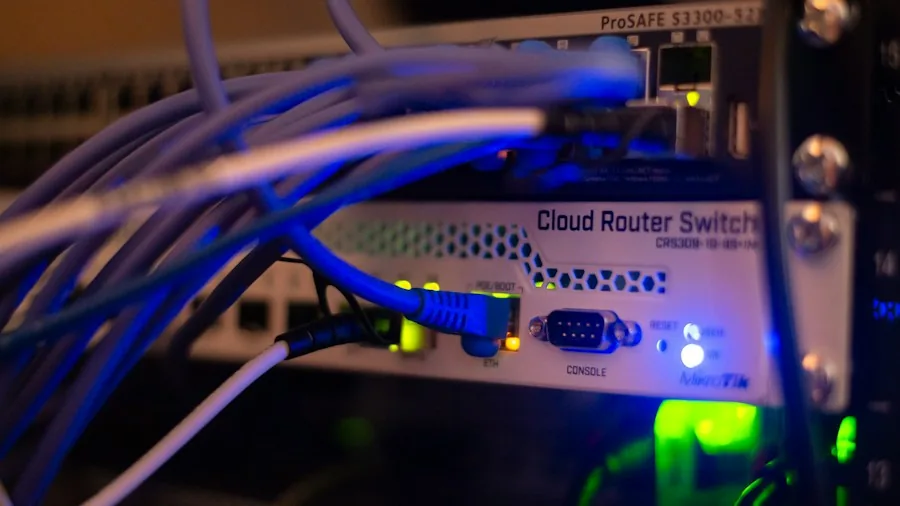
Speed and Duplex is a network adapter setting that controls two critical aspects of your connection. The speed component determines whether your link runs at 100 Mbps, 1 Gbps, or 2.5 Gbps. Duplex refers to whether data can travel in both directions simultaneously, which modern Ethernet uses in full duplex mode. To access this setting in Windows, navigate to Device Manager, expand Network Adapters, right-click your Ethernet adapter, select Properties, then Advanced, and look for Speed and Duplex or a similar option.
Learn How Auto Negotiation Works
By default, your network adapter uses Auto Negotiation, which allows your PC and router to communicate and agree on the best compatible speed and duplex mode. Think of it like how USB devices automatically determine their connection speed. In the vast majority of cases, Auto Negotiation selects the optimal settings without any intervention from you. The system is designed to find a speed that both devices can reliably support, preventing connection failures or instability. If Auto Negotiation is active and functioning properly, you typically don’t need to adjust anything manually.
Recognize the Impact of Slow Speed Negotiation
If Auto Negotiation settles on 100 Mbps when your hardware supports gigabit speeds, the performance difference is dramatic. A 2.5 GbE connection can reach 312.5 MB per second, while 1 Gbps supports 125 MB per second. At 100 Mbps, you’re looking at roughly 12.5 MB per second, which means your connection is operating at speeds from two decades ago. This slowdown affects everything: large file downloads, video streaming, online gaming, and general browsing all suffer significantly. Even with powerful hardware, sluggish link speeds create a bottleneck that no processor can overcome.
Never Force the Highest Speed Available
Your instinct might be to manually set your connection to the fastest speed possible, but resist this urge. Forcing a higher speed than what Auto Negotiation selected creates a mismatch between what your adapter and router can actually support. At best, you gain nothing. At worst, the connection becomes unstable or fails to establish properly. Auto Negotiation exists precisely to prevent these conflicts by ensuring both ends of the connection agree on viable parameters. Overriding this safety mechanism doesn’t make your connection faster if the hardware can’t sustain it.
Check Your Actual Link Speed in Windows
Before troubleshooting further, confirm what speed your connection is actually running at. Go to Settings, select Network and Internet, then Ethernet, and look for link speed information. You can also check your adapter status through Control Panel. Important: don’t confuse link speed with internet speed. Link speed measures the connection between your PC and router only. Your ISP determines your actual download and upload speeds, so that remains a separate factor. If Windows shows a slower link speed than expected, you’ve identified the problem area.
Swap Out the Ethernet Cable
Often, Auto Negotiation is simply exposing a hardware problem rather than being the problem itself. The first component to investigate is the Ethernet cable. Unplug it from both ends and reconnect it firmly. Then try a different cable that you know works properly, ensuring it’s at least Cat5e or newer. Gigabit Ethernet requires all four twisted pairs inside the cable to function at full speed, while older 100BASE-TX only uses two pairs. A damaged pair might allow the cable to work, but at reduced speeds. A reliable connection setup depends on quality cabling throughout the entire network path. Testing with a known-good cable quickly reveals whether the cable is responsible for your speed negotiation problems.
Investigate Other Network Hardware
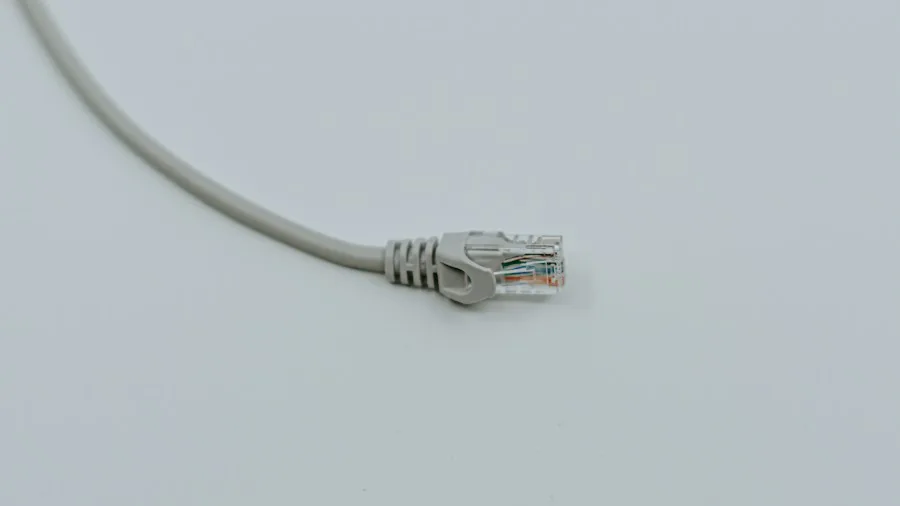
If the cable checks out, examine your router and any switches between your PC and the wall. Older routers might not support the speeds your modern adapter expects. Similarly, if you’re using a network switch, ensure it supports the speeds you’re trying to achieve. Some budget networking hardware only supports 100 Mbps even though it accepts newer cables and adapters. Your entire network chain must support the speed you want, from the cable all the way to your ISP connection.
Remember That Every Link Has a Speed Limit
A computer is only as fast as its slowest network link. Whether your PC is brand new or several years old, any component that can’t keep up becomes a bottleneck. Speed and Duplex settings serve as a diagnostic tool that highlights where problems exist in your network chain. Once you’ve identified what speed Auto Negotiation selected, you can work backward through your hardware to find the weak point. Check cables, routers, switches, and adapter specifications systematically. Addressing the actual culprit solves the problem permanently, whereas forcing settings only masks the underlying issue temporarily.
About the author
Ava is REMOVU's laptop writer, balancing speed, battery life, and build quality against price across the whole range. She helps readers find the sweet spot as each new chip shifts what a dollar buys.