7 Tips for Choosing the Right USB-C Dock for Your Nintendo Switch 2
Discover how to choose a USB-C dock that actually works with your Switch 2 instead of just charging it.
 By Serenity Richards
Updated November 13, 2026
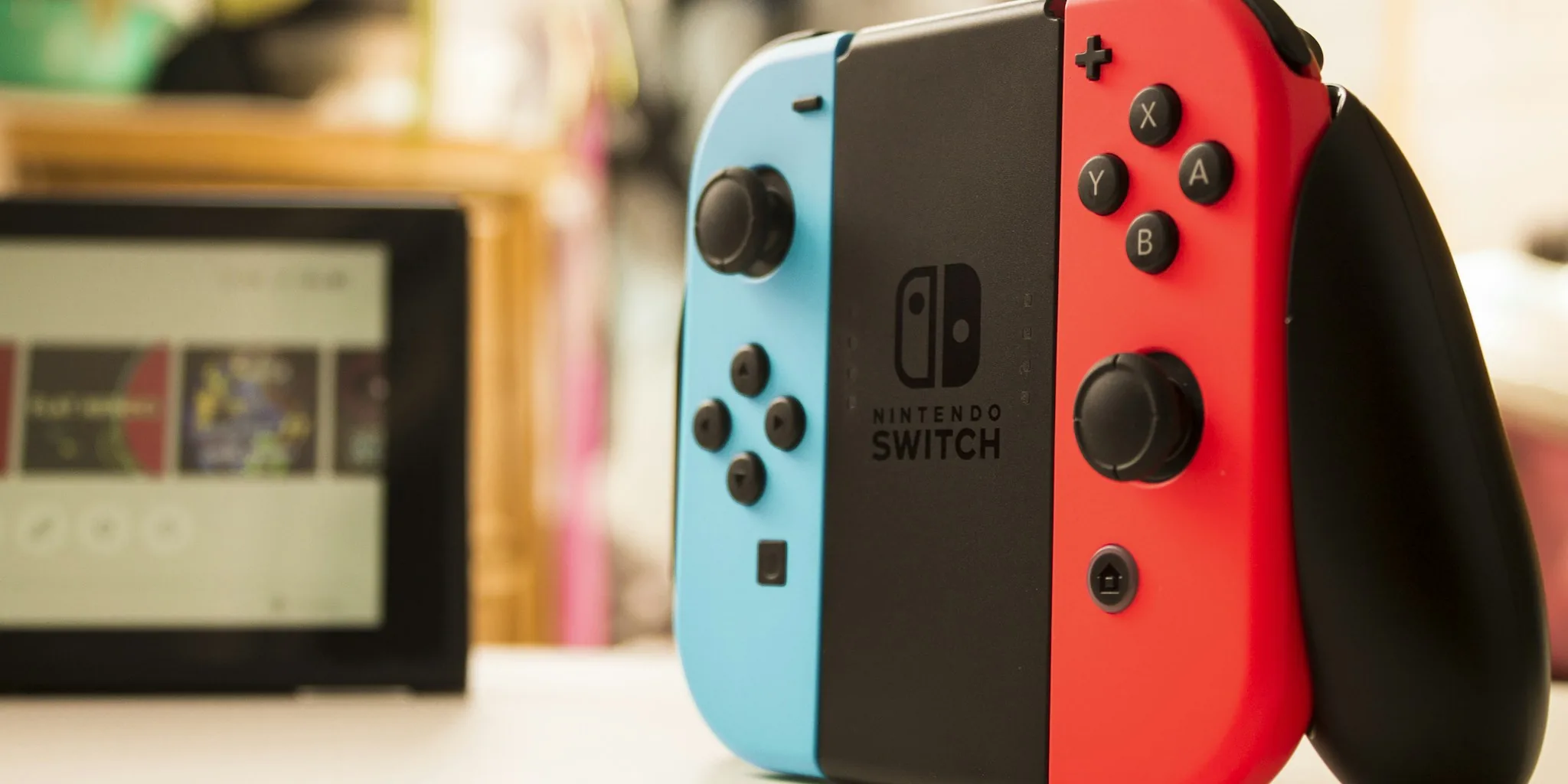
Understanding USB-C Compatibility with Your Switch 2
Nintendo’s Switch 2 represents a significant leap in handheld gaming technology, but choosing the right docking solution has become more complicated than ever. Unlike the original Switch, the newer console employs strict authentication protocols that reject third-party USB-C hubs unless they communicate using specific proprietary handshakes. This means that plugging in a standard laptop hub will charge your device but leave your TV screen dark. Understanding these compatibility requirements is the first step toward making an informed purchase decision.
Tip 1: Know the Difference Between Charging and Docking
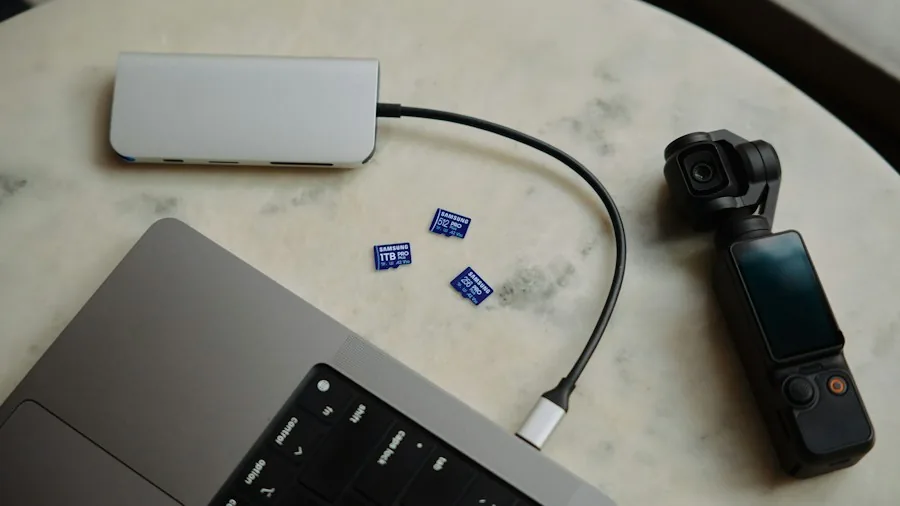
Many consumers assume that any USB-C hub capable of power delivery will work with the Switch 2. This assumption leads to frustration. The console will accept power from virtually any USB-C hub, but it refuses to output video unless the dock responds correctly to Nintendo’s authentication protocol. Official Nintendo docks cost around $125 and contain the necessary firmware to pass this verification. Before buying any alternative solution, clarify whether you need both charging and display output, or if charging alone will suffice for your needs.
Tip 2: Budget Doesn’t Always Determine Functionality
Some third-party manufacturers have successfully engineered docks that mimic the official dock’s authentication response, offering similar functionality at lower price points. However, the cheapest option won’t necessarily work. A budget-conscious approach means researching products specifically designed and verified to work with Switch 2 before making a purchase. Reading recent user reviews and checking manufacturer documentation for Switch 2 compatibility claims is essential. The gap between a non-functional $45 hub and a working third-party dock might be just a few dollars, but only one will display video.
Tip 3: Check for Video Output Specifications
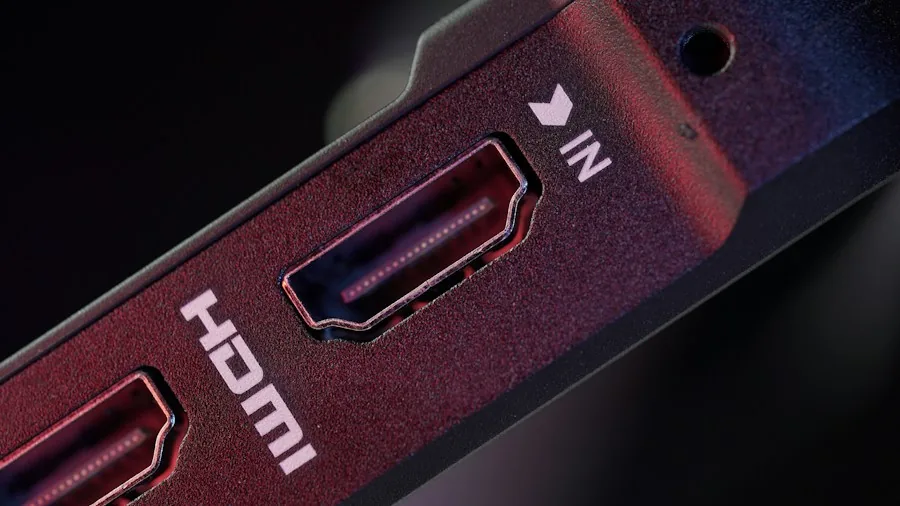
Not all USB-C hubs support video output over USB-C. Some are designed primarily for peripheral expansion and power delivery. When evaluating USB-C docks for different purposes, verify that your chosen model includes DisplayPort or HDMI output capability. The Switch 2 requires this functionality to display games on your television. Without it, your dock becomes nothing more than a charging station, defeating the purpose of a docking solution.
Tip 4: Understand the Color Space and HDR Limitations
Advanced docking solutions that work with Switch 2 may still present challenges related to how the console’s video signal is processed. HDR compatibility depends on whether the dock’s video conversion chip properly tags frames with the correct color space information. Some third-party solutions may initially display HDR content incorrectly, making colors appear washed out. This technical detail isn’t always disclosed in product listings, so researching user feedback about image quality and HDR performance is worthwhile before committing to a purchase.
Tip 5: Factor in Portability and Design Preferences
The official Nintendo dock is notoriously bulky, making it impractical for travelers who want to dock their console while on the move. Many consumers seek slimmer alternatives that occupy less space in bags or hotel rooms. Laptop-style USB-C hubs often provide a better form factor for portable gaming setups. When evaluating options, consider your actual usage pattern. If you primarily dock at home, size matters less. If you travel frequently, a compact design becomes a significant advantage worth paying a premium for.
Tip 6: Verify Future-Proof Compatibility Before Purchase
Nintendo has a history of updating console firmware in ways that affect dock compatibility. Previous system updates have rendered otherwise functional third-party docks inoperable overnight, forcing manufacturers to release emergency firmware patches. When selecting a dock, prioritize products from established manufacturers with demonstrated track records of supporting their hardware through system updates. This reduces the risk of your dock becoming obsolete after Nintendo releases new software.
Tip 7: Consider Your Specific Gaming Needs
Different docking solutions offer varying levels of feature support. Some support features that the official Nintendo dock never enables, such as variable refresh rate technology. However, advanced features don’t always work flawlessly across all games or scenarios. Before prioritizing a dock based on cutting-edge feature support, verify that these features actually improve your gaming experience rather than introduce compatibility problems. Conservative buyers should stick with docks that closely match the official dock’s established functionality, while enthusiasts willing to accept occasional technical quirks might explore newer features.
Choosing the right USB-C dock for your Switch 2 requires balancing budget, portability, reliability, and feature requirements. Invest time researching specific models, reading current user reviews, and confirming Switch 2 compatibility claims directly from manufacturers. Your gaming experience depends on selecting a solution that meets your individual needs rather than simply choosing the cheapest or most feature-rich option available.
About the author
Serenity covers home game consoles for REMOVU, weighing performance, exclusive libraries, and the ecosystem each platform locks you into. She helps players pick the console that fits how and what they play.