7 Samsung Galaxy Features You’re Probably Ignoring That Can Transform Your Daily Phone Use
Discover powerful Samsung features that most owners ignore but can transform your daily phone experience.
 By Eleanor Garcia
Updated October 2, 2026
By Eleanor Garcia
Updated October 2, 2026
Automate Your Daily Tasks with Modes and Routines
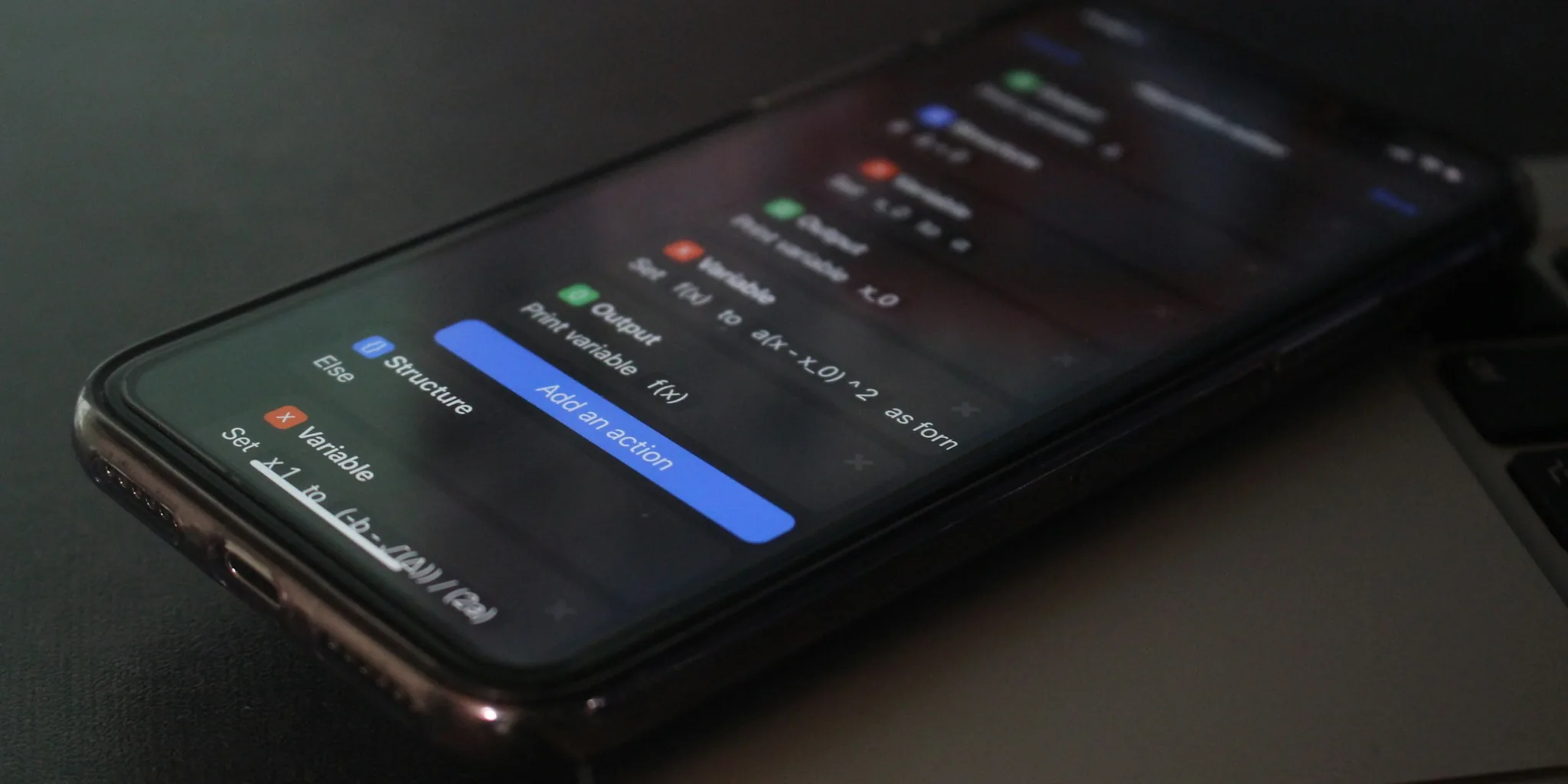
Most Galaxy owners know Modes and Routines exist, but many never fully explore what they can do. This built-in automation system lets you create custom workflows that handle repetitive actions automatically, freeing up your time and mental energy. Instead of manually adjusting settings or launching apps throughout the day, let your phone adapt to your lifestyle.
You can set up a distraction-free morning mode that silences notifications except from important contacts, or create a work routine that automatically activates at 9 AM and displays only job-related alerts. Imagine your phone launching Spotify the moment you leave your home, or switching to a bedtime mode that dims the screen and blocks notifications after 10 PM. These automations go far beyond what most people realize, transforming your Galaxy into a personal assistant that understands your schedule. To access this feature, open Settings, navigate to Modes and Routines, then select Routines to begin building your custom automations.
Run Two Accounts of the Same Chat App Simultaneously
Dual Messenger is one of those Samsung-exclusive capabilities that solves a problem many people didn’t even know they had. This feature lets you install a second instance of supported messaging apps on your phone, complete with its own contact list and account login. Perfect for separating personal and professional communications, or managing work and personal social accounts without constantly switching between logins.
Each copy runs independently, and the second installation displays a blue badge so you can easily distinguish it from your main app. Setup is straightforward: go to Settings, select Advanced Features, find Dual Messenger, toggle on the app you want to duplicate, and complete the installation. Once installed, you’ll see both versions in your app drawer and can pin either one to your home screen. This approach keeps your conversations organized and prevents accidental messages to the wrong contacts.
Play Different Audio from Your Earbuds and Phone Speakers Simultaneously
Separate App Sound is an underrated feature that solves a surprisingly common situation. Imagine listening to music through your wireless earbuds while someone else watches videos on your phone’s speaker, both happening at the same time without audio conflicts. This feature routes audio outputs from different apps to different destinations on your device.
The setup process is simple yet powerful. Access Settings, go to Sounds and Vibration, and select Separate App Sound. Enable the feature, then assign specific apps to specific audio outputs. You can add any app to the list, whether it’s a music player, video streaming service, or anything in between. One important note: you’ll need to manually enable this feature each time you want to use it, so it’s not a permanent setting. While situational, this capability becomes invaluable in social settings, work environments, or whenever you need simultaneous independent audio streams.
Create a Secure, Isolated Workspace with Secure Folder
Many Galaxy users overlook Secure Folder, assuming it’s just a private vault for sensitive documents. In reality, it’s much more sophisticated: a completely sandboxed environment that functions like a phone within your phone. You can install apps, create separate accounts, and build an isolated digital ecosystem that operates independently from your main device.
This opens up countless possibilities beyond basic privacy. Create a dedicated work-only space that stays silent during evenings and weekends, or reserve it exclusively for apps you only need in specific situations. Apps inside Secure Folder don’t run in the background by default, so they won’t drain your battery, though you can enable background operation for individual apps if needed. You can sign in with a separate Google or Samsung account, which gives you access to dedicated Play Store and Galaxy Store instances inside the folder. Enable Secure Folder by opening Settings, navigating to Security and Privacy, selecting More Security Settings, then Secure Folder. The level of customization here makes it a powerful organizational tool beyond simple encryption.
Improve Audio Quality in Videos with AI-Powered Audio Eraser

Audio Eraser represents Samsung’s more practical approach to artificial intelligence features. This tool analyzes videos and voice recordings captured on your phone, allowing you to boost voice clarity while reducing background noise. It’s particularly helpful for content where dialogue gets drowned out by environmental sounds.
You have multiple ways to use this feature depending on your content source. For videos recorded on your Galaxy, open the file in the Gallery app, tap the AI button, then adjust voice and noise levels independently using sliders. For recordings made with Samsung’s Voice Recorder app, open any recording and tap Audio Eraser to clean up background interference. If you’re watching content in apps like YouTube, Netflix, or TikTok, swipe down to access Quick Settings, enable Audio Eraser, and adjust the strength to your preference. This feature becomes particularly valuable for content creators, people who conduct interviews, or anyone working with audio captured in less-than-ideal acoustic environments.
Discover More Hidden Capabilities
Samsung Galaxy phones ship with an enormous range of features, and most owners remain unaware of many beneficial ones simply because they’re not heavily promoted. Whether you’re already using some of these capabilities or discovering them for the first time, taking time to explore your phone’s settings can reveal customization options that fundamentally change how you interact with your device. Each of these features is designed to save time, improve privacy, or enhance your daily experience in meaningful ways. Start with whichever feature addresses your immediate needs, then gradually expand your familiarity with what your Galaxy can do.
About the author
Eleanor covers smartphones for REMOVU, balancing cameras, battery life, and software support against price. She helps readers find the best value as the field shifts with every release.