5 Ways to Speed Up an Aging Desktop Computer
Revive an aging computer's performance without buying new hardware using these practical, cost-effective strategies.
 By Ava Herrera
Updated August 18, 2026
By Ava Herrera
Updated August 18, 2026
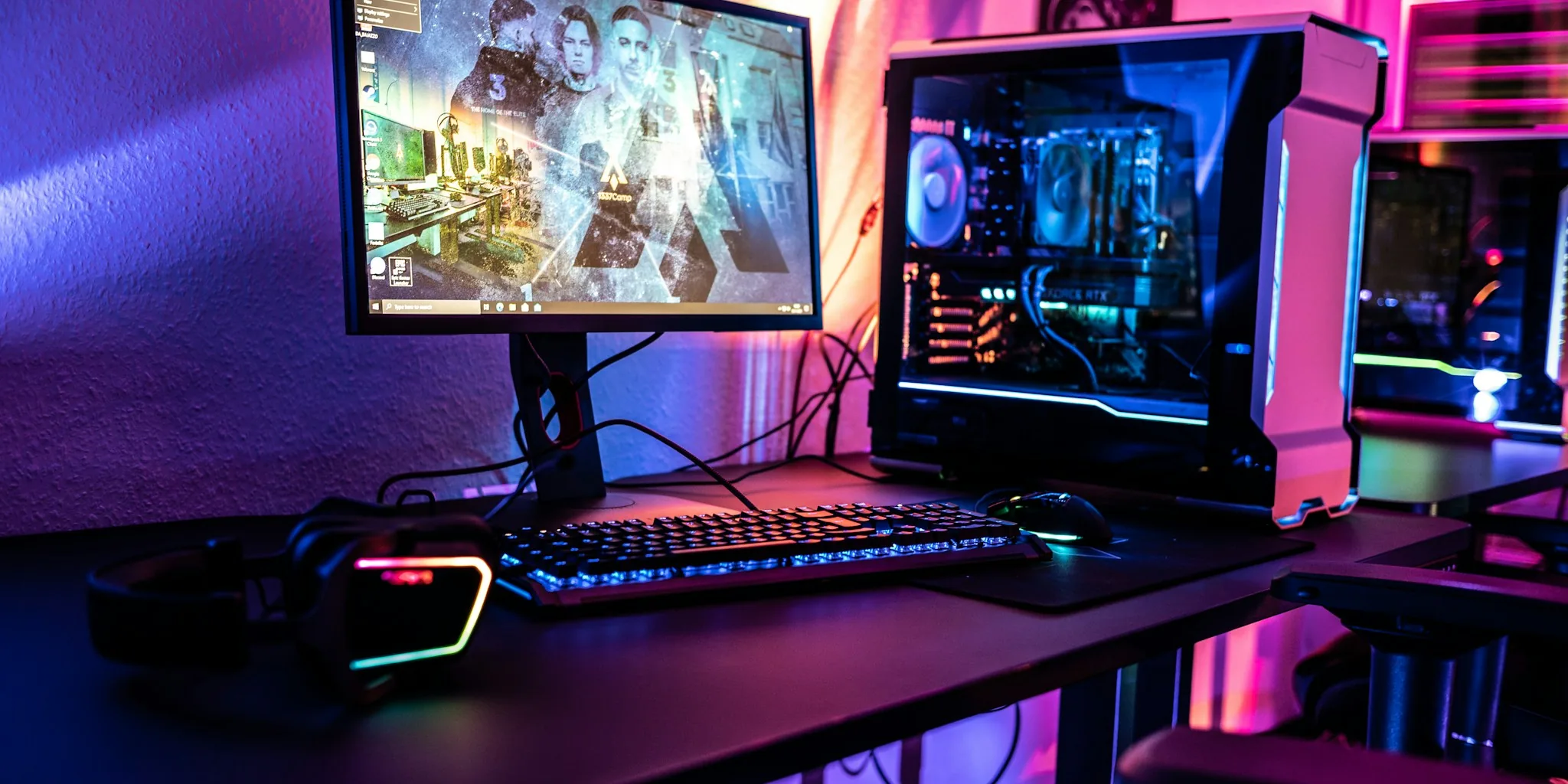
If your desktop computer feels sluggish and slow, you might assume the only solution is buying expensive new hardware or replacing the machine entirely. The truth is that several practical improvements can breathe new life into an older system without breaking the bank. Below are five proven methods to noticeably improve your aging desktop’s performance, plus one approach you should absolutely avoid.
Upgrade to a Solid State Drive
The single most impactful upgrade for any older desktop is installing a solid state drive (SSD) if you haven’t already. If your computer still runs on a traditional hard disk drive (HDD) as the boot drive, you’re experiencing the full consequences of outdated storage technology. Machines with aging HDDs often take ten or more minutes just to boot up and load Windows. Beyond startup times, an SSD accelerates everything involving disk access: Windows updates, file searches, application installations, and general system responsiveness all improve dramatically.
You don’t need to spend heavily on premium high-end SSDs either. Even a mid-range SATA or NVMe drive will feel like night and day compared to an old mechanical drive. The performance difference is immediately noticeable and often feels like you’ve gotten a brand new computer.
Disable Startup Applications
Over time, your computer accumulates startup programs that launch automatically whenever you boot your system. Game launchers, peripheral software, messaging apps, and countless other programs request startup privileges. Each additional app competing for resources during startup slows down your boot process noticeably.
Disabling these programs is straightforward on Windows machines. Open Task Manager, navigate to the Startup tab, and review the list of applications. Disable anything you don’t need running immediately when your computer starts. This won’t uninstall the software, it simply prevents it from launching automatically. Older computers especially show dramatic improvements after removing unnecessary startup apps.
Manage Background Running Processes
Beyond startup apps, many programs continue running in the background even when you’re not using them. Software updates, cloud sync services, and various system processes consume RAM and CPU resources constantly. Identifying and disabling resource-heavy background applications can significantly improve overall system performance.
Open Task Manager and examine the Processes tab. Look for applications consuming substantial memory or CPU resources. A quick search can help you determine whether each process is essential or safe to disable. One important note: don’t obsess over minimizing RAM usage. Windows automatically manages memory allocation, and having RAM available is actually beneficial for system performance rather than harmful.
Free Up Space on Your SSD
If you’ve already installed an SSD, you need to ensure it has adequate free space. An SSD operating at 80 to 100 percent capacity will noticeably underperform compared to one with breathing room. Windows requires free drive space for temporary files, updates, caches, and virtual memory operations. Additionally, SSDs need unallocated NAND capacity for internal housekeeping tasks. When your drive approaches maximum capacity, performance degradation becomes very tangible.
Moving files to external storage or cloud services and deleting unnecessary items can restore performance. If your SSD is only half full, this step won’t make much difference, but a nearly maxed-out drive will definitely benefit from cleanup.
Clean Out Dust and Debris
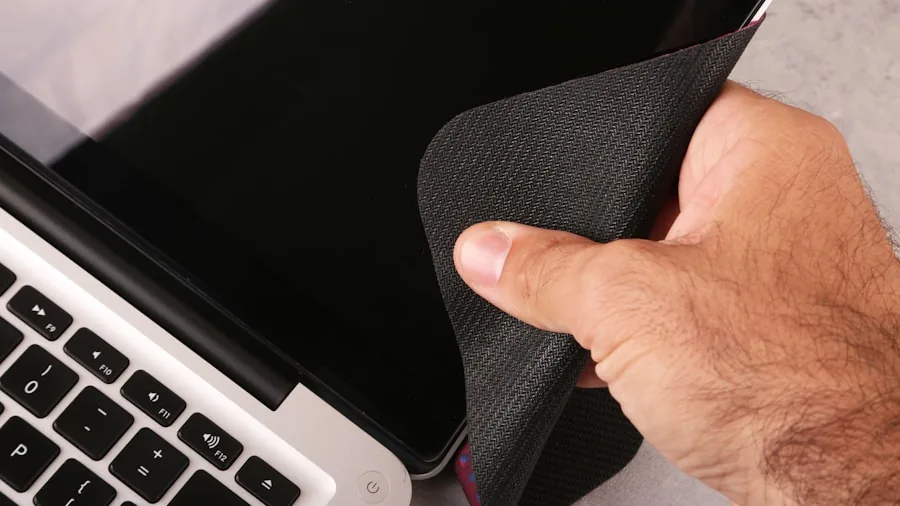
Software optimization isn’t the only factor affecting computer speed. Physical dust accumulation can severely hamper performance. Dust clogs intake filters and heatsink fins, restricting airflow to your CPU and GPU. When components can’t dissipate heat effectively, your system throttles performance automatically to prevent overheating. This throttling becomes especially noticeable during demanding tasks like gaming or video editing.
Compressed air or an electric duster can remove dust buildup from inside your computer. You’ll likely notice temperature drops of several degrees, and this alone can eliminate thermal throttling issues that were silently degrading your machine’s performance.
The Scam to Avoid: PC Cleaner Software
Don’t fall for aggressive marketing from so-called PC cleaner applications. Many of these programs are either malware or scams designed to extract money from concerned users. Even well-intentioned cleanup utilities can delete important system files or cause unexpected problems. Rather than taking shortcuts, invest an hour manually reviewing your startup apps, background processes, and stored files. The manual approach ensures you maintain control over what gets disabled or removed from your system.
By combining these practical improvements, you can restore significant performance to an aging desktop without replacing it entirely.
About the author
Ava is REMOVU's laptop writer, balancing speed, battery life, and build quality against price across the whole range. She helps readers find the sweet spot as each new chip shifts what a dollar buys.