Pixel Watch Battery Drain Solved: The Hidden Setting Killing Your Charge
The phone call feature in your Bluetooth menu might be the reason your Pixel Watch won't last all day.
 By Kristen Jennings
Updated September 30, 2026
By Kristen Jennings
Updated September 30, 2026
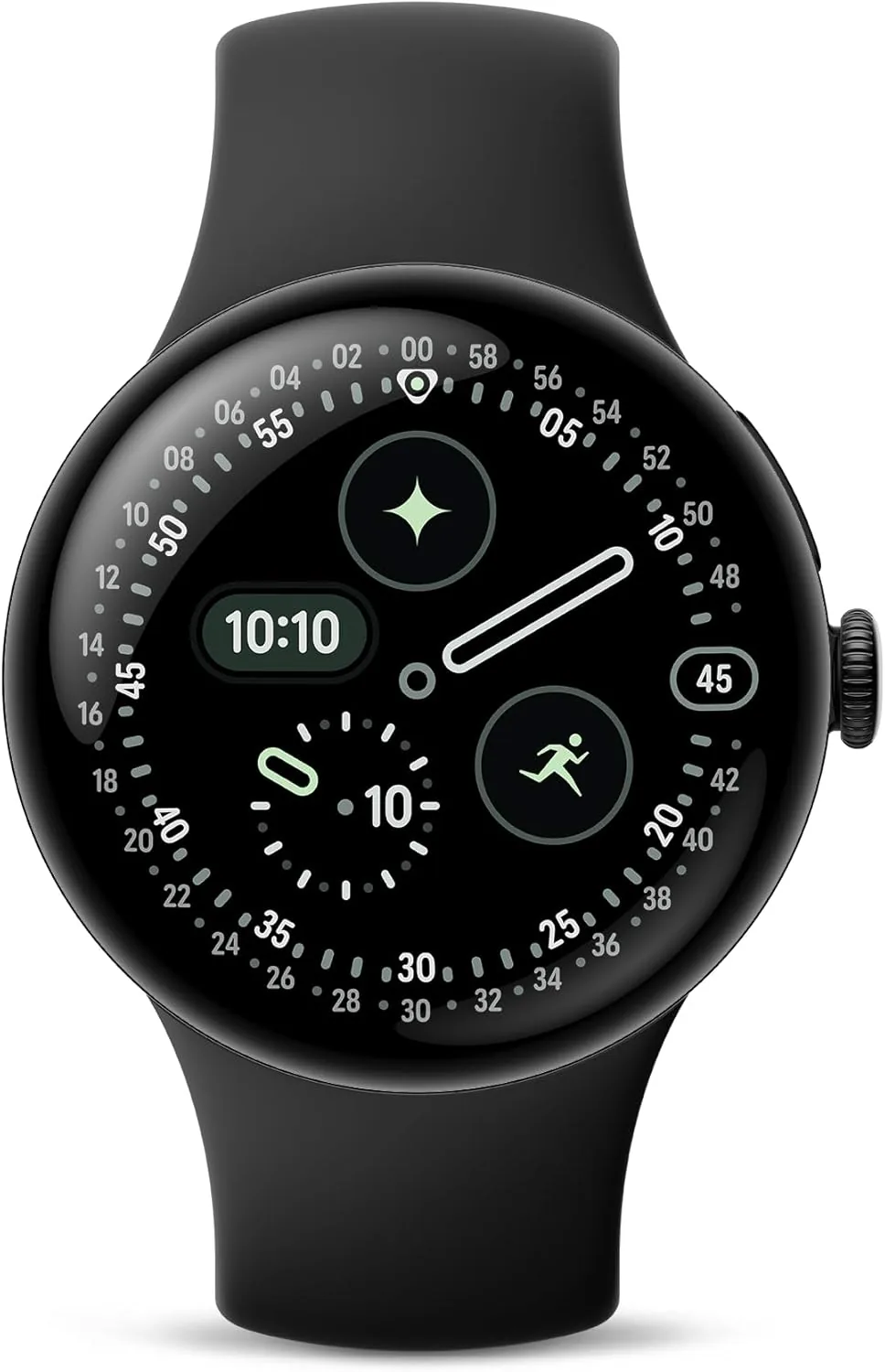
If you’re struggling with poor battery life on your Pixel Watch, you might be overlooking a single setting that could be the culprit. One common mistake involves leaving the phone call feature enabled in your Bluetooth connection menu, which forces your watch to maintain a constant active connection to your phone rather than using the more efficient Bluetooth Low Energy mode. This setting, while useful for some users, can significantly drain both your watch and phone batteries throughout the day.
Understanding the Phone Call Feature Drain
The phone call feature on your Pixel Watch allows you to answer and take calls directly on your wrist, routing audio through the watch’s speaker and microphone. To make this work, the watch must stay perpetually connected to your phone via active Bluetooth, similar to how wireless earbuds operate. This continuous connection requires constant power expenditure on both devices, preventing them from entering low-power states and significantly reducing overall endurance.
When this setting is enabled, your phone stops using Bluetooth Low Energy and instead maintains an always-on active connection. This explains why users notice dramatic battery deterioration after enabling the feature, often losing 20% or more of daily battery capacity on their phones and struggling to keep their watches charged through a full day.
How to Identify and Fix the Problem
To check if this setting is draining your battery, navigate to your phone’s Bluetooth menu and examine how your Pixel Watch is connected. If you see the phone call option enabled in the connection details, try disabling it and monitor your battery performance over the next few days. Most users report noticeable improvements within 24 to 48 hours of making this change.
After disabling the phone call feature, you should notice your Pixel Watch extending its battery life to over 24 hours on a single charge, while your phone should comfortably last a full day of regular use. The devices will revert to using Bluetooth Low Energy, allowing passive information sharing without constant active connections draining your battery reserves.
Is Sacrificing Phone Calls Worth It?
The primary tradeoff is losing the ability to take phone calls directly on your smartwatch. However, you can still see incoming calls on your watch screen and use the call screen interface to answer or decline. You simply won’t hear audio through the watch speaker or speak into the watch microphone.
For most users, this represents an acceptable compromise. Unless you frequently rely on taking calls while your phone is out of reach, the battery improvement far outweighs the loss of this capability. Consider how often you actually use the watch phone feature in your daily routine before deciding whether to keep it enabled.
Broader Battery Management Considerations
Battery performance on modern wearables and phones remains a challenge despite hardware improvements. Manufacturers market features like always-on displays, gesture controls, and voice assistants, yet users often must disable these same features to achieve acceptable battery life. This creates frustration for consumers who feel they’re not fully utilizing the devices they purchased.
Beyond the phone call setting, consider reviewing other battery-draining features on your Pixel Watch. Bluetooth connectivity itself should be monitored, and you may want to evaluate whether features like always-on display or constant health monitoring align with your actual usage patterns. Smartwatches under $200 often require similar management strategies to maximize daily battery life.
What This Means for Pixel Watch Users
This discovery highlights the importance of carefully reviewing connection settings when setting up a new device. Many users enable all available features during initial setup without understanding the battery implications. Taking time to understand which settings impact your specific use case can prevent days or weeks of frustration with deteriorating battery performance.
If you’ve been contemplating a Pixel Watch purchase or recently acquired one, don’t assume poor battery life is inevitable. Audit your Bluetooth settings, disable features you don’t actively use, and optimize your device configuration for your actual lifestyle rather than accepting the default configuration. The best smartwatches are those you’ve properly configured to meet your needs.
Many users report satisfaction with Pixel Watch battery performance once they’ve disabled unnecessary features. The watch is capable of lasting well beyond a single day when optimized properly, making it a viable option for those willing to customize their experience and make informed decisions about feature usage versus battery longevity.
About the author
Kristen writes about smartwatches for REMOVU, comparing features, battery life, and ecosystem fit. She helps readers tie together health tracking, notifications, and apps on the right watch.