iPhone Personal Hotspot Green Chain Link Icon Explained: What Buyers Should Know
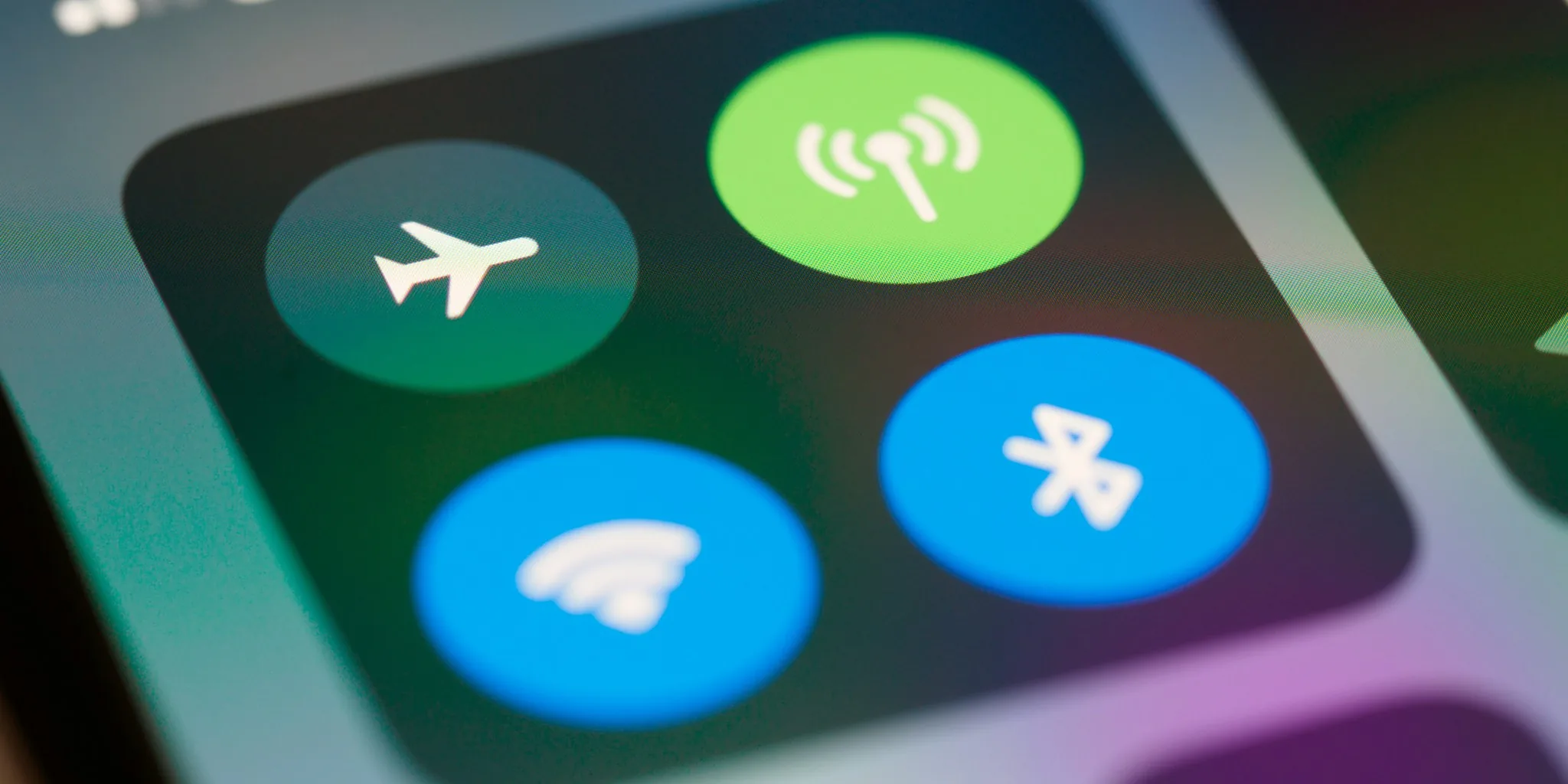
The green chain link icon signals your Personal Hotspot is active and sharing your data connection.
 By Eleanor Garcia
Updated October 2, 2026
By Eleanor Garcia
Updated October 2, 2026
Understanding the Green Chain Link Icon on Your iPhone
If you’ve noticed a green chain link icon appearing in your iPhone’s status bar, you may have wondered what it means. This small but important indicator signals that your iPhone is actively sharing its internet connection with other devices through the Personal Hotspot feature. Essentially, your phone is functioning as a portable wireless router, allowing other gadgets to use your cellular data plan to get online.
The green chain link icon appears whenever Personal Hotspot is enabled, which means you’ve turned on the ability for compatible devices to connect to your iPhone’s network. This feature is particularly useful for situations where you need to provide internet access to a laptop, tablet, or another smartphone while you’re away from a traditional Wi-Fi network. Understanding what this icon means helps you maintain control over your data usage and device connections.
How Personal Hotspot Works for Your Devices

When you activate Personal Hotspot on your iPhone, you’re essentially creating a mobile network that other devices can join. To connect, those devices need to know your hotspot’s name and password. For smartphones and tablets, users simply search for your hotspot network in their Wi-Fi settings and enter the password you’ve set.
If you own multiple Apple products, your experience becomes even more seamless thanks to Instant Hotspot. This feature allows your iPad, Apple Watch, or other compatible Apple devices that share your Apple account or are part of your Family Sharing group to connect automatically without requiring you to enter a password each time. The number of devices you can connect simultaneously depends on your specific iPhone model and your carrier’s capabilities.
One important consideration for shoppers is monitoring your data usage when others are connected to your hotspot. You can easily track who’s connected and how much data is being consumed through your iPhone’s Settings. This oversight helps prevent unexpected overages on your data plan.
Customizing Your Hotspot Name and Password
Your iPhone’s hotspot displays whatever name you’ve given your device. If you named your iPhone after yourself or used a personal identifier, that’s exactly what others will see when they look for available networks. To change how your hotspot appears to other users, you’ll need to rename your device through Settings. Open your iPhone, go to Settings, tap About, select Name, and enter your preferred device name.
Changing your hotspot password follows a similar process. Navigate to your Wi-Fi Password settings and enter a new password using your keyboard. Apple requires hotspot passwords to be at least eight characters long and composed of ASCII characters, which include letters, numbers, and certain punctuation marks like question marks or exclamation points. You can mix uppercase and lowercase letters to strengthen your security. Keep in mind that unless you’re using Instant Hotspot, anyone connecting to your hotspot will need to type in this password.
Setting Up Instant Hotspot for Seamless Connections
Instant Hotspot requires some initial setup before it can operate automatically. First, ensure that all your Apple devices are signed into the same Apple Account and have both Wi-Fi and Bluetooth enabled. These connections are necessary for the feature to function properly.
On each of your other Apple devices, navigate to Wi-Fi settings and look for options labeled “Ask to Join” or “Automatic.” If you want your devices to connect through Instant Hotspot without any additional steps, select “Automatic.” Once this setting is applied across your devices, they should connect whenever your iPhone’s hotspot is available.
For those using Family Sharing, the setup is slightly different. On the iPhone serving as the hotspot, open Settings and navigate to Personal Hotspot. Here, you can configure whether family members are set to “Ask for Approval” or “Automatic.” Members set to “Ask for Approval” will receive a pop-up notification each time they attempt to connect, giving you control over who accesses your data.
Understanding the green chain link icon and mastering your iPhone’s hotspot features empowers you to manage your mobile data more effectively. Whether you’re sharing internet with compatible Apple devices or helping a friend get online, these tools provide flexibility and control over your connectivity. Taking time to properly configure your hotspot settings, password, and device preferences ensures a secure and efficient experience for all connected users. As more people rely on mobile connectivity, knowing how to leverage your iPhone’s hotspot capabilities becomes increasingly valuable for staying productive wherever you are.
About the author
Eleanor covers smartphones for REMOVU, balancing cameras, battery life, and software support against price. She helps readers find the best value as the field shifts with every release.