iPhone Find My Feature Disabled: What Shoppers Need to Know About This Important Setting
Leaving Find My active when transferring your device creates major problems. Here's when and why to disable it.
 By Eleanor Garcia
Updated September 8, 2026
By Eleanor Garcia
Updated September 8, 2026
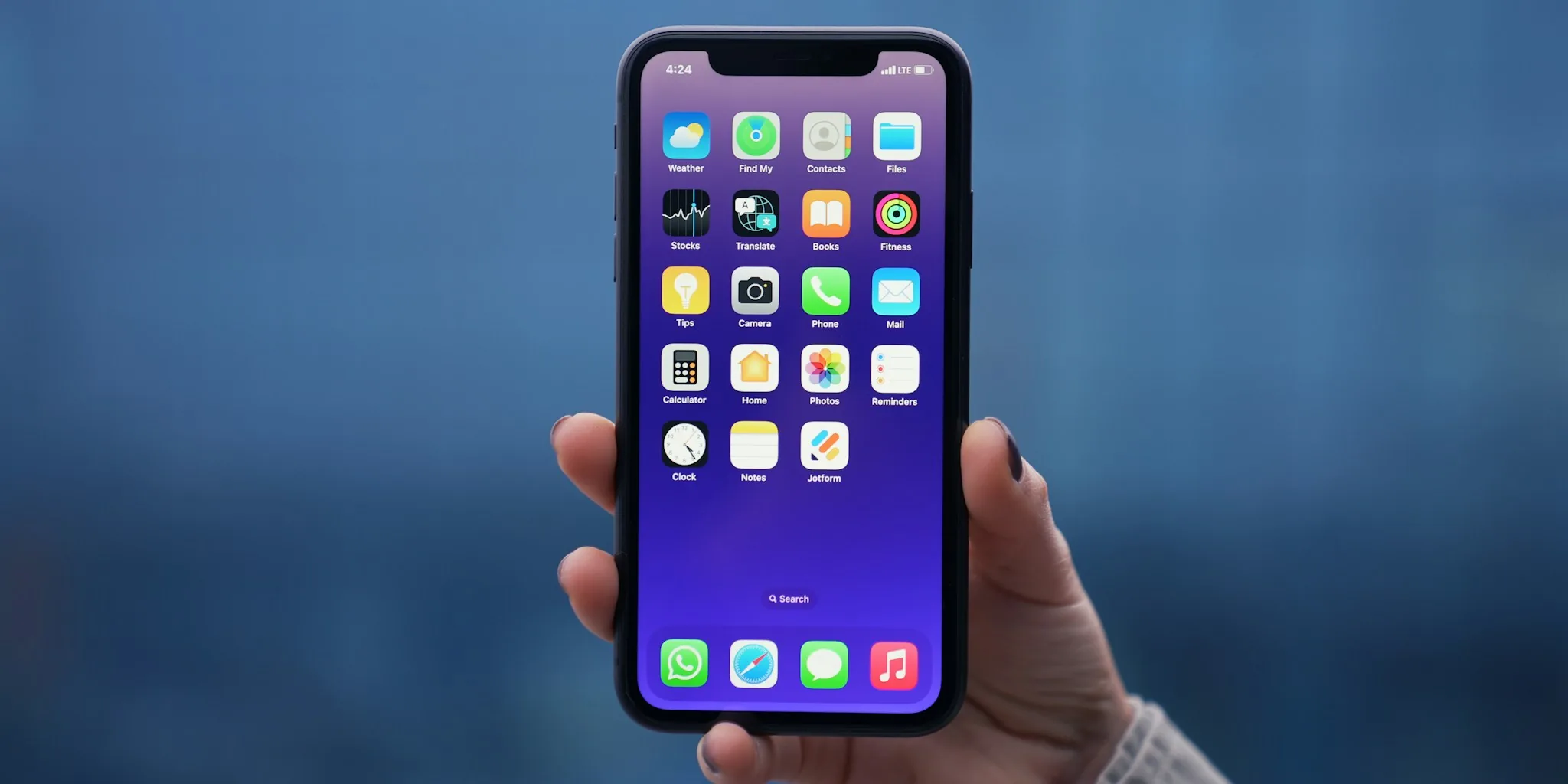
Apple’s Find My service is a powerful tracking and security tool built into iPhones, iPads, Macs, Apple Watches, AirPods, and AirTags. The feature lets you locate your devices in real time, see where people are sharing their location with you, and take protective actions like locking or remotely erasing your device if it’s lost or stolen. For most users, having Find My enabled is a smart security decision. However, there are specific circumstances when you should disable it, and understanding when and how to do so can save you significant hassle later.
When You Must Turn Off Find My
The most important time to disable Find My is before you hand off a device to someone else. If you’re trading in your iPhone at a carrier, selling it online, giving it to a family member, or sending it in for repairs, leaving Find My active creates a major problem. When Find My remains enabled on a device, the new owner cannot register it to their own account, even after performing a factory reset. This activation lock prevents them from using the device entirely and ensures you remain the registered owner. Disabling Find My removes this barrier and allows the new owner to link the device to their own Apple ID and enable the feature for themselves. Beyond functionality, turning off Find My protects your privacy by preventing any possibility that the new owner could track your location or the whereabouts of your other devices.
Device repairs represent another critical scenario. Whether you’re having screen replacement, battery service, or other repairs performed at an Apple Store or authorized service provider, turning off Find My temporarily simplifies the repair process. Technicians won’t need to work around the activation lock, and the repair can proceed more smoothly.
How to Disable Find My
The quickest way to turn off Find My is to perform a factory reset on your device, which erases all data and settings while disabling Find My automatically. However, if you want to keep your data intact, such as during a repair where you’ll get the same device back, you can manually disable it. Navigate to Settings, tap your name at the top of the screen, select Find My, and then turn off the feature. Keep in mind that if you have Stolen Device Protection enabled, this manual process won’t work, and you’ll need to reset the device instead.
How Find My Actually Works
Understanding the mechanics behind Find My helps explain why it’s so effective. Apple’s Find My network operates as a crowdsourced infrastructure leveraging over a billion Apple devices worldwide. When Find My is active, your device uses Bluetooth technology to detect nearby devices and accessories. This network allows your iPhone, iPad, or Apple Watch to report its approximate location back to you, even when your device is powered off. The system remains functional because devices retain minimal power in a low-energy state, allowing them to maintain network connectivity through Bluetooth.
This distributed approach is what enables AirTags and other accessories to deliver pinpoint location accuracy from miles away. Because the network is built on encrypted, anonymous connections, Apple has incorporated privacy safeguards into the system. For example, if an AirTag not registered to you is detected traveling with you consistently, your device will alert you and help you disable its tracking capabilities. These protections ensure the powerful tracking infrastructure cannot be misused for stalking or unauthorized surveillance.
Beyond Location Tracking
Find My offers security features that go far beyond simple device location. If you believe your iPhone is lost for good or has been stolen, you can use Find My to remotely lock your device, preventing unauthorized access to your personal information. You can also remotely erase all content on the device, ensuring sensitive data like photos, messages, and financial information cannot be accessed by someone else. These remote security actions are possible because your device maintains a low-power connection to the network even when powered off, allowing Apple’s servers to send commands to your device.
What This Means for Buyers and Sellers
For anyone purchasing a used or refurbished iPhone, this information is crucial. Before completing a purchase, confirm that the seller has disabled Find My on the device. If they haven’t, you’ll encounter frustrating issues when trying to set up the phone. Similarly, if you’re selling or trading in an iPhone, taking just a few minutes to disable Find My ensures the transaction goes smoothly and protects your personal data and privacy. For those sending devices to repair centers, a quick manual disable or factory reset prevents complications and expedites service.
Find My remains an invaluable security and privacy tool that should stay enabled on devices you actively use. However, recognizing when to disable it protects both you and the next user or technician handling your device. Taking this simple precaution before parting with an iPhone demonstrates responsible device ownership and ensures Apple ecosystem devices transfer smoothly to their next chapter.
About the author
Eleanor covers smartphones for REMOVU, balancing cameras, battery life, and software support against price. She helps readers find the best value as the field shifts with every release.